


If you’ve paid the slightest attention to the tech arena in the past weeks, you will definitely notice the buzz on the Chrome OS and the web store. While the Chrome OS is not ready for public consumption, the Web store is already available for those who are using Google Chrome 8 and above.
Read on to find out more about Chrome Web Store and how to get the best out of it.
What is Chrome Web Store?
Just like the iPhone’s App store where you can install third party apps to increase the functionality of the phone, the Chrome web store allows you to install web apps that you can run within the browser. From instant messaging, music player, twitter client to office suite, plenty of stuff that you can do in the desktop can now be found in the web store. These applications are mainly web apps, built with HTML, javascript and Flash. This is Google’s effort to bring your everyday computing to the cloud and pave the path for the upcoming Chrome OS.
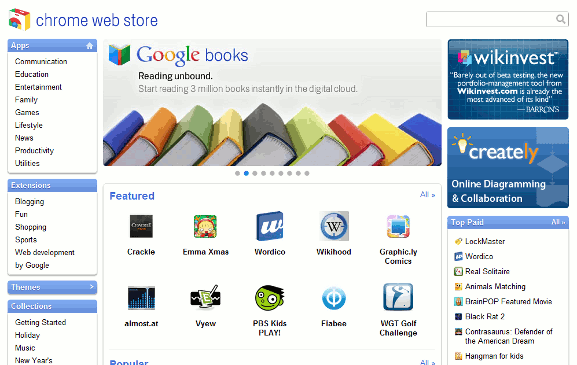
Other than web apps, it is also the unified point where you go to install extensions and themes for your Chrome browser.
How to Enable Web App in Google Chrome?
The only way to access the web store and install web apps is via Google Chrome version 8 and above. If you are using Firefox/Opera/Internet Explorer, you will have to switch your browser to enjoy the benefits.
To enable Web App, you just have to append the parameter --enable-default-apps to the Chrome application launcher.
In Windows, right click at the shortcut icon and select Properties. In the “Target” field, append the parameter --enable-default-apps to the end.
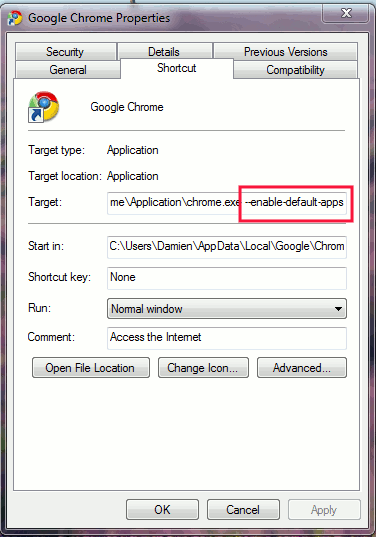
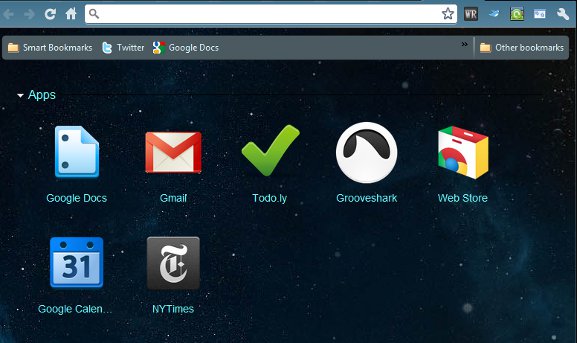
Once this is done, launch Google Chrome and open a new tab. You should see the Web store icon (Note: If you are using extension like Speed Dial, you have to disable/uninstall it to see the Web store icon).
How to Install Web App
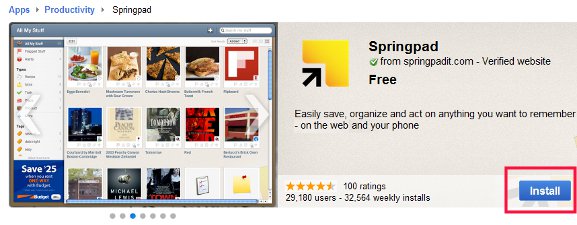
On a new tab, click on the Web Store icon to go to the Web Store page. Search for the apps you want and click the “Install” button. If you are not logged in, it will prompt you to login to your Google account. Once installed, the app icon will appear on your new tab page.
How to Uninstall Web App
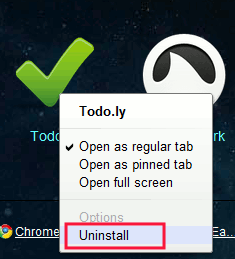
Open a new tab. You should see all your installed applications. Right click on the app that you want to uninstall and select “Uninstall”. That’s it.
Getting the best out of the Web Store
1. Pin the app
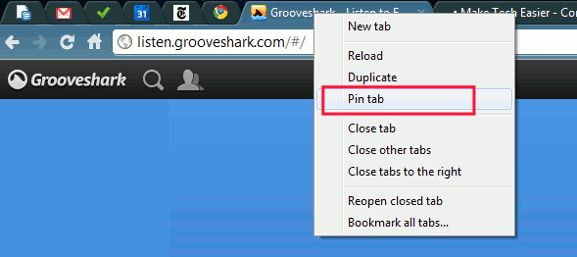
If you use an app regularly, the best way is to pin it to the tab bar so that you can access it quickly. All pinned tab will be moved to the left of the tab bar and only the favicon is visible. To pin it, simply right click at the app tab and select “Pin tab”.
2. Sync your Google Chrome account
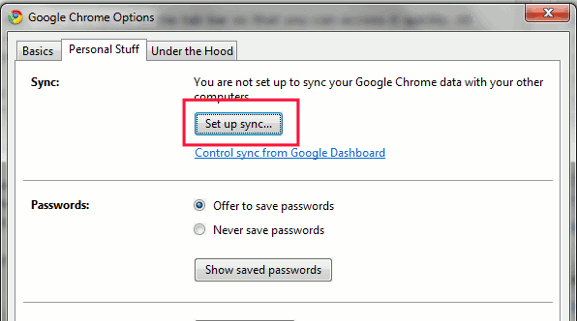
If you are working on several computers, you can setup Google sync to sync all your extensions, theme settings and web apps across the various computers. This will ensure that the web apps you installed in one computer will be ready for you to use in another terminal.
To setup Google Chrome sync, go to “Wrench -> Options“. Under the “Personal Stuff” tab, click “Setup Sync”
3. Create Application Shortcut
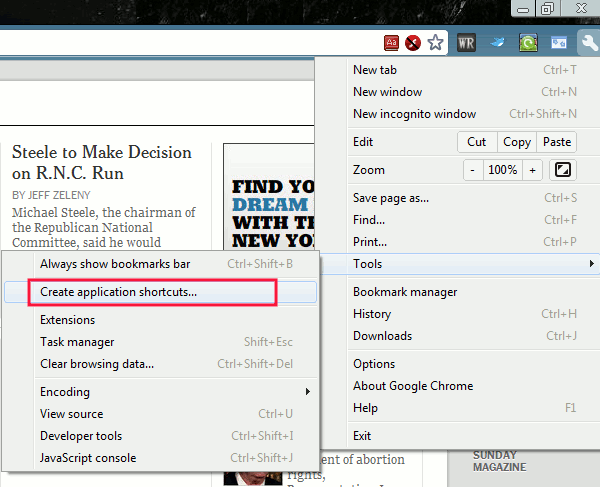
Google Chrome allows you to create an application shortcut on your desktop so you can click on it to launch the app instantly. On your app tab, click on the Wrench and go to “Tools -> Create Application Shortcuts“.
That’s all for now. We will bring you more tips and tricks when the Chrome OS is launched, or when we got our hand on the Cr-48 notebook.