Remember when Instagram was all about photos? If you miss that, Flashes might be your new favorite app. Built on top of the social network Bluesky, it puts images back where they belong, center stage. Read on to learn what it’s all about and how to get started with it.
Good to know: check our tips to customize your Bluesky feeds.
What Is the Flashes App and Who Can Use It?
Flashes is part of the next wave of social apps: decentralized, algorithm-free, and focused on putting users first. It runs on the AT protocol, the same open framework that powers Bluesky, the Twitter alternative developed by Jack Dorsey after his departure from Twitter.
Interestingly, Flashes wasn’t built by the Bluesky team themselves, but by Sebastian Vogelsang, a Berlin-based independent developer tapping into the openness of the platform. He’s the creative force behind the Skeets app too – a third-party client for Bluesky.
You can download Flashes right now from the App Store, just make sure your device is running iOS 17 or later. There’s currently no official timeline yet for an Android release.
You will also need to have a Bluesky account to start using Flashes.
How the Flashes App Works
To gain access to Flashes, all you have to do is sign in with your Bluesky credentials.
Because Flashes taps into the Bluesky network, your existing follows carry over. The app then automatically pulls image (and video) content from your Bluesky feed and reinterprets it in an Instagram-style feed: streamlined, visual, and quite familiar. It targets people who prefer to get their information in a visual style rather than in text.
This integration goes both ways. Every post you make on Flashes also appears in your standard Bluesky timeline.
Very much like Instagram, Flashes lets you build a visual grid of posts, but each can feature up to four photos or a video up to one minute long.
Tip: who needs X when you have Bluesky? Learn how to delete your former X (Twitter) account.
Using the Flashes App as Instagram Alternative
Opening the Flashes app takes you directly to your profile. Let’s be honest, it’s impossible not to see the resemblance with Instagram here.
Your profile image appears at the top, next to your handle and the Followers and Following counts. You can add your name and a description, just like on Meta’s app. You can further customize your profile by opting to show/hide likes, lists, feeds etc.
Below you will find the grid which contains the photos and videos you’ve posted on Flashes. You will need to switch to the Media tab to view these.
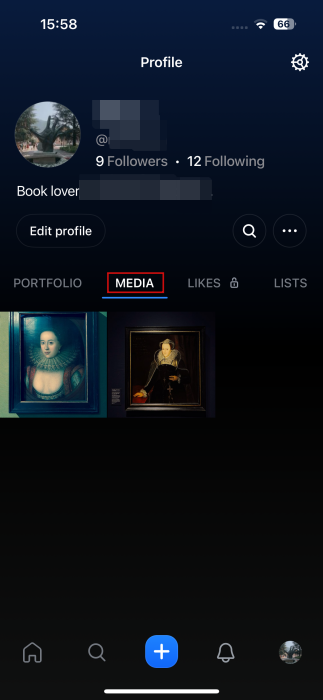
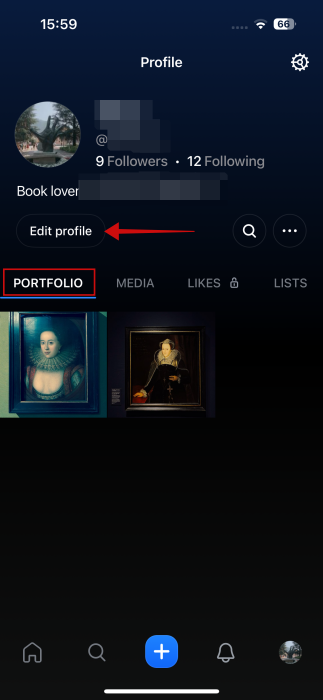
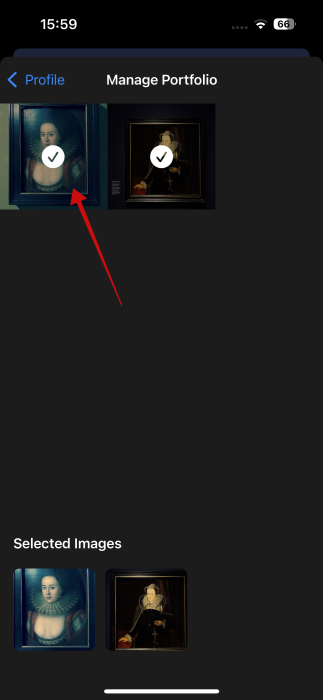
The first tab is the Portfolio tab which allows users to create a curated grid of images and videos – basically your best work. To populate this field, you need to first activate the Portfolio feature. Tap on the Edit profile option to do so.
Toggle on the option to Enable Portfolio. Below, press the Portfolio Settings -> Manage Portfolio.
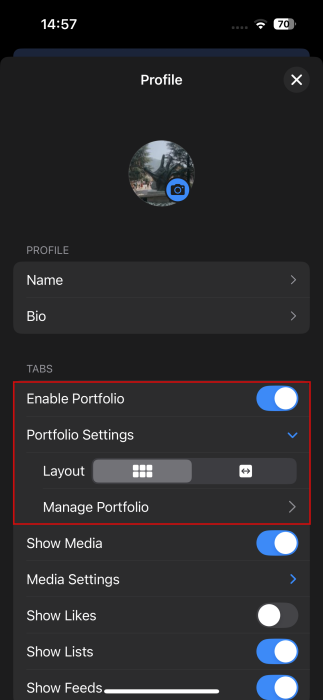
Select the images you want to appear under Portfolio. Return to Profile and you should see these under the first tab in grid.
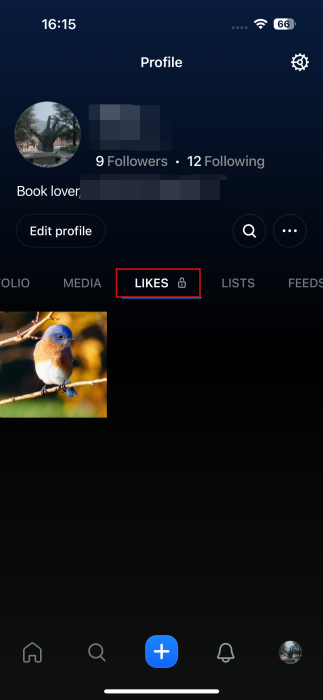
Next, if you switch to the Likes tab, you’ll see all the posts from Bluesky/Flashes you’ve liked – but in a characteristic image format.
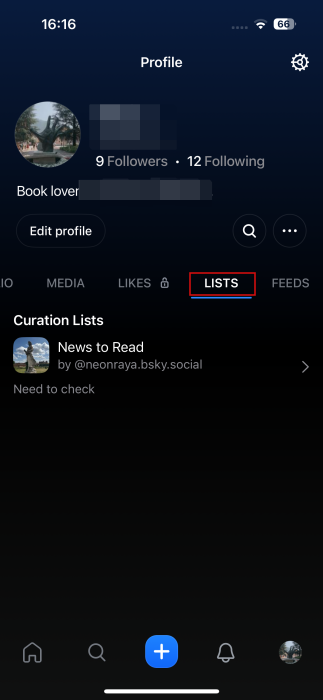
Under Lists, Flashes imports all the lists you’ve created in Bluesky. These are feeds you can create by adding specific accounts in a list.
The last tab is called Feeds and will show any custom feeds you might have created using tools such as Graze or Skyfeed.
Creating a new post on Flashes
Even the app’s overall interface is very similar to Instagram. At the bottom, you have a menu bar that features a large + new post button at the center.
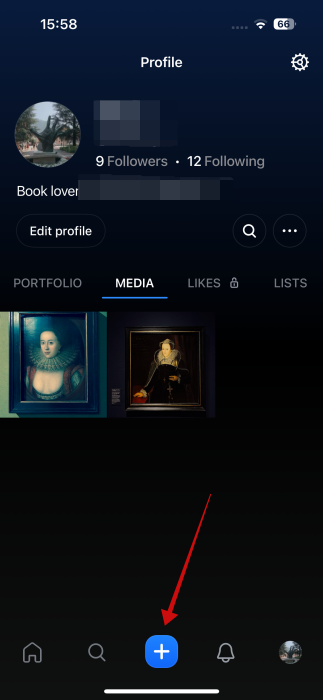
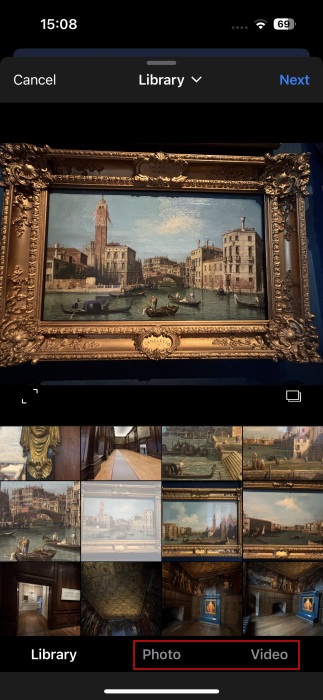
Press it and browse your gallery for an image or video you want to post. Alternatively, press the Photo or Video tabs at the bottom to snap an image or a clip.
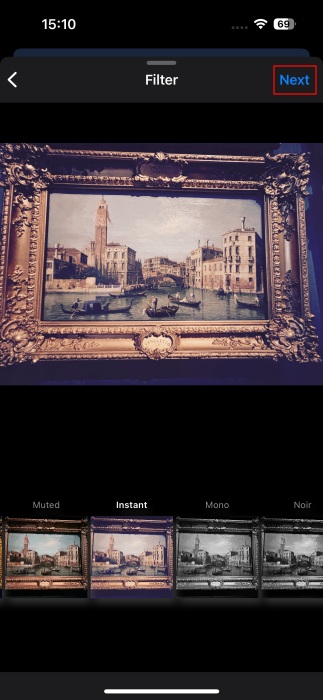
On the following screen, you add a filter on top of your image, by swiping through the available options. Then press Next.
Add a description (and an ALT description, if you want), set your privacy settings (who can reply) and press Publish.
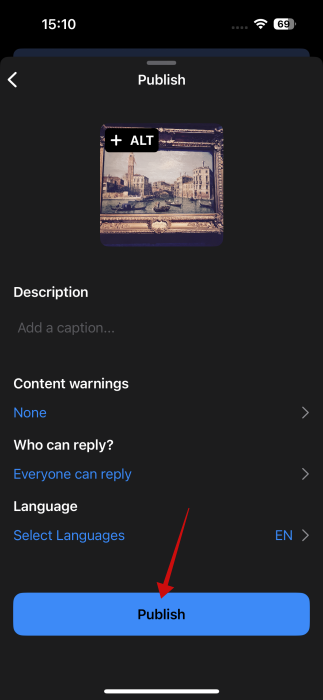
Note: you can add tags to your description similar to Instagram. This will allow other users to find your post faster through keywords.
But unlike on Instagram, you can further customize your post by adding things like text, stickers, and more.
Once posted on Flashes, the image will automatically appear in your Bluesky feed as well and people can like and comment on it.
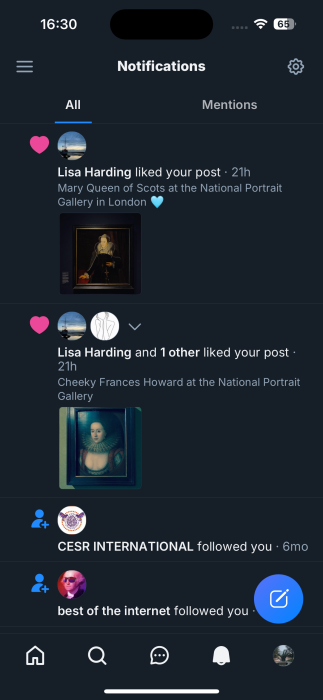
Browsing Your Flashes feed
Accessing your feed in Flashes is simple. Tap on the Home button at the bottom and start swiping.
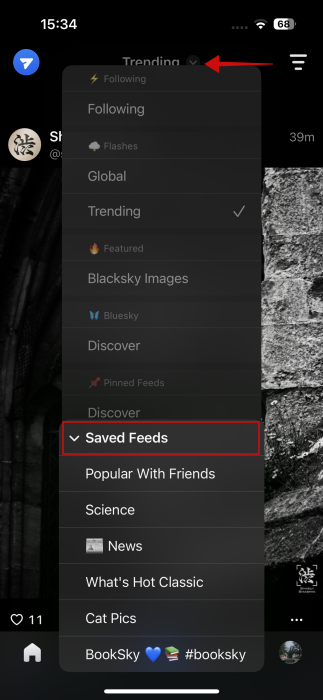
By default, you’ll see your Following feed, which contains posts from people you follow on Bluesky. But if you want to discover more content, tap Following at the top and switch to one of the other options.
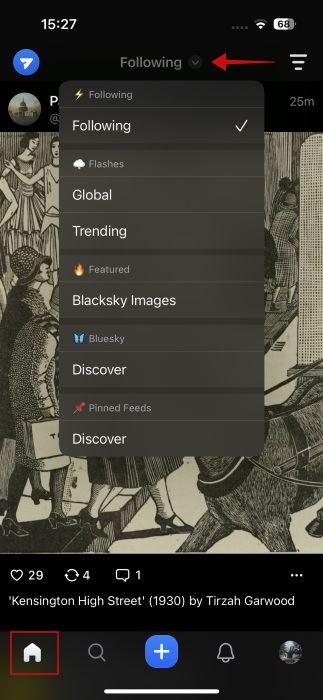
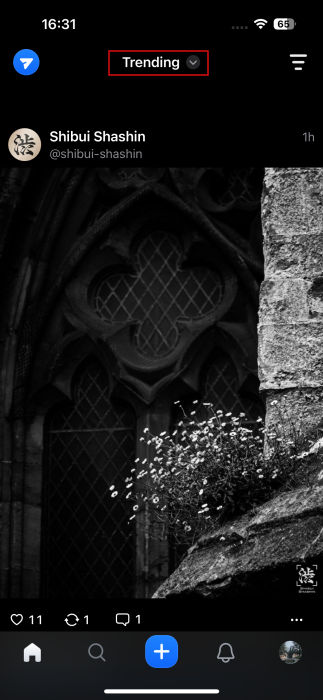
For instance, Trending features posts that are on the rise on the Flashes app. Alternatively, you can opt for Bluesky Images and browse a feed of pictures sourced from Bluesky posts. Or check out Discover.
Searching on Flashes
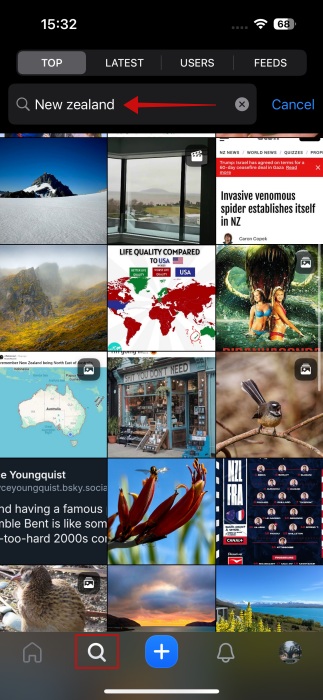
Like on Instagram, the second icon (the magnifying glass) in the menu bar at the bottom allows you to search Flashes for posts using keywords, find users, follow feeds, and more.
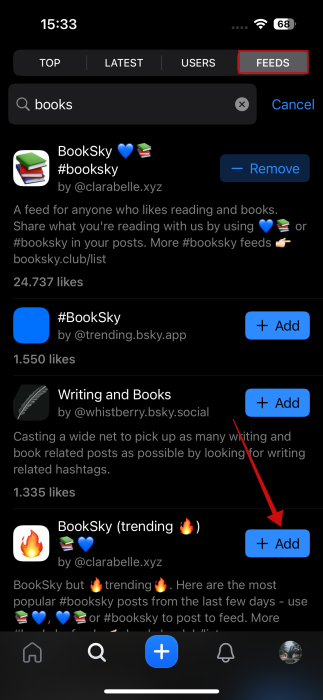
Feeds is a cool feature that allows you to follow posts based on your interests. For instance, we’ve searched for “books” as we’d like to receive info regarding new releases or interesting reads. Press the Add button to expand your Feed list.
You can access these feeds, by switching back to the Home tab, tapping on the current feed at the top, and tapping on Saved Feeds. Select a specific feed from there.
Sending Direct Messages
You can send DMs in the Flashes app just like you can on Instagram. You’ll find your inbox by heading to the Home tab and tapping the blue paper plane icon in the upper left corner.
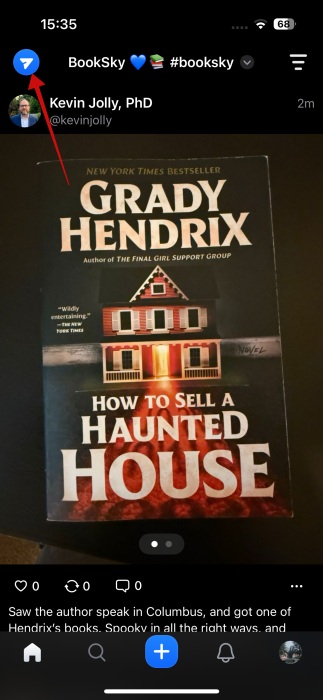
The arrangement is similar to Instagram, where the paper plane DM icon is situated in the right corner of the feed.
What about Reels?
Reels are the most popular Instagram feature right now. You might be wondering, can you browse short-form videos on Flashes? Turns out that you can, but using a small workaround. Go to Search -> Feeds and search for “video.” Add the first option which says “by Bluesky.”
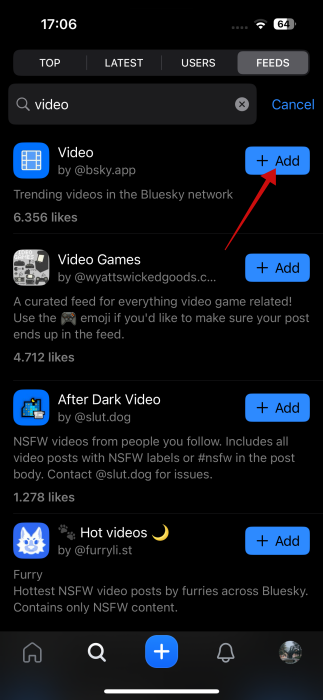
Now go back to Home and switch to the Video tab.

Now that you have the basics of Flashes you can go ahead and explore the app yourself. On the other hand, if you find you don’t enjoy it that much, you might want to check our list of Instagram alternatives for photographers.








