“Charging this device via USB” is a notification that pops up once you connect your Android device to your PC. If you’re unable to see it on your phone, and it’s preventing you from starting your file-sharing session between devices, read these solutions on how to bring it back.
Good to know: did you know that you can double tap on your Android screen to turn off its screen?
Basic Troubleshooting
We encourage you to first go through this quick checklist before attempting the more specific solutions outlined below.
- Pull down the notification shade – on some phone models (for instance, my own Pixel 8) the notification is silent. Meaning won’t see a small icon at the top of your phone. To view it, you have to pull down the notification shade on your phone by swiping from the top of your device.
- Restart your Android device – a simple restart can often resolve minor software glitches. Restart your Android phone, then check whether the notification reappears when you plug it back into your PC.
- Check for software updates – ensure that your Android device software is up-to-date. Sometimes, system updates can address issues related to charging and USB connectivity. Navigate to Settings -> System -> System update to see whether a new update is available for your device.
- Make sure Airplane mode isn’t turned on – if you accidentally turned on Airplane mode, you won’t see the notification if you connect your phone to your PC. Bring up Quick Settings on your phone and disable the Airplane mode toggle.
1. Try a Different USB Cable and USB Port
One thing you should try if you’re not seeing the “Charging this device via USB” notification on your phone is connecting the phone to your PC with a different USB cable. Even if you’ve been using your phone’s native USB cable, try using another one, as through extended usage, the cable may have malfunctioned. You may not have to buy a new one, as there’s a good chance that you have an extra cable around the house. If not, maybe you can borrow one.
If you’re using a USB-C to USB-C cord, try switching to a USB-C to USB-A cable. It may be all you need to fix the issue.
On the PC end, connect the USB cable to a different USB port to see whether that makes a difference. If the issue is that the USB 3.0 ports are not working, make sure you check out this list of solutions.
Tip: in this context, it might also be worth knowing how to check the power output of a USB port on your device.
2. Enable/Disable Developer Mode
Another fix that may be worth trying is enabling Developer Mode, or disabling it if you previously activated it and then enabling it again.
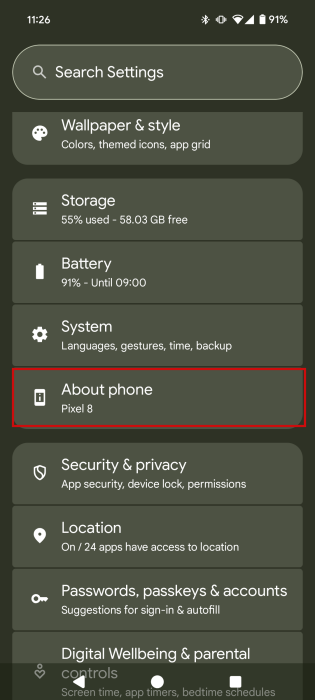
If you want to enable Developer Mode, open your Android phone’s Settings app and navigate to About phone.
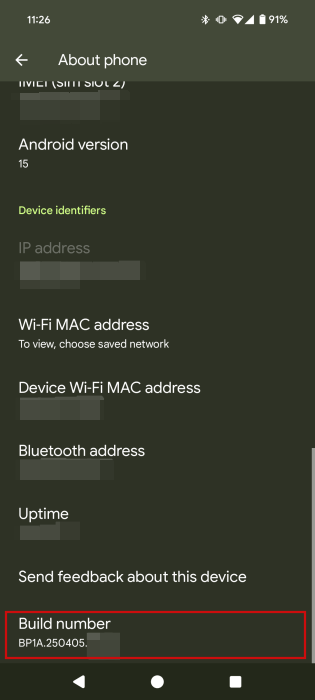
Swipe down until you find Build number, and tap on the option for a total of seven times.
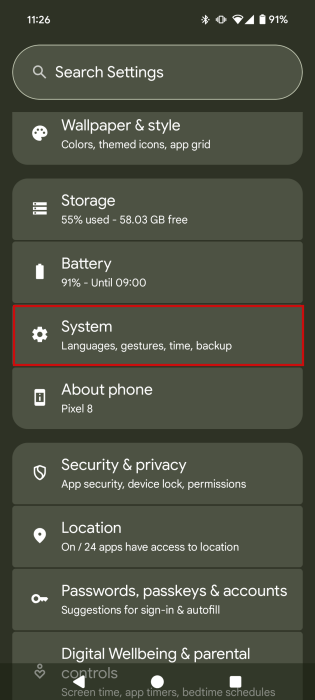
When you see a toast notification alerting you that you’re a developer, go back to the Settings app’s main screen, and tap on System.
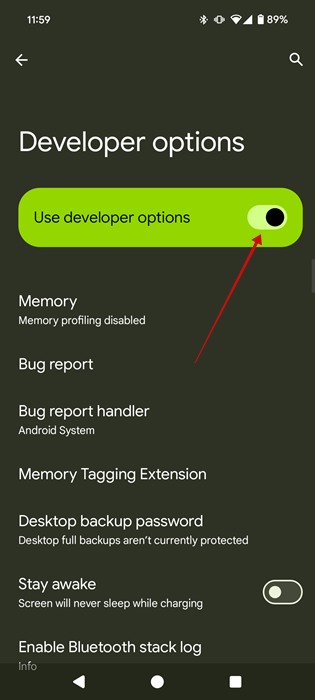
Swipe down and tap on Developer options.
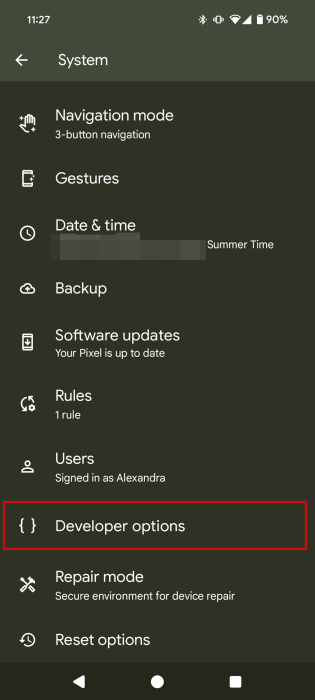
Use the search function in the top right to search for Default USB.
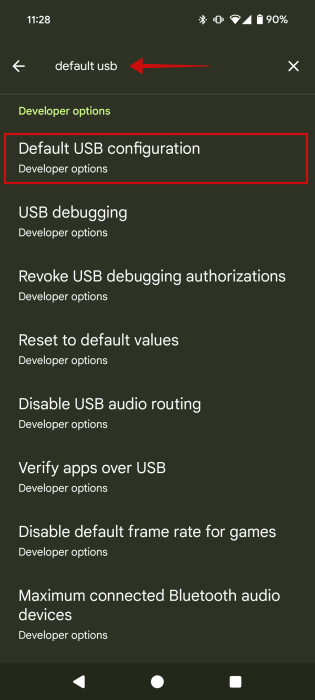
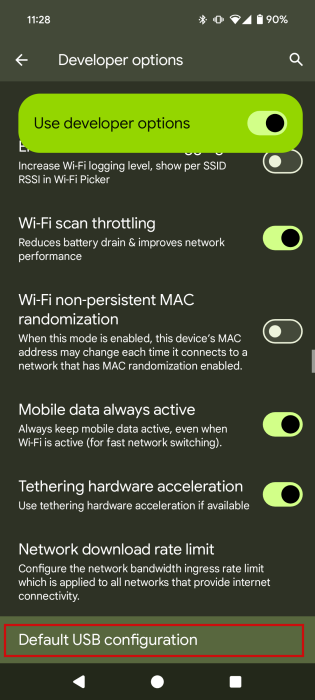
When you are taken to the Default USB configuration option, tap on it.
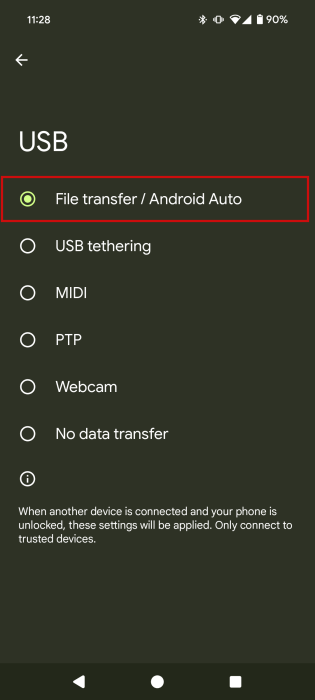
You can switch to USB File transfer on the next screen, even without the notification.
If enabling the mode did not bring the missing notification back, toggle off Use developer options at the top of Developer options to see what happens. Turn it back on again, and try connecting again.
FYI: did you know that Chrome on Android can now double as a PDF reader? Here’s how to take advantage of this new capability.
3. Activate Transfer Mode from Settings
This method won’t bring your notification back, but it will allow you to initiate a file transfer between your Android device and PC. If the connection between the two devices was established, but the notification has gone missing for whatever reason, you should be able to switch to USB transfer mode from Settings. Open the Settings app on your Android, and navigate to Connected devices.
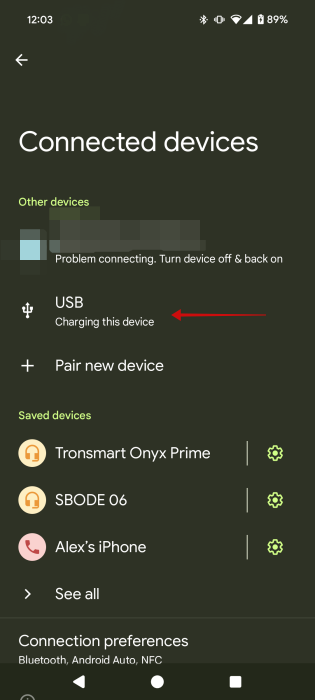
If a USB connection has been created, tap on USB under Other devices.
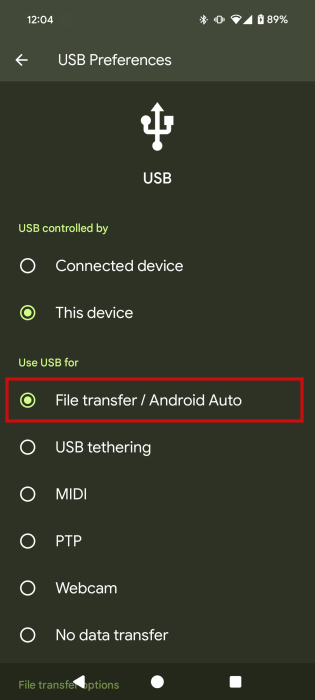
Switch to File transfer on the next screen.
4. Check the Drivers on PC
Make sure you have the necessary USB drivers installed on your Windows PC. Open Device Manager from Search, then navigate to Other devices, and expand it. Keep an eye out for entries featuring a yellow exclamation point: it means there are issues with it. At this point, you may need to update or reinstall the driver(s) in question, so check out our guides to learn more.
Tip: here’s how you can view your notification history on Android.
5. Perform a Factory Reset
If, despite your efforts, you’re still not seeing the “Charging this device via USB” notification on your Android device, and these alternative methods have failed to aid you in initiating the file transfer, you may want to consider the possibility of performing a factory reset.
Just remember that if you don’t back up all your files and data before you initiate the reset, you will risk losing everything in the process. For suggestions on how to get started with your backup, read our guide here.
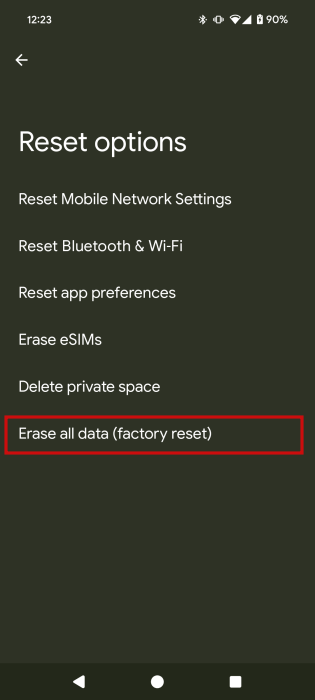
Once you’ve done so, navigate to Settings -> System -> Reset options.
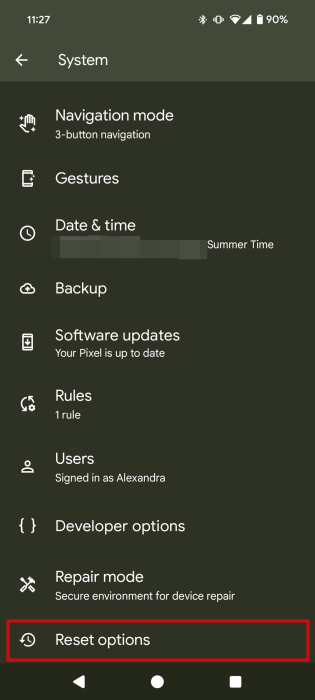
Select Erase all data (factory reset) to initiate the great wipe out.
6. Try an Alternative Method of Transferring Files
You don’t necessarily have to go through with the factory reset if you don’t have time to do so right now. Instead, you can opt for an alternative method of transferring files. You can make this happen remotely without connecting your phone to a PC via a cable.
Check out our guide that highlights some of the options available, including using the Microsoft Phone Link service or your email app.
Charging This Device via USB Notification: Why It’s Important
Perhaps you’re wondering – why is this notification really important? Well, seeing the “Charging this device via USB” message lets you know you’ve successfully connected your Android phone to your PC, and also that the phone is currently charging.
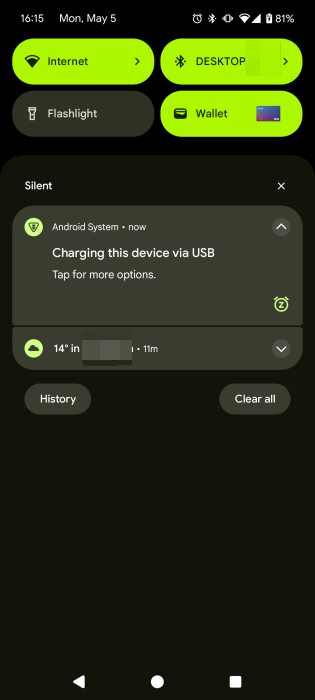
Most importantly, by tapping on it, you can easily access the USB Preferences menu. This allows you to change the Use USB for status to File Transfer to start sharing between your Android device and your computer.
With the notification gone, you may find yourself at a loss for how to transfer your files between devices.
While this article outlines solutions for retrieving a lost notification, there are instances when you may want to hide your notifications instead. If privacy is important to you, learn how to hide your notifications on the lock screen. Alternatively, if you want a complete break from notifications, you can turn them off temporarily.








