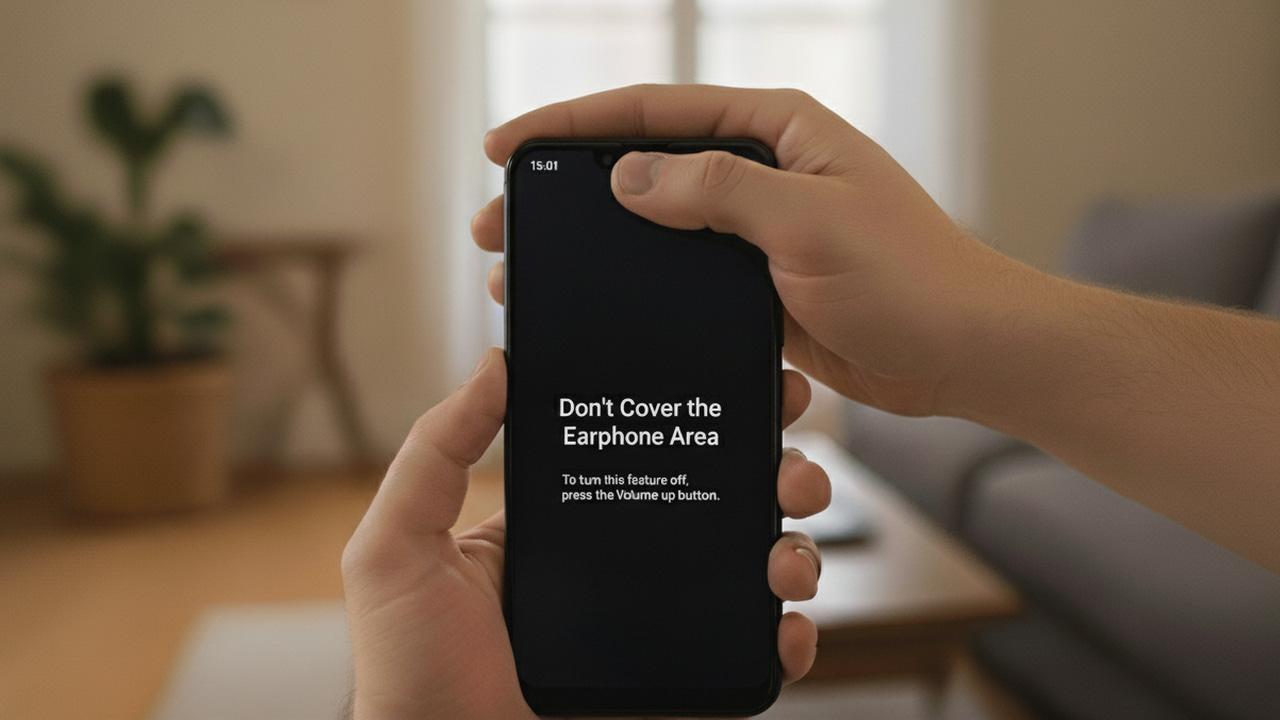
The “Don’t cover the earphone area” message can be very annoying on Android, as it doesn’t go away by simply tapping around. However, if you are seeing this message, it means something isn’t right because this message should only appear when your phone is in your pocket and out of your sight. This guide will show you how to stop the “Don’t cover the earphone area” message from appearing when it shouldn’t.
Why You Are Seeing “Don’t Cover the Earphone Area” Message
Android phones have a built-in feature to prevent accidental touches when the phone is in a pocket or any other pressed area. It uses the phone’s proximity sensor to see if the phone is in a covered area – like a pocket – to disable touches. However, this should only happen when the phone is in such an area; you shouldn’t see this when picking up the phone or using it.
If you are seeing this message during normal phone usage, then something is wrong with the proximity sensor that you need to fix.
Clean the Proximity Sensor
The most common reason for this message is a dirty proximity sensor. Over time, dust and grime can block the proximity sensor, which can lead to it showing the message even when not covering the proximity sensor. You can clean the proximity sensor to fix the problem.
The proximity sensor is located near the earpiece at the top of your phone. On most newer phones, you can’t see the proximity sensor. So it’s best to just clean the full earpiece and the surrounding area to clean the proximity sensor with it. To clean, use a lint-free cloth or cotton swabs and clean the area of all visible dirt.
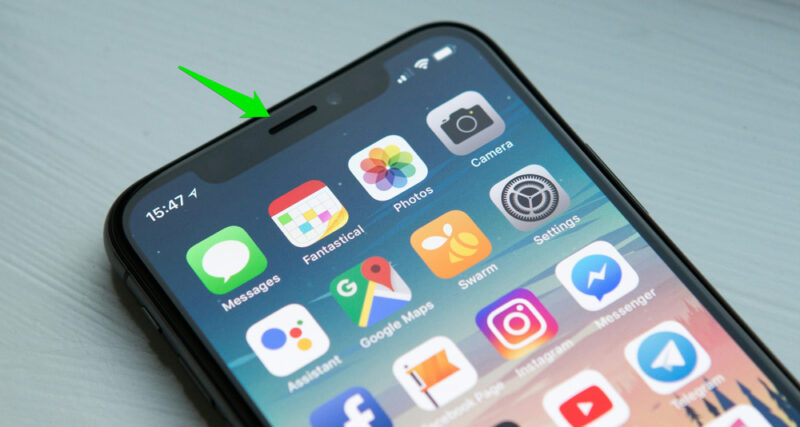
You can also moisten the tip of a cotton swab with 70% isopropyl alcohol and gently wipe the area to remove greasy residue. Once clean, you should stop seeing the “Don’t cover the earphone area” message. You can follow our phone cleaning guide to prevent this in the future.
Check Phone Cover and Screen Protector
There is also a possibility that your phone cover or screen protector is messing with the proximity sensor. Take off the phone cover and see if the problem persists. If this fixes the problem, you’ll have to buy a phone cover that doesn’t cover the earpiece area or cut the area that is covering it.
The same applies to screen protectors, but taking them off can be permanent. In most cases, a slim screen protector isn’t the cause of this issue, so you can just move to the next method. However, if you have a bulky screen protector, then it’s worth taking it off to confirm.
Reset Proximity Sensor
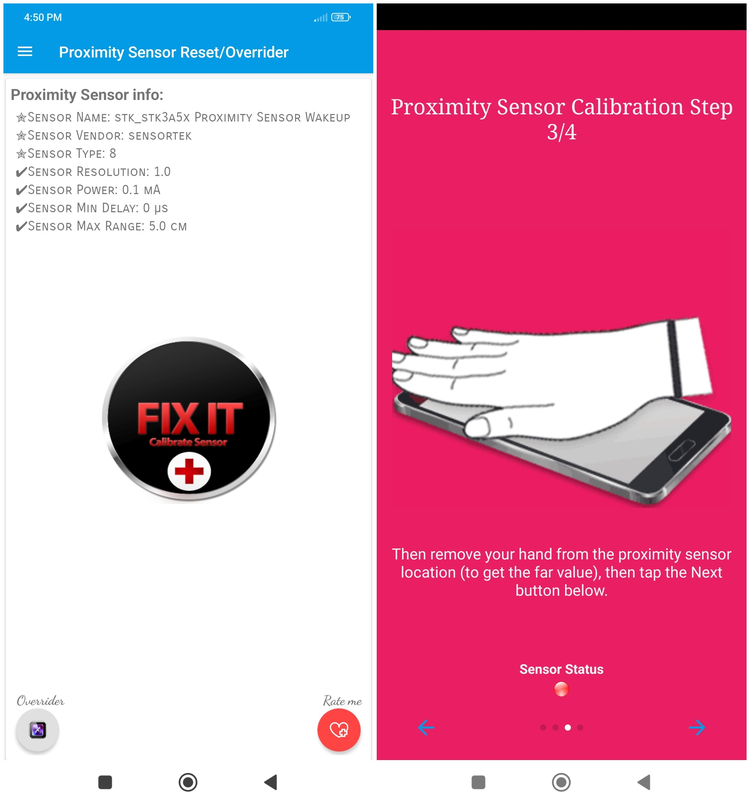
If nothing is blocking the proximity sensor, there is a chance proximity sensor is malfunctioning and causing the message to appear. You can recalibrate the sensor to fix software issues. We recommend the Proximity Sensor Reset/Fix app for this, as it can reset the proximity sensor for free in a few easy steps.
Just tap on the Fix it button, and the app will instruct you to place and remove your finger over the sensor to record close and far values. It will then apply the values (phone restart required).
Disable the Accidental Touch Feature
If the above methods don’t fix the problem, then maybe the proximity sensor has a hardware problem. In that case, disabling the accidental touch feature would be better than having to close the “Don’t cover the earphone area” message every time you use the phone. After disabling, this message will stop appearing, but you need to be careful about unintended taps when the phone is in your pocket.
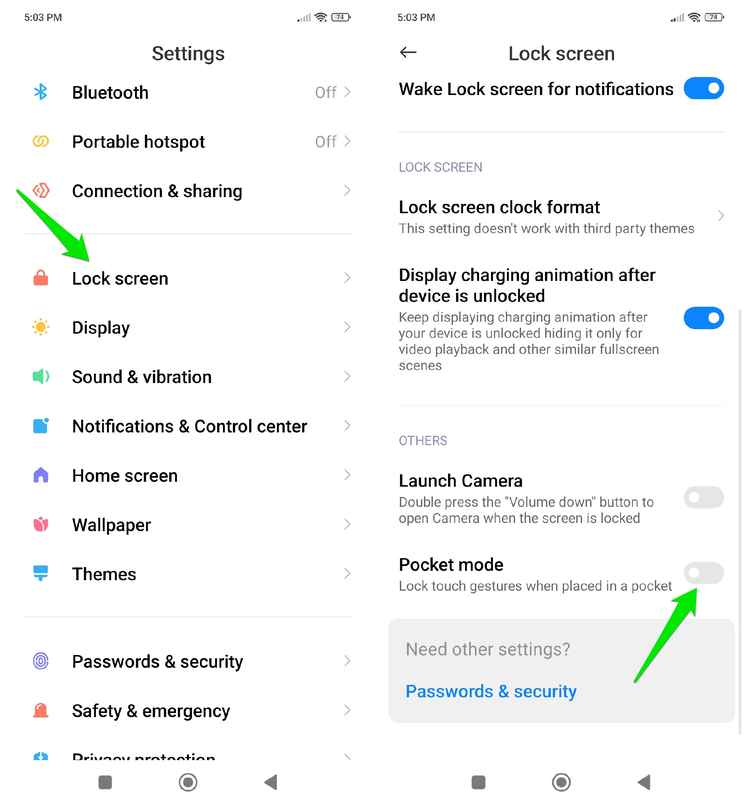
This feature has different names depending on the manufacturer, like Accidental Touch Protection on Samsung phones or Pocket Mode on Xiaomi phones. You can use keywords like “pocket” or “touch” in the search box of phone Settings to find it. It should be under the Lock screen or Display settings. Once found, just toggle it off.
There is no need to panic when you see this message; it’s not an error. Usually, a bit of cleaning is more than enough to fix it. You can even disable the feature if it gets too annoying, unlike some other critical errors on Android that require complex repair methods.








