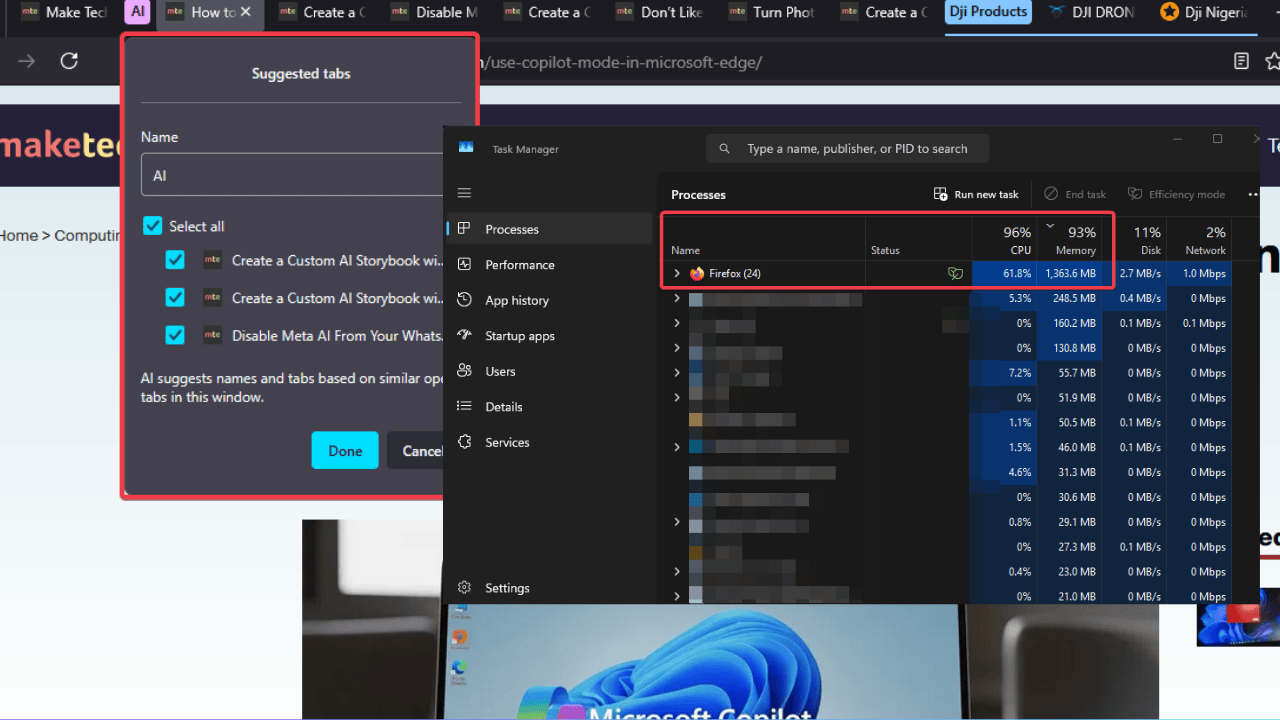
Hey, Firefox fans, have you noticed your laptop fan screaming lately? You’re not alone. The latest Firefox 141 update shoehorned in an AI tab groupings feature, and causes CPU spikes that slow down browsing and drain the battery. Of course, it’s got users fuming.
As a longtime Firefox user myself, I’m bummed too; nothing stings like your trusty browser betraying you with bloat. Let’s unpack why this AI stuff is annoying, what it means for your browsing, and how to tame it fast.
The Problem with Firefox’s AI Tab Grouping Integration
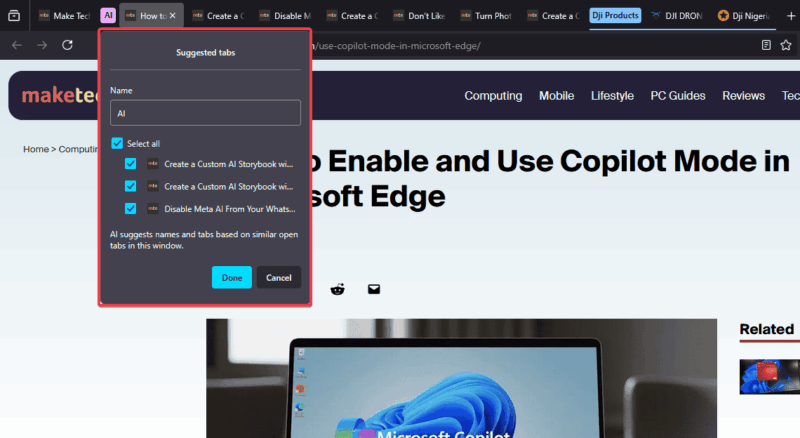
Firefox’s new AI-enhanced tab grouping sounds cool, automatically organizing your chaotic tabs into tidy groups using an on-device AI model. This model analyzes the content of each open tab, groups them, and generates a name for the group based on their semantic relationship.
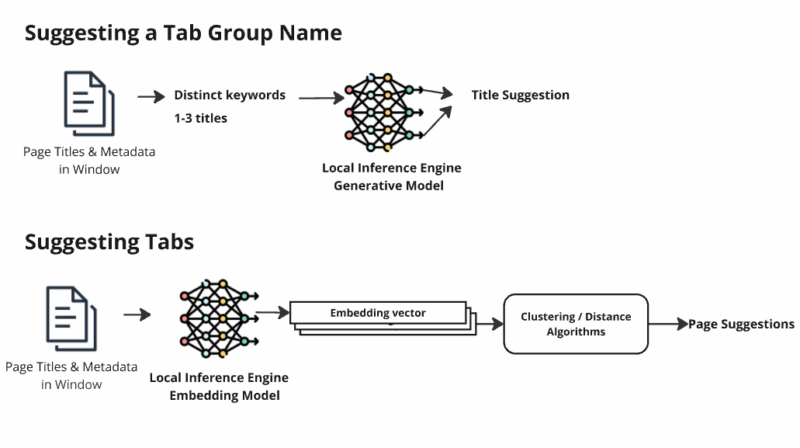
However, it’s a total resource hog. The inference process tied to this Firefox AI feature can chew through your CPU like a kid devouring Halloween candy.
On my aging laptop, grouping a few tabs felt like running a video game on high settings. Fans whirring, battery draining, and everything lagging.
Users on Reddit are calling it “bloat,” and I get it. Mozilla’s supposed to be about speed and privacy, not jumping on the AI bandwagon.
Sure, on-device AI is better than Chrome’s cloud-based Tab Organizer, but when your battery dies mid-Zoom call, who cares? Privacy becomes a small consolation.
Note: if you want to tame other AI-heavy browsers like Edge, you can disable Copilot in Microsoft Edge.
Workarounds to Mitigate the AI Bloat
The good news is, you can fight back against this Firefox AI feature causing CPU spikes without dumping Firefox.
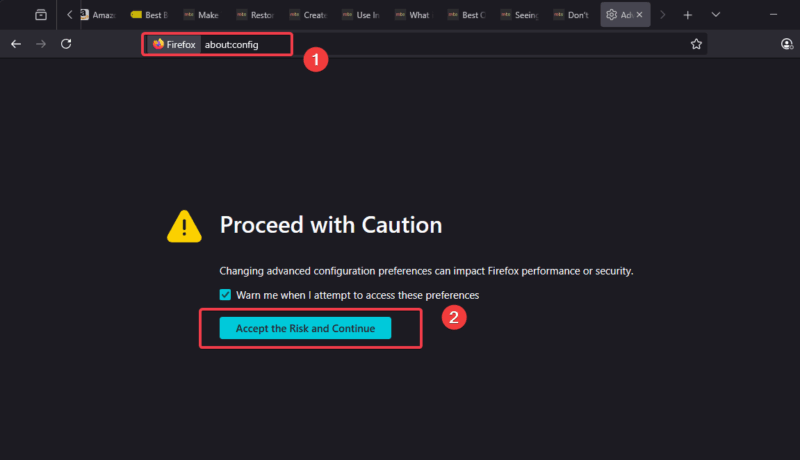
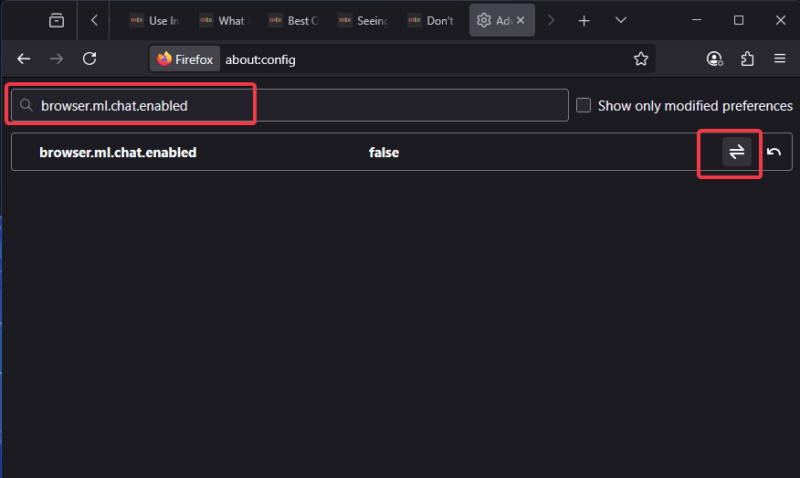
Head to Firefox’s advanced settings by typing about:config in a new tab, and accept the risk warning.
Search for browser.ml.chat.enabled and set it to False to turn off the AI chatbot feature.
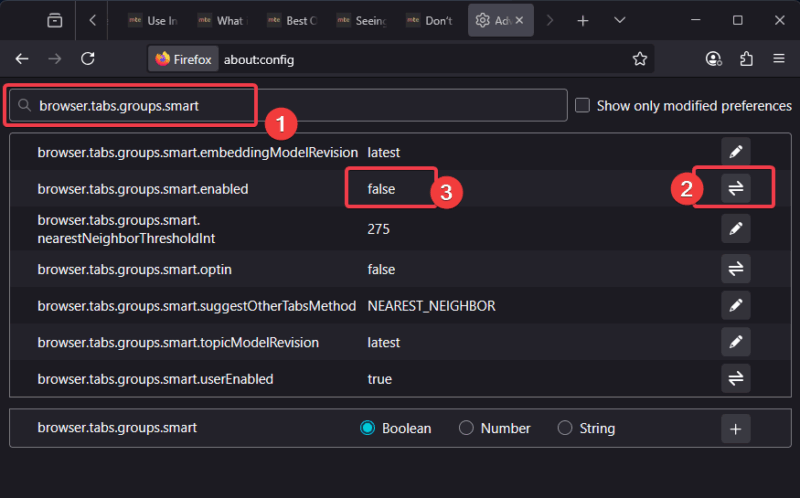
Staying on the page, search browser.tabs.groups.smart.enabled, and set it to False to stop the AI smart tab grouping feature that causes CPU spike.
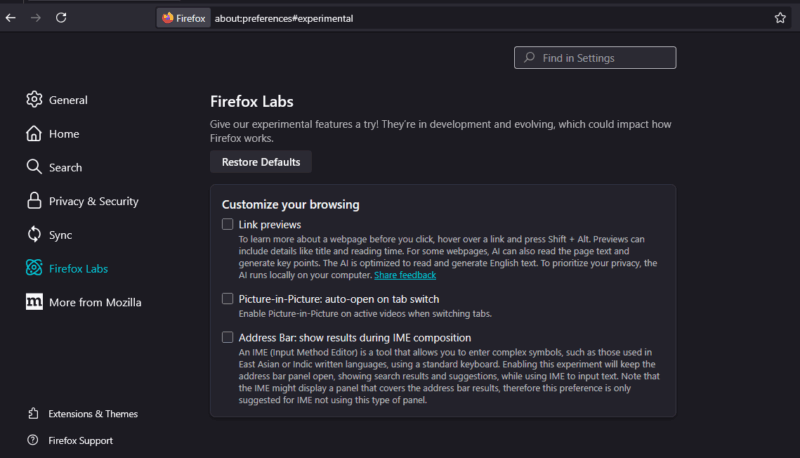
You can also hide the AI sidebar and other features by disabling them in Settings -> Firefox Labs, but updates might turn it back on.
For more tweaks, see how to disable AI models in Firefox for step-by-step guidance. You can try uBlock Origin to block resource-heavy scripts or switch to Firefox ESR to skip the AI nonsense entirely. Pro tip: keep an eye out on your browser’s resources via the Task Manager.
This Firefox AI feature that causes CPU spikes is a bummer, making a great browser feel sluggish. Disable the AI, and you’re back to smooth sailing. Mozilla needs to hear us: we want a fast, private browser, not an AI playground.








