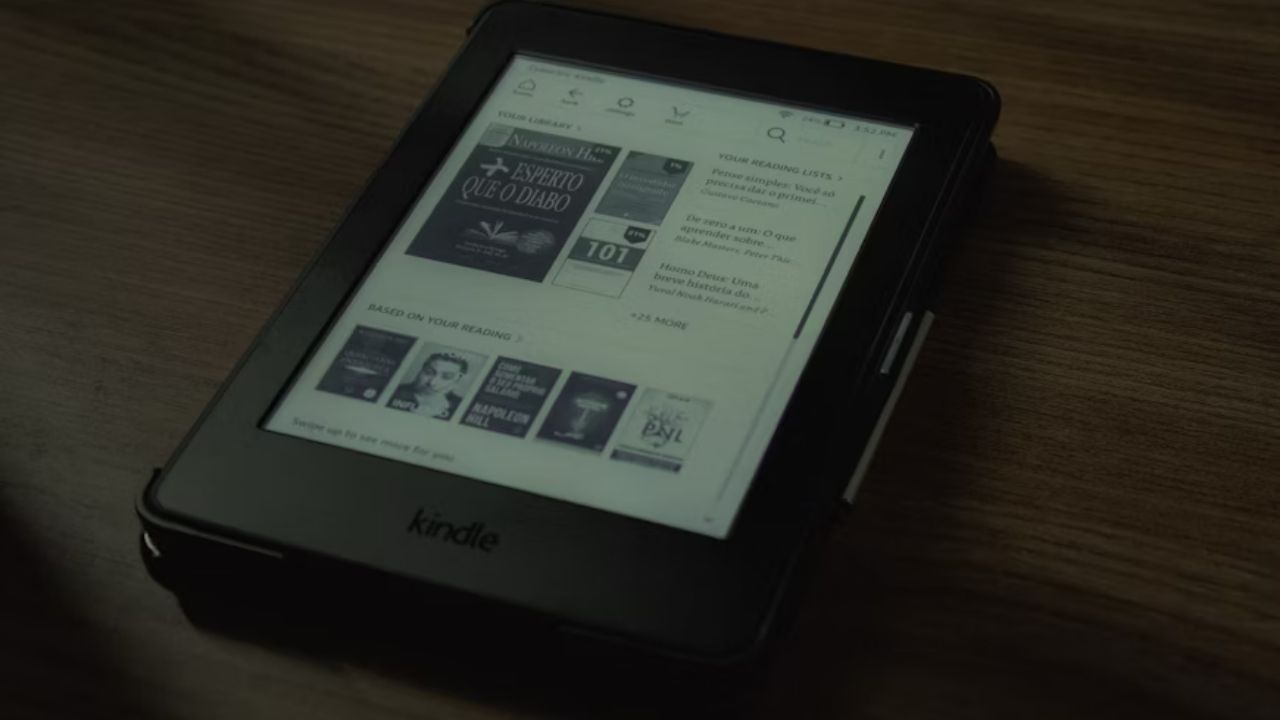
Amazon’s ad-supported Kindles are great for saving a few bucks, but those lock screen ads can sometimes be cringeworthy due to inappropriate content. Thankfully, Amazon’s latest 5.18.3 software update finally lets you filter ads on the Kindle lock screen, keeping things family-friendly and less awkward. Let’s break down the feature, explain how to use it, and discuss why it’s a big win for users like you.
What’s New with Kindle’s Ad Filters?
Amazon just released a new update for Kindle Scribe, Color soft, and 11th/12th-gen Kindle and Paperwhite models. If you’re unsure which Kindle suits you best, check our Kindle models comparison.
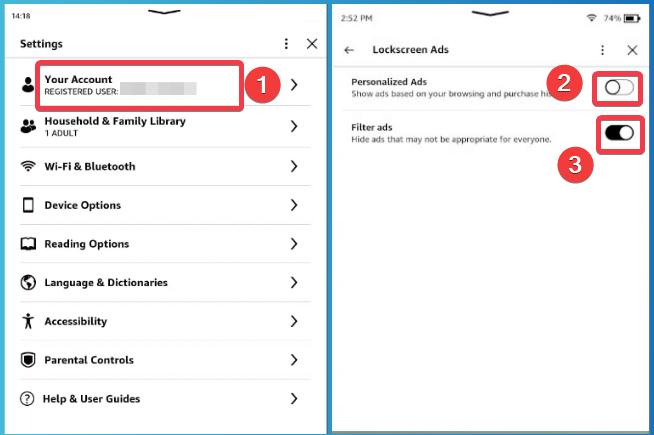
This update introduces two settings to filter ads on your Kindle lock screen. First, you can turn off “personalized ads”, so Amazon stops snooping on your browsing and purchasing history to pick ads.
Second, a new “filter ads” option to hide inappropriate content like spicy romance novel cover ads, or not-safe-for-work stuff.
While Amazon decides what’s inappropriate, this update is a solid start to help keep your Kindle lock screen ads filtered and less cringey.
Enable Ad Filtering on Your Kindle
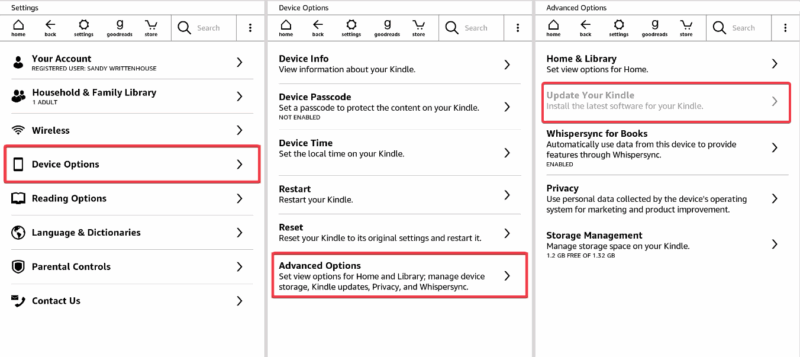
Setting up the Kindle lock screen ads filter is a breeze. Go to Settings -> Device Options -> Advanced Options -> Update Your Kindle. If it’s greyed out, that means you’re using the latest update for your device
Then, navigate to Settings -> Your Account -> Lock screen Ads. Toggle off Personalized Ads to stop Amazon from using your data for ads. Turn on Filter Ads to block anything that’s not suitable for public viewing.
Extra: You can check out our best Kindle tips and tricks for more hacks.
Why This Feature Matters
Most users opt for the cheaper ad-supported Kindle models to save money. Hence, the reason this ad filtering feature is huge for budget-conscious readers.
No more hiding your screen when an awkward or explicit ad pops up in front of family or friends.
Filtering ads on your Kindle lock screen also boosts your privacy by ditching those creepy, targeted ads based on your tracked Amazon history.
If you want to ditch Amazon’s ecosystem altogether, you can explore using Kindle without an Amazon account.
Limitations to Keep in Mind
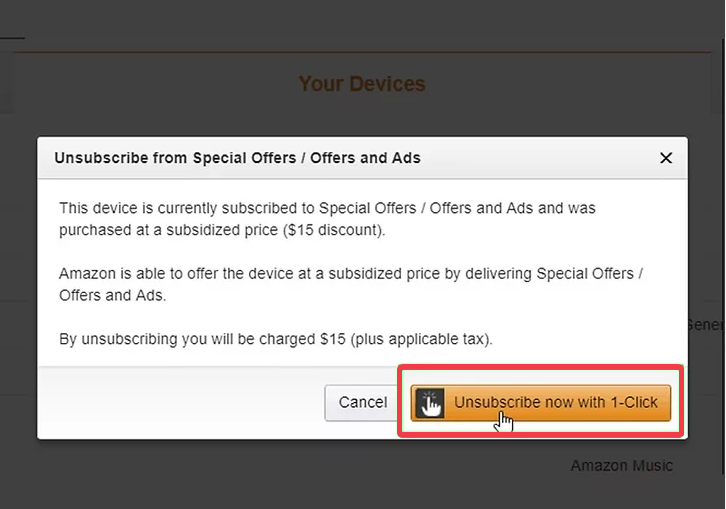
The Kindle lock screen ad filter feature isn’t perfect. Ads don’t just vanish completely unless you fork out almost $20 to unsubscribe from them completely on Amazon’s Manage Your Devices page.
Besides, Amazon decides what’s inappropriate, so you’re stuck with their judgment. Some random inappropriate ads might still slip through, which can be annoying.
What’s the Bigger Picture
Ad-filtering update is long overdue, considering there have been user complaints to Amazon for like 14 years, since ads were first introduced, about inappropriate lock screen ads.
By offering this feature, Amazon shows it’s listening to feedback while keeping ad-supported Kindles affordable. This could even set a trend for other ad-driven devices to rethink their models, putting users first.
Amazon’s 5.18.3 update lets you filter ads on the Kindle lock screen for a cleaner, less awkward, and more private vibe. It’s not completely ad-free, but it’s a solid step to show support for Kindle fans on a budget. Update your device, tweak those settings, and enjoy! You can drop your thoughts or questions on this in the comments.








