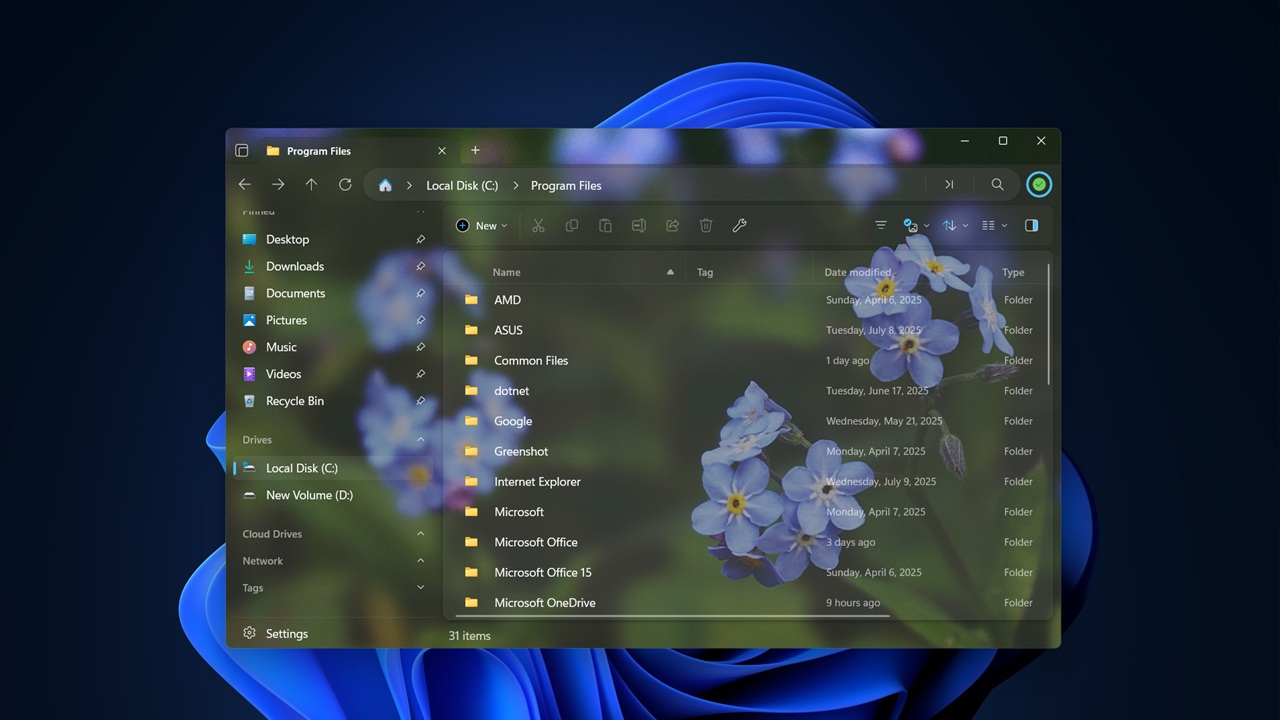
Looking for a smarter alternative to Windows’ File Explorer? The Files app offers a refreshing take, now with a new Omnibar that streamlines navigation and search into a single, easy-to-use bar. Ready to give it a try? Here’s how.
Good to know: learn how to enable File Explorer tabs on your Windows PC.
What’s the Files App for Windows?
Files is a open source File Explorer alternative that closely mirrors the original in design, although its approach feels more modern. You’ll find the familiar navigation pane on the left, providing quick access to your folders and drives, and the content area on the right, where files and folders are displayed. If you’re used to File Explorer, you’ll feel right at home.
It packs all the features you get with File Explorer plus some useful extras like tagging and split view for multitasking. Most recently, it introduced the Omnibar, which combines the breadcrumb path, search box, as well as the Command Palette (we discuss this option further below) into one streamlined tool.
The new feature is available now. You’ll need to grab the latest Preview build from the Files download page to take it out for a spin.
Using the Omnibar
With its breadcrumb-style layout, the new Omnibar makes it easy to see exactly where you are in your file system. Each breadcrumb is expandable, revealing subfolders for faster navigation. On the far left, a Home icon provides quick access to pinned items and frequently used directories.
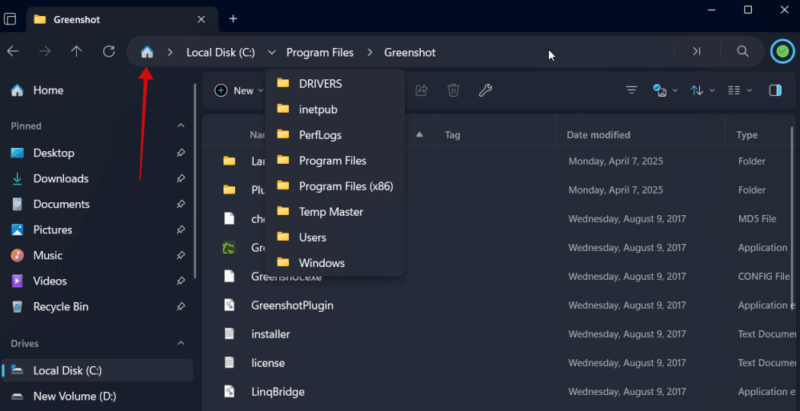
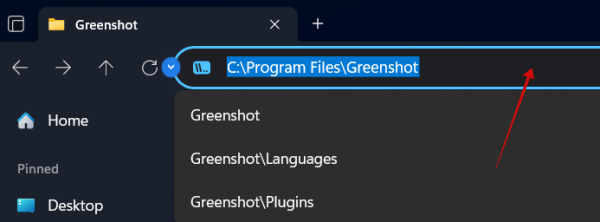
If you need to edit the path, all you have to do is click on an empty space in the breadcrumb menu. You can perform the modifications from there. Alternatively, you can try using the Ctrl + L keyboard shortcut.
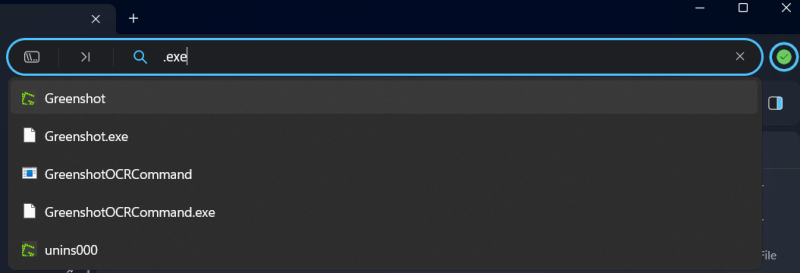
Switching to search for a certain file or folder is also super easy now. Click on the magnifying glass on the far left of the Omnibar.
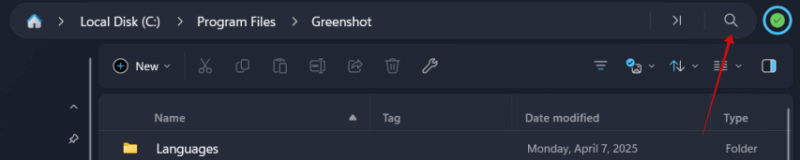
Files will immediately show the best hits below. If you want to perform an in-depth search, press Enter.
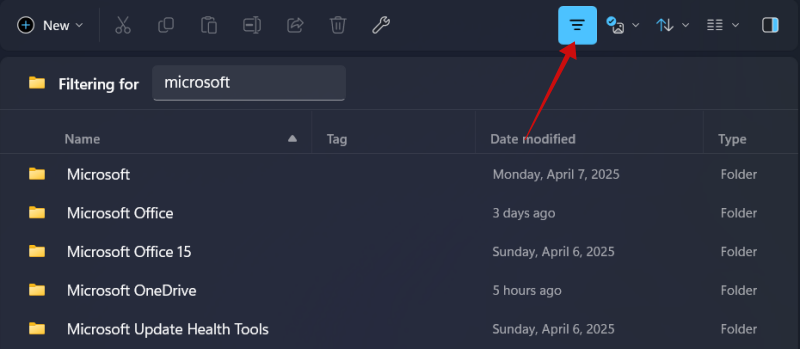
There’s also the option to filter through files and folders. You’ll find the icon for that below the Omnibar on the right.
Finally, the Omnibar offers access to the Command Palette by clicking on the dedicated icon. Previously, the Command Palette was only accessible through Ctrl + Shift + P keyboard shortcut, but now the option is more visible and accessible.

Clicking the icon reveals a list of available actions along with their keyboard shortcuts. These actions are commands you can perform on items like files, folders, and images.
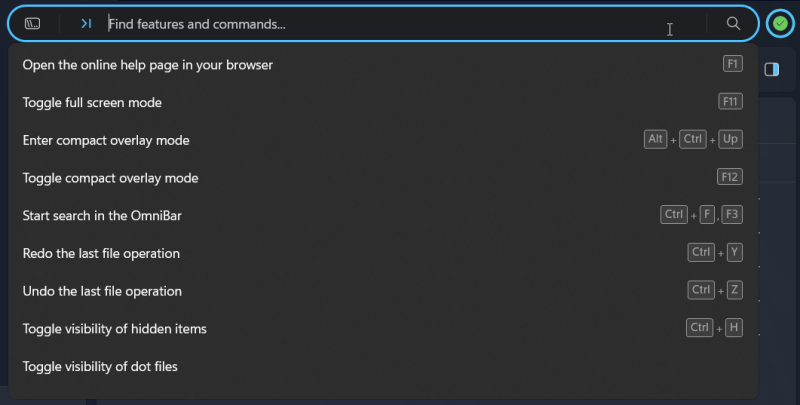
If you’re not sure which keyboard shortcut performs a specific action, the Command Palette can help you find it. A total of 150 supported actions are available, and you can easily search by keyword to find them.
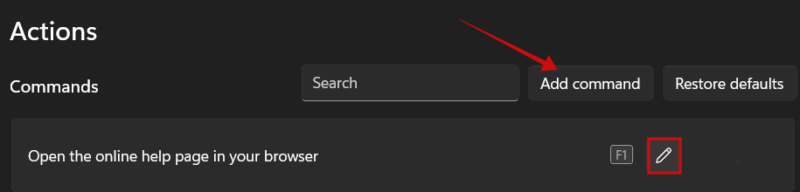
If you need to check the complete list of supported actions, go to Files -> Settings -> Actions.
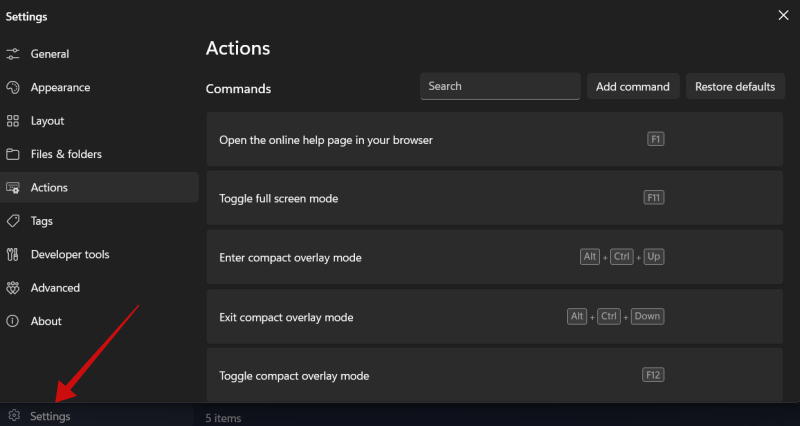
You can edit a command for an action from here, and even create your own keyboard shortcut combo.
Disabling the Omnibar
In case you don’t want the Omnibar, navigate to Settings -> Advanced.
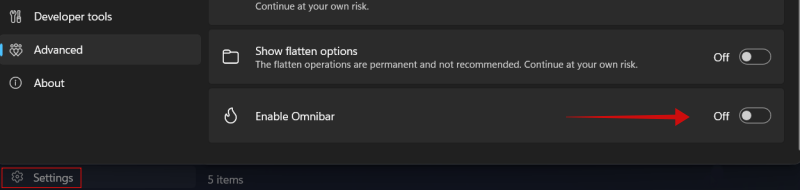
Toggle off the option to Enable Omnibar at the bottom.
Tip: check how to restart the File Explorer in Windows, if it ever freezes up or crashes.
Other Standout Features
The Files app also provides users with a series of additional handy features that differentiate it from File Explorer. We highlight a few below.
Tagging
Tagging is a feature that lets you categorize files and folders on your PC, so that you can find what’s relevant faster.
To tag a file or folder, right-click it and then select Edit tags from the context menu.
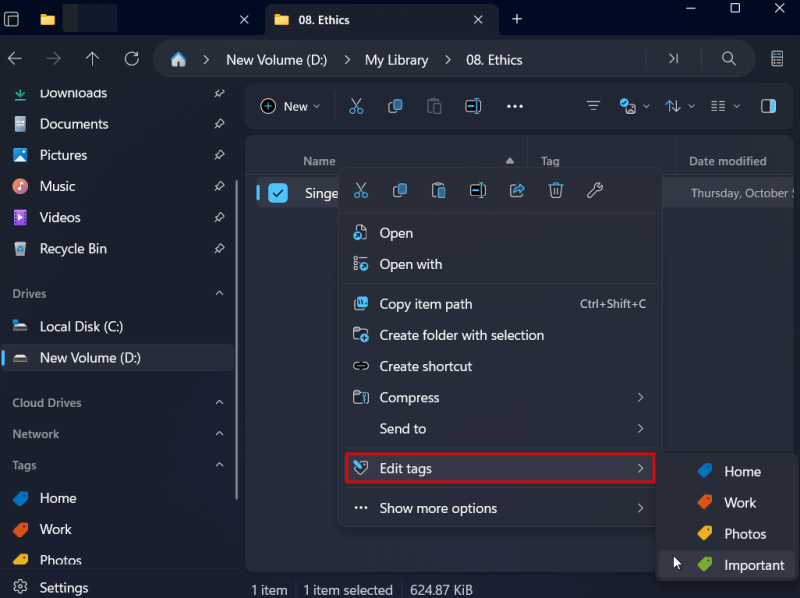
Select one of the default tags.
To view tagged files and folders, click on the Tags option in the left side menu.
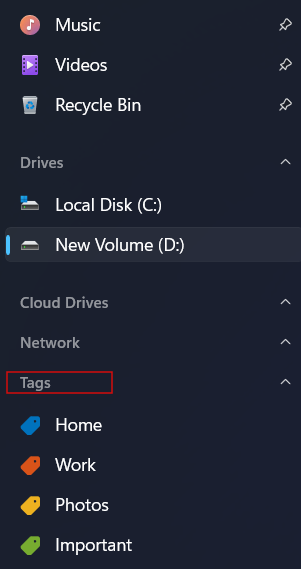
In case you want to add your own tag, click Settings -> Tags.
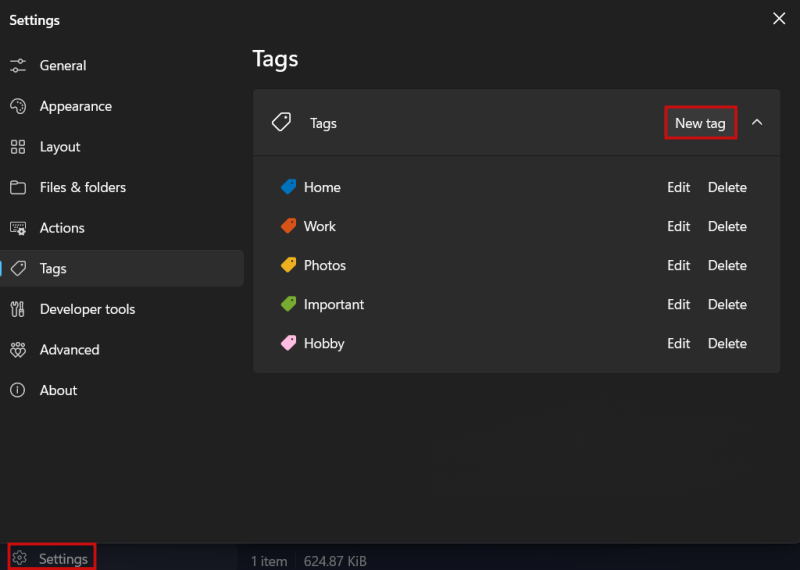
Click the New tag button from there.
Dual pane
Moving files between folders is super easy with the Files app thanks to the Dual pane feature.
To use this feature, open a new tab, then click the Tab actions button in the upper left corner and select Add pane. Opt whether you want a vertical or horizontal one.
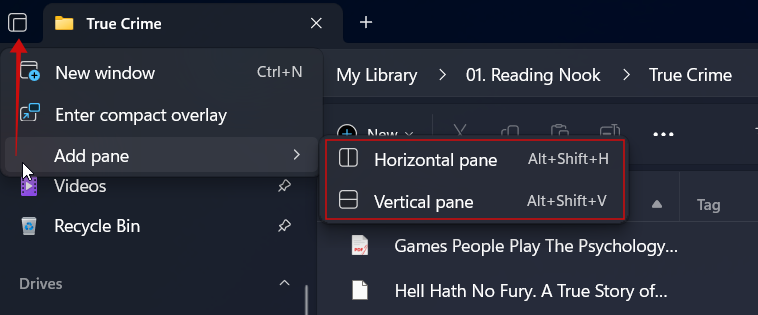
The second pane will now split the current tab view in two, allowing you to multitask more effectively.
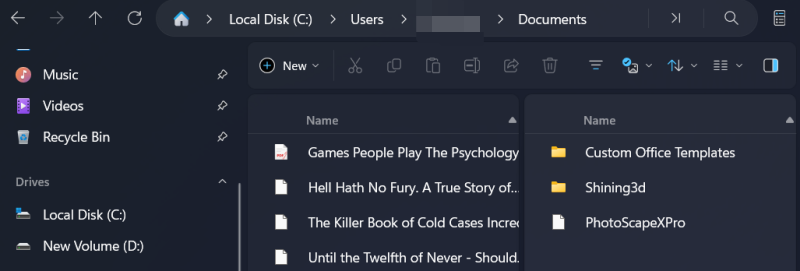
When you’re done viewing the Dual pane, right-click one of the panes and select Close pane in the context menu.
Compact overlay view
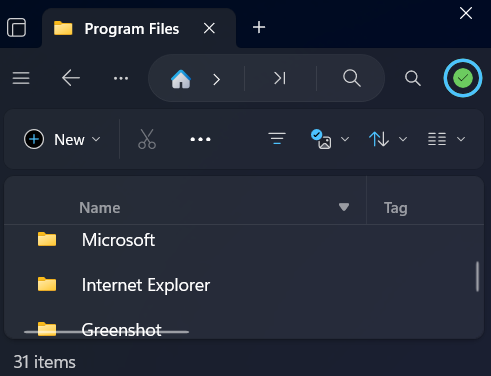
When juggling multiple apps, the Files app’s Compact overlay instantly reduces the window size to keep it accessible without blocking other windows.
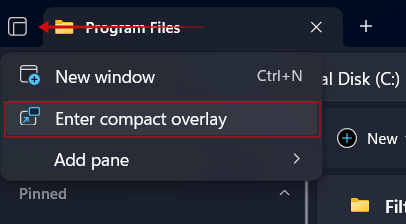
To switch to mode, click the multi-window icon in the upper left side of the display and select Enter compact overlay. The window will immediately shrink in size.
Custom context menu
In Windows, you need a context menu editor app to modify the context menu in File Explorer. However, Files makes it a lot easier.
Access Settings -> General -> Context menu options.
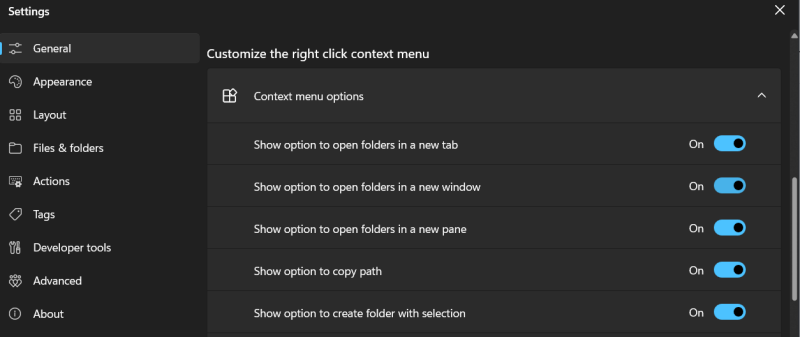
From there, you can uncheck the options you don’t wish to see in the context menu.
Custom background
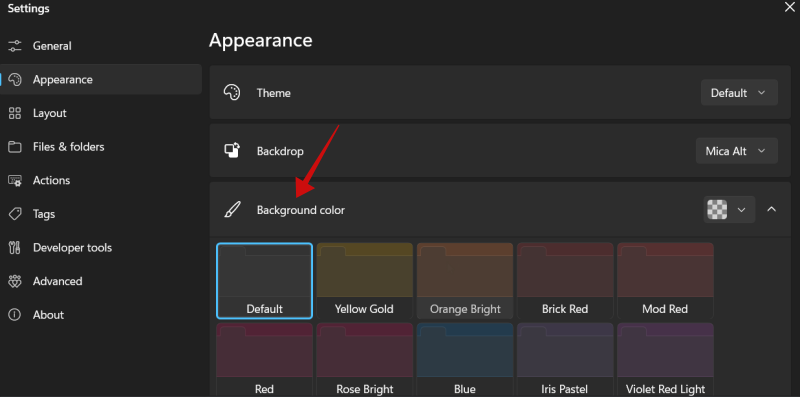
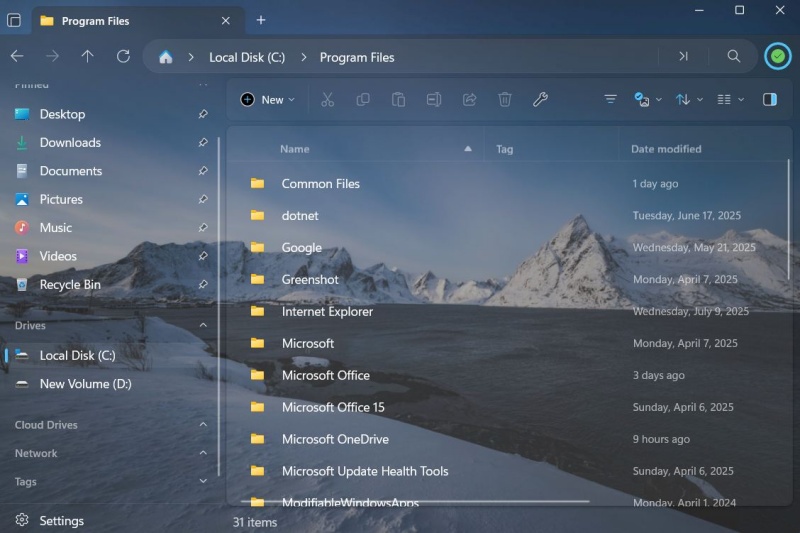
The Files app lets you set a custom background for your file viewer. Navigate to Settings -> Appearance. You can opt for one of background color options provided.
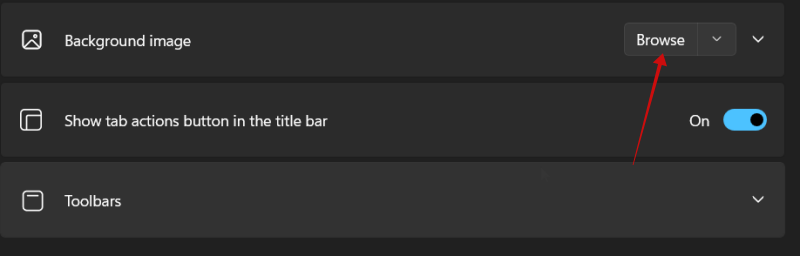
Alternatively, you can browse and upload an image from your device.
Here’s the Files app with a custom background.
FYI: check how to set daily Bing wallpapers as you Windows desktop background.
While Files is an impressive file manager with many strengths, it’s not without flaws. At times, we found it to be slower and less responsive than File Explorer. Still, it’s a solid option worth exploring. If it’s not quite your style, there are plenty of other File Explorer alternatives to explore.








