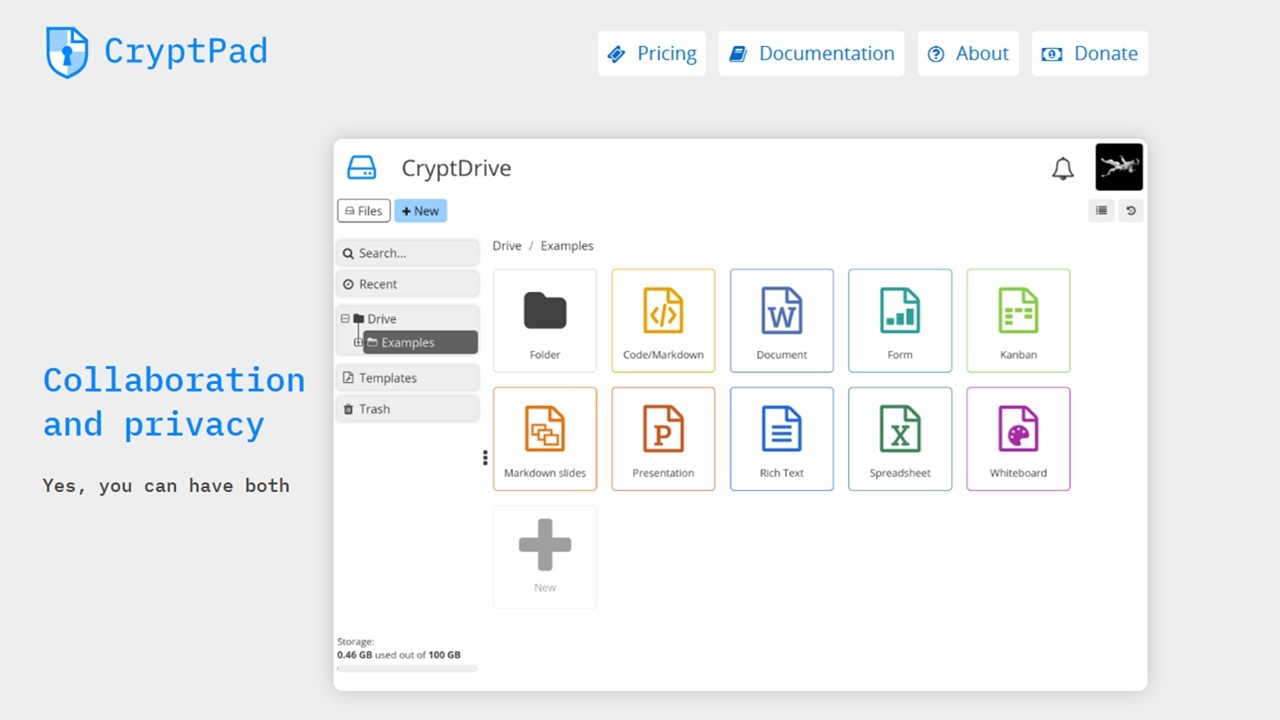
Collaborative office suites are usually known more for their productivity tools rather than privacy and encryption. With CryptPad, you get the best of both worlds, from real-time collaboration to end-to-end encryption. Plus, it’s free to get started.
What is CryptPad?
Much like Google Workspace or Microsoft 365, CryptPad is a suite of productivity apps that are designed for individuals or teams to collaborate on. But, there is one major difference.
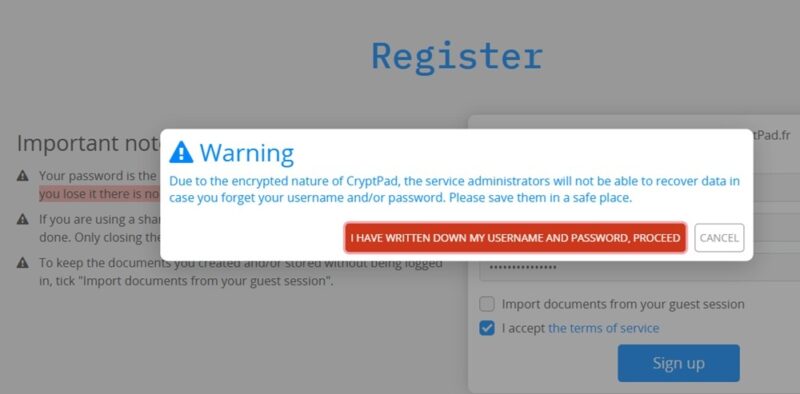
CryptPad provides full end-to-end encryption by default. As data enters your browser, it’s encrypted. Without your account login, your data is essentially unreadable. The company’s employees can’t read your data at any point. The downside is they can’t recover it for you either since they can’t access it.
You’re even warned during the account creation process to store your username and password in a safe location.
CryptPad is free, though you can upgrade to premium plans for more storage and features.
Choosing a CryptPad Instance or Self-Hosting
There are two ways to use CryptPad – cloud-hosted instance or self-hosting. We have a full guide to setting up your own self-hosted version. Otherwise, you’ll need to choose a public instance, unless you’re invited to a private instance by your organization.
The only official instance is hosted in France. However, you can choose from other instances as well on CryptPad’s Instances list. Don’t join any third-party instances not on this list unless you trust the owner. Otherwise, they may not be secure. CryptPad regularly verifies instances on their list are secure and up to date.
Exploring Full Suite of Productivity Apps
One thing I love about CryptPad is you don’t need an account to check things out. Of course, nothing is saved unless you have an account. If you like what you see, create an account and check the box to import any in-progress documents in your browser to your cloud drive.
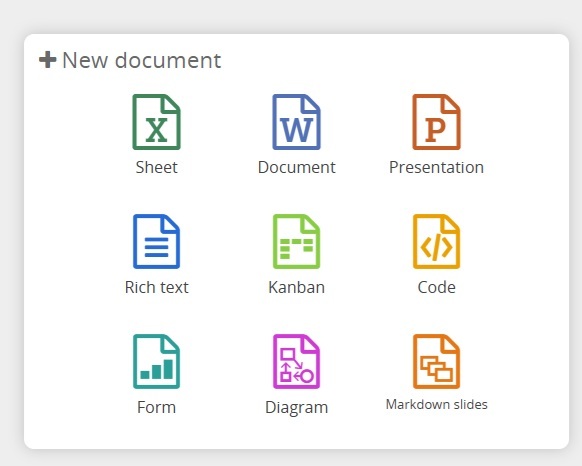
You can choose between nine apps:
- Sheet
- Document
- Presentation
- Rich Text
- Kanban
- Code
- Form
- Diagram
- Markdown slides
It’s a more comprehensive and straightforward offering than most competing productivity suites, especially with the inclusion of Markdown, Kanban, and Code.
Creating Private, Self-Deleting Documents
You’re not limited to just encrypting documents. When you create a new file, you can also set an expiration, or destruction, date. This is ideal if you’re collaborating on a sensitive document you don’t want lingering in your drive after the project is over. The downside is you can’t change the date once it’s set.
You also have the option to set a password for extra protection. This is just in case your shared link gets in the wrong hands. They might have the link, but without the password, they still can’t access it.
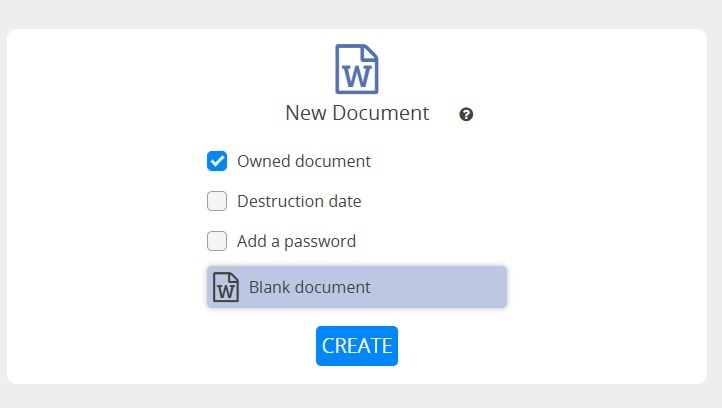
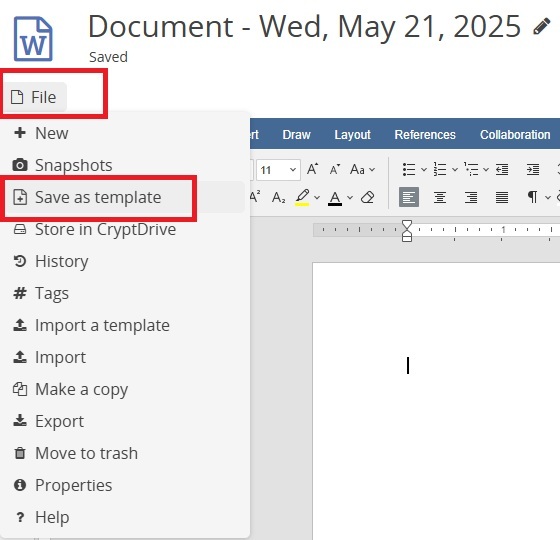
Also, if you’ve created templates for a particular file type, these will appear next to the Blank Document option. To save a template, click File above the document toolbar and select Save as template.
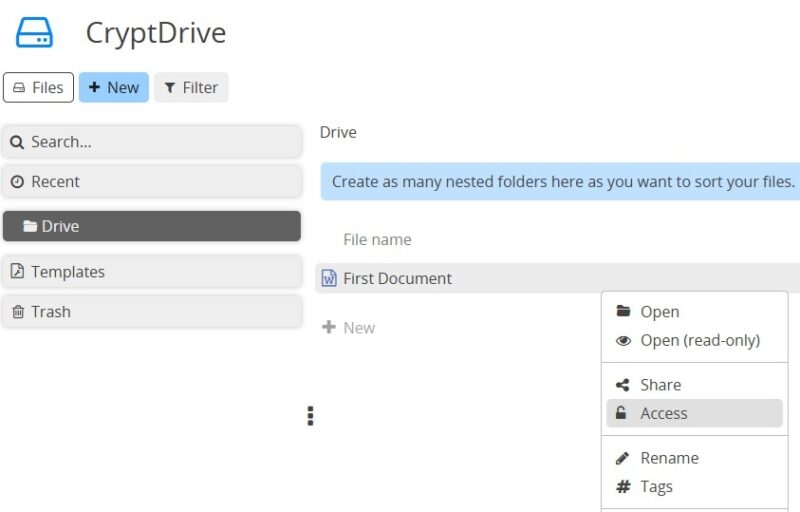
Once you’ve created files, right-click them at any time and select Access to manage access. Easily see who has access, add users, or revoke access. To share with just a few people, right-click and select Share to create a shared link for access.
Working as a Team
Creating files is useful, but it doesn’t help with the collaboration part. There are several team features in CryptPad:
- Creating individual team drives to better organize files
- Working with individuals (no team required)
- Adding members to a team to work together
- Chat – between individuals or as a team
- Limit access (view, edit, etc.) to individuals or team members
If you just want to collaborate with a few people, add them to your contacts. Click your profile icon at the top left, select Profile, and click Share. Share the link using a secure method, such as a secure email service or private SMS apps. Once shared, the recipient accepts the request and you’ll see a notification in your dashboard.
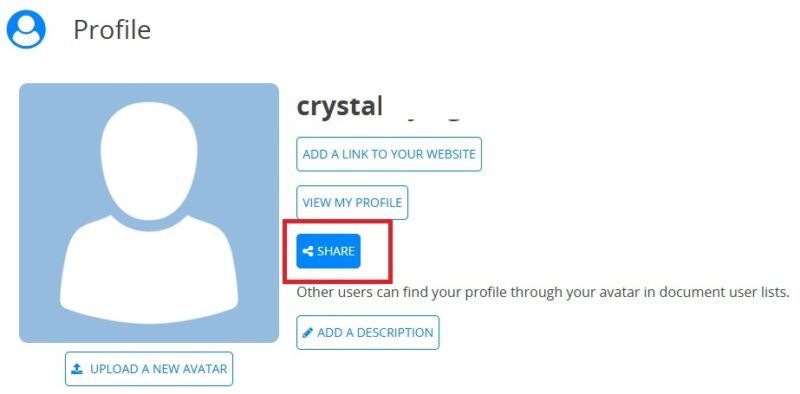
Plus, the contact is added to your Contacts list. Click your profile icon at any time and select Contacts.
To create a team, click your profile icon and select Teams. You can be a member of up to five teams at once. Click an available slot to create a new team. Choose any name you want.
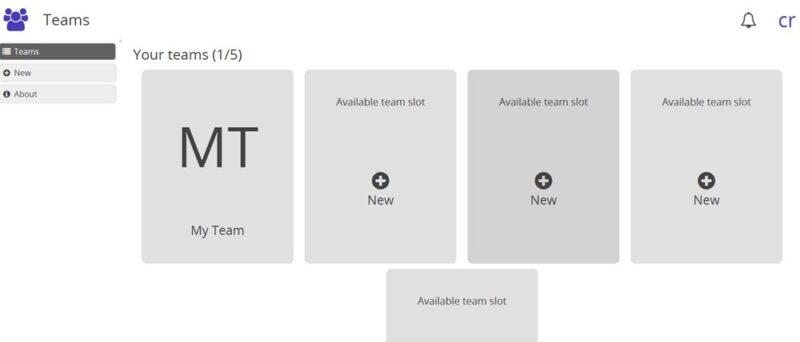
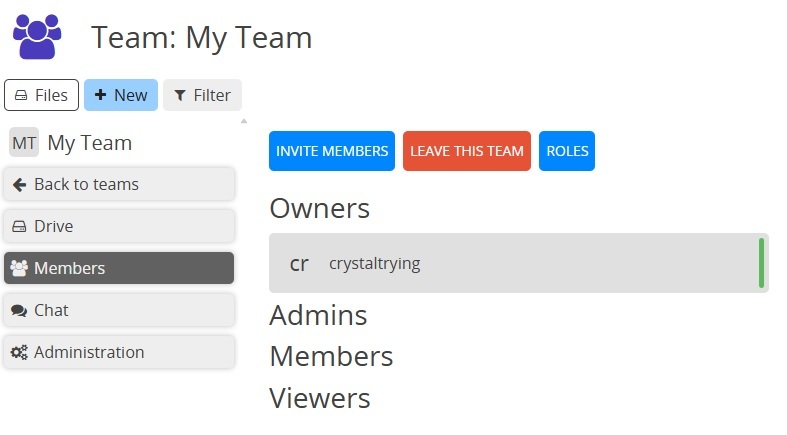
Select your newly created team and select Members from the left sidebar. The sidebar appears when you hover your mouse over just to the left of the Search box. Click Invite members.
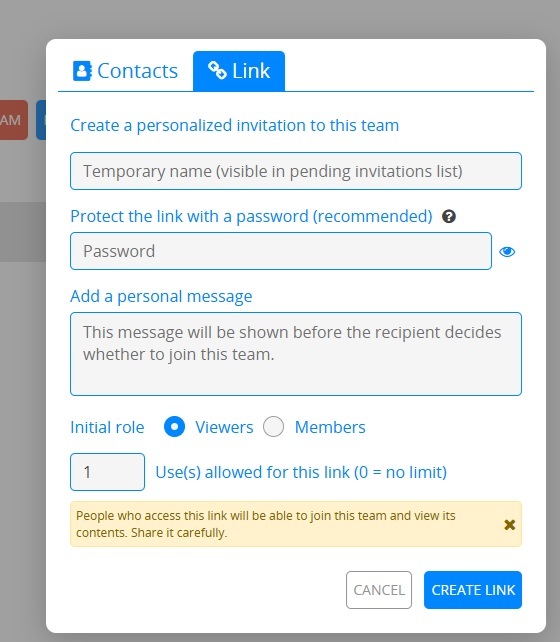
If you’ve already added your team members as contacts, click the Contacts tab and add the members you want. Otherwise, fill out the form in the Link tab to create a shareable link to the team. Set the number of uses to allow for the link. This prevents accidental sharing. I’d recommend setting the number at least twice the number of invitees in case something goes wrong the first time they click it.
Then, share your link when you’re ready. Wait for your members to join.
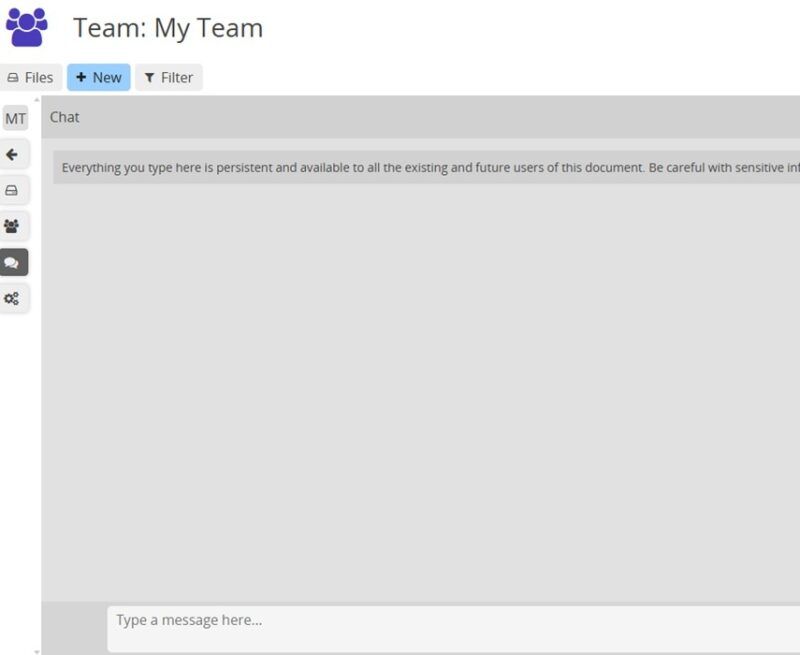
Outside of being able to work on files together, you can also chat. Click your profile, select Teams, and open your team. Select Chat from the left sidebar (beside Search). This chat is shown to all team members.
Go to your profile icon, select Contacts, and double-click any contact to start chatting with an individual.
All chats are encrypted and private, just like your files.
Schedule With a Built-In Calendar
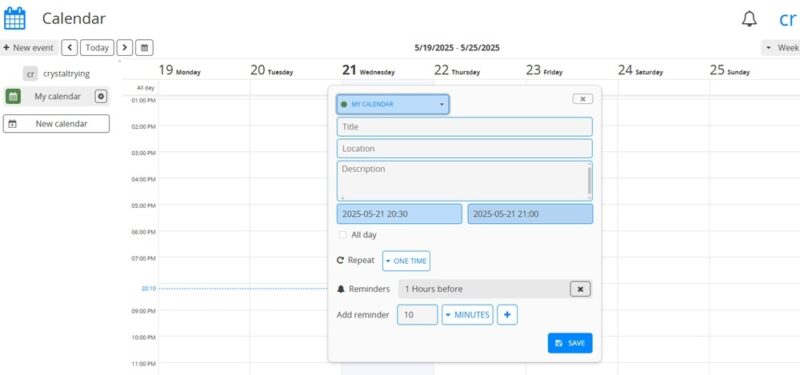
Just like with most productivity suites, CryptPad gives you a calendar. Use it just for yourself, share it with others, or use it as a team. What’s nice is you can create multiple calendars to keep different projects and teams separate.
Go to your profile icon and select Calendar to see your calendars. For events, set a reminder date and frequency to get a notification in your dashboard. Email addresses and phone numbers aren’t associated with CryptPad, so you won’t get notifications any other way.
Overall, CryptPad is a secure way to create and collaborate. But, with no email or phone number attached to your account, there is no way to recover if you lose your password. If that’s a no-go for you, try these other free Office alternatives. You can even try free alternatives to other Windows software.








