Firefox always had a love-hate relationship with Progressive Web Apps (PWAs). While Mozilla showed keen interest in PWAs when Chrome added them, they completely dropped the feature in 2020. And then, at the starting of this year, Mozilla announced that they are going to add PWAs support in the form of Taskbar Tabs. 5 months later, which is now, the feature is available for Windows users. Here’s how you can enable and use it.
What are Progressive Web Apps
Websites can be turned into Progressive Web Apps that work like a native app on the OS. The website shows up in the list of apps in the OS and opens in a dedicated interface without browsing features like secondary tabs or an address bar.
While they might seem like a glorified bookmarking function, they actually have a bunch of advantages that make them worth using:
- Offers customizable quick access: You can place the web app anywhere in the OS for quick access, like the desktop, taskbar, or start menu. You can even assign a shortcut to open it with a keyboard shortcut.
- It’s lighter on resources: you don’t need to open the complete browser if you just want to browse a specific website, and due to a stripped-down interface, it’s lighter than the main browser.
- Receive push notifications: it doesn’t depend on the browser for push notifications. Even if the browser and the app are closed, you’ll still get notifications timely.
- Works offline: a Progressive Web App has a much better caching system, different from the regular browser caching system. In most cases, you can fully navigate webpages and features without an internet connection as long as you have viewed them before. They also work better on a bad internet connection as they heavily utilize the cache.
While this feature works for most PWA-supported websites, it is especially good for websites that need to run in the background and need quick access, like chat services, note-taking apps, or streaming services.
Enable Progressive Web Apps in Firefox
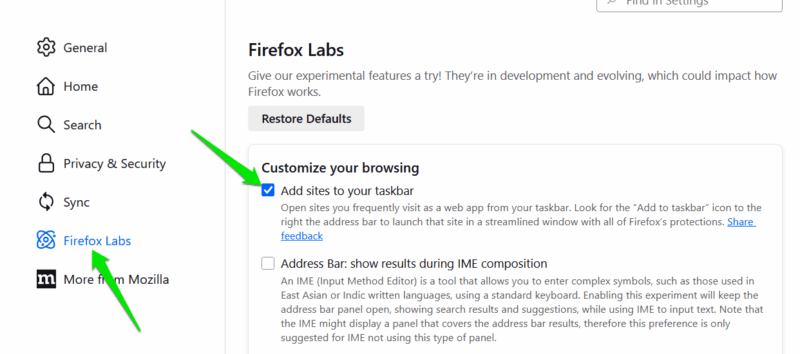
PWAs are still an experimental feature in Firefox, so you’ll have to enable it first to use it. To do so, open Firefox Settings from the main menu in the top right corner. Click on Firefox Labs in the left panel and enable the Add sites to your taskbar feature. You can also enter about:preferences#experimental in the address bar to access the Firefox Labs.
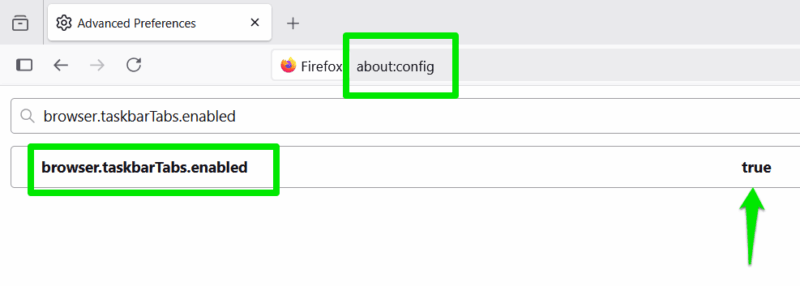
Alternatively, you can enable it in the about:config page. Enter about:config in the Firefox address bar. In the search bar, enter browser.taskbarTabs.enabled and set it to true by clicking the toggle button at the end.
Using Progressive Web Apps in Firefox
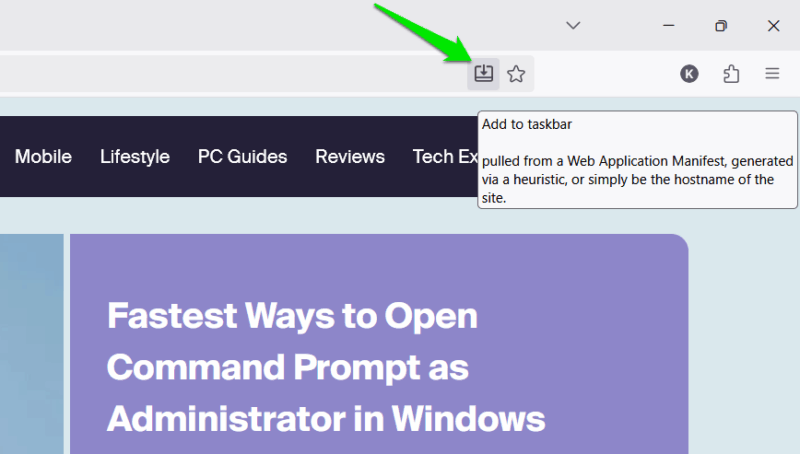
Once the feature is enabled, you’ll find a new Add to taskbar button in the address bar. Open a website and click on this button. Firefox will immediately open the webpage as an app with a dedicated app icon on the taskbar. This will remove the tabs bar at the top, and the address bar will become inaccessible (you can still see field contents).
The web app will appear in the list of apps on Windows, and you can find it in the Start menu as well. You can move the app icon anywhere and even pin it to the taskbar or the Start menu.
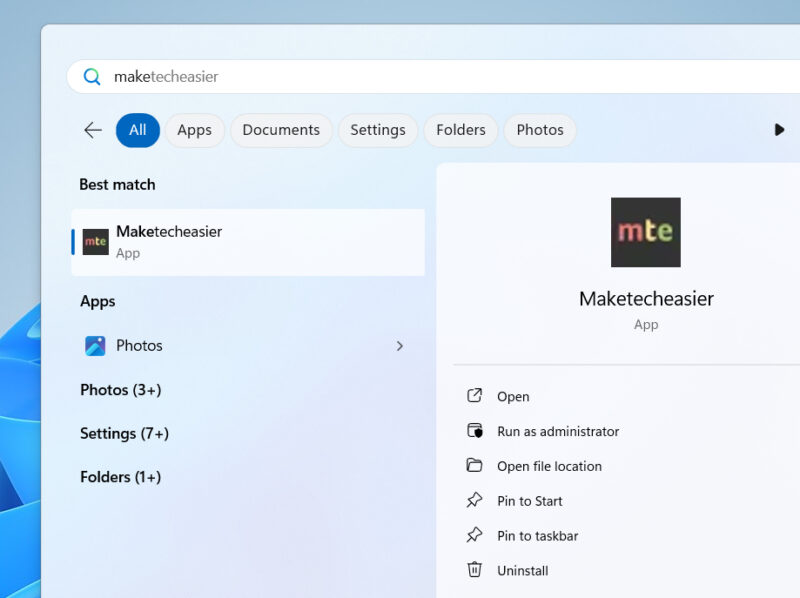
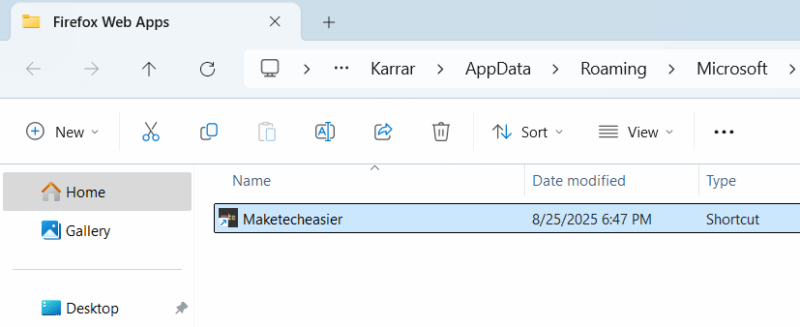
However, you can’t delete it like a normal app since it’s just a shortcut to the web app. To delete it, right-click on the app icon and select Open file location. Here, delete the shortcut to permanently delete the web app.
Progressive Web Apps feature in Firefox is still in early stages and needs work to be as good as PWAs in Chrome. However, Mozilla wants to focus on user control and privacy with Taskbar Tabs, so it’s understandable that it isn’t a copy of Chrome’s PWAs feature. If you liked this Firefox addition, you should also look into using PWAs on your Android phone.








