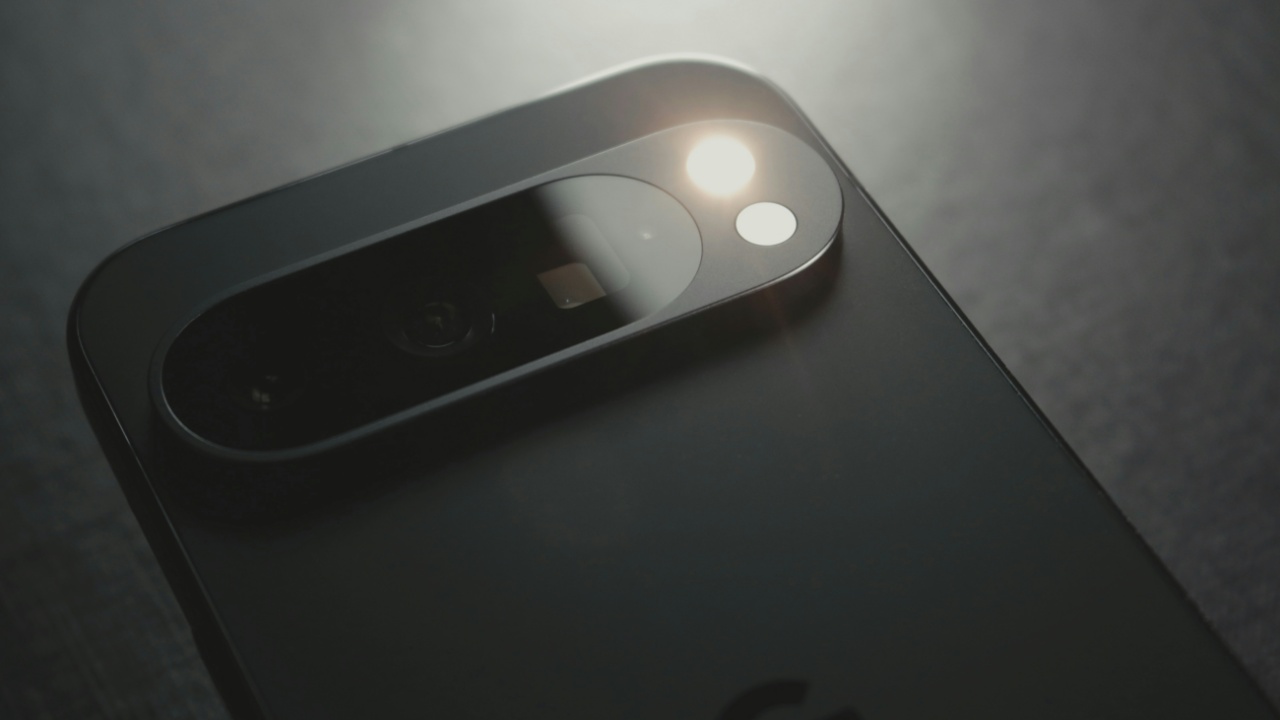
Have you ever missed a text or an important app notification because your phone was on silent? You’re not alone. Luckily, Android has a clever feature called flash notifications that can help. It uses visual cues to alert you when something comes in – no sound needed. Here’s how to set it up on your own Android.
Good to know: learn how to add a taskbar to your Android phone for easy app access.
Enable Flash Notifications in Android 14 and Above
Though flash notifications were originally developed to assist users with hearing or visual impairments, they’re actually a useful tool for just about anyone.
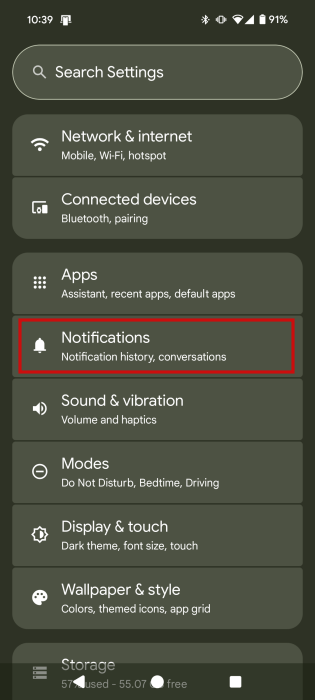
In Android 14 and above, you can easily enable flash notifications. Open the Settings app on your device and navigate to Notifications.
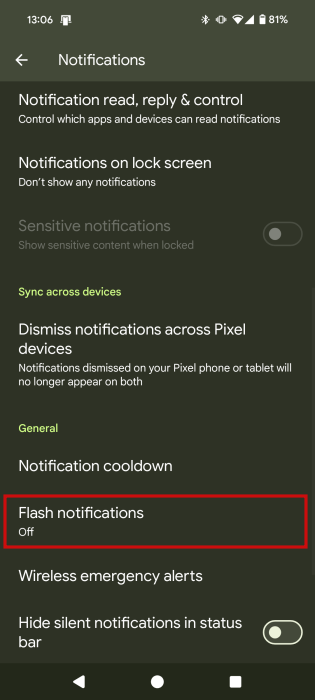
Swipe down to the General section and select Flash notifications.
Here you have two options to pick from. Either opt to have the camera flash two times when a notification comes in (although Google notes this isn’t available on all devices), or have your screen flash in a color of your choice.
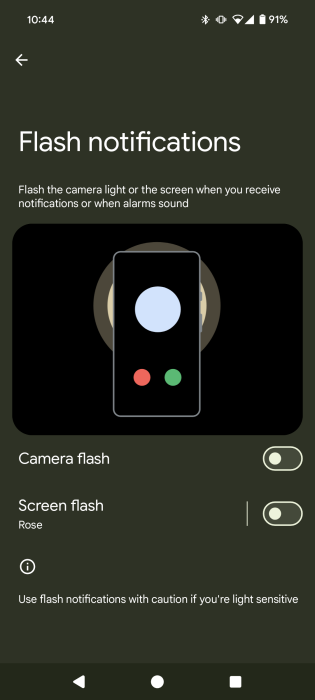
We found the second option to be quite fun, with one caveat. The screen did not flash for most notifications (but not all) when the screen was off. On the other hand, the screen flashed for all notification if the display was on (at lock screen or home screen). Fortunately, that’s not the case with the camera flash option.
Tap on the toggle to turn on either opinion. In the case of the second one, tap again to choose a color and see a preview.
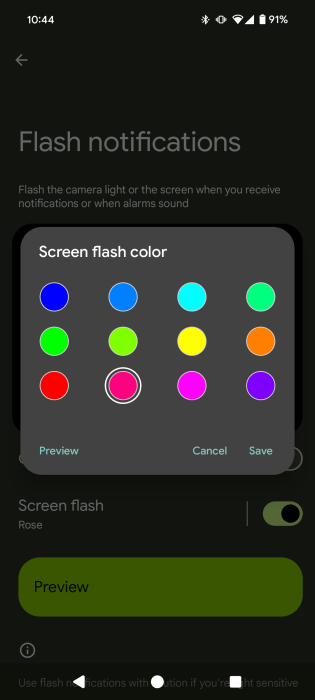
You can opt to have both options enabled if you want. This way, you can absolutely ensure you won’t miss any notifications.
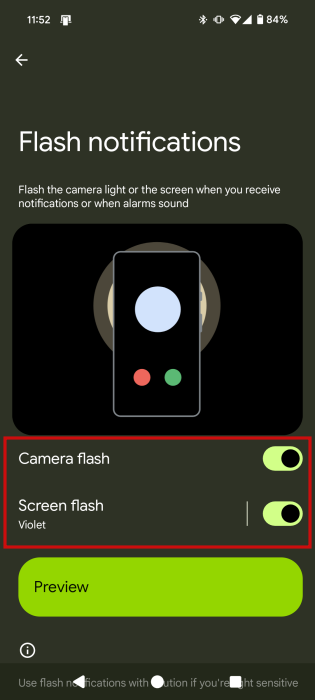
Flash notifications will be activated when you get an incoming call, your alarm(s) ring, or you receive any other (app) notifications.
Google notes that you should use flash notifications with caution if you’re light sensitive. In such a case, the screen flash option is probably the safest.
Tip: improve Android’s privacy by removing the SaferyCore system app from your phone. Here’s how to do so.
Get Flash Notifications on Older Android Devices
If you have a device that is running an older version of Android, you won’t find Flash Notifications in your settings. Not to worry, though, you can still get this functionality on your phone with the help of third-party apps.
Flash Alert & LED Flashlight is one such app. Before you go ahead to download it, we should warn you that it’s riddled with annoying apps. However, once you set all your settings, you won’t have to access it too often.
Open the app, then go through each category to decide if flash alerts should be turned on.
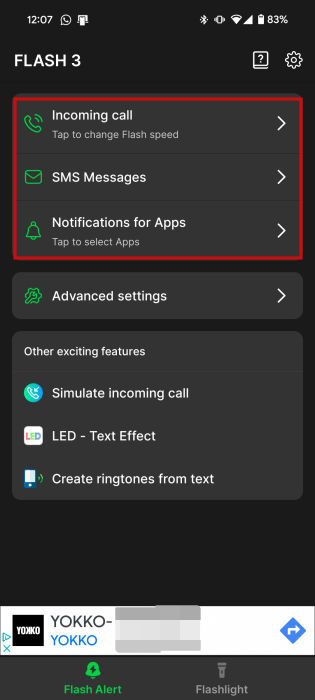
You have three options to choose from:
- Incoming call
- SMS Messages
- Notifications for Apps
Note that the app doesn’t offer the option to flash your screen in color. However, for each category, you’re allowed to customize your camera flash alerts by playing with flash speed or the number of flash times.
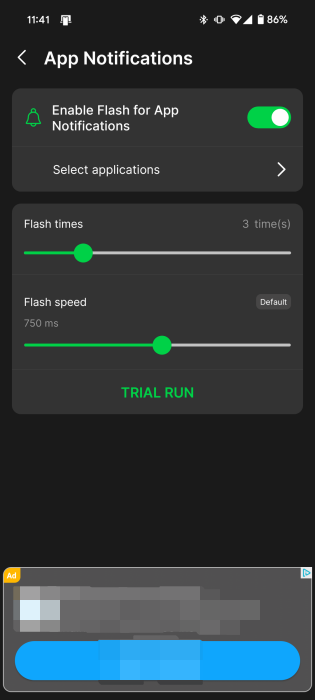
When it comes to app notifications, you can select which apps to enable flash alerts for. If your main concern is not to miss WhatsApp messages, you can only activate flash notifications for this app.
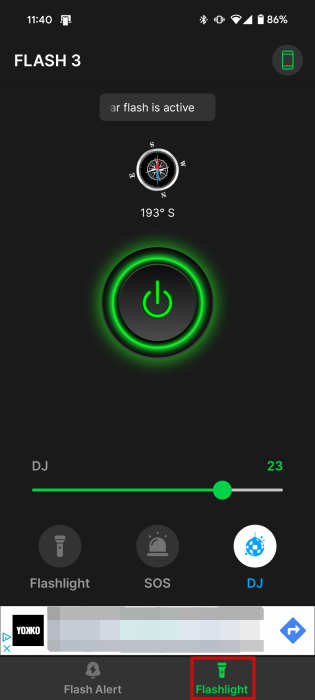
The app also offers a Flashlight section which offers easy access to the flashlight, as well as a SOS and DJ mode complete with screen color flashing.
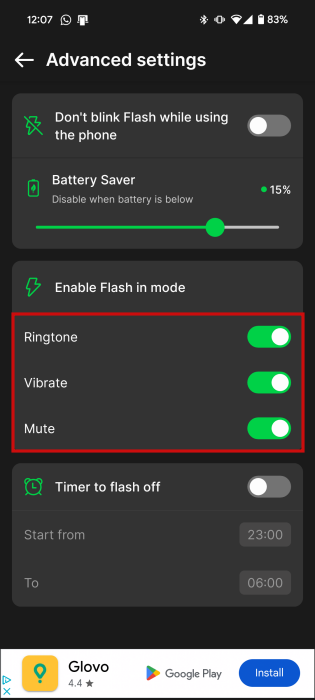
To make sure your phone flashes no matter what, go to Advanced settings and enable all options under Enable Flash in mode, including Mute.
Alternatively, if you have an older Samsung Galaxy device, you might not need to download an app at all. Instead, try searching through your device’s settings. Navigate to Settings -> Accessibility -> Advanced settings and select the Flash notification option.
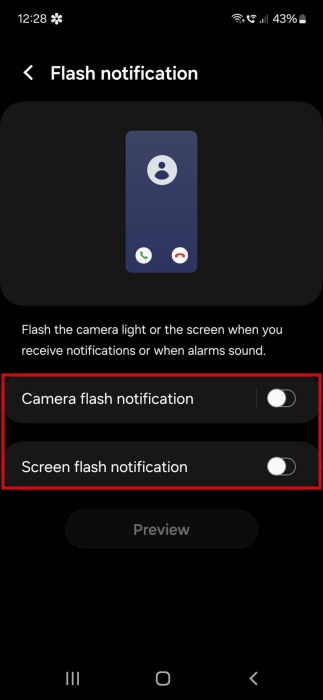
You should find options for both camera flash notifications and colorful screen flash alerts.
Another method of catching notifications that might have slipped through the cracks is to check your notification history on Android. Learn how to access this information by reading our dedicated post. At the same time, you might want to get acquainted with how to change the notification sound on your Android phone.








