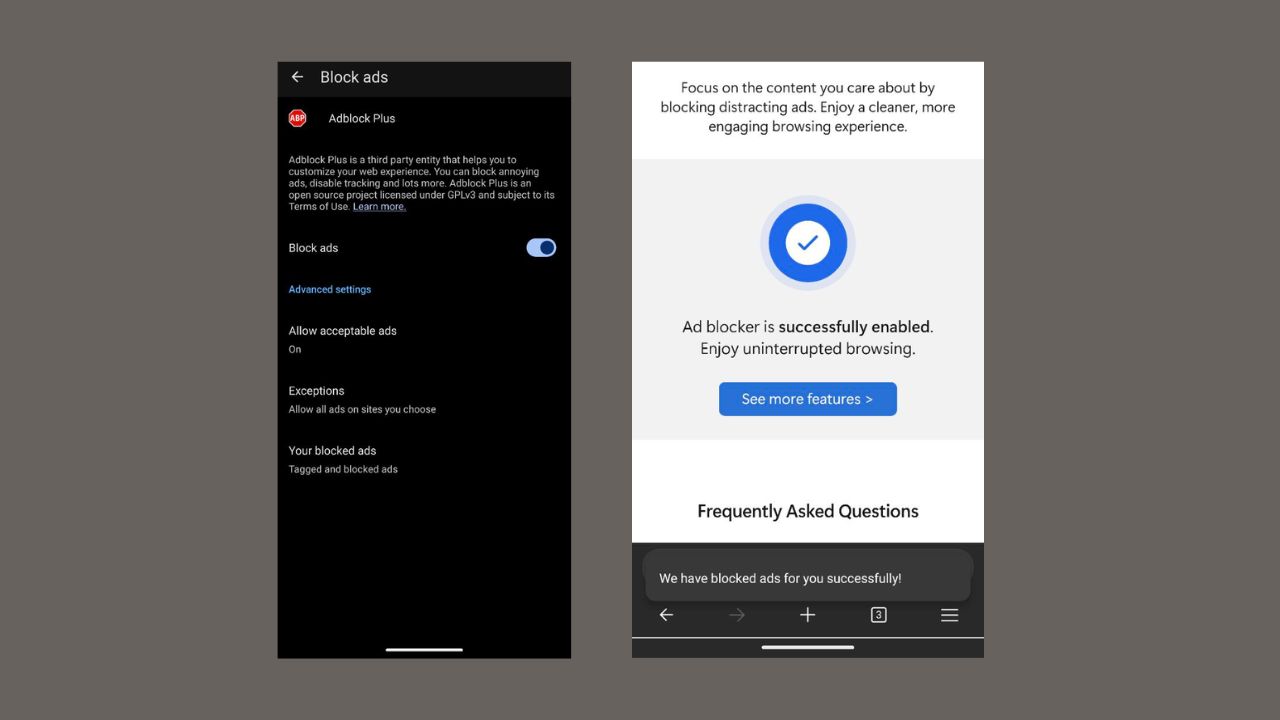
Ads are frustrating, can clutter your browsing, slow your phone, and even track you. Luckily, Microsoft Edge on Android supports extensions and has a built-in Adblock Plus to stop these ads in their tracks. Hence, we’ll show you how to enable this ad blocker in Microsoft Edge on Android to improve your browsing experience.
Why Use an Ad Blocker on Microsoft Edge?
Using an ad blocker makes browsing on your Android better by eliminating those annoying ads. No more pop-ups, banners, and auto-playing video ads that interrupt your workflow. You can also check how to block pop-up windows in browsers for more details.
Also, using the ad blocker helps protect your privacy. It blocks trackers from collecting your data or monitoring your online activities.
Fewer ads also mean pages load faster and your browsing speed goes up. Hence, saving both your phone’s battery and data since there is no ad clutter.
Microsoft Edge’s Adblock Plus is built-in and doesn’t require extra downloads, unlike the other free ad blockers for Microsoft Edge.
Enable AdBlock Plus in Microsoft Edge on Android
Simply update the Edge app on your Android and go to the official Microsoft ad blocker demo link.
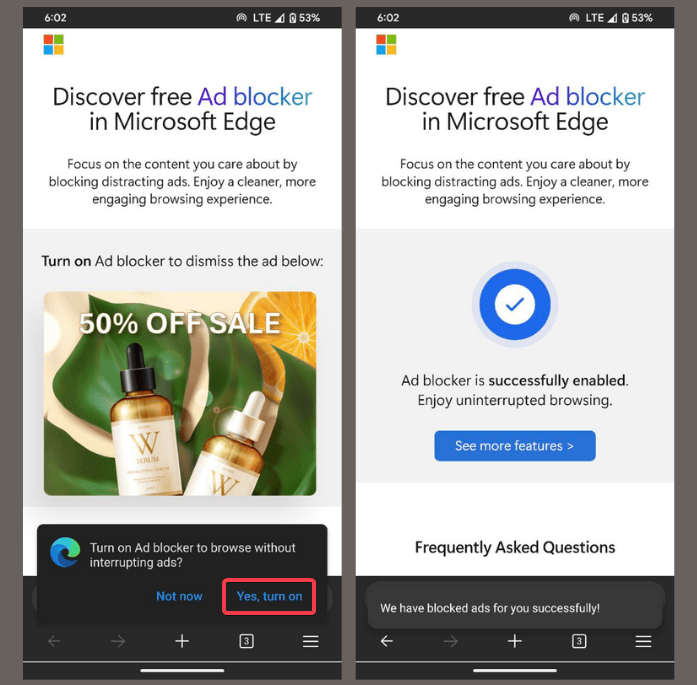
When you see Turn on Ad blocker to browse without interrupting ads, hit Yes, turn on. This will trigger Adblock Plus.
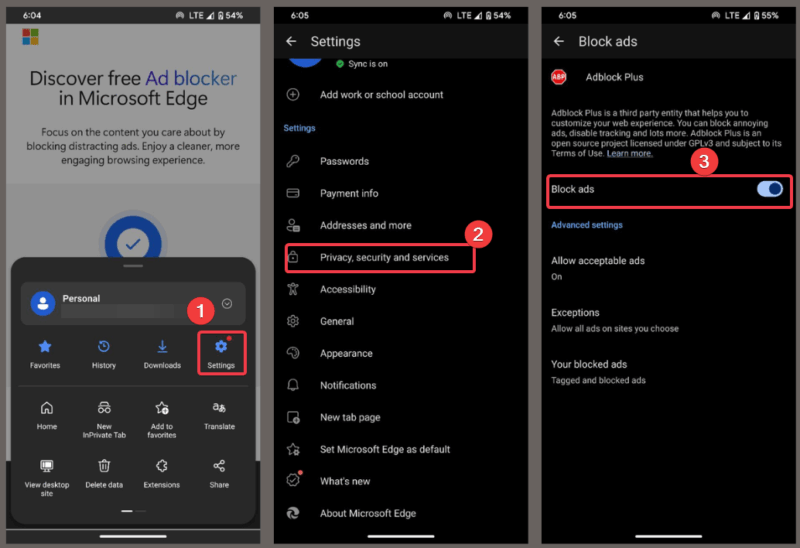
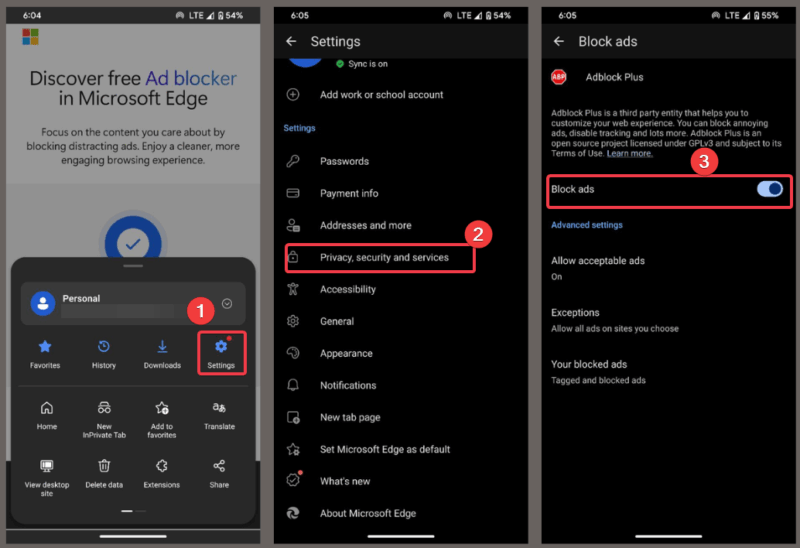
Now, tap the three-line menu and navigate to Settings -> Privacy, Security, and Services to ensure the Block Ads toggle is on.
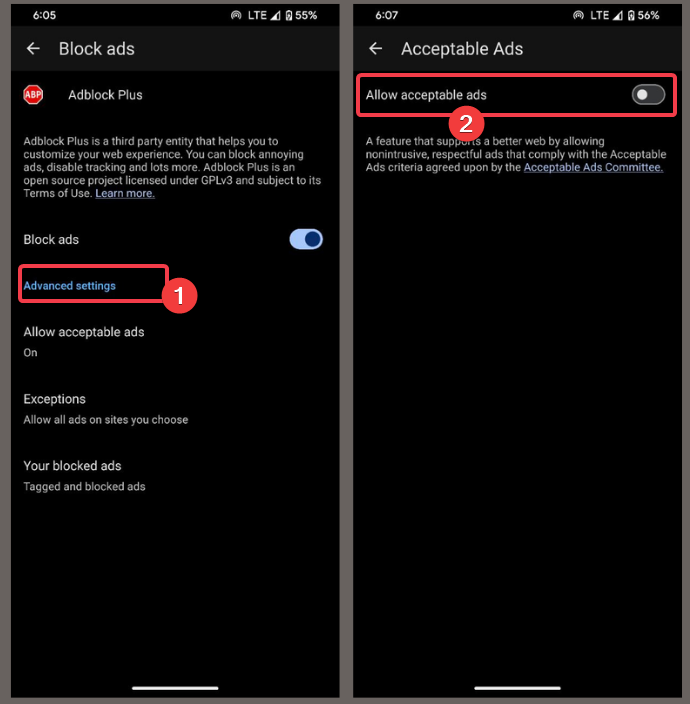
Optional: Under Advanced Settings, turn off Allow Acceptable Ads for full ad-blocking or add websites to the allowlist.
This method is super easy and works right away. However, if you don’t see the Block Ads option, try the following method to enable the ad blocker in Microsoft Edge on Android.
Restore Old Edge Settings:
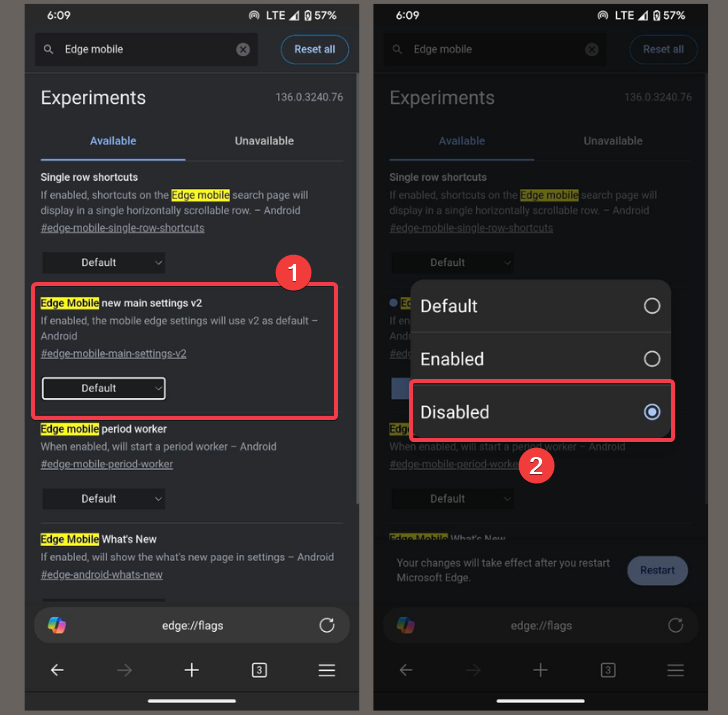
Launch the Edge app, type edge://flags in the address bar and hit Enter.
Search for Edge Mobile’s new main settings v2. Tap the drop-down next to it and hit Disabled. Close and reopen the app to apply the change.
Now, head to Settings -> Privacy and Security and turn on Block Ads.
This method brings back the classic settings and makes it easier to enable AdBlock Plus on Microsoft Edge.
Tips for Using Edge’s AdBlock Plus Effectively
Try these practical tips after you’ve enabled the ad blocker in Microsoft Edge on Android:
- Ensure to turn off Allow Acceptable Ads in Advanced settings for a completely ad-free experience.
- You can add trusted sites to the allowlist so their ads still show to support them.
- Regular Edge updates ensure you have the latest ad-blocking features.
Have any reservations about AdBlock Plus? See AdBlock vs. AdBlock Plus for a complete breakdown.
Using the built-in AdBlock Plus will enable an ad blocker in Microsoft Edge on Android. You can either set it up with the official demo link or restore old settings. Irrespective, you get a faster, cleaner, and safer Edge browser on your phone. So, give it a try and let us know how it works in the comments!








