There’s nothing worse than trying to eject a CD or DVD from your Mac, only to get a big surprise: it won’t come out. It’s extremely frustrating to have a CD/DVD stuck in the CD-ROM drive of your computer.
If this has happened to you, here’s a quick method to help force it out.
1. Open Terminal.
2. Enter the one Terminal command below that applies to you and press enter.
For single optical drives:
drutil eject
For internal optical drives:
drutil eject internal
For external optical drives:
drutil eject external

3. Your CD or DVD should be ejected.
4. Quit Terminal.
Eject CDs From the Menu Bar
Here’s yet another easy way to eject CDs/DVDs from the menu bar.
1. Go to Finder and from the “Go” menu, select the “Go to Folder…” option (or just press Shift + Command + G in Finder).
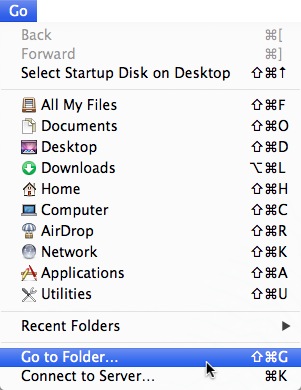
2. In the “Go to the folder:” prompt, copy and paste this line and then click “Go” (or press enter):
/System/Library/CoreServices/Menu Extras/
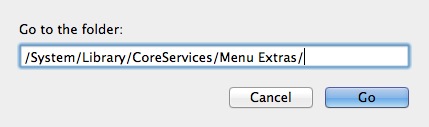
3. The Menu Extras folder will display in Finder. Look for the “Eject.menu” option and double-click on it.
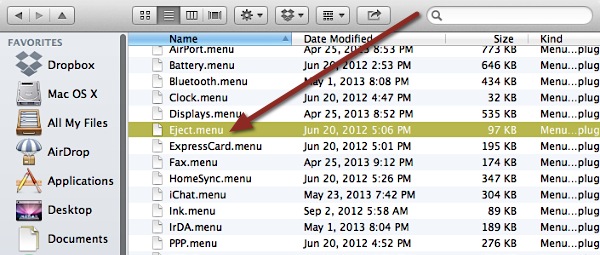
You should now see an eject button on your menu bar. To eject an item, simply click on the eject button and select it from the list.
Image Credit: splorp