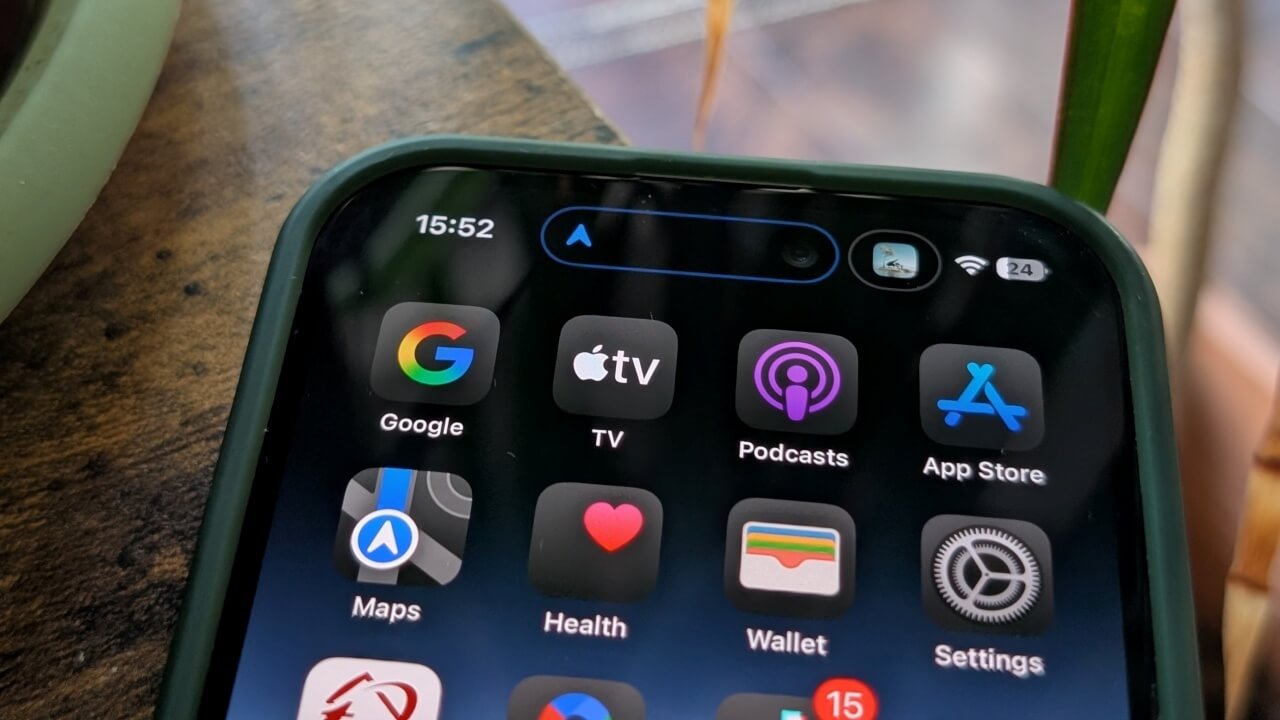
With the debut of the iPhone 14 Pro, Apple replaced the notch with a new feature called the Dynamic Island. Now available on more iPhone models, including non-Pro versions, the Dynamic Island offers new ways to interact with your device. Here’s how you can make the most of it.
Good to know: here’s how to try the Dynamic Island on Android.
What Is Dynamic Island?
The Dynamic Island represents a unique blend of software and hardware that utilizes a technology called sub-pixel anti-aliasing to create a dedicated space to display additional information about what’s happening on your iPhone.
That’s nerd-speak for “Apple found a clever way to hide the front-facing camera and Face ID array while adding extra software functionality to a pill-shaped region on the display.”
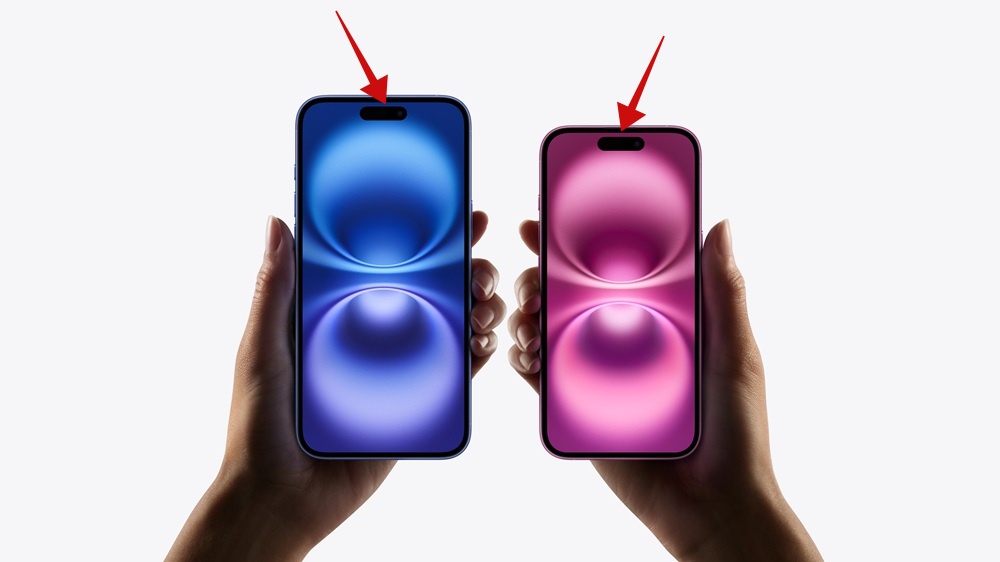
The Dynamic Island basically serves as an adaptive UI overlay that displays contextual information, including notifications and background activity. It also provides a visual status indicator for active processes, for instance, AirDrop transfers or Apple Maps navigation prompts, streamlining multitasking on the iPhone.
What Are the Supported iPhone Models?
As previously stated, Apple first introduced the Dynamic Island with the iPhone 14 Pro and iPhone 14 Max.
The feature then made its way into subsequent models, including:
- iPhone 15
- iPhone 15 Plus
- iPhone 15 Pro
- iPhone 15 Pro Max
- iPhone 16
- iPhone 16 Plus
- iPhone 16 Pro
- iPhone 16 Pro Max
How to Interact With Dynamic Island
The Dynamic Island offers a consistent and unobtrusive experience for tasks like setting a timer, answering an incoming phone call, checking out with Apple Pay, connecting your AirPods, or controlling your music. There are two primary ways to interact with the Dynamic Island while managing onscreen activities:
- A single tap: instantly opens the corresponding app for which the Dynamic Island is displaying a status.
- A long press: expands to reveal relevant controls for the app that the Dynamic Island is displaying a status for.
Understanding Privacy Indicators in the Dynamic Island
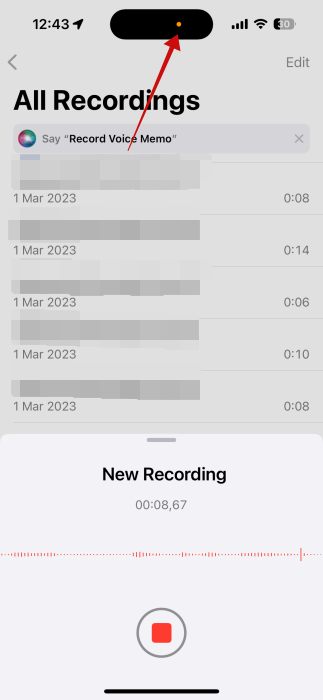
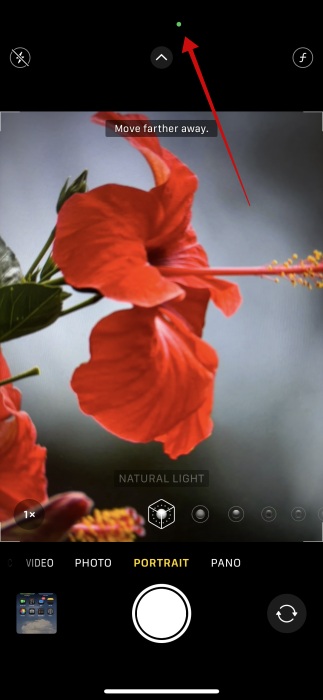
Starting with iOS 16, Apple places color-coded dot indicators in the middle of the Dynamic Island on the supported iPhone models. It gives users more control over their privacy by informing them when an app may be accessing onboard hardware sensors without their knowledge. Here’s what each dot indicator represents and how to identify which apps are accessing your data:
- Orange dot indicator: an app is currently using the microphone on your iPhone.
- Green dot indicator: an app is currently using only the camera or the camera and the microphone on your iPhone.
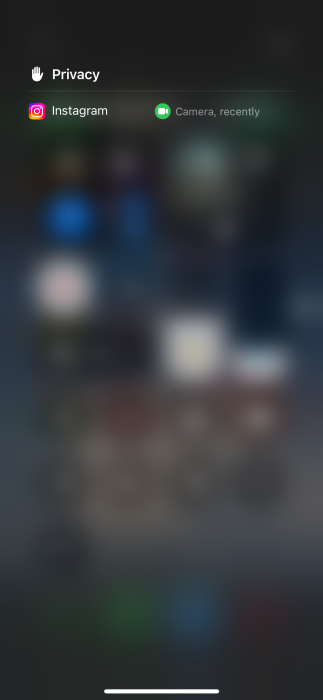
To identify which apps are requesting sensor data from your iPhone, access Control Center by swiping down with one finger from the upper-right corner of the display.
Tap on the name of the bar at the top that displays an app name or various icons.

In this example, we had Instagram open, and you can now see that the photo-sharing app has requested access to our location and camera.
Tip: if you want to try Google’s Cicle to Search on your iPhone, try this workaround!
Tasks and Activities That Work With Dynamic Island
The Dynamic Island on iPhone currently supports an increasing number of apps and features. App-specific controls and information will automatically expand when you need to access them and recede when you are finished using them.
The display engine inside the iPhone’s chipset works in concert with the high-refresh-rate display to make Dynamic Island animations appear incredibly convincing and up to three times sharper than other animations in iOS.
The following is a list of some of the things you can do with the Dynamic Island:
Notifications and System Alerts:
- Incoming call
- AirPods connected
- Face ID
- Apple Pay
- CarKey
- AirDrop
- Watch unlock
- Low battery
- Charging
- Silent switch ON/OFF
- NFC interactions
- AirPlay
- Focus changes
- Shortcuts
- Airplane mode/no data alert
- SIM card alerts
- Accessories connect
- Find My
Live Activities:
- Ongoing call
- SharePlay
- Music/Now playing apps
- Timer
- Maps directions
- Voice memos
- Screen recording
- Personal hotspot
- Microphone indicator
- Camera indicator
- Various third party apps including options such as Pixel Pals, Uber, Lyft, Flighty, Sports Alerts, Gentler Streak Workout Tracker and many more.
Now Playing:
- Spotify
- Stitcher
- Audible
- Amazon Music
- NPR One
- Overcast
- Pandora
- YouTube Music
- SoundCloud
CallKit:
- Google Voice
Answer Incoming Phone Calls With Dynamic Island
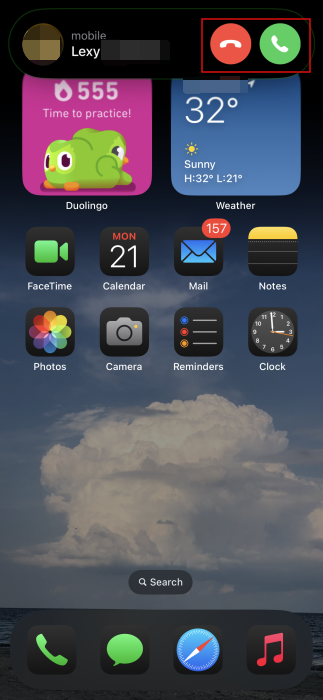
When you receive a phone call, the Dynamic Island will expand to reveal the familiar Accept and Decline buttons alongside the caller’s contact name or phone number.
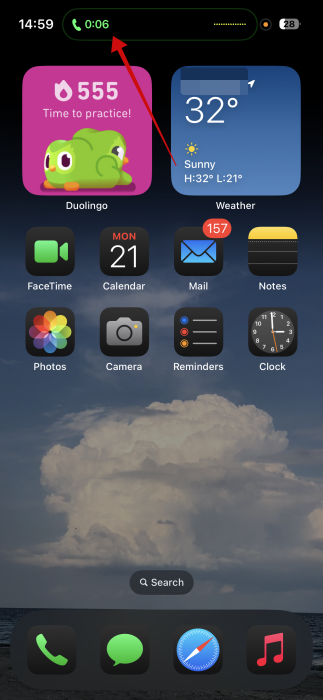
If you decide to take the call, the Dynamic Island shrinks back down to reveal call duration and a live audio waveform. The orange audio waveform represents your voice, while the green audio waveform represents the caller’s voice.
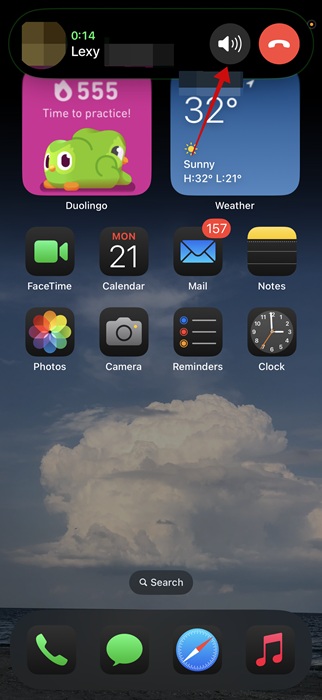
You can tap the call banner to immediately launch the Phone app or long-press on it to reveal the Hang up button and audio output controls, such as the ability to activate speakerphone without having to open the Phone app.
FYI: did you know you can now add music clips to your WhatsApp Status? Here’s how.
Manage Music Playback With the Dynamic Island
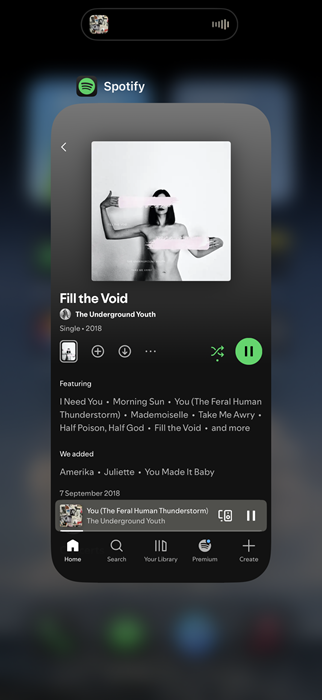
While listening to a song in the Music app, or any app that supports Apple’s Now Playing interface (in this example, Spotify), swipe out of the app from the bottom of the screen.
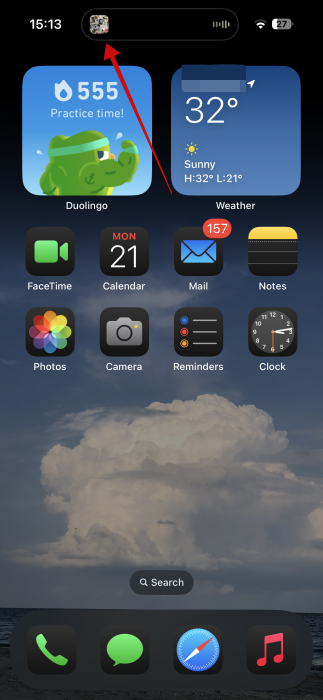
Your content, including any album art or thumbnails, will squish into a dedicated media playback icon reminiscent of the old iTunes MiniPlayer.
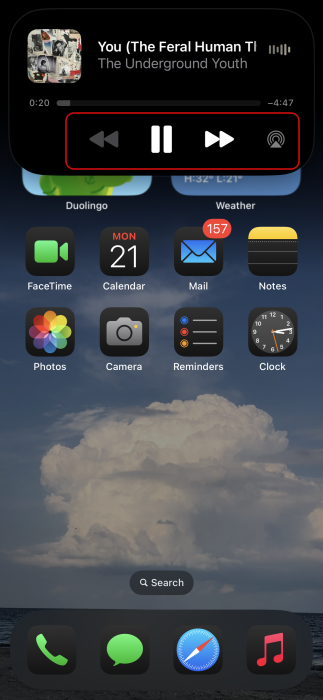
Tap on the Dynamic Island to launch the corresponding app that is outputting the audio, or long-press on it to reveal the playback controls shown below. You can access Play, Pause, Forward, Rewind, and audio output settings from the long-press interface. To connect to AirPods, an Apple TV, or wireless speakers, tap on the AirPlay icon (circled in red).
Tip: learn how to share Apple Music with your family.
Manage Two Tasks at Once Using the Dynamic Island
You can use Dynamic Island to keep track of more than one task at once by launching another supported app, then initiating another activity. In this example, we started a timer while also having the Pixel Pals app active. This is a virtual pet game that takes advantage of the Dynamic Island to show your pet.
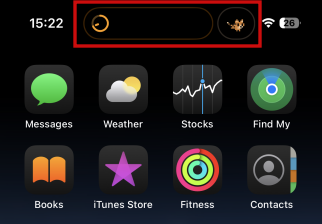
Notice how the Pixel Pals icon breaks away from the Dynamic Island to reveal an actionable button. You can tap on either the pill-shaped button to launch the Timer or the circular one for the game. Long-press on either button to display more controls.
Viewing Live Activities on Dynamic Island
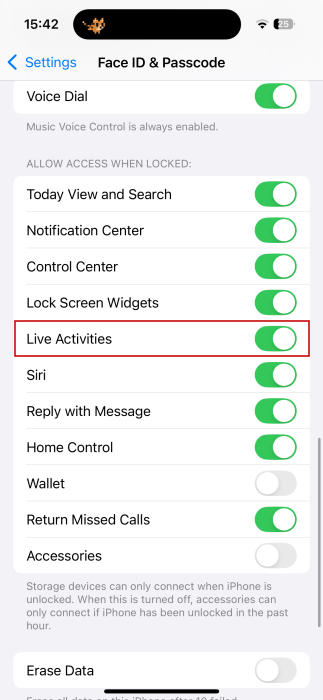
When Dynamic Island first launched, there were only a handful of Apple apps that showed Live Activities in the bar at the top. Fortunately, more and more third-party apps are integrating this functionality. To make sure you see Live Activities for an app in your phone’s Dynamic Island make sure the option is on.
Go to Settings -> Facebook ID & Password. Swipe all the way to the bottom and make sure the toggle next to Live Activities is on.
On the other hand, if you don’t want to see Live Activities for a particular app, go to Settings -> Apps and select the app in question.
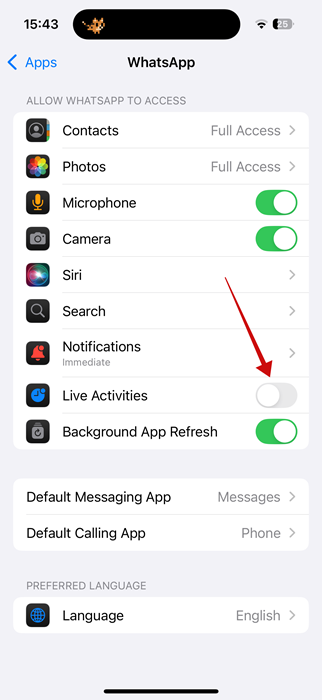
Disable the toggle next to Live Activities on the app page.
Frequently Asked Questions
Can I remove the Dynamic Island from view on my iPhone?
Unfortunately, that’s not possible. What you can do is hide the Dynamic Island using one of the tricks described in our post.
I see an orange square-shaped icon in the Dynamic Island. What does this mean?
The orange circular privacy indicator representing microphone access can sometimes show up as a square if users have Differentiate Without Color enabled in the Settings app. You can change the icon back to a circle by visiting Settings -> Accessibility -> Display & Text Size.
I’m having trouble reaching the Dynamic Island. How can I make it more accessible?
When you are using your iPhone in portrait orientation (vertically) with one hand, the Reachability feature can lower the top half of the display to help you reach UI elements with your thumb. On iPhone models with Face ID, you can swipe down on the bottom edge of the screen to activate Reachability. The feature brings the top of the screen near the middle of the screen so it’s a bit easier to reach if you’re holding the phone with one hand. Reachability also temporarily clones and lowers the Dynamic Island using software simulation to help you access it.








