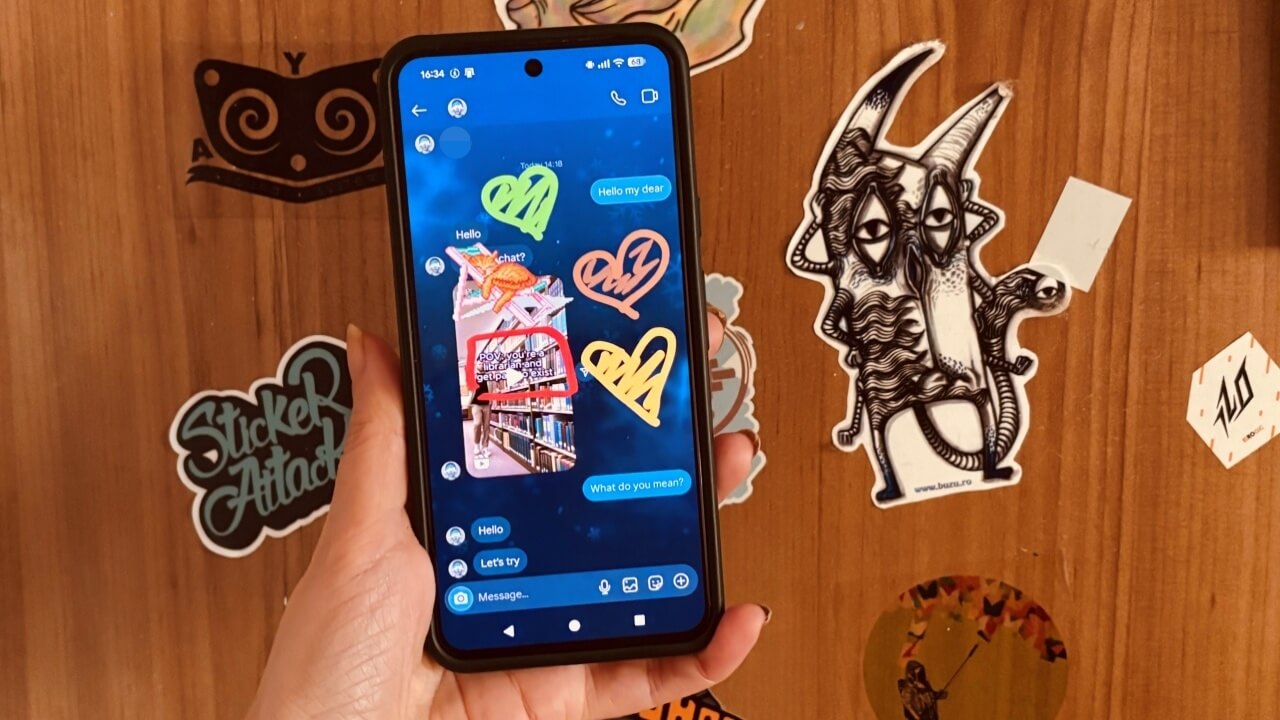
Meta is shaking up Instagram’s Direct Messages by adding tools that bring more personality to your chats. You can now sketch inside your DMs and react with stickers to messages, which you can then drag and place anywhere in the conversation. Ready to give these new features a spin? Follow our step-by-step guide.
Good to know: you can now use Instagram to easily share your location with friends. Here’s how.
Start Drawing in Instagram DMs
Drawing has been around for a while in Instagram Stories, but its integration into DMs marks a surprising yet exciting new direction in making conversations with followers more entertaining and creative.
Note: before you attempt to use your sketching skills while chatting with friends, make sure you’ve updated to the latest Instagram version.
Once this step is out of the way, open Instagram and go to DMs. Open a chat, any chat. Check the Message bar at the bottom. On the right, you should see a new + button.
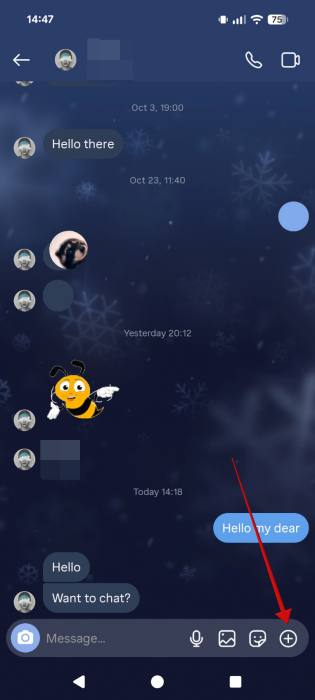
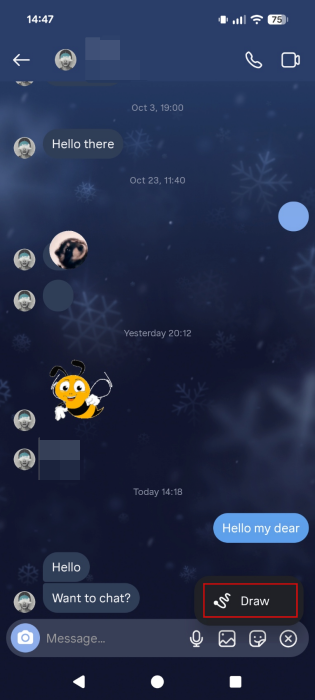
Tap it and select Draw.
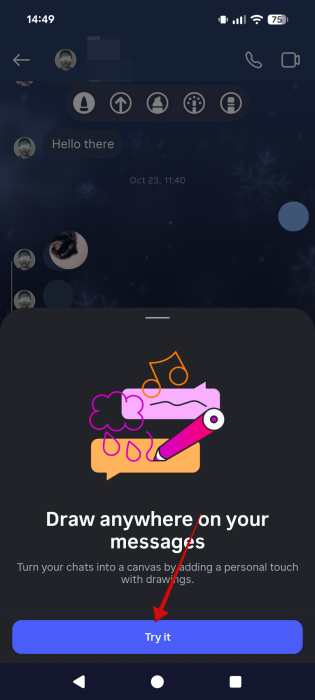
A new pop-up highlighting the new feature will appear from the bottom. Tap Try it to continue.
Your drawing kit will now appear on-screen. At the top, choose a drawing instrument from the options available, which include a brush and annotation (arrow) tool, as well as an eraser. You can control the thickness of the pen’s stroke by using the slider on the right.
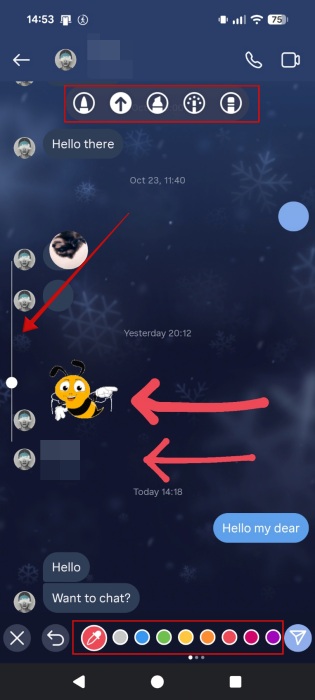
Select the color in which you wish to draw at the bottom. Swipe to the right to view more colors, or use the pipette tool to select a color.
In case you’ve made a mistake and want to delete an element, press the Back button at the bottom.
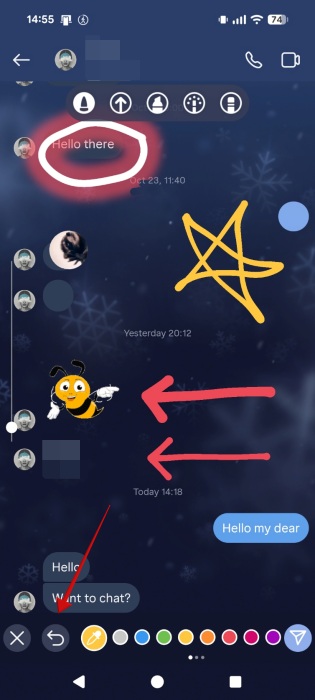
Note that you can add multiple sketches in one session, but they will be considered a single element (this matters if you want to delete a doodle later).
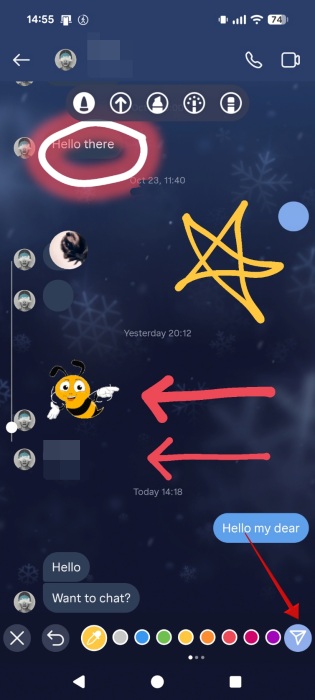
To post your doodle(s), press the paper plane icon in the lower right corner.
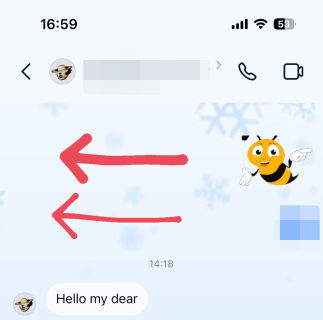
Your sketches will now be visible to the person you’re chatting with. On the recipient’s end, the chat is mirrored, but during our testing, we noticed that Instagram doesn’t always flip the doodles correctly, sometimes even placing them over the text. This bug will probably get sorted out soon.
Tip: another relatively new feature in Instagram DMs is Quick Snap. Learn how to use it by following our guide.
Add a Sticker to Your Instagram DM Canvas
You can already use stickers as replies while messaging, but now Instagram lets you place stickers on your DM canvas virtually anywhere. So if you think you’ve not expressed yourself creatively enough, try this.
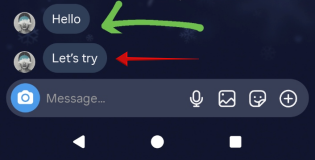
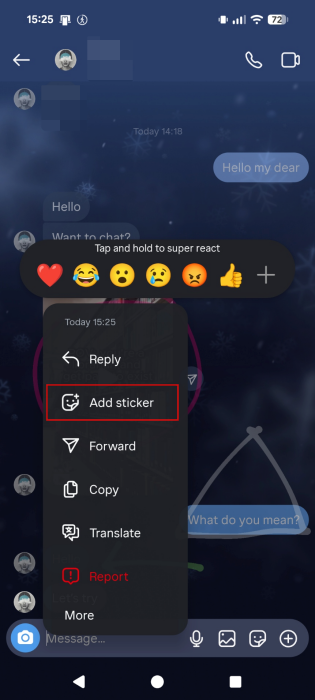
Long-press on a message you’ve received from your friend or even one of your own messages.
Select Add Sticker in the pop-up menu.
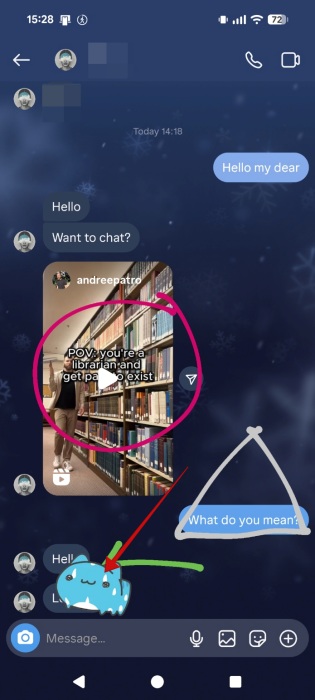
Select a sticker from the available options. It will be added on top of the message. Long-press the reaction sticker this time.
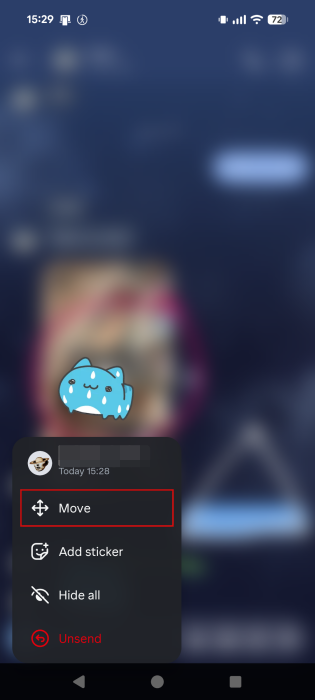
Select the option to Move.
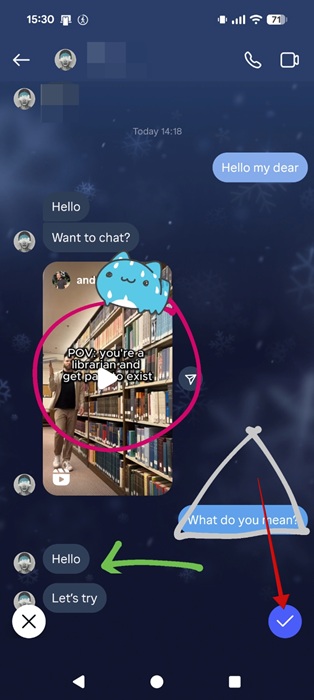
Place it anywhere in the DM. Tap the blue button on the right to confirm the move.
Delete Drawings or Stickers in Instagram DMs
Not everyone will appreciate seeing doodles and stickers in their conversation. As a recipient, if you want to get rid of a drawing you’re not particularly fond of, long-press on it to have a menu pop-up. Select Delete for you. Keep in mind that hiding the doodle only affects your view, but the sender will still view it in chat.
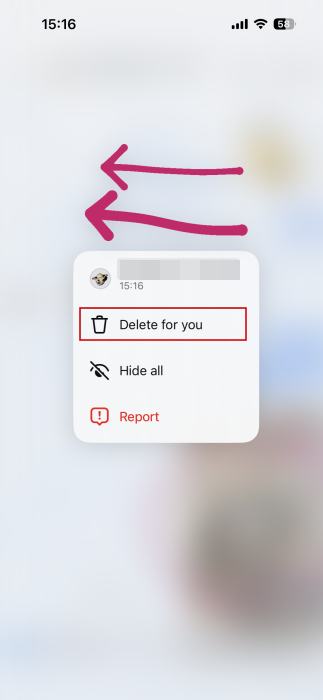
Note: if you created multiple doodles during a session, they will be deleted together. You won’t be able to mark only one element (or more) for deletion.
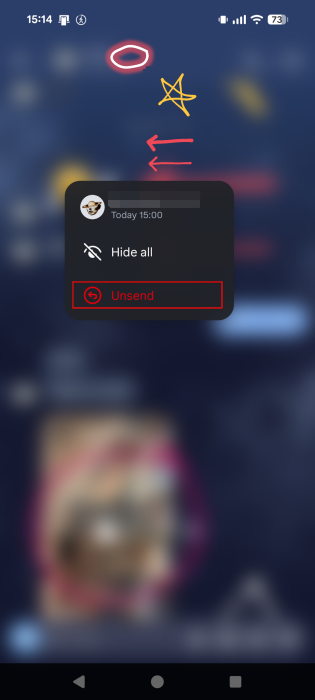
If you’re the one who sent the doodle, then you can remove it from the conversation by long-pressing it and selecting Unsend. This effectively deletes the sketch or sticker from both the sender’s and receiver’s chat windows.
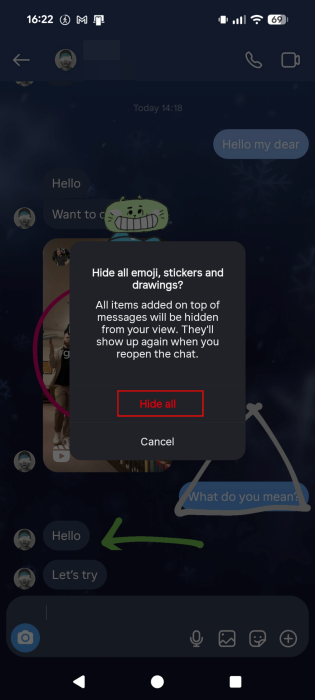
In case you wish to get rid of all the random drawings and stickers that appear in a DM, long-press on any of these elements and select Hide all. This option is available for both sender and receiver.
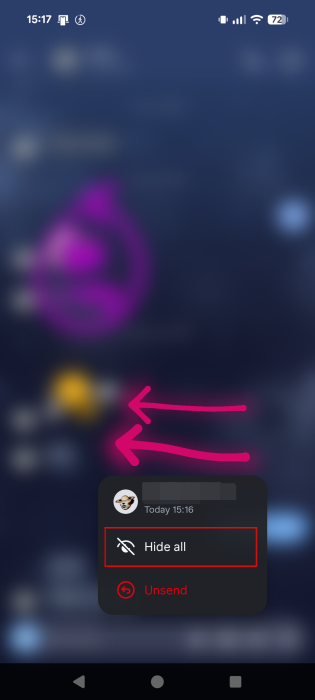
Press Hide all once again in the pop-up. The DM will now be clean again, featuring only your messages.
In case you wish to bring back all the doodles and stickers, tap on the Sticker icon in the Message bar.
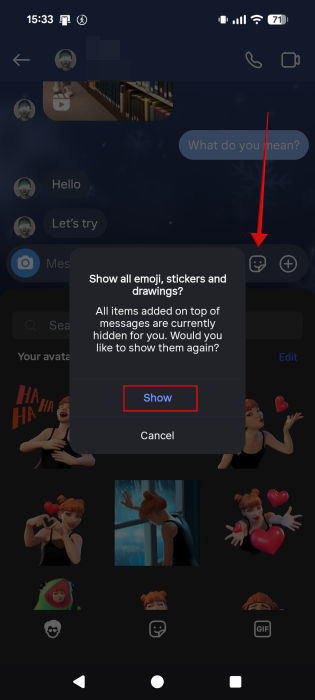
Then, tap Show in the pop-up. Your doodles and stickers will be reinstated.
In case you’re a frequent user of Direct Messages on Instagram, make sure you get yourself up to speed on what all the symbols mean in the DMs, so you can take advantage of all the latest features.








