With Windows 10 support ending soon, it’s understandable if you hurriedly upgraded to Windows 11 only to regret it. If you missed the 10-day rollback window, you’re effectively stuck on Windows 11 or forced to perform a clean install of Windows 10. If losing your files isn’t an option, there’s another way to downgrade your Windows 11 back to Windows 10, without data loss.
You Can Still Downgrade After the Rollback Period
Windows 11 practically makes it impossible to downgrade to Windows 10 after the rollback period, as it automatically deletes the Windows.old folder that contains all the user data to revert to Windows 10. This leaves with option to either continue using Windows 11 and retain the data or clean install Windows 10 and lose all the data.
However, there is another option now, thanks to the tool UpDownTool. This tool can revert Windows 11 (or any Windows version) to Windows 10 LTSC (Long Term Support Channel) version while retaining the data. You won’t be going back to your original Windows 10 Home or Pro installation, but it will be better than losing all your settings, programs, files, and drivers.
UpDownTool can’t switch to Windows Home/Pro as they keep updating with the latest features, and include UWP apps that can make the process too error-prone. A clean single-index WIM (Windows Imaging Format) like Windows LTSC makes it easier to move all the data without risking data loss or corruption.
Is the Switch to Windows 10 LTSC Version Worth it?
The Windows LTSC version is made for organizations that need stable machines that are secure but don’t keep changing with new updates. This means this version only gets security updates; no feature updates are provided to it. Furthermore, it also doesn’t include any of the default Microsoft UWP apps like Photos, Calendar, Copilot, etc.
There is no Microsoft Store either, so you can’t use store-based apps at all. If you have a store-based app installed, it won’t survive the reversion. While you can side-load the store apps, it’s not supported officially.
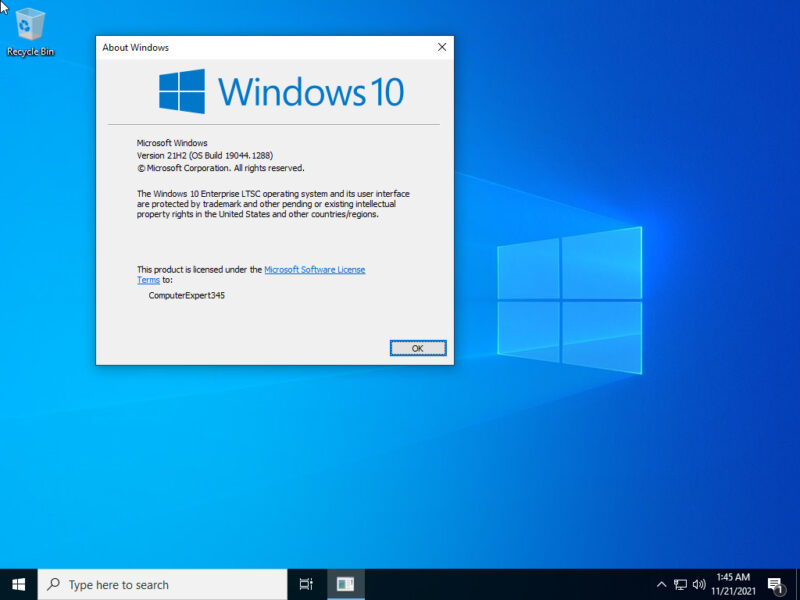
By default, it has ads removed and most telemetry disabled, other than some security/diagnostic ones. Apart from this, the whole Windows 10 experience is the same as the normal Windows 10 version; all your regular apps should work fine, with possibly better performance.
A big problem is activating Windows LTSC as its license is only sold in bulk (minimum 5). It does have a 90-day free trial, which can be extended up to three times using the slmgr /rearm command, so about a year of free access before the regular watermark and no personalization limits kick in.
If you don’t use any Microsoft apps, downgrading to Windows 10 LTSC will probably give you a better user experience.
Downgrading Windows 11 to Windows 10 Using UpDownTool
Downgrading to Windows 10 is actually very easy using the UpDownTool. However, before following the instructions, you should still back up important data to avoid taking any risks.
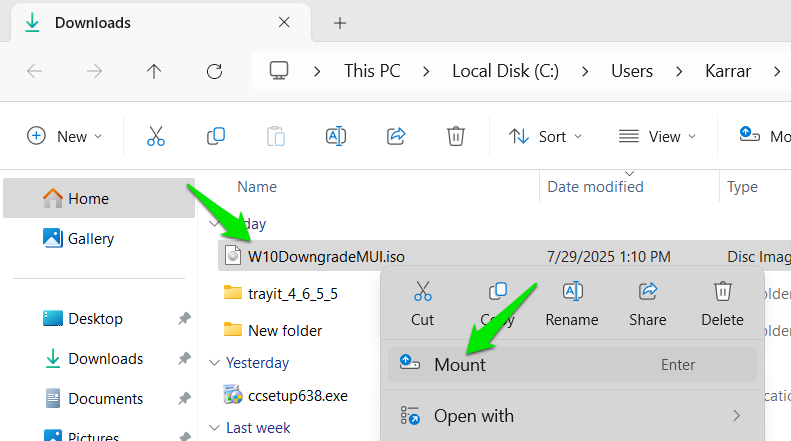
Download the UpDownTool, which should come as an ISO file containing Windows 10 installation files. You’ll have to mount the ISO first, so right-click on the ISO and select Mount. After a delay, you’ll be prompted to open the ISO, click Open.
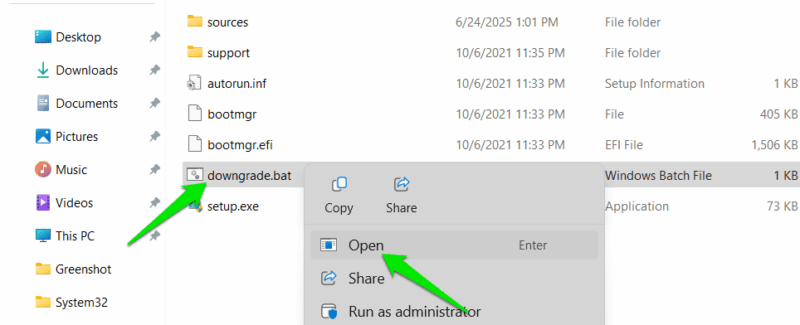
Once open, you need to launch the downgrade.bat file, not the usual setup.exe.
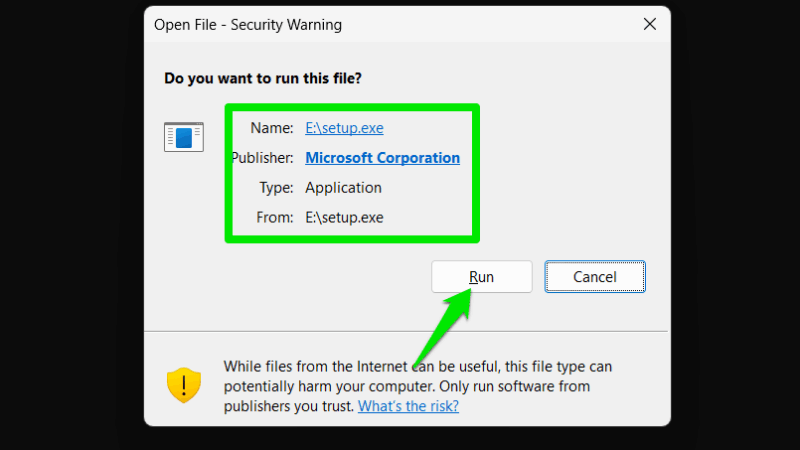
Afterward, click on Run when asked to run Setup, and the downgrade process will start. Do note that after clicking Run, the rest of the process is automatic; the tool will automatically make selections to downgrade the system. You’ll still be able to cancel the process initially, even when it’s automatic, but it won’t stop once installation starts.
After the downgrade, you’ll go through the regular Windows 10 initial setup (which is also slimmed down), and you’ll find all your data where it originally was.
UpDownTool is definitely worth a try if you are desperate to go back to Windows 10 without losing data. It can at least be a great temporary solution until you are forced to upgrade to Windows 11. Interestingly, regular Windows 10 support can be extended only up to 1 year more, but Windows 10 LTSC gets support till 2027 by default.








