
Most Android users press the power button to turn off screens when they’re done using their phones – but there’s an easier, faster method. With a simple double tap on the lockscreen, you can put your phone to sleep instantly. In this guide, we walk you through how to set it up and start using it.
Good to know: learn how to add shortcuts to your Google search widget for improved functionality.
1. Check Your Phone’s Settings
Many Android phones these days come with a feature that allows you to double tap on your screen to turn it off/on, but it is disabled by default. If you want to be able to double-tap to on/off the screen, check your phone’s settings to see if you have the feature. It’s usually the higher-end models that include this option, but mid-ranger might also offer the opportunity to do so.
On a Xiaomi phone, go to Settings -> Lock screen. In the Lock screen settings section, enable the feature to Double tap to wake or turn off screen when device is locked.
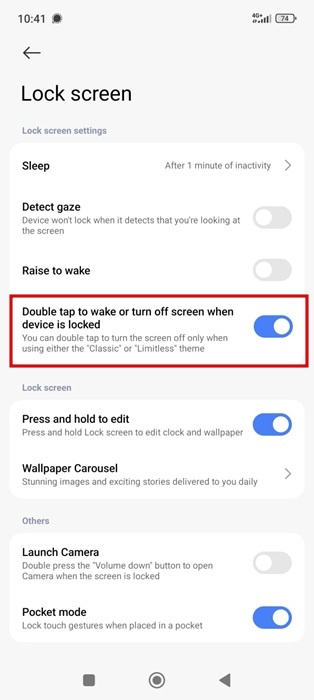
With this enabled, you will be able to double tap the screen to turn off the display when the device is locked but also turn it off.
If you have a Samsung Galaxy phone instead, you’ll need to navigate to Settings -> Motions and gestures.
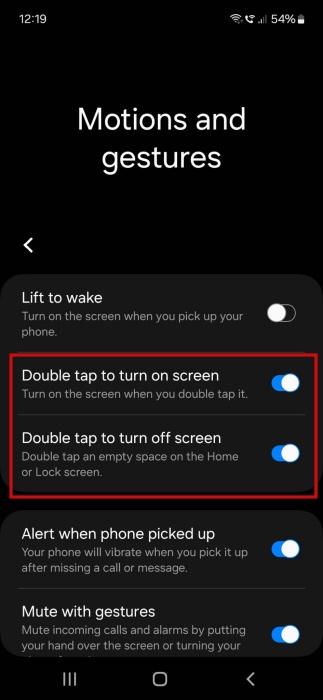
Enable from there the option to Double tap to turn on screen and/or Double tap to turn off screen.
On my older OnePlus 6T phone, there is an option to double tap the lock screen to wake the phone. But, there’s no option for turning the screen off.
While most top-tier Android phones today offer this option, Pixel are notable absentees. It’s true that Google’s phones let you tap your screen to wake it, but there’s no similar feature to turn it off. You can find this option under Settings -> Display & touch –> Lock screen.
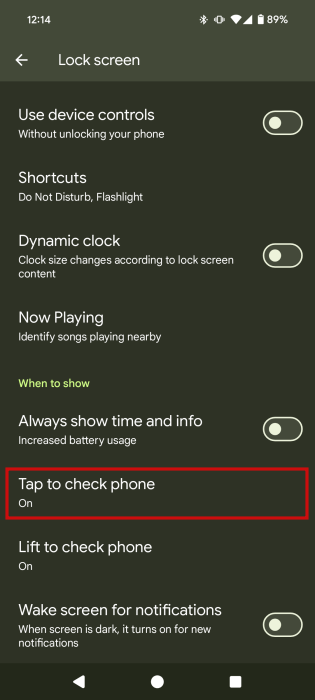
You can enable Tap to check phone from there.
However, it seems that Google is taking steps to implement this feature in the future through its Android 16 release. It’s probably not going to be available with the new software version at launch, but Google will probably add it some time later on.
FYI: quickly learn how to turn DND mode on your Pixel phone.
2. Install a Third-Party App
If you have a Pixel phone, you can still implement this gesture on your phone until the official update arrives. Install the ToolBox app on your handset and grant the necessary permissions for it to work.
At the top, select the Turn screen off option.
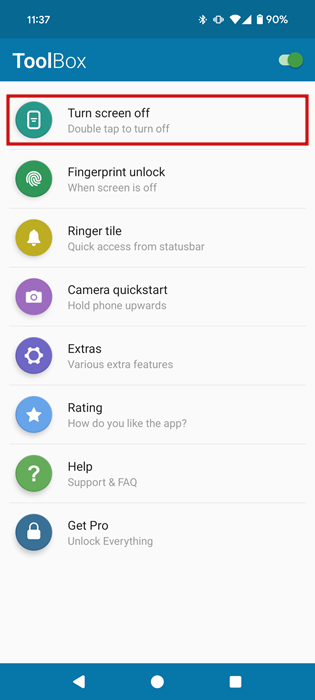
Enable the first toggle called Homescreen. This will allow you to double tap on the home screen to turn the display off. The same gesture is also available to enable at lockscreen, but it is only for paid users of the app.
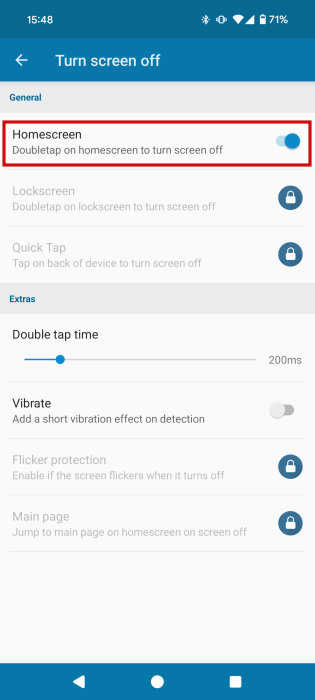
Since ToolBox only works on Pixels, if you have an older Android phone, then we suggest that you install the Double Tap Screen Off app instead.
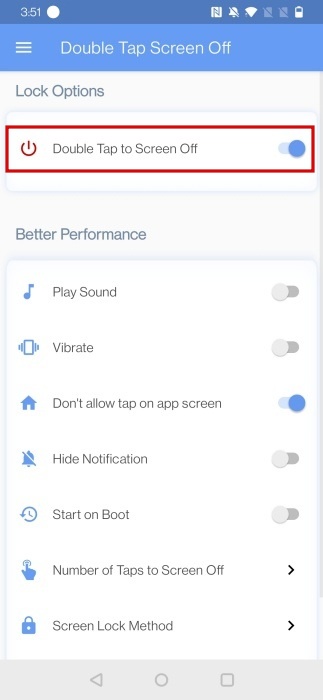
Open the app and give the necessary permissions for the app to work (there are quite a few, but you will need to go through them all.) Once you complete all of this, turn on the toggle to Double Tap to Screen Off located at the top. Now you can double tap to put the screen to sleep from your home screen as well as your lock screen.
Gestures provide intuitive ways to interact with your phone. Check our post to find out about some Android gestures you need to start using now. Alternatively, if you’d rather interact with your phone’s display, read all about controlling your Android device without touching the screen.








