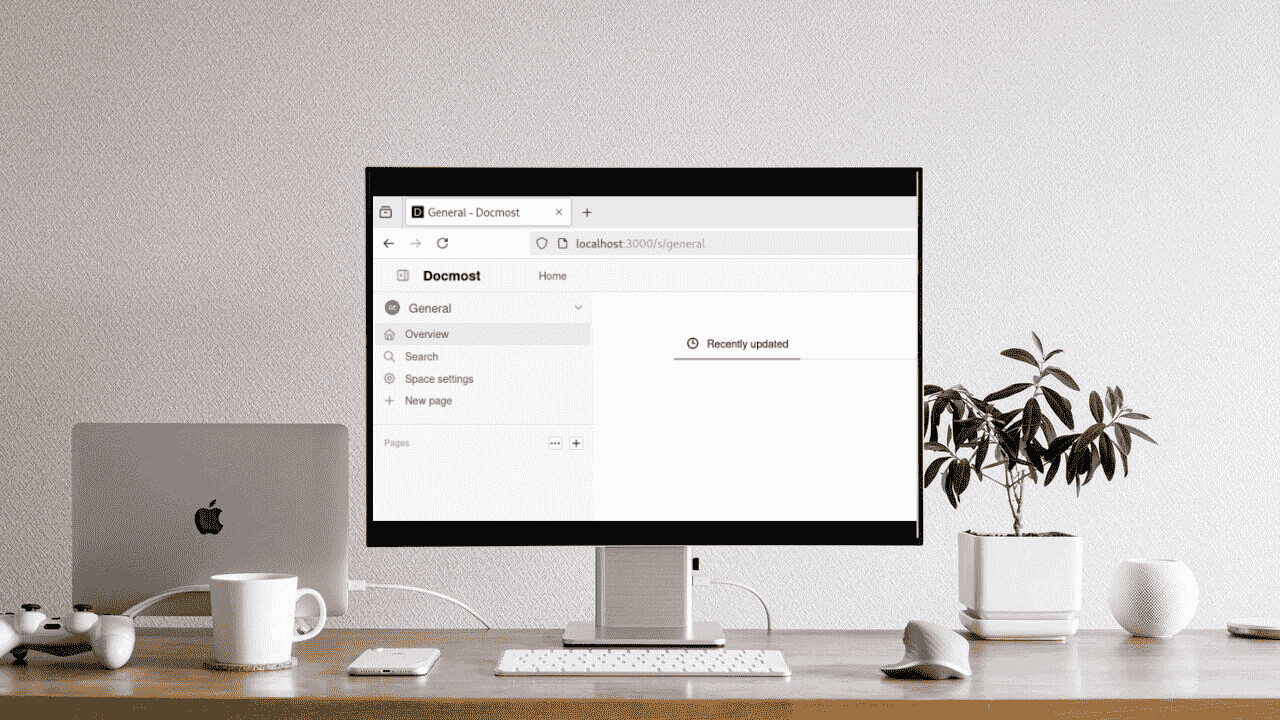
Docmost is a powerful, open-source tool designed for creating and sharing documentation, notes, and knowledge bases. Like Notion, it supports real-time collaboration, rich formatting, diagrams, comments, and version history. However, unlike Notion, Docmost is fully self-hosted, giving you complete control over your data, privacy, and customization.
What Is Docmost and Why Should Teams Use It?
Docmost acts like a personal, collaborative wiki. It’s built with simplicity in mind while still offering advanced capabilities for teams:
- You manage your own server and data. No vendor lock-in, no privacy concerns, and you can apply your own security rules.
- Multiple users can edit the same document at once, making team communication smooth and effective.
- Write with a clean interface using Markdown and see a live preview.
- Assign user roles to control who can view or edit specific spaces and pages.
- Use spaces, nested pages, and groups to organize your documentation efficiently.
- Embed diagrams using Draw.io, Excalidraw, or Mermaid directly in your pages.
- Every change is tracked, and a powerful search helps locate content quickly.
If you’re looking for a self-hosted tool to manage your notes and tasks, Docmost might be exactly what you need.
Key Feature Comparison: Docmost vs Notion
The table below provides a detailed comparison between Docmost and Notion based on their features:
| Feature | Docmost | Notion |
|---|---|---|
| Hosting | Self-hosted, you manage your own data and infrastructure. | Cloud-based; data is hosted on Notion’s servers. |
| Source Code | Open-source and free to modify. | Not open-source and proprietary. |
| Customization | Fully customizable, including themes and plugin options. | Limited customization through settings and integrations. |
| Real-Time Collaboration | Yes, multiple users can edit the same document at once. | Yes, supports real-time editing and team collaboration. |
| Editor Type | Markdown-based editor with live preview. | Visual drag-and-drop editor. |
| Offline Access | Available depending on how you set it up. | Built-in offline mode on desktop and mobile. |
| Permissions & Access Control | Customizable access levels with user roles and spaces. | Advanced team and user access management. |
| Data Portability | Full control over data with easy export options. | Export is available, but formatting may vary. |
| Diagram Support | Built-in support for Draw.io, Excalidraw, and Mermaid. | Requires third-party embeds or workarounds. |
| Mobile Support | Accessible through a mobile browser. | Fully supported mobile apps. |
| Pricing | Free and self-managed. | Free for personal use, paid plans for teams. |
| Best Use Case | Teams that prioritize control, privacy, and technical customization. | Individuals and teams looking for an easy-to-use, all-in-one workspace. |
Why You Might Want to Self-Host Docmost
By self-hosting Docmost, you choose where and how your content is stored. You’re free from vendor pricing, formatting restrictions, or privacy trade-offs. Docmost also lets you integrate with your internal tools and scale the way your team works, without compromise.
How to Deploy Docmost with Docker
To deploy Docmost, first make sure Docker and Docker Compose are installed and running on your system. After this, set up a project directory and navigate to this directory using the following command:
mkdir docmost && cd docmostUse the following curl command to download the docker-compose.yml file from the Docmost GitHub repository:
curl -O https://raw.githubusercontent.com/docmost/docmost/main/docker-compose.yml
Now, open the docker-compose.yml file using an editor like Nano:
nano docker-compose.ymlGenerate a secure APP_SECRET by running the following command in your terminal:
sudo openssl rand -hex 32
Now, set the environment variables, such as APP_URL, APP_SECRET, DATABASE_URL, and REDIS_URL.
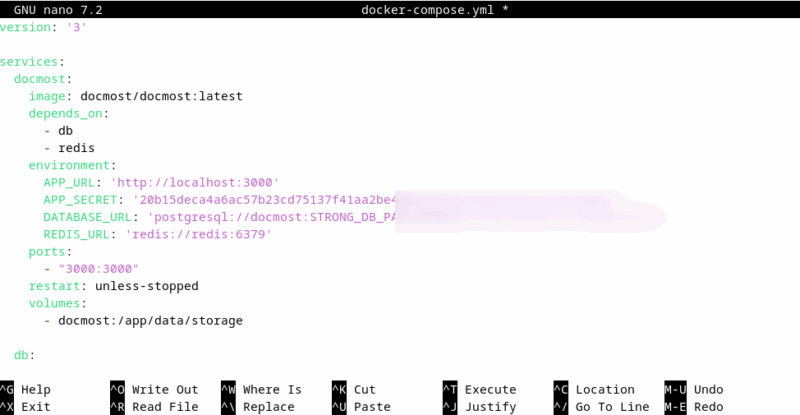
Launch Docmost with Docker Compose.
sudo docker compose up -dThis command pulls the necessary images and starts three containers: Docmost, PostgreSQL, and Redis:
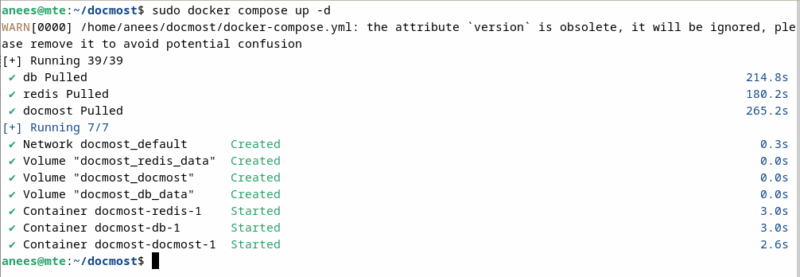
Finally, visit your specified APP_URL in your browser to access Docmost.
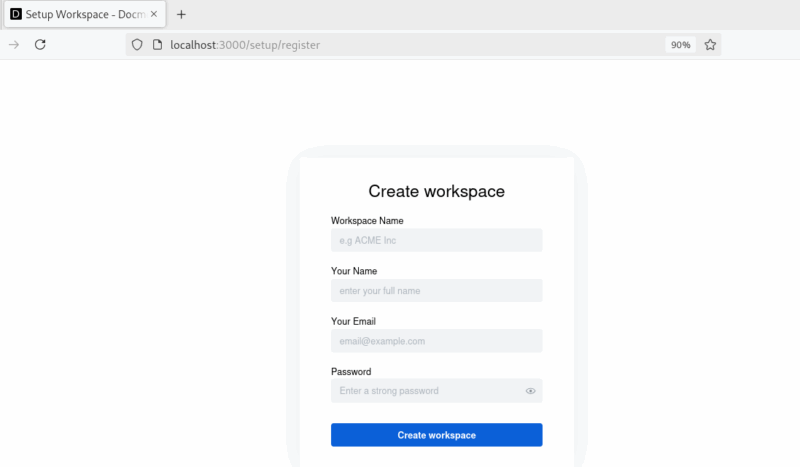
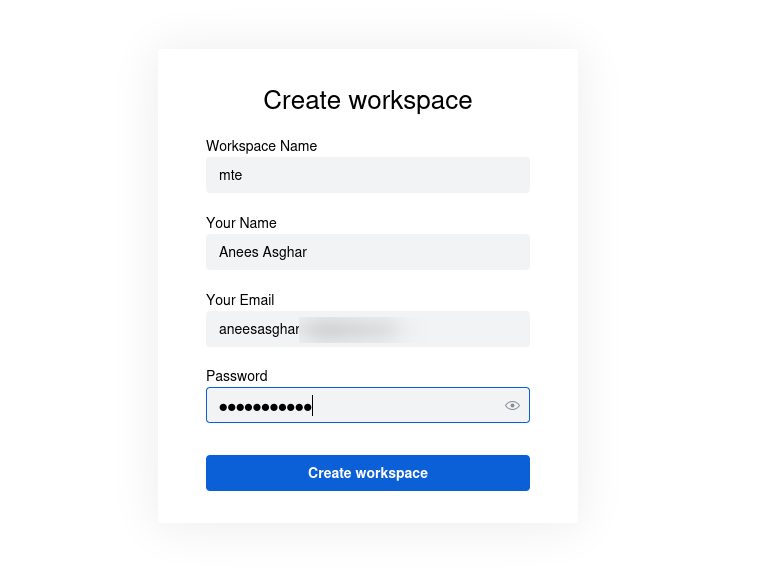
The setup wizard will guide you through creating the first workspace and user. Specify the required details and click the Create workspace button to create your first Docmost workspace.
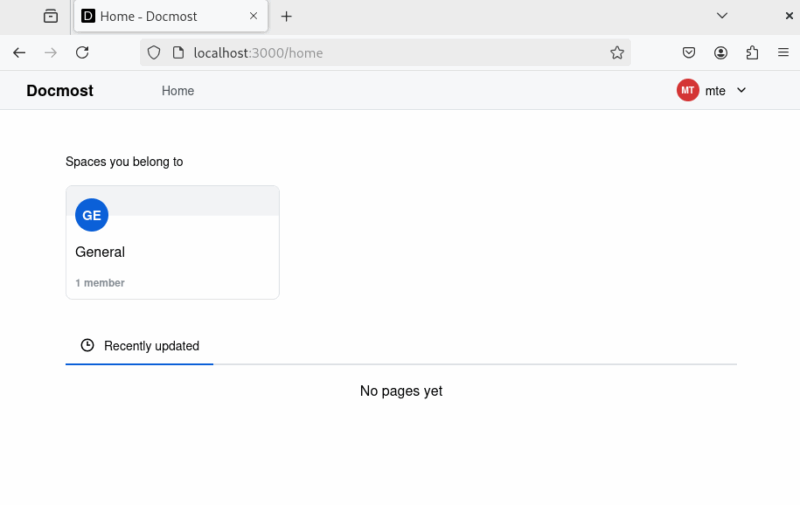
A workspace will be created in your team’s space for collaboration and documentation.
How to Use Docmost
Let’s explore some core use cases of the Docmost platform, including team collaboration, knowledge management, real-time editing, and self-hosted documentation.
Create and Edit a Page in Docmost
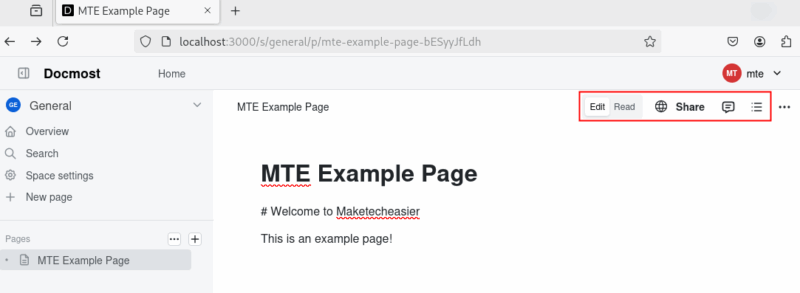
Click on New Page from the sidebar to create a new page. Specify a page title and start writing using Markdown syntax:
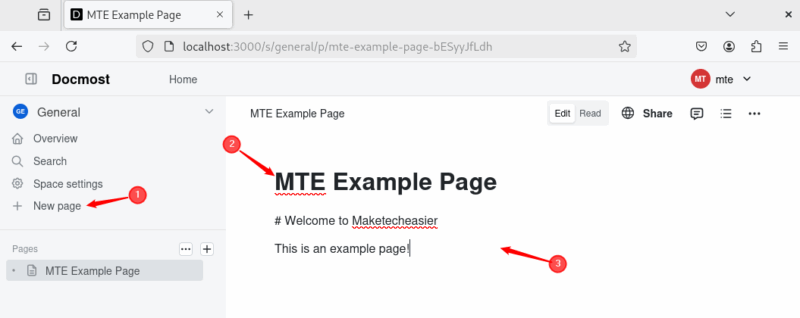
You can switch between Edit and Read mode, share the page to make it publicly accessible, add comments, and a table of contents.
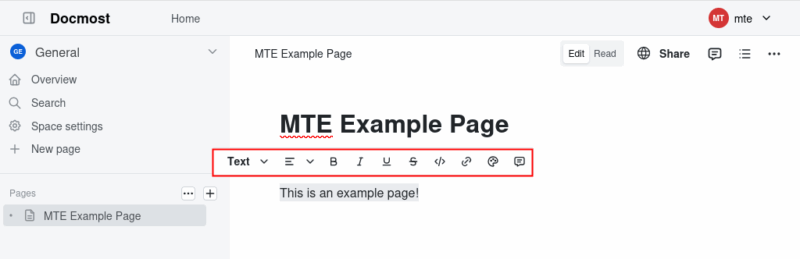
Similarly, you can select specific content to add headings, lists, tables, and code blocks.
Add Diagrams in Docmost
Docmost supports embedding diagrams from tools like Draw.io, Excalidraw, and Mermaid. For example, you can attach .drawio or .svg files and embed them in pages using standard markdown image syntax like:
Organize with Spaces and Nested Pages
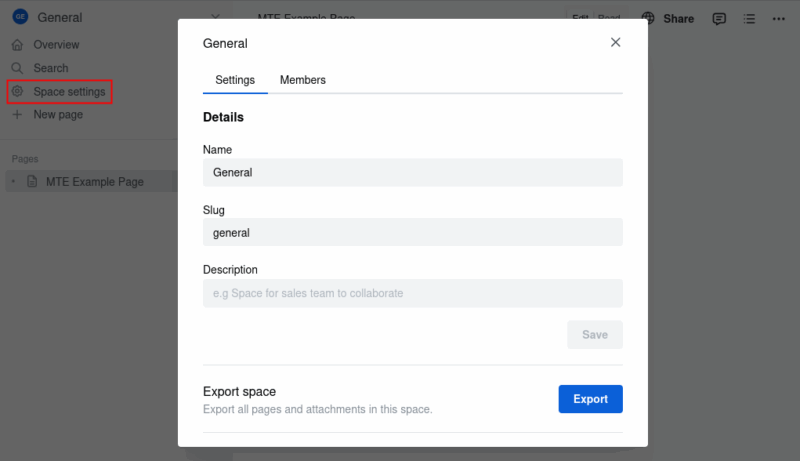
In Docmost, a Space acts like a top-level folder for grouping related pages. For example, you might create spaces for Computing, Reviews, or How-to Docs. To do this, on the left sidebar, click Space settings under the name of your current space (here, it’s General). It opens the space management window with two tabs: Settings and Members.
The Settings tab lets you customize how the space appears and behaves. Here’s what you can configure:
- Space Name is used to update the title of the space (e.g., from “General” to “MTE Docs”).
- Slug is the unique part of the URL that represents your space. It’s automatically generated based on the space name, but you can customize it.
- Description lets you add a brief summary to explain the purpose of the space.
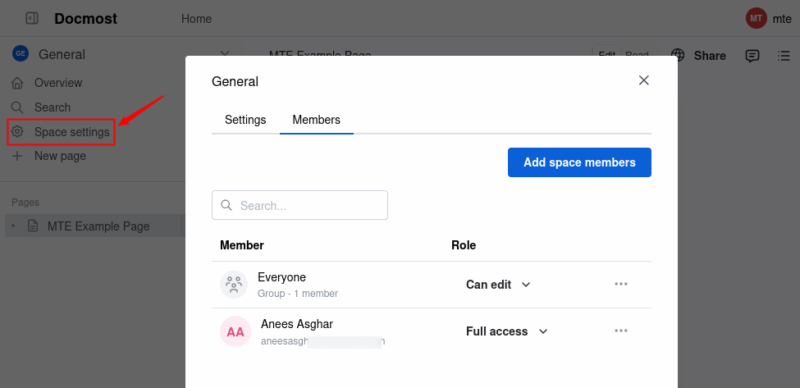
Inside the Members tab, you see a list of people or groups who have access to this space. Each user or group has a role assigned to them:
- Can edit allows editing but not managing settings.
- Full access includes editing, managing members, and configuring space settings.
Use the dropdown next to a name to change their role and the three-dot menu to remove or manage individual users. Moreover, you can click Add space members to invite new users.
Why Docmost Stands Out
Docmost lets you work with different types of content, including tables, formulas using LaTeX, and rich embeds, all within a single editor. You can also organize your pages easily using a drag-and-drop feature that keeps everything neat as your documentation grows.
It automatically keeps track of every change, so if you delete something by mistake, you can go back to an earlier version without any hassle. When you need to locate specific information, the powerful full-text search makes it quick and easy, even in large projects.
You can also group users by roles or teams and assign permissions to control who can view or edit specific content, which is helpful when working with larger teams.
As your team grows and your projects become more complex, having a tool like Docmost can really make a difference. It’s built to help teams work together smoothly, keep everything organized, and stay in control of their own data.