Chances are you’ve heard of Docker. It’s everywhere. But when it comes to actually managing your containers, you’ve got a couple of choices: Docker CLI (Command-Line Interface) or Portainer (a slick web-based GUI). Let’s explore both of these one by one!
What Is Docker CLI
Docker CLI is the command-line interface that lets you interact with Docker through terminal commands. When you type docker run, docker build, or docker ps, you directly control Docker without any intermediary interface. With just a few typed commands, you can build images, start containers, check logs, and do much more.
In addition, using terminal commands lets you control every flag, parameter, and option. You can easily mount specific volumes, set environment variables, or configure network settings with precise command-line arguments.
What Is Portainer
Portainer is a web-based interface that simplifies Docker container management by replacing command-line complexity with an intuitive dashboard. Instead of typing or memorizing commands, you can click through a slick dashboard to deploy containers, check logs, or manage networks. The dashboard displays container stats, real-time logs, CPU and memory usage, and even enables one-click deployment of stacks and services.
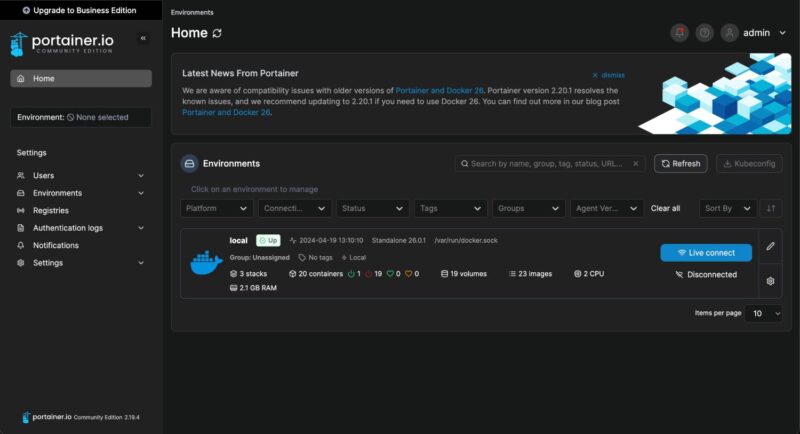
In addition, Portainer supports role-based access control, making it an excellent choice for teams. With its template feature, you can create reusable application templates that team members can deploy with just a few clicks.
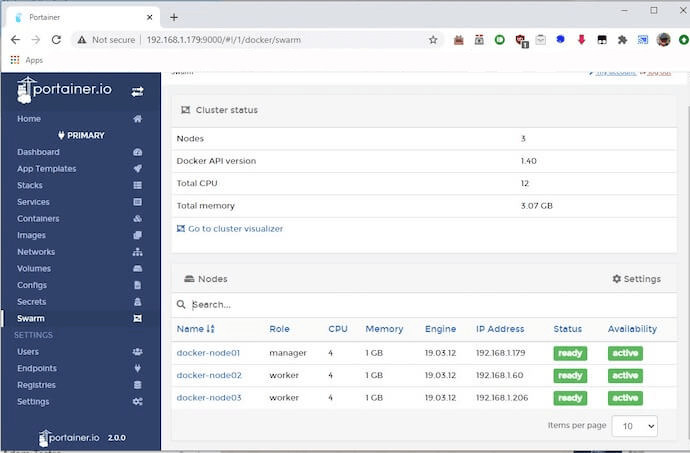
You can also manage multiple Docker hosts (or endpoints) from a single interface—whether they’re on your local machine, in your data center, or in the cloud. Portainer even supports Docker Swarm and Kubernetes out of the box, making it a versatile tool for orchestrating containers at scale.
Docker CLI Offers More Control and Flexibility
Docker CLI provides complete access to every Docker feature and option. You can create complex multi-stage builds, set up intricate network configurations, and specify exact resource limits that graphical interfaces might not support.
This level of control becomes crucial in production environments where every configuration detail matters. The CLI exposes Docker’s full capabilities without hiding anything behind a simplified interface.
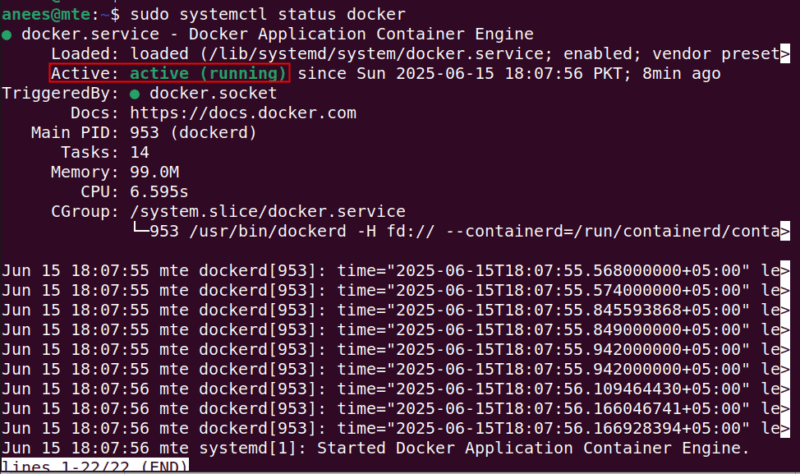
Scriptability is another major advantage of Docker CLI. You can automate virtually anything using CLI commands, creating elaborate deployment scripts that spin up entire application stacks with a single command – something not feasible with point-and-click interfaces.
The CLI also offers better reliability in enterprise environments. You don’t rely on a web server that might crash or on extra layers that could fail. When troubleshooting critical issues, you won’t have to worry whether your management interface is functioning properly.
Furthermore, Docker CLI is a cornerstone of modern DevOps practices like Continuous Integration and Continuous Deployment (CI/CD). Tools like Jenkins, GitLab CI, and GitHub Actions rely on the Docker CLI to build, test, and deploy applications automatically.
But don’t get me wrong, the CLI isn’t always the easiest path. It demands attention to detail. One typo, and you might end up deleting the wrong container or exposing a port you didn’t mean to.
Portainer Makes Docker More Accessible and Visual
Not everyone wants to live in the terminal. Portainer makes Docker more accessible and visual. For example, the visual dashboard helps you understand your Docker environment effortlessly. Instead of parsing text output from docker ps, you get a clear overview of container health, resource usage, and status.
Portainer has a much shorter learning curve. New team members can start managing containers within minutes instead of spending days learning command syntax.
It also provides context and helps prevent mistakes. When you’re about to delete a container, Portainer shows exactly what you’re deleting and asks for confirmation. The CLI, on the other hand, will execute any command you give it, even if it’s destructive.
Don’t forget about remote management. If your Docker host runs in the cloud or on a remote server, Portainer’s web UI lets you manage everything from anywhere. There’s no need to SSH into servers or set up VPNs just to run a few commands.
When to Use Docker CLI vs Portainer
You can use both! There’s no rule that says you must pick one and stick with it. Use the CLI for automated tasks and scripts, and use Portainer for real-time monitoring or quick changes.
If you’re a terminal enthusiast, choose Docker CLI. It’s fast, precise, and works seamlessly with other tools. But if you’re new or want a break from the command line, give Portainer a try. It flattens the learning curve and lets you focus on what you’re building, not on how to type it.
Are There Alternatives to Docker CLI and Portainer?
When managing Docker containers, you’re not limited to just the Docker CLI or Portainer. While these two are among the most widely used tools, several excellent alternatives might better fit your specific needs.
If you prefer working in the terminal but want something more visual, Lazydocker gives you a terminal-based interface that adds clarity without sacrificing speed. It’s ideal for those who enjoy the command line but want better insights into container processes.
Further, if you need a lightweight GUI, Yacht offers a clean, web-based Docker management interface that’s easy to use without the extra enterprise features. There’s also DockStation, a desktop app that offers an intuitive interface for developers who want to manage containers locally without diving into complex terminal commands.
Final Thoughts
Docker CLI and Portainer both make managing containers easier, but they take different paths to get there. Docker CLI gives you unmatched control, while Portainer simplifies container management through a web-based dashboard.
Ultimately, the right tool depends on what you’re building and how you work. Also, you’re not limited to just one. Beyond these two, there are plenty of other alternatives to explore.








