Having a slow experience on Windows? Microsoft published a set of tips to help speed up your PC – including two that recommend disabling built-in Windows features to get a performance boost. Let’s look at what those two tips are, how they help, and how to manage them correctly.
The Two Features Microsoft Suggests to Disable
In the new Microsoft support document, Microsoft offers a bunch of tips to speed up a slow Windows 11/10 PC. Among them, there are two tips that stand out as they disable built-in Windows features. For slow PCs, Microsoft recommends that you disable visual effects and pause OneDrive syncing; both features are enabled by default.
Interestingly, both of these actually do have a noticeable impact on PC resources, and they can speed up the system significantly when disabled. Below is an explanation of each:
Disable Visual Effects
Windows uses Desktop Window Manager to composite the desktop and render many UI effects like transparency, animations, blur, shadows, etc. These effects are built continuously and eat a lot of GPU resources, which is why we recommend disabling them when optimizing a PC for gaming.
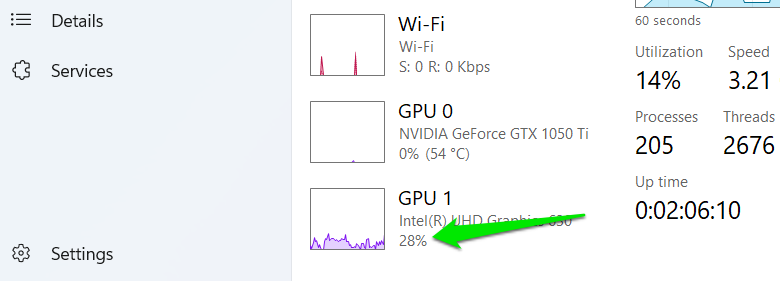
You can easily gauge their impact by opening the Task Manager and moving to the Performance tab to view GPU usage. Now, start clicking on the Task Manager icon in the taskbar so it minimizes and maximizes quickly. You’ll notice the GPU usage spike. For us, the average spikes were 25-30%, and they were down to 5-7% with visuals disabled.
Pause OneDrive Syncing
While you might think OneDrive sync will impact network bandwidth the most, it is actually more problematic for disk I/O and CPU resources. Keeping data synced requires continuous recording of file changes and running tasks to keep changes synced. These tasks compete for disk I/O and CPU cycles with foreground apps, leading to sluggish performance and sudden drops.
Disabling Visual Effects the Right Way
Disabling visual effects makes sense when trying to speed up a PC, but it can have a very negative impact on appearance. Apart from removing all the animations, it will also make the text look terrible and hard to read. While Microsoft recommends disabling all visual effects, we recommend enabling a few necessary ones that have a negligible impact.
Type “performance” in Windows Search and open Adjust the appearance and performance of Windows.
Here, select Adjust for best performance option to remove all visual effects. Afterward, enable the following visual effects so your usage isn’t negatively impacted:
- Show shadows under mouse pointer
- Show shadows under windows
- Smooth edges of screen fonts
- Use drop shadows for icon labels on the desktop
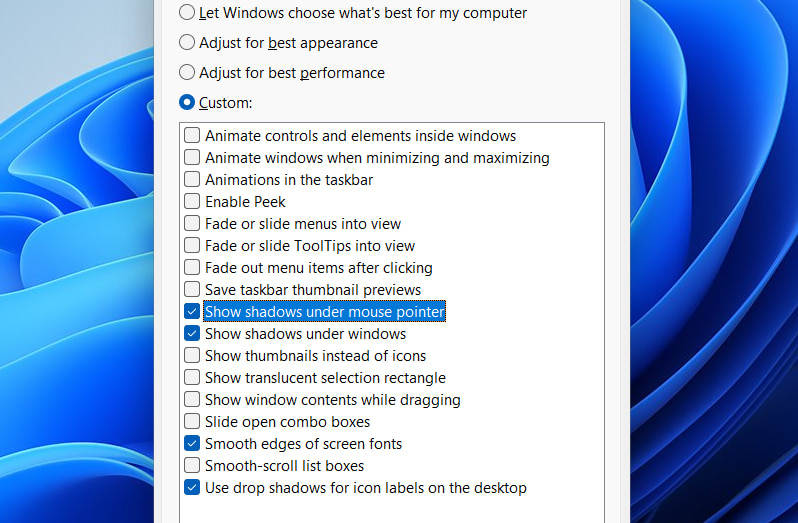
These visuals hardly take up many resources, so it is safe to enable them.
Pause, Quit, or Uninstall OneDrive
By default, Windows has OneDrive enabled and syncing your data with your Microsoft account (unless you create a local account). You have the option to stop sync temporarily when doing something important to speed things up. You can also disable OneDrive or uninstall it if you don’t use it at all.
Pause OneDrive Sync
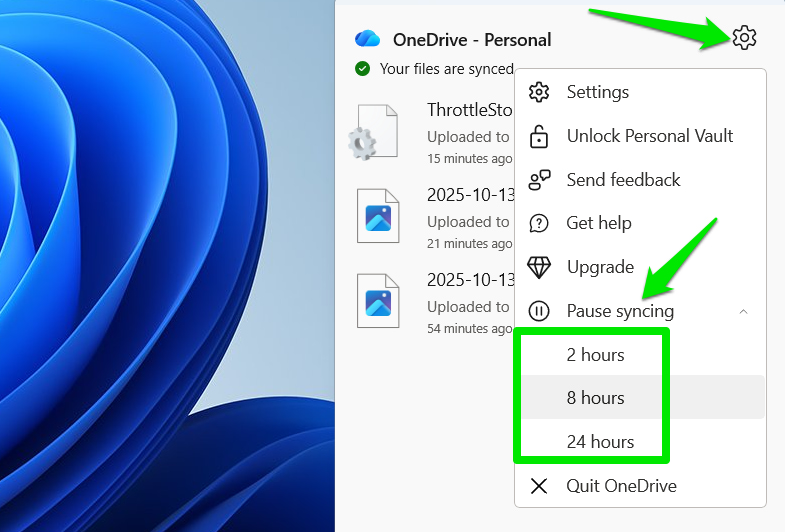
To prevent OneDrive from consuming resources temporarily, you can disable sync for a few hours. Click on the OneDrive icon in the system tray, and click on the Settings icon. Click on Pause syncing and then select a timer of 2, 8, or 24 hours. You can click the resume button in the OneDrive interface to turn it back on if needed.
Quit OneDrive
If you won’t be using OneDrive, but don’t want to delete it completely either, then you can turn it off instead. This will keep the synced data, and you can turn it back on any time to sync your data. To do so, you have to both exit OneDrive and also prevent it from starting up automatically with Windows.
In OneDrive, move to the Pause syncing section again, click on Quit OneDrive, and confirm the prompt to quit it.
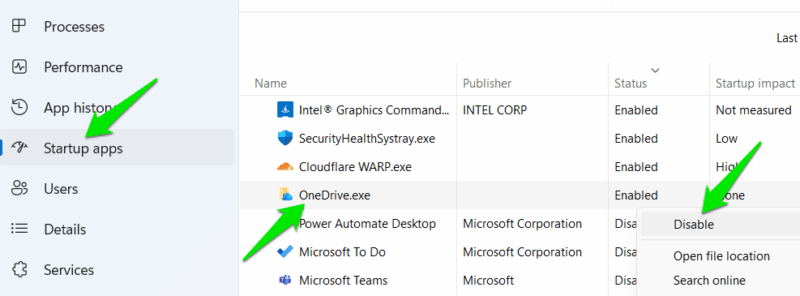
Since OneDrive is set to start up with Windows, you need to disable it from the list of startup apps to ensure it doesn’t launch automatically. Open the Task Manager (Ctrl + Shift + Esc), move to the Startup apps section, and disable the OneDrive.exe entry.
Uninstall OneDrive
If you won’t be using OneDrive at all, you have the option to uninstall it to ensure it doesn’t consume any PC resources at all. In most cases, you can uninstall it like any other program (you might have to enable DMA features). However, it requires more thorough cleaning as it also leaves the OneDrive folder and other data behind. Check out our complete guide on uninstalling OneDrive for a thorough cleanup.
Performance gains from disabling these features will be most noticeable on PCs with limited RAM and less powerful GPUs. In case of visual effects, the UI will also feel snappier on all PC as animations no longer play. For even more performance gains, you can also disable these unnecessary Windows services.








