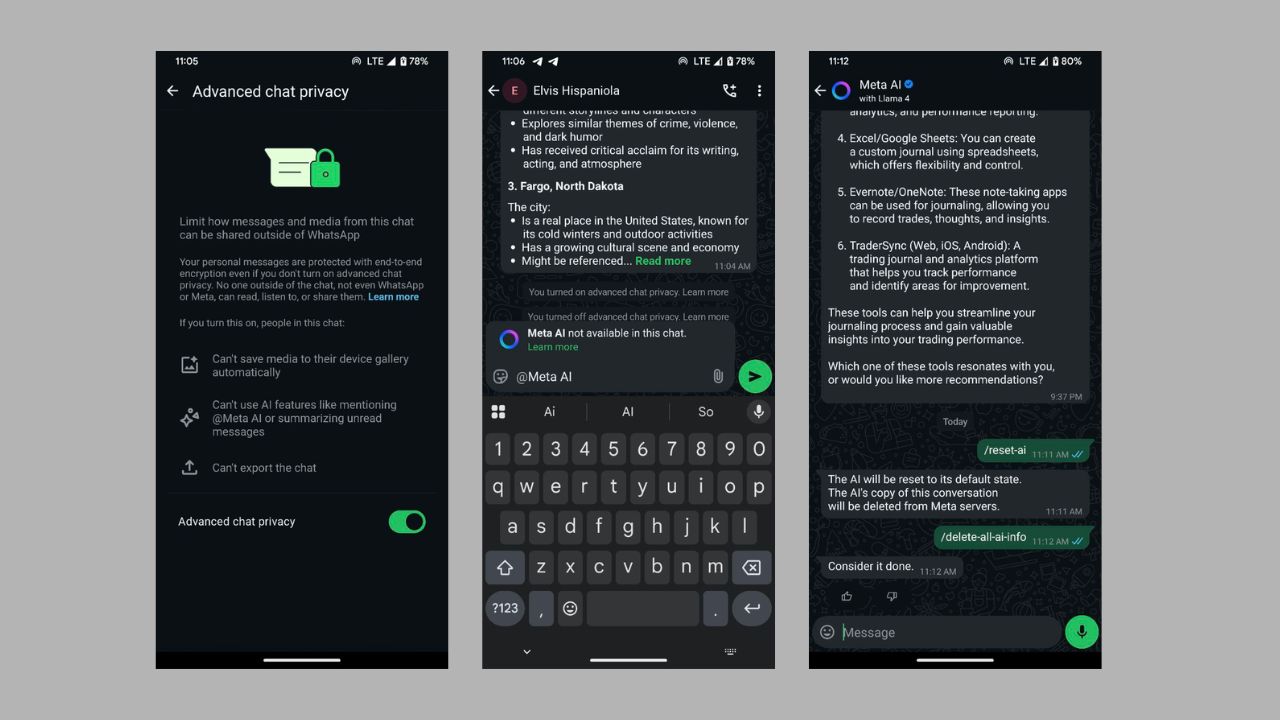
I always feel that the blue Meta AI circle in WhatsApp feels like an uninvited guest snooping on my private chats. Meta’s AI push feels like a sneaky attempt at a data grab, and I’m not here for it. As a way to fight back against it, I found a way to disable Meta AI in WhatsApp chats or limit its access to keep your chats as private as possible. Let’s check it out.
Why Meta AI Feels Like a Privacy Betrayal
The idea of Meta AI sounds cool at first; getting quick answers, funny memes, and all the benefits of using AI without leaving WhatsApp. But you quickly realize that it’s a data hog.
Those chats you have with it are not end-to-end encrypted like your regular WhatsApp messages. Meta’s collecting metadata, your chat habits/patterns, maybe even your vibe, to train its AI Empire.
That blue circle staring at you every time you open WhatsApp is like Meta saying, “You’re stuck with me.”
Being a privacy nerd, this ticks me off. Since you can’t fully remove Meta AI on WhatsApp, you can make it mind its own business in your chats.
If you’re, however, bent on using the AI, check our guide for hacks to keep Meta AI chats private.
Disable Meta AI on WhatsApp
Use Advanced Chat Privacy
The most efficient way to disable Meta AI in WhatsApp chat is through the Advanced Chat Privacy feature.
Tap to open the profile of a person or group in the relevant chat. Scroll up to Advanced Chat Privacy under Chat lock, and tap on it.
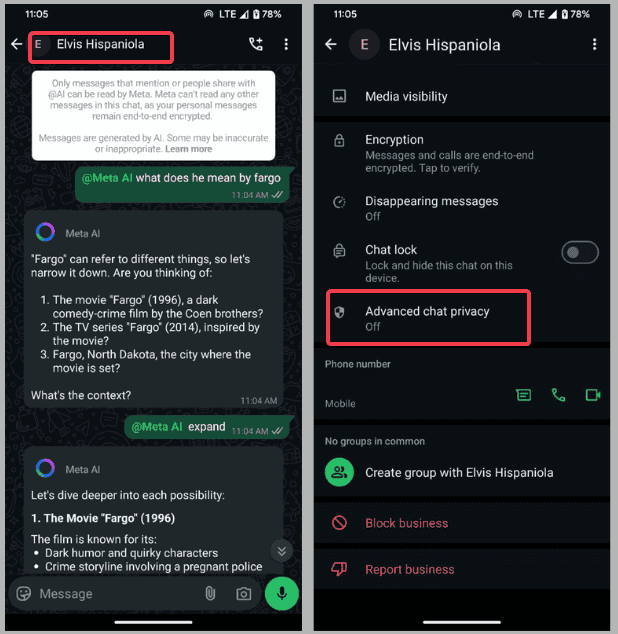
Now, toggle on to enable the feature. Note that other group admins can override this. So, it’s not foolproof, especially on group chats.
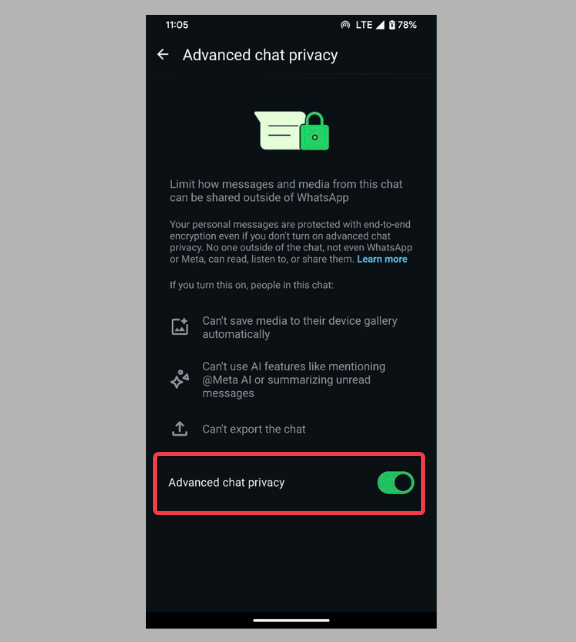
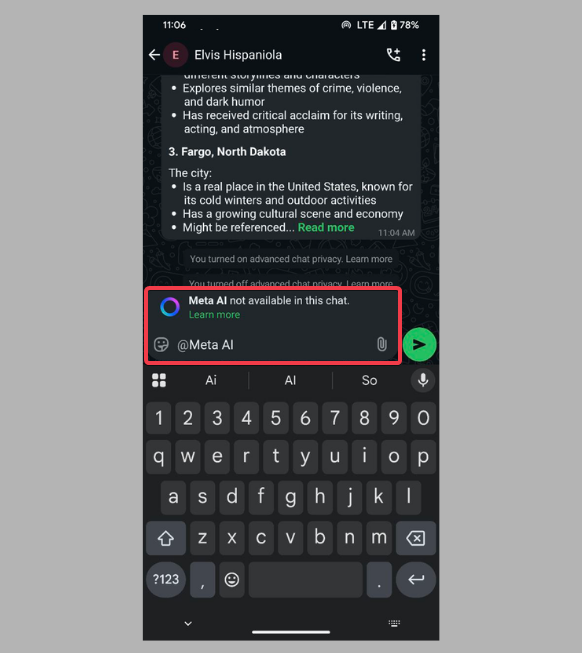
Once activated, AI functions such as mentioning @Meta AI or summarizing messages cannot be used. Also, chats cannot be exported, and media stops saving automatically to your device’s gallery. The only downside is that you have to do it one by one for each person or group.
Reset Individual Chats/ Clear All AI Data
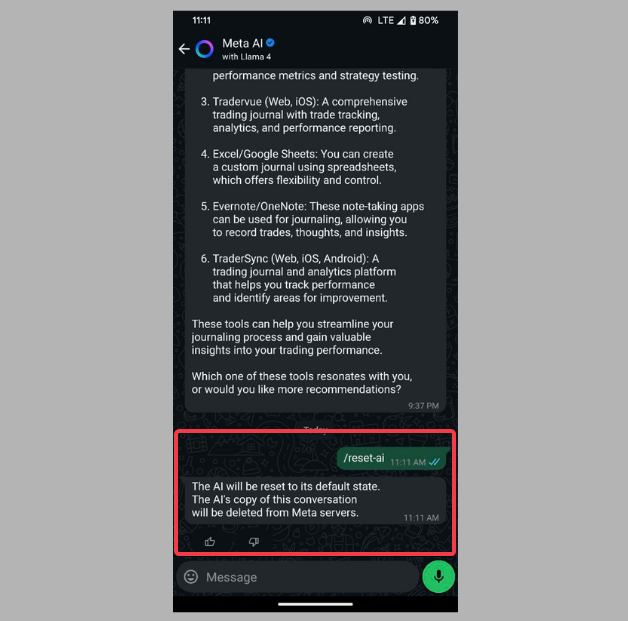
For the occasional slip and chat with Meta AI, simply enter /reset-ai in the conversation to wipe its memory of that specific chat.
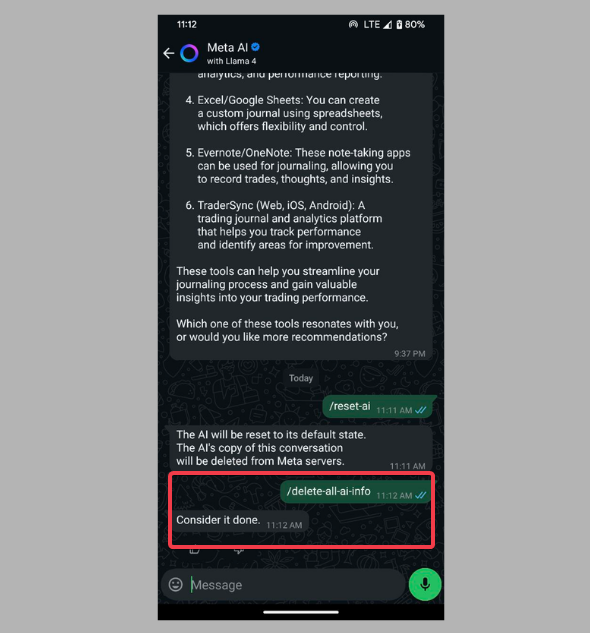
You can also nuke all AI data across your WhatsApp chats, enter /delete-all-ai-info in the Meta AI chat. Take that, Meta!
Lastly, consider ghosting the AI. If you don’t want it snooping on your data, don’t tag it or click on the blue circle. Starve it and it stays quiet.
These steps let you disable Meta AI in WhatsApp as much as Meta allows. They are not perfect, but they are the best we’ve got for now.
If you want, there are ways you could manage Meta AI on WhatsApp effectively without losing control.
What This Really Means for You
Meta AI isn’t just a chatbot; it’s a power move. By making it unremovable, Meta is telling us they own our app experience.
As a user, I feel like I’m renting my own chats, with my data as payment for free features.
Disabling Meta AI is my mini-rebellion, but it’s just a band-aid. We deserve full opt-outs, not mini workarounds. Also, I’m starting to side-eye WhatsApp and look at privacy-first apps.
My Extra Privacy Power Moves
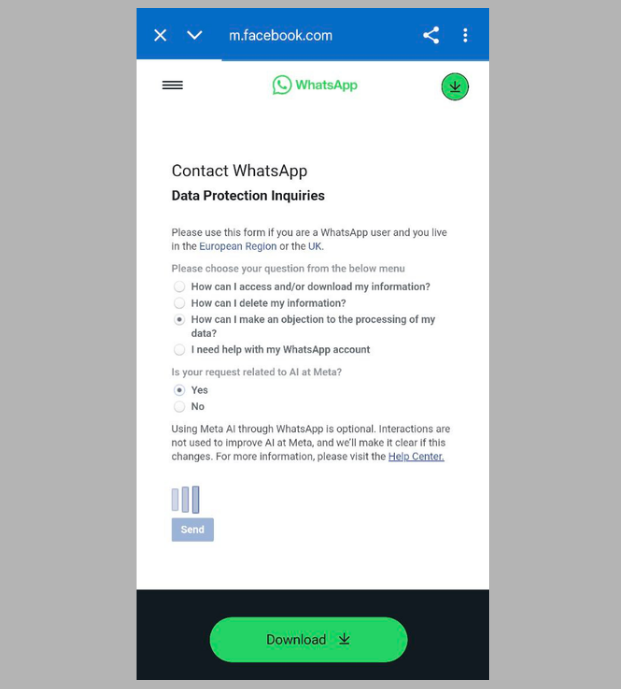
If you’re in the UK/EU, you can file this objection form to stop your data from training Meta’s AI. This will prevent Meta from even processing your data for their AI.
I avoid oversharing sensitive information with Meta AI. It’s like self-snitching to a corporate spy.
If I must use AI, I chat with alternatives like Perplexity AI on WhatsApp.
Alternatively, you can just switch apps. I use Signal for private talks. While WhatsApp is convenient, Meta’s grip makes me uneasy.
You can’t fully disable Meta AI on WhatsApp, but our hacks can give you some control and help contain it in your chats. Keep tweaking those settings, stay sharp, and don’t let Meta run your chats.








