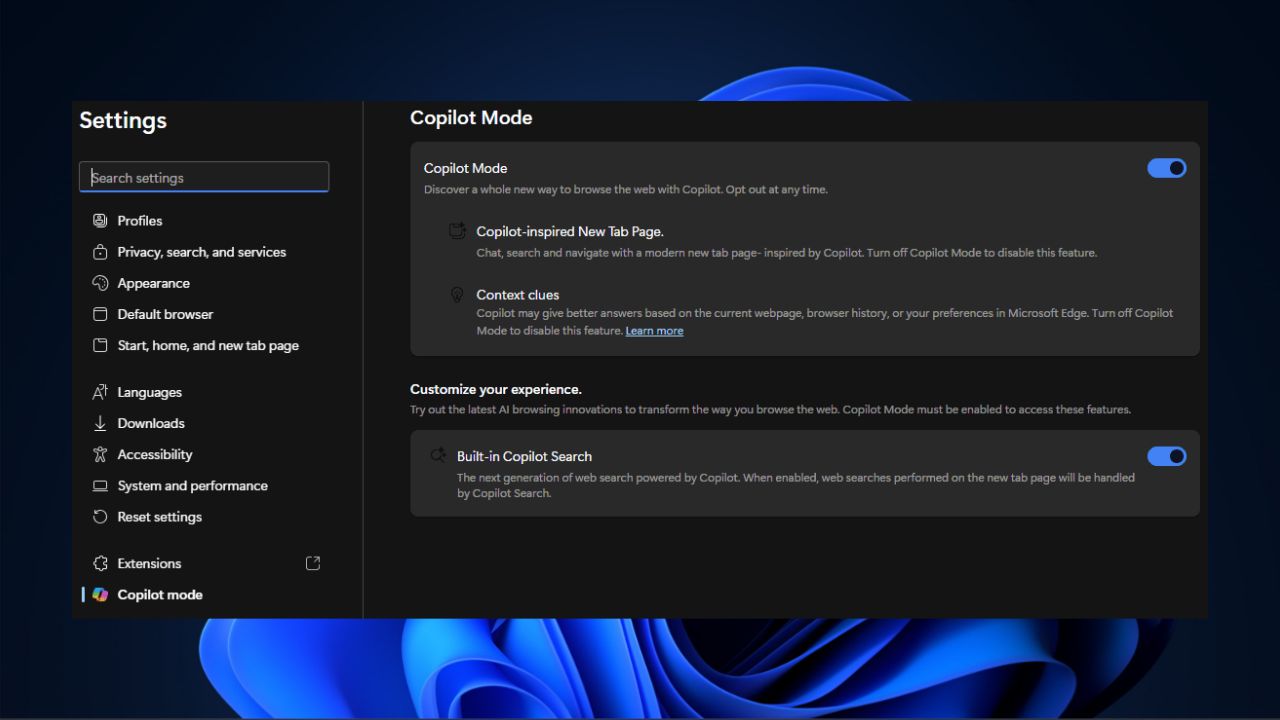
It isn’t a new thing anymore that Microsoft is actively injecting AI into everything. Now, when you open Microsoft Edge, it feels like it’s trying to be too smart with all those AI-powered features. While this may be cool sometimes, not everyone wants AI to take over their browsing experience. If you prefer a simple interface or have privacy concerns with AI, I’ve got an easy way for you to disable Copilot in Microsoft Edge without breaking a sweat.
Copilot Features You Can Disable in Edge
Copilot mode is Microsoft’s attempt to sprinkle AI features into Edge. This is to make Edge more brainy and interactive. If you’re curious, you can read more about what Microsoft Copilot is here.
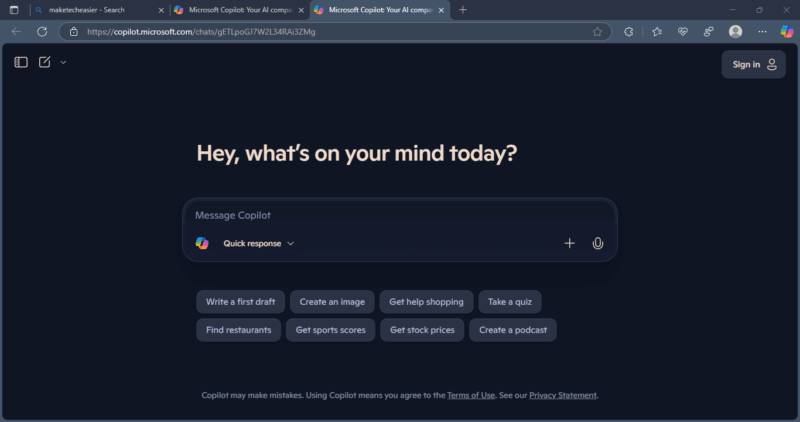
For instance, there’s the Copilot-inspired New Tab Page where you might see features like “Search & Chat” or “Ask Copilot” options whenever you open a new tab. These are on by default, showing up every time like a chatty assistant.
While some may like the extra help to get more information about their searches, others find it frustrating and cluttering. Also, there’s the fear that your data is used to fuel the AI processing.
That is why Microsoft is making the Copilot mode optional. You can disable Copilot features in Microsoft Edge if you’re in the “no thanks” camp.
Disable Copilot Features In Microsoft Edge
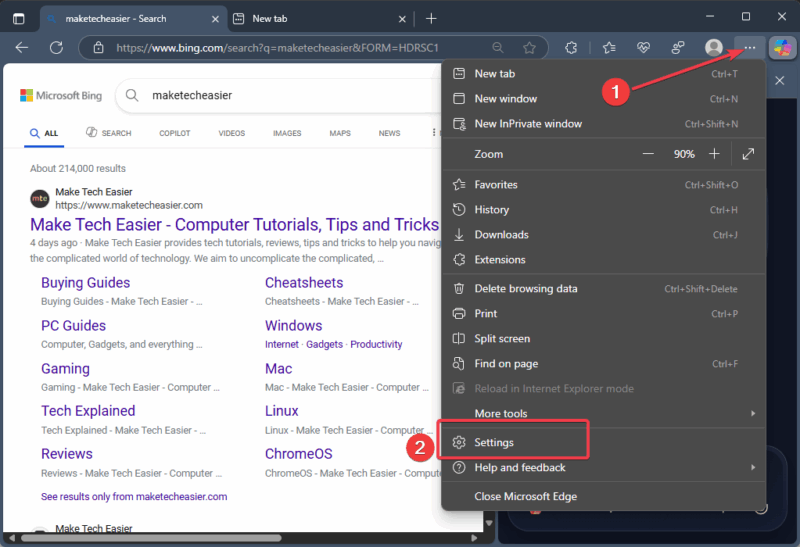
If you’re ready to disable Copilot in Microsoft Edge, click the three dots in the top-right corner and select Settings.
Look for Copilot Mode in the Settings menu. If it’s hiding, type the following in the address bar and press Enter: edge://settings/CopilotMode
Locate and toggle off the Copilot Mode option to revert your browser’s new tabs to plain and simple. This will close both the Context Clues and Copilot-inspired New Tab Page.
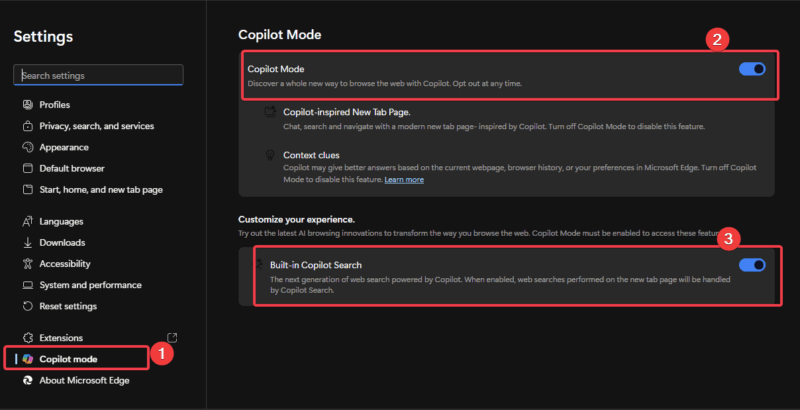
Scroll to Customize your experience and switch off Built-in Copilot Search. This will stop all AI-powered search suggestions.
When you’re done, open a new tab to confirm that you’ve disabled the Copilot features in Edge. You should see a clean and plain tab without AI prompts.
All changes are permanent until you decide to bring Copilot back by enabling the features you disabled. Further, if you ever change your mind, here’s a more detailed guide on how to add Copilot to Edge’s new tab.
Benefits of Disabling These Copilot Features
Here are the reasons disabling Copilot in Microsoft Edge rocks:
- You get a browser that looks clean and less cluttered. It feels snappier and straightforward.
- Disabling these features eases your worries about sharing your data to fuel AI processing.
- Your browsing experience returns to the straightforward vibes without AI pop-ups. You get what you search for without overwhelming extra details.
- It’s perfect for workplaces or professional settings with strict rules against AI usage.
Should you want to remove every trace of Copilot from your device, you can take a step further by removing Copilot and more on your Windows PC.
If you’re tired of features such as Copilot Suggestions in Edge’s Find on Page, this guide has shown you how to disable Copilot in Microsoft Edge. So, give these steps a try, and let us know how it goes in the comments!








