Ad blockers do a great job of hiding most ads, but Google fights back, since most of its revenue depends on ads. In Gmail, Google constantly tweaks how ads are delivered, so blockers often fail. If you’re frustrated by ads in your inbox, here are two free methods to reliably disable Gmail ads without an ad blocker.
Remove Ads in Gmail by Disabling Categories
Gmail cleverly shows ads on top of emails that look exactly like normal emails, but with a Sponsored tag. However, these ads don’t make it to your Gmail primary inbox; they are mainly found in the Promotions and Social categories. If you disable both of these categories, you basically disable ads in Gmail. Here’s how:
On Gmail desktop, click the Settings button at the top right corner, and select Customize under Default.
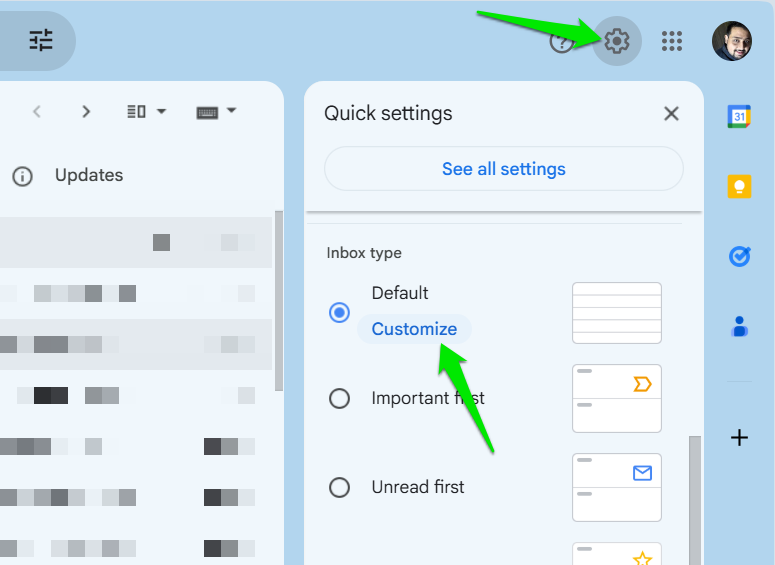
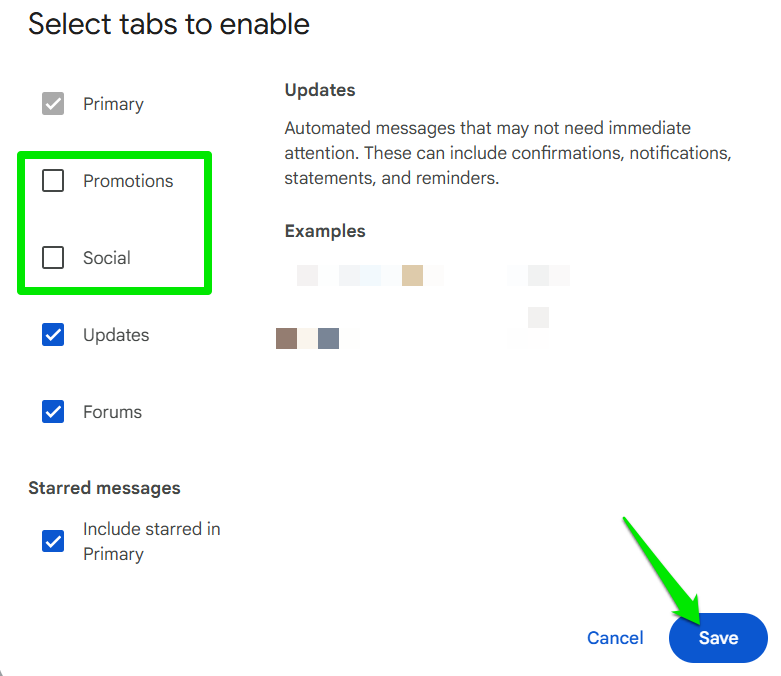
You’ll see all available categories here. While you can disable all categories if you want a unified inbox, you only need to disable Promotions and Social categories to disable ads in Gmail. Afterward unchecking them, click Save, and your primary inbox will start showing all Promotions and Social emails without any ads at the top.
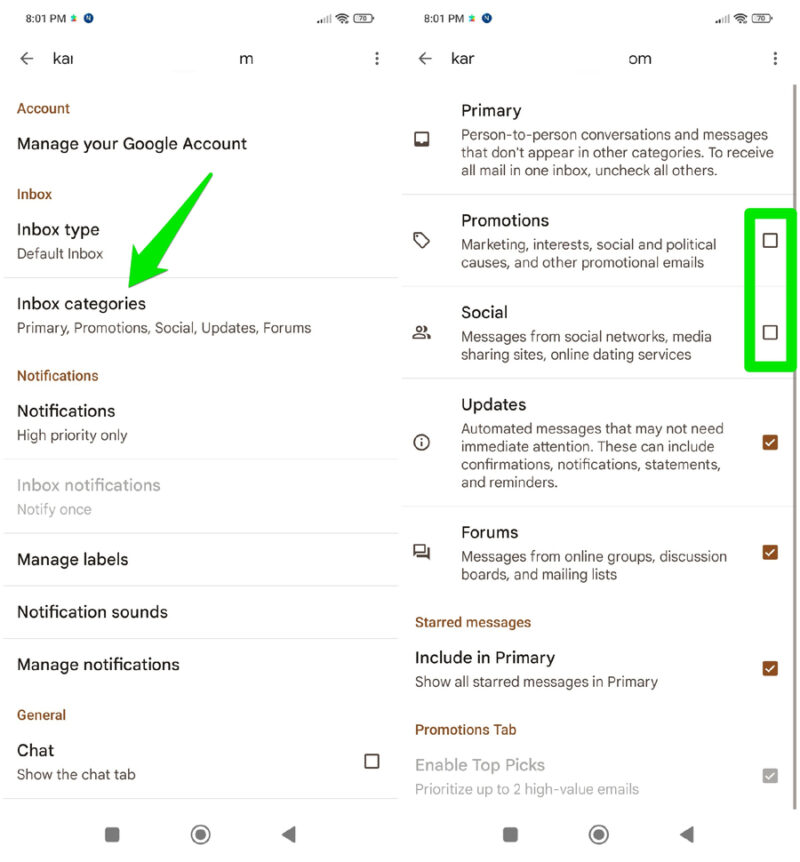
If you want to disable categories from your Gmail mobile app, tap the main menu at the top-left corner and select Settings.
Here, select your email account and then click on Inbox categories. You’ll see all categories here; you can uncheck Promotions and Social categories to disable them.
You don’t have to disable the categories on desktop and phone separately. Making changes on one platform will automatically sync the changes to the other platform (refresh required).
Managing Gmail after Disabling Categories
While disabling ad-supported categories is an easy way to disable ads in Gmail, it also puts all those emails in your main inbox. This can be quite overwhelming if you don’t actively manage your inbox, as it can introduce thousands of new emails into your primary inbox.
If you do disable these categories, we recommend learning how to manage your inbox. You should make efforts to reach inbox zero so you don’t get overwhelmed by the barrage of emails in your inbox. Make sure you unsubscribe from unnecessary emails, as they can make it difficult to maintain inbox zero.
You’ll also have to learn how to sort Gmail emails to keep your inbox clean. While these efforts may seem a bit daunting, they are worth it, and many people prefer the inbox zero approach.
Use a Third-Party Email Client
You can also use an email client that doesn’t contain ads and can sync and display your Gmail emails. Since these clients only import your emails, they won’t show you ads from Gmail. Your emails will be managed by the client in its interface with its own set of features.
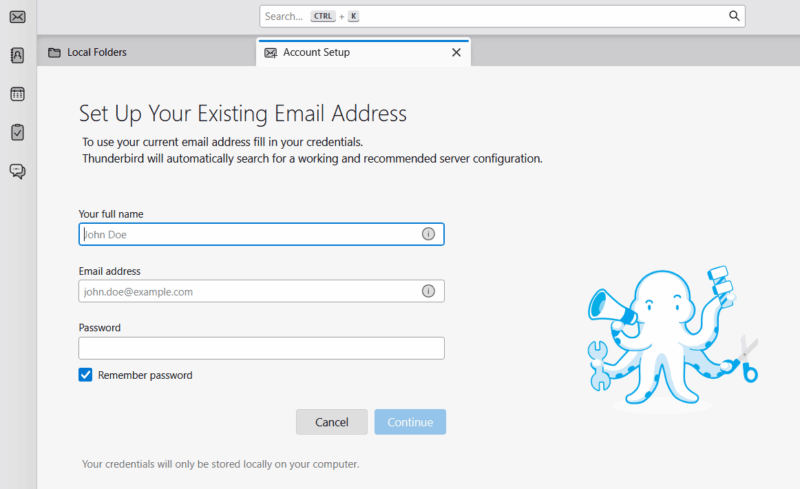
We recommend Thunderbird for this as it’s free, open source, and has wide support for platforms. There are no ads in it as it mainly runs on user donations. It’s also really easy to set up Gmail in Thunderbird – you just need to log in with your Gmail account and provide the necessary permissions to get started.
Thunderbird also has powerful email management features like QuickFilters, identities, tabbed view, tags, etc. If that’s not enough, you can get Thunderbird add-ons to further increase the client’s capabilities.
If you are interested in cleaning up your Gmail inbox, you might be interested in giving Notion Mail a try instead. It also connects to your Gmail account like Thunderbird and comes with powerful AI features to organize your emails.
Apart from these two methods, you can also get a Google Workspace subscription that removes ads in Gmail. However, it may not be a feasible solution if only Gmail ads are your concern. While you are getting rid of distractions, you might want to disable Gemini in Gmail as well.








