Every action you take on Facebook, from linking a post to watching a video, is automatically stored behind the scenes. If the thought of your digital footprint lingering online makes you uneasy, don’t worry, you can erase it. This guide walks you through deleting your partial or ALL Facebook history.
Good to know: Facebook displaying in a different language? Try these methods to bring it back to normal.
Deleting Your Facebook History on PC
To access your Facebook history, open the app in your favorite browser, then click on your profile picture in the upper-right corner. Select Settings & privacy from the drop-down menu.
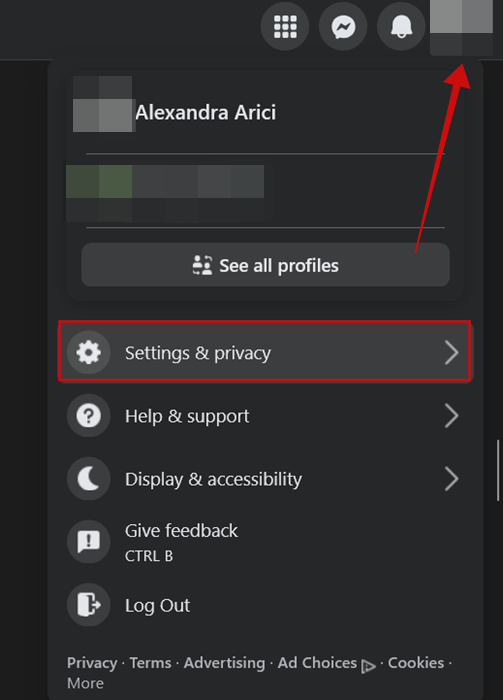
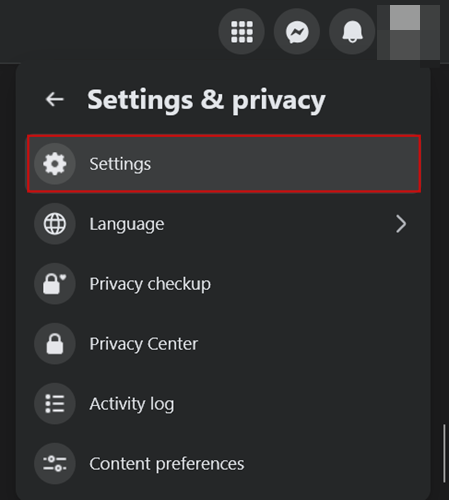
Press Settings in the next menu.
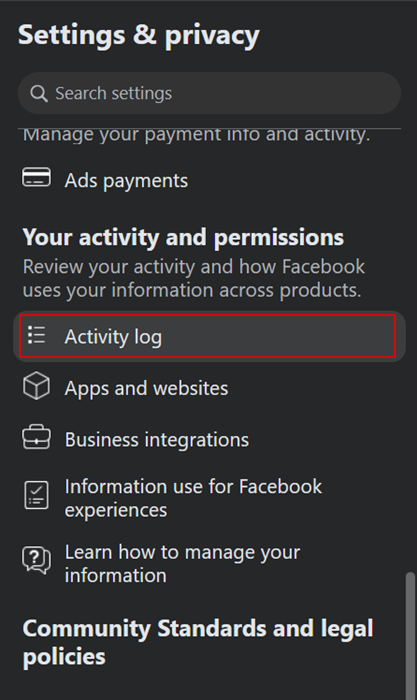
In the menu on the left, scroll down until you find the Your activity and permissions section. Click on Activity log.
Check on the right side of the screen to view your history. Facebook collects data on all your interactions on the social app, including:
- Your live videos
- Videos you’ve searched for
- Videos you’ve watched
- Your search history
- Comments
- Group posts and comments
- Stories activity
- Pages, page likes, and interests
- Where you’re logged in
- Relationships
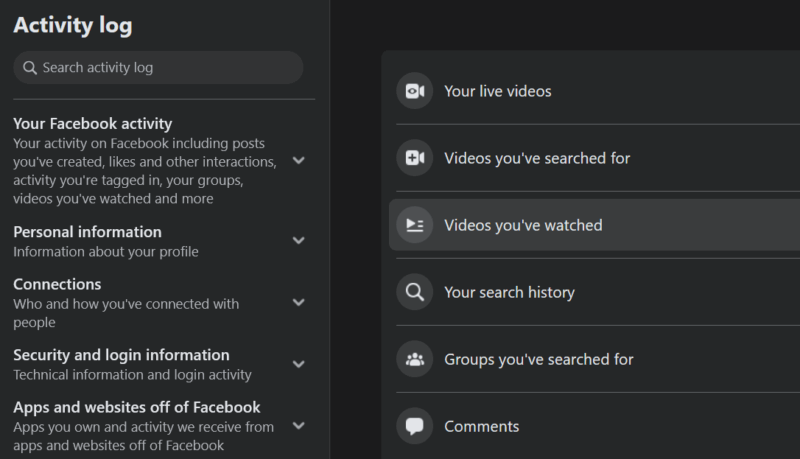
Now, Facebook doesn’t allow you to delete ALL your history at once. Instead, you’ll need to go through each section and see what information has been collected so far, and what you wish to remove.
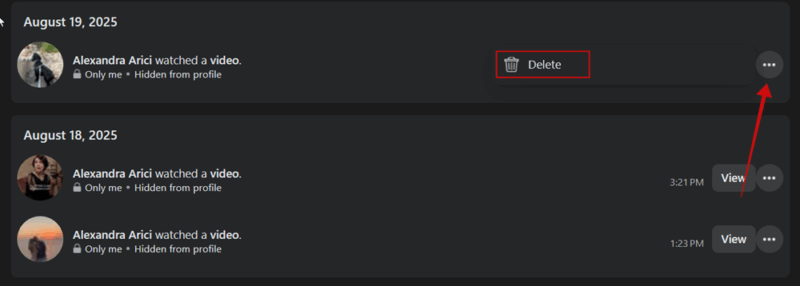
For instance, the Videos you’ve watched section features a list of all the videos I’ve watched since setting up my account. For a trip down memory lane, you can re-watch the videos by pressing the View button.
From here, you have the option to delete videos you’ve watched manually or clear the whole list. To delete a single item from your history, click the three dots on the left of the video card and select Delete.
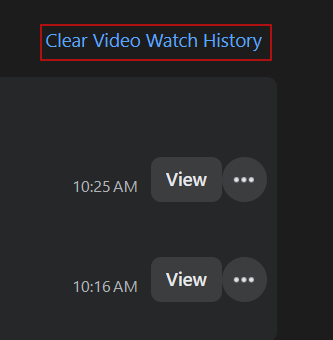
To delete your entire watch history, scroll up to the top and select the Clear Video Watch History button to clear it all away.
Tip: you can also delete your Facebook search history by going to Settings -> See more in Accounts Center. Once there, click Your information & permissions -> Search history. Delete the entire history from there.
Deleting saved Facebook stories and more
To find more information that Facebook stored, look at the Activity log menu on the left and click Your Facebook Activity.
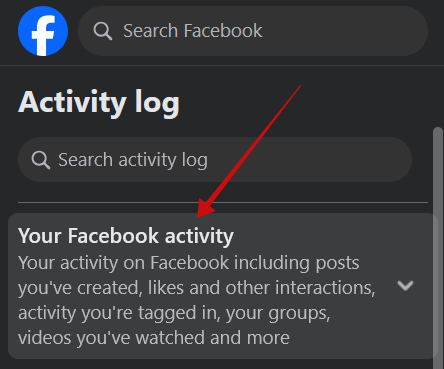
A menu will appear underneath covering things such as Comments and reactions, Posts, Groups, Pages, Polls, and more. By the way, you might want to check out this guide that walks you through creating a poll on Facebook.
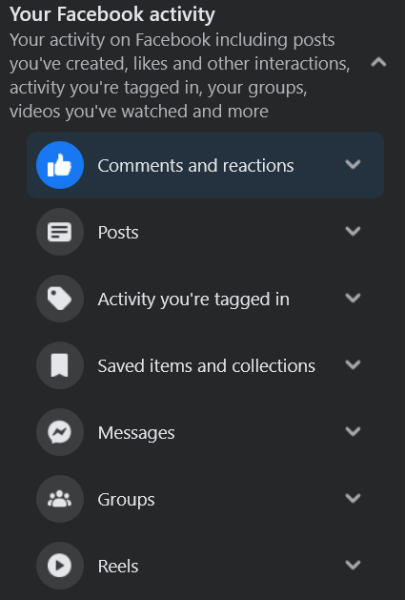
It’s important that you go through every single category and check the information to decide if it’s harmless enough to keep. You might find more information that needs to be removed.
For instance, Facebook automatically saves the Stories you’ve posted in the past to an Archive. If you don’t want to keep these memories and prevent others seeing them, find the Stories section and click it.
Tip: learn how to create and personalize Facebook stories from scratch.
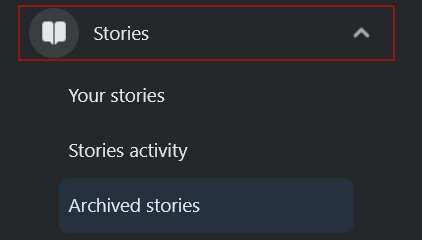
As you can see, you can go through your Story activity as well and delete it all or any interactions with other people’s stories that you don’t want to keep. Or you can move directly to Archived stories.
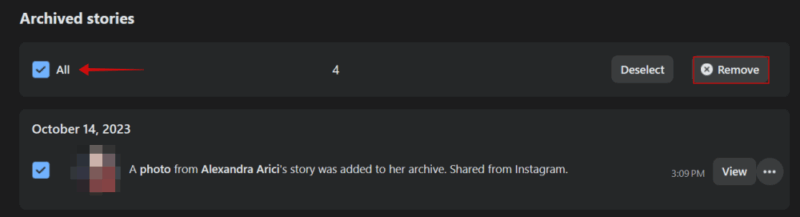
Go through all the saved stories. Once you find one that you wish to remove, press the three dots and then Delete.
To delete them all in one go, check the box at the top and then press Remove.
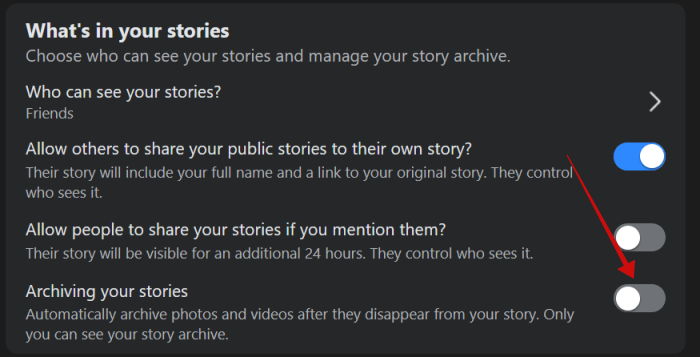
To prevent Facebook from archiving your stories in the future, go to Settings & privacy -> Settings and find the Audience and visibility section. Here press Stories.
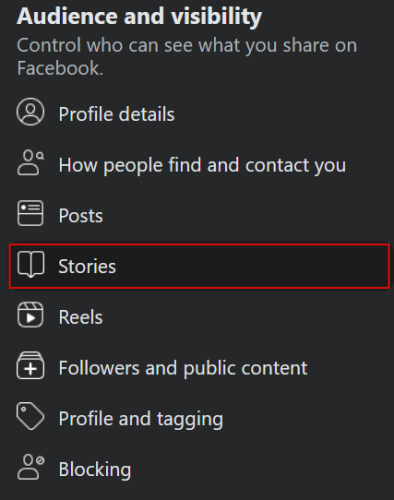
On the right, turn off the Archiving your stories option.
Tip: your Facebook account was unexpectadly disabled? Here’s what you can do next to get back access.
Deleting Your Facebook History on Mobile
You don’t have to go on Facebook on your PC to remove from app history. You can do it from the mobile app as well.
Open the app on your device and press on your profile picture in the upper right corner.
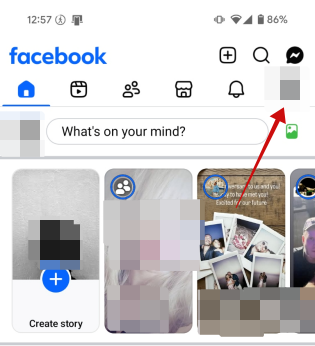
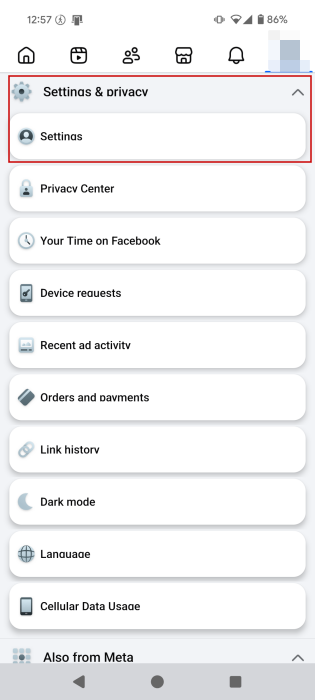
Select Settings & privacy and then Settings again.
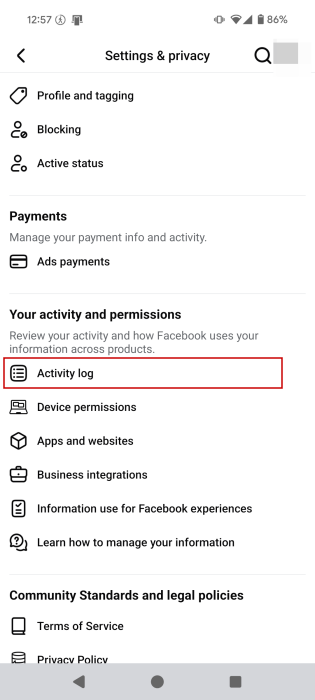
Find the Your activity and permissions section and tap on Activity log.
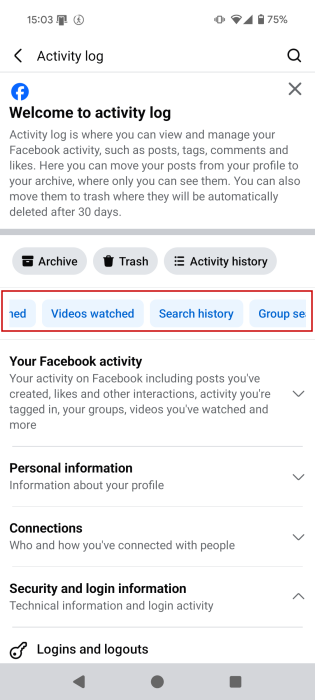
Swipe through the blue activity tags to find all your Facebook info including Live videos, Pages likes, Story activity, Search history and more.
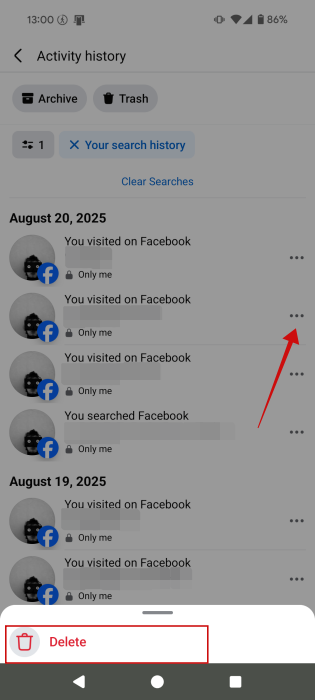
To delete an individual entry under one category, press the three dots and then Delete.
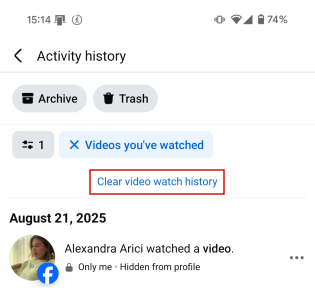
In order to remove everything from a section, look for the option in blue at the top. For instance, Clear video watch history.
FYI: here’s how you can tag someone on Facebook and make them part of your story.
Deleting saved Facebook stories and more
On the Activity log screen, tab Your Facebook activity underneath the tags in blue.
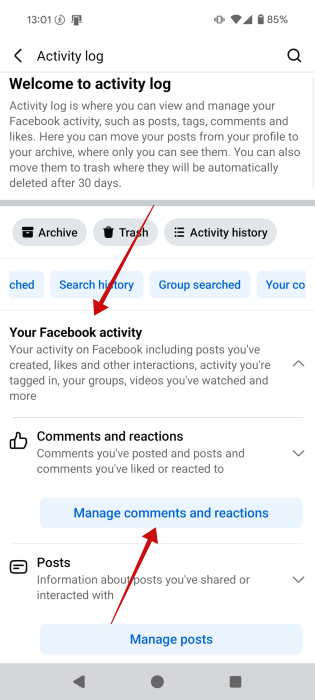
Press on the Manage button underneath to modify a section. Go through all of them.
You can delete a single entry or the entire list (although this option is not available in all cases, for instance when it comes to Stories) by following the same instruction as above.
To go to your story archive, find the Stories category and tap on it.
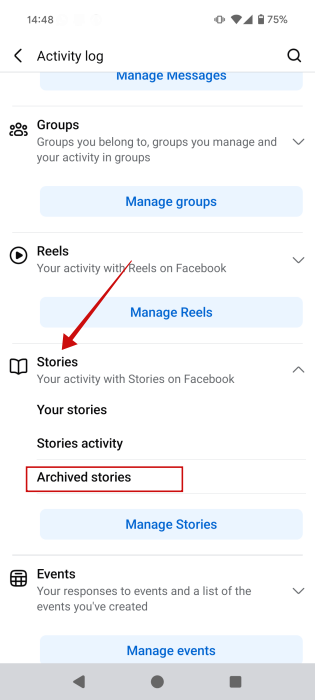
Tap on Archived stories. Delete saved stories from there.
Can You Turn Facebook History Off?
You might be wondering whether you can turn Facebook history off for good, so you don’t have to worry about the app tracking your very step. Well, unfortunately, there’s no built-in option to do this. You’ll have to remember to return to your Activity log and do a spring-cleaning regularly.
Now that you know how to wipe your history clean, you might also want to take steps to make your Facebook experience more private, so that others have a harder time tracking what you do online.








