WhatsApp is set by default to back up everything you receive, so you are likely to have unnecessary data in your backup. Because those backups are stored on Google Drive, large backup files eat into your limited Drive storage. If your WhatsApp backup is getting too large, use the steps below to reduce its size and free up space.
Exclude Videos From Backups
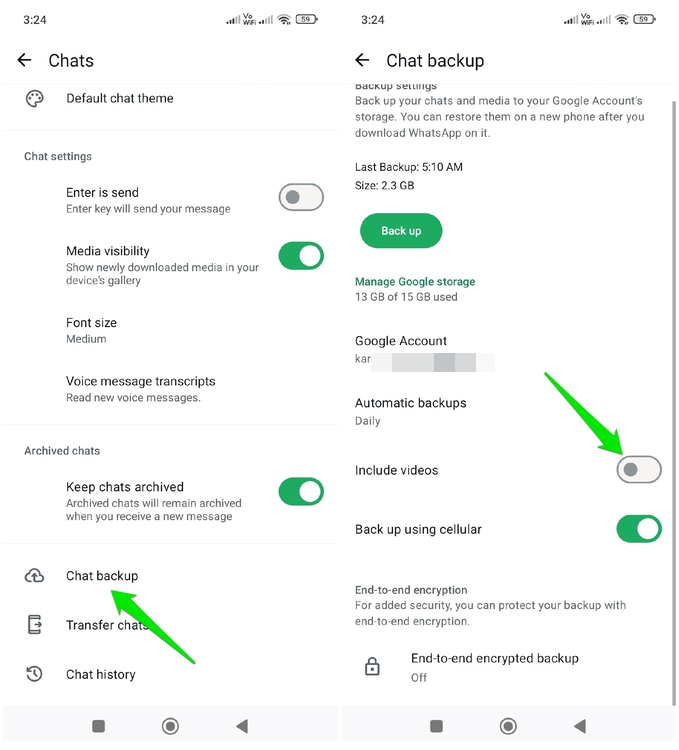
Among files, videos usually have the largest size, and people often share them for fun on WhatsApp, so you may receive many unnecessary ones. If your WhatsApp backup file is quickly increasing in size, it’s most likely because it’s backing up videos. It’s best to exclude videos from backups if you don’t receive important videos often, and manually save the important ones. Here’s how:
Open WhatsApp Settings from the top-right menu and move to Chats → Chat backup. Here, disable the Include videos option. The change will reflect in Google Drive on your next backup.
Use WhatsApp Storage Manager to Delete Large Files
With the videos out of the way, it’s time to clean other large files like photos, audio files, and PDFs, which can also take up a lot of storage. Thankfully, WhatsApp has a built-in storage manager that can show exactly which data is taking up the most storage and delete it, consequently decreasing the WhatsApp backup file size.
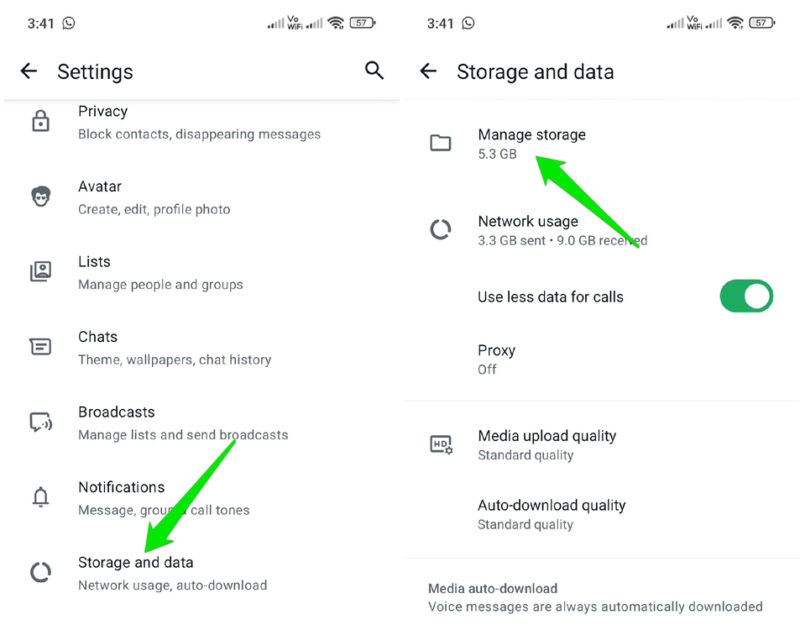
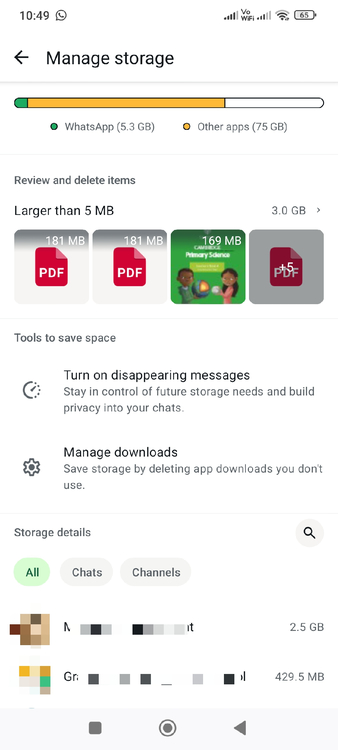
In WhatsApp Settings, go to Storage and data → Manage storage. Here, you’ll find multiple ways to find large amounts of unnecessary data. It groups data larger than 5MB at the top. You should first look for large files here to delete individually. No need to delete video files here if you disabled them in the previous step.
You can also view data stored per chat, allowing you to delete data based on the importance of a chat. The more data you delete, the smaller the backup file size will get (and free up phone storage).
Manually Move Important Data to a Different Location
Of course, you don’t want to delete all large files, as most of them are still useful. If there are large files you want to keep, it’s best to manually move them to a safe place so it isn’t uploaded with the backup file. You can either store it somewhere else in the phone or upload it to another cloud storage.
You’ll need a File manager app for this, as you need to access internal storage folders.
Open the File Manager app, and go to Internal storage → Android → media → com.whatsapp → WhatsApp → Media. Here, you’ll find all WhatsApp media data under dedicated folders, like WhatsApp Documents, WhatsApp Images, WhatsApp Video, etc.
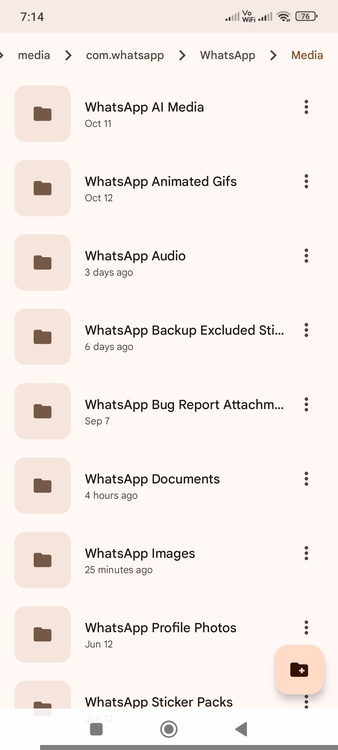
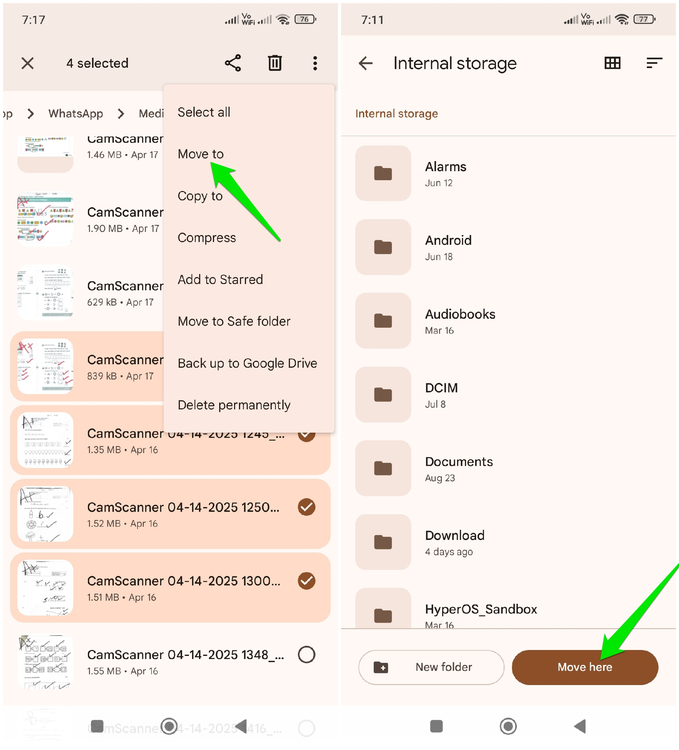
Look for the data in the respective folders, like PDFs in Documents or photos in Images. Select your files and then tap on the dots menu at the top right and choose Move to. You can move this data anywhere on the phone storage, and it will be removed from WhatsApp. You can then move it to another device, an SD card, or cloud storage.
Use a Dedicated Google Account for WhatsApp Backup Storage
If your main concern is that the WhatsApp backup file is taking up too much space in your Google Drive, then you can also move the backup file to another account. You can either use your secondary account with enough free space or create a new account specifically for WhatsApp backup.
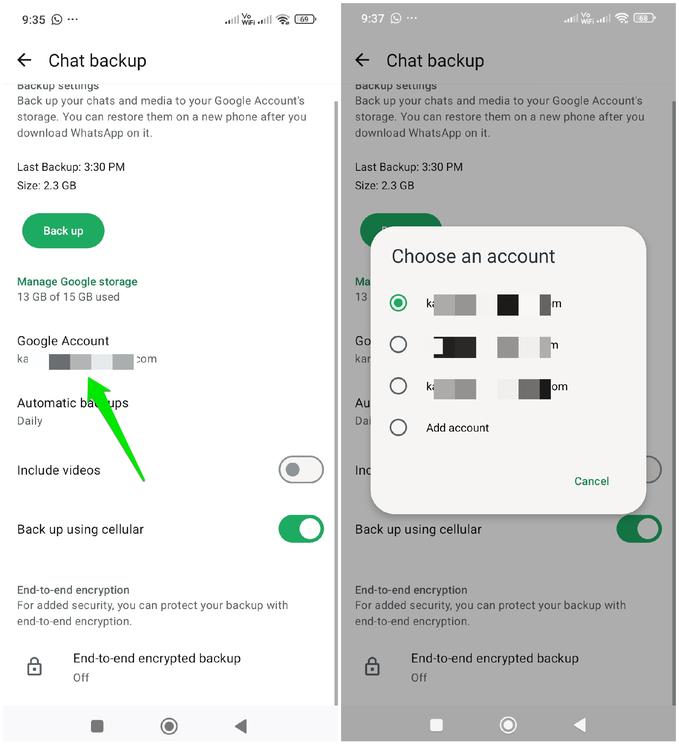
In WhatsApp Settings, go to Chats → Chat backup, and tap on your Google account. Here, you can either choose a secondary account if it’s already added or tap on Add account to add it or create a new account.
Use a WhatsApp Cleaner App
Over time, WhatsApp will keep accumulating data, and the WhatsApp backup file will increase in size again. To make the process easier, you can use a dedicated WhatsApp cleaner app to easily find large data and delete/move it. You can use Cleaner for WhatsApp for this purpose.
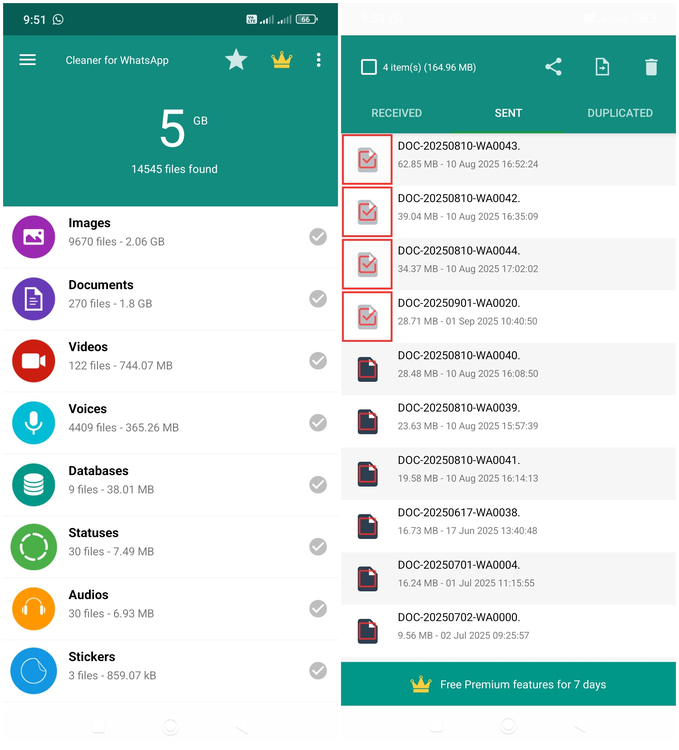
This app will show all your WhatsApp data divided into categories. You can open each category to multi-select data and delete/move it. You can even delete all data inside a specific category with a single tap. It can also automatically delete data based on storage limit or at specific time intervals. However, for auto-cleaning, you’ll need to get the premium version or watch a video ad.
Google already uses Google Drive for many of its services. Unless you upgrade Google Drive storage, the free storage is usually not enough to handle a huge WhatsApp backup file. You may also be interested in backing up WhatsApp data to Dropbox.








