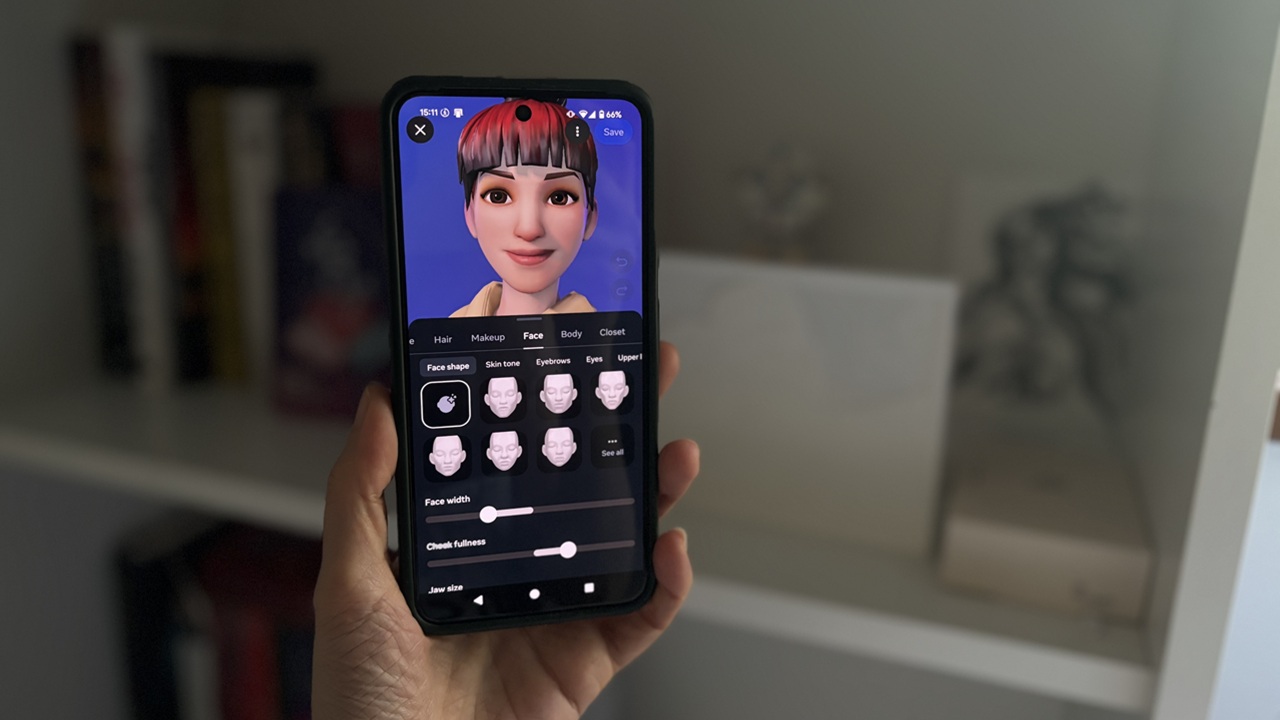
Snapchat users have been able to create customizable avatars since 2016, but it’s not the only social app allowing you to do so. Case in point, Instagram also offers a similar feature. It’s a bit tucked away, so it might have escaped your attention. Check our tutorial to get up to speed on how to create your own personalized avatar on Instagram and start using it immediately.
Good to know: see here how to reset your Instagram algorithm for a fresh feed.
Setting Up Your Avatar in Instagram
You can create an avatar on Instagram from the mobile app as well as the web version on your PC.
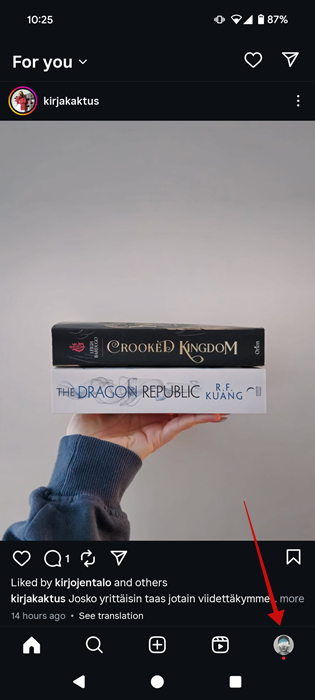
We’ll start with the mobile version. Open the app and tap on your profile picture in the lower right corner.
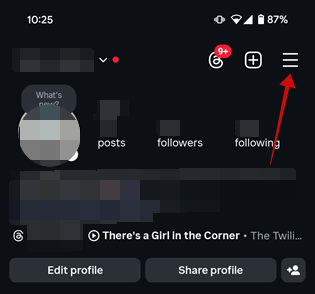
On your profile page, tap the hamburger menu in the upper-right corner to go to the Settings page.
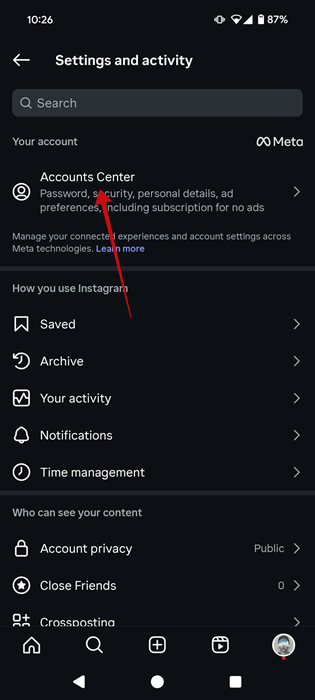
At the very top, tap on Accounts Center.
Select your account.
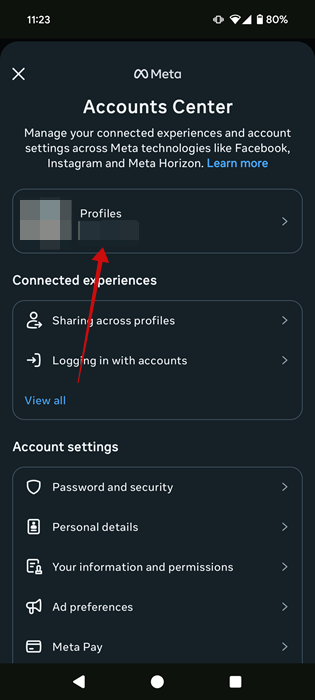
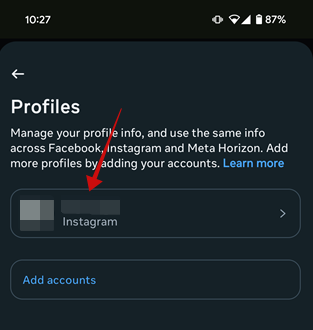
Tap on the name of the account for which you want to create an avatar again in the Profiles page.
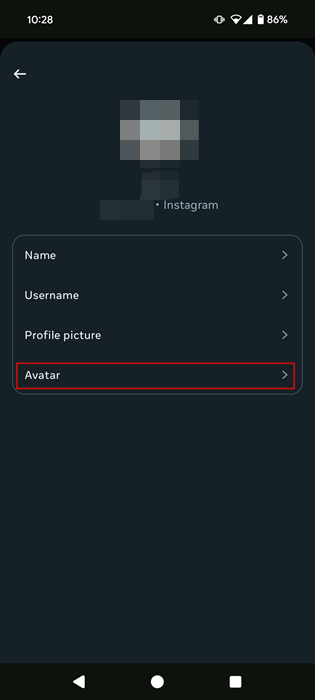
On the next page, select Avatar.
Select whether you want to create an Avatar from a selfie or Create manually. It’s the quickest way to create an avatar that resembles your likeness. You’ll be able to edit out parts you don’t like afterward.
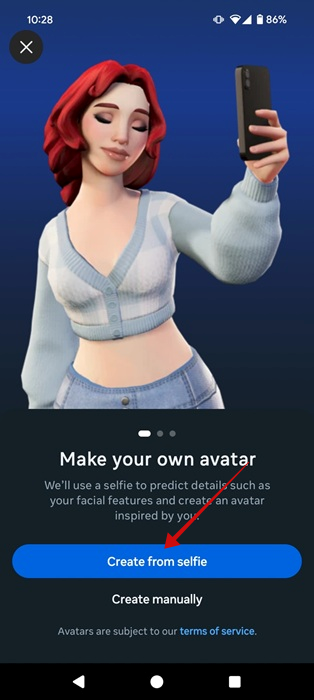
Wait a few seconds until Instagram generates your 3D avatar.
When the avatar is ready, go ahead and opt for a body type. You can use one of the presets available. If you wish to tweak certain aspects, such as making your hips larger or your waist smaller, swipe downwards and use the sliders to adjust your appearance. Then press Continue.
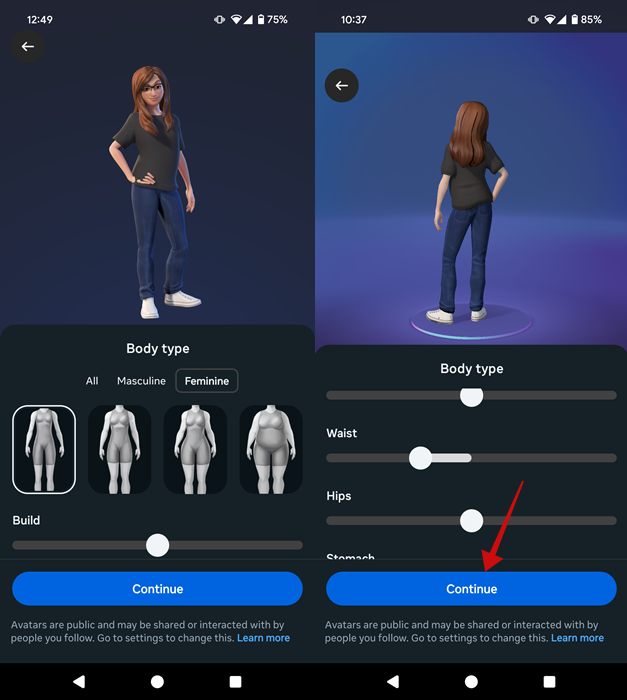
Tip: turn your avatar sideways by using your finger.
Next, Instagram will open the full Avatar editor. You can now go on and select an outfit for your avatar. Browse the Top outfits section, but also make sure you go through individual categories such as Tops, Bottoms, Shoes, and more, so you can mix and match if you want.
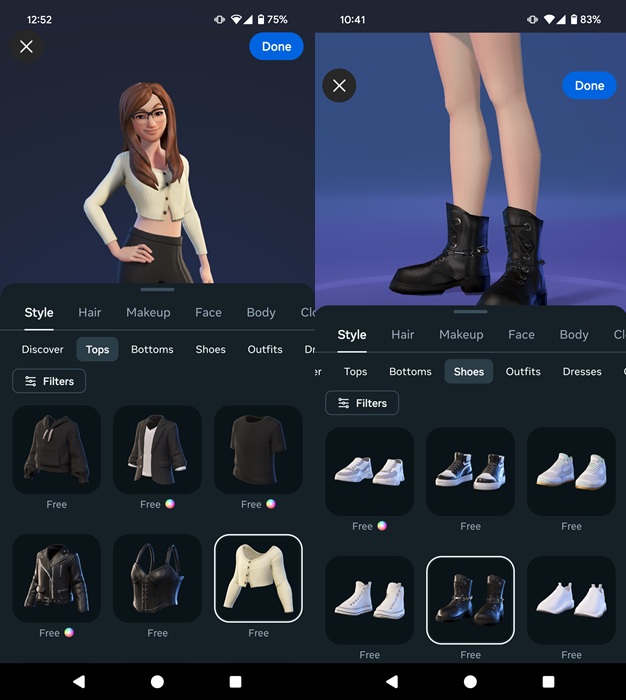
Continue by customizing your style aspects, including Hair, Makeup, and Face, by swiping through the options at the top. You can try different styles just for fun. To return to the original, tap on the tiny back button at the top.
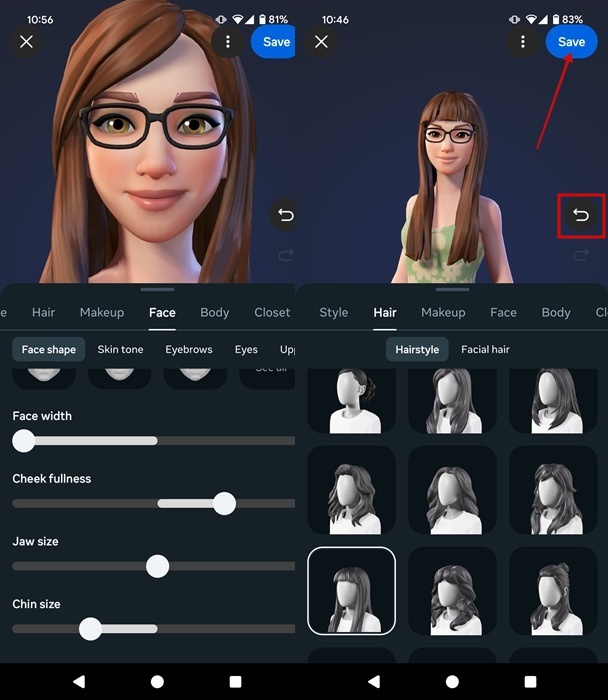
When you’re finally satisfied with your creation, press the Save button in the top right. Wait until Instagram saves your creation. Now you’re all set to start using your avatar.
Note: if you ever want to edit your avatar, retrace your steps using the path above to access your avatar and tweak it from there.
Create Instagram Avatar from PC
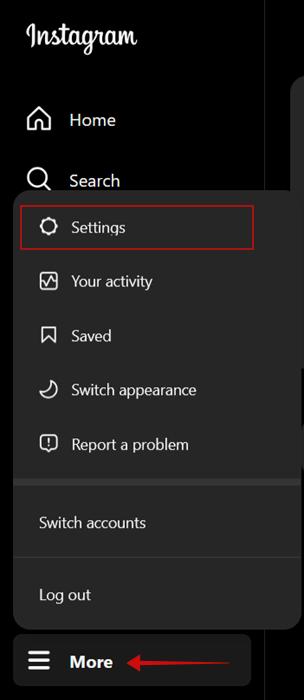
If you want to create your avatar from your PC, open Instagram from a browser and press the More button in the lower left corner, and then click Settings.
Click See more in Accounts Center in the Accounts Center card.
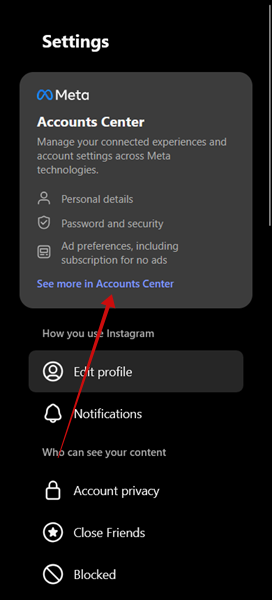
Select your account.
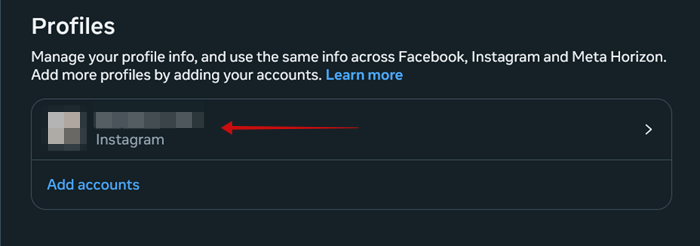
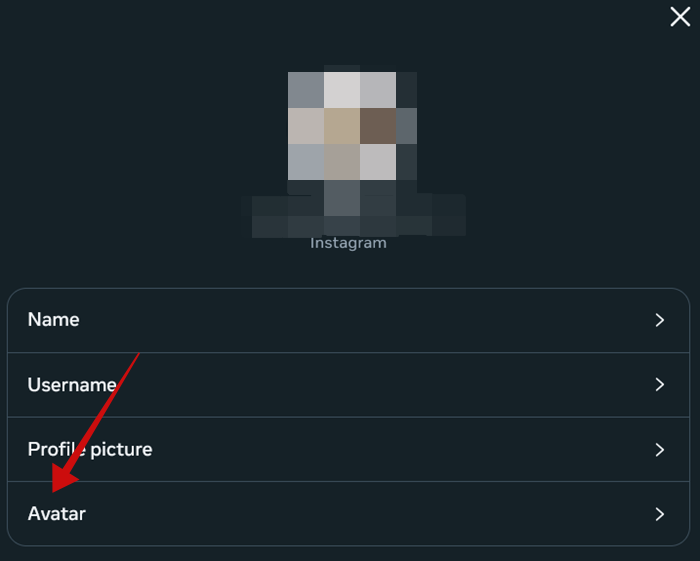
Finally, select Avatar.
Instagram will open the avatar editing screen.
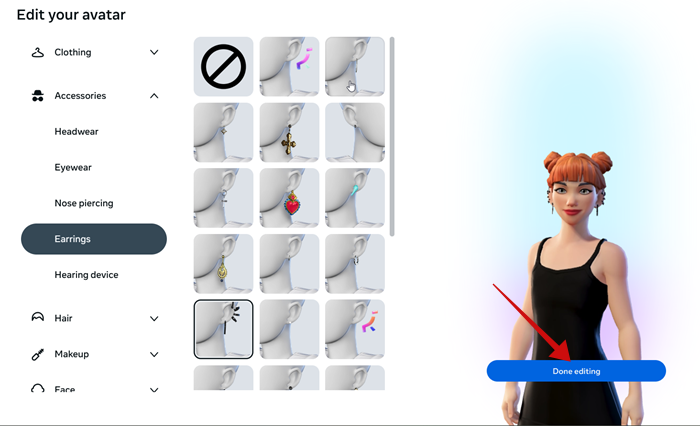
On PC, you don’t have the option to create your avatar from a selfie. You’ll need to set it up from scratch. The good news, however, is that most of the options that are available on mobile are present here as well. Go through each of them to create your avatar.
To save your creation, press Done editing to save.
Tip: if you’re uneasy with everyone tracking your activity on Instagram, learn how to hide likes & comments in Instagram Reels Friends tab.
Using Your Avatar on Instagram
You can use of your avatar in various ways on Instagram, but only via the mobile app, as we demonstrate below.
Using your avatar as a profile picture
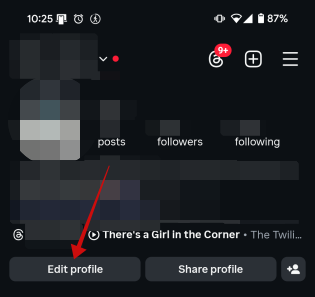
Access your profile on Instagram and press the Edit profile button.
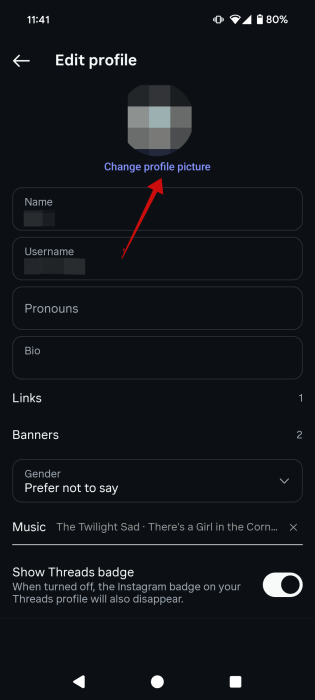
Tap on Change profile picture.
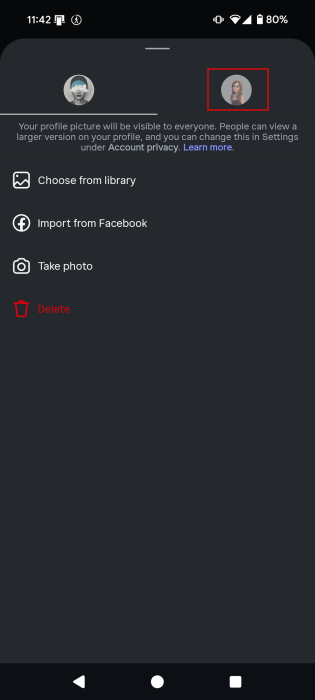
Switch to the avatar tab at the top.
A pop-up will appear at the bottom, allowing you to either Edit avatar or Customize on profile.
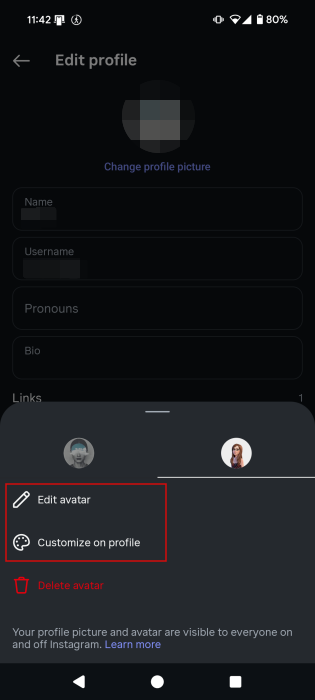
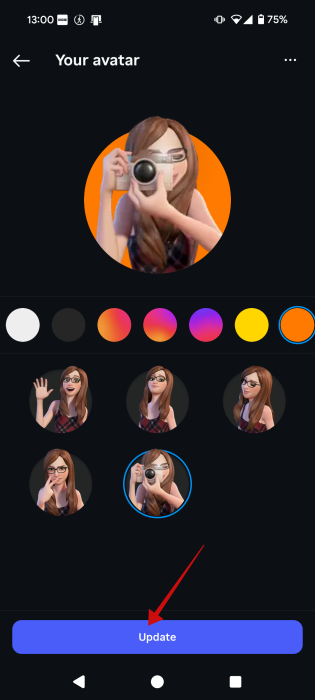
Opting for the second option, allows you to select a custom pose for your avatar and even choose a different color for the background. Press Update to set the new profile picture.
Adding avatar stickers to Instagram stories
Create a new story in your Instagram app.
Press the Sticker button in the menu at the top.
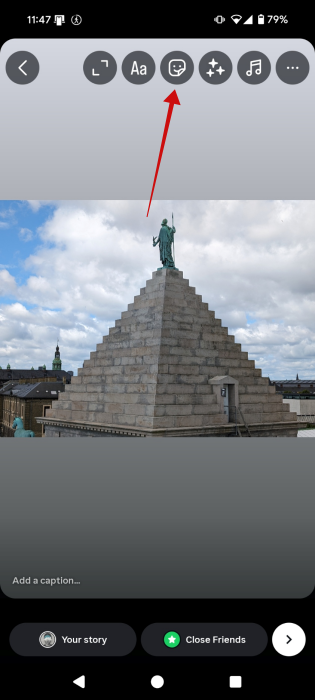
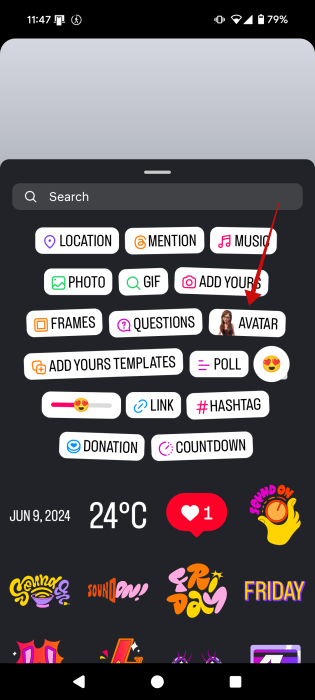
Select the Avatar option.
Swipe through the different sticker versions made using your avatar. Tap on a sticker to place it anywhere on your story.
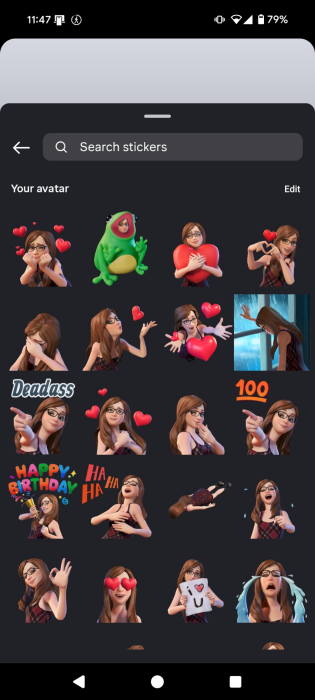
You can add as many as you wish.
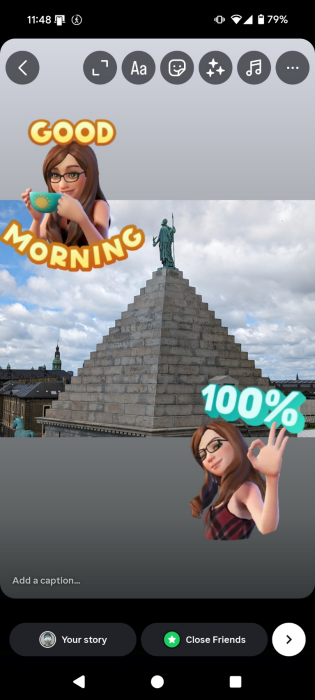
Stickers in Instagram stories let you add all kinds of useful things such as a poll or a countdown. You can also add your location and content tagged in such a way will appear on the new Instagram map.
Send avatar stickers in DMs
Open a Direct Message in the Instagram app. Tap on the Sticker icon in the message bar at the bottom.
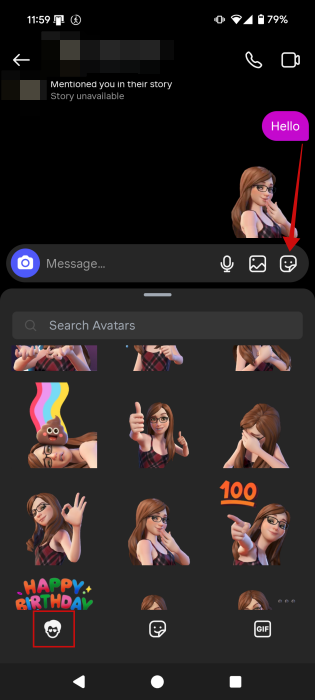
Switch to the Avatar section (if you’re not already viewing it).
Browse your avatar stickers and tap any one of them to add them to the conversation.
Add avatar stickers to comments
You can also add avatar stickers in comments. Open the comment section of a post and press on the Sticker icon at the bottom.
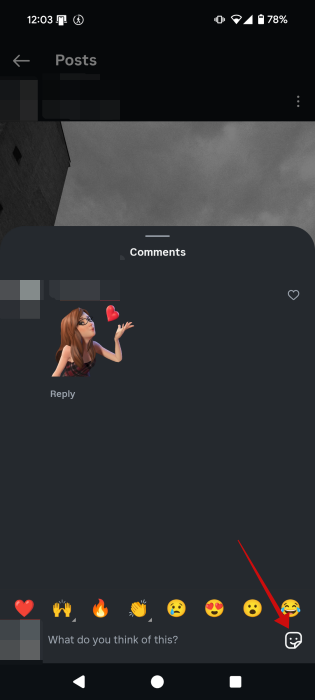
Make sure you’re in the Avatar section. Tap once on a sticker to insert it. That’s it, your message will appear in their comment section.
FYI: you can now download Instagram Reels directly from the app. Here’s how.
Adding a Second Avatar on Instagram
Instagram allows you to create multiple avatars under your profile. Go to Avatar under Accounts Center just like we previously showed you and open your current avatar.
Press on the three dots in the upper right corner and select Switch avatar.
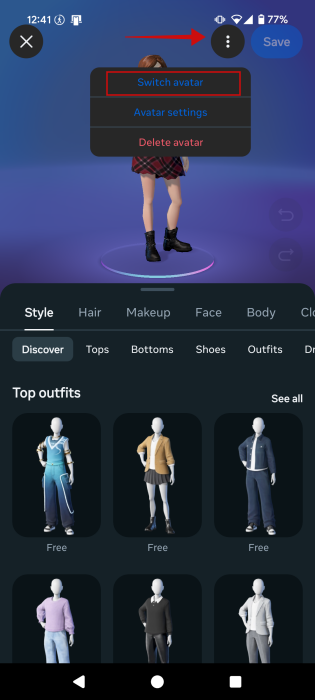
Press the + button to create a new one.
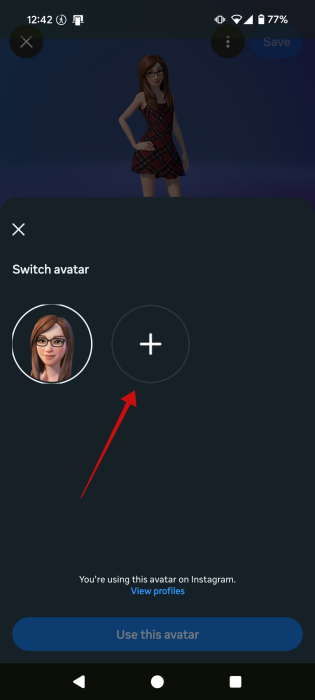
Next, go to all the steps we’ve detailed above to create a secondary avatar. Make sure you save it.
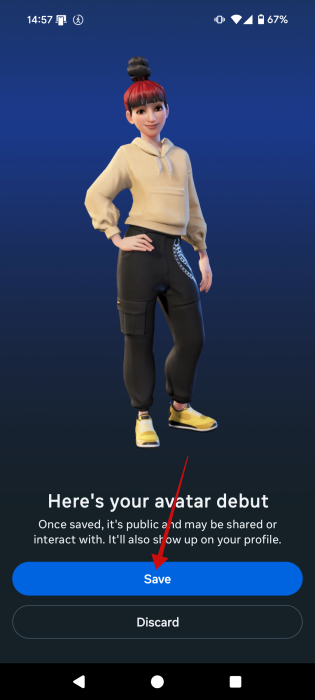
Now your default avatar will be the one you just created and stickers will feature this particular style. If you want to switch to the old one, tap the tree dots and make the change.
Note: you can’t create a secondary avatar from the web version of Instagram. If you can, however, delete the current one and create a new one. But the two won’t coexist.
Adding More Avatar Options
If you’re not satisfied with the range of customization available via Instagram’s native avatar feature, you can experiment with an alternative. Try the third-party app Bitmoji by Snapchat to create avatars from your selfies, then easily share it on Instagram.
Once you have a Bitmoji avatar, you can use the Gboard app to insert avatar stickers into Instagram stories, comments, and messages.
Frequently Asked Questions
How to delete my avatar on Instagram?
In your Instagram app, go to Settings -> Accounts Center -> Profile -> Avatar to go to the editing screen. Tap the three dots in the upper right corner and select Delete avatar.
Can I use the avatar I’ve created on Instagram somewhere else?
Yes, you can. You can share your avatar stickers on Facebook and Messenger, but keep in mind that the two accounts need to be connected for you to do that. Otherwise, you’ll just have two separate avatars for each app.








