
If your Snapchat activity revolves around the same few friends, you’ll love the app’s shortcuts feature. It’s designed to help you interact with your favorite people on the app more quickly by cutting down the hassle. Here’s a quick guide to setting up your first shortcut on Snapchat.
Good to know: you can now use Snapchat to notify friends that you’ve reached home safely. See how to set this up.
Create a New Shortcut on Snapchat
Many Snapchat users have set up a streak on the app, and they are keen to maintain it. Well, by creating shortcuts, you can ensure that you can keep the momentum going in a painless way.
For those who don’t know, to establish a Streak on Snapchat with someone, you need to interact with them daily for a minimum of three days and then continue doing so to maintain it and increase the score. If you recently lost a Snapchat Streak, check our suggestions in this post for methods on how to recover it.
To create your first shortcut on Snapchat, open the app on your Android or iOS device, and snap a photo by pressing the shutter button at the bottom.
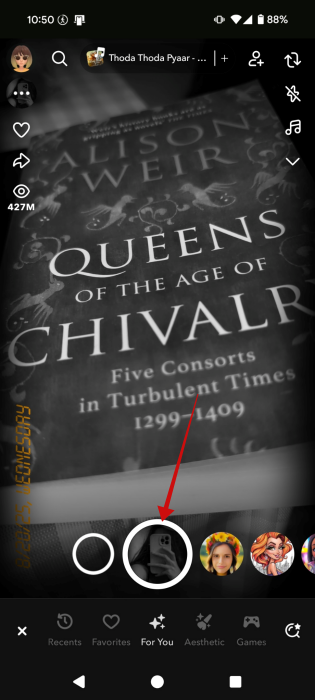
Tap the Send To button.

On the next screen, you’re supposed to select the person(s) you want to send the snap to. Put that off for now, and tap on the + button at the top instead.
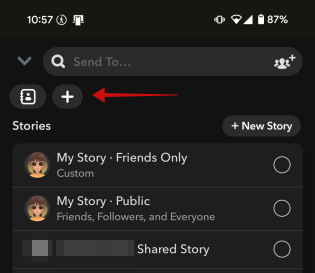
Name your new shortcut by tapping on Choose Emoji at the top.
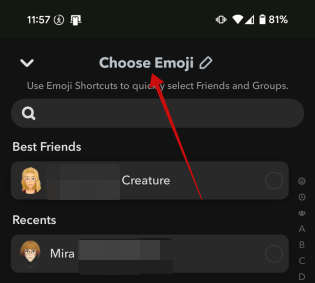
Press the emoji icon on your virtual keyboard to make your selection.
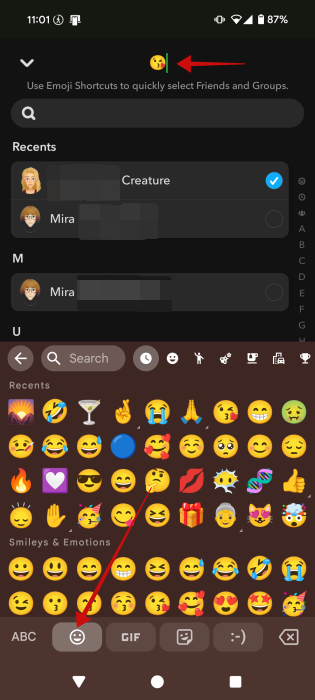
Tip: for those using Gboard, here’s how to create funny emoji combos.
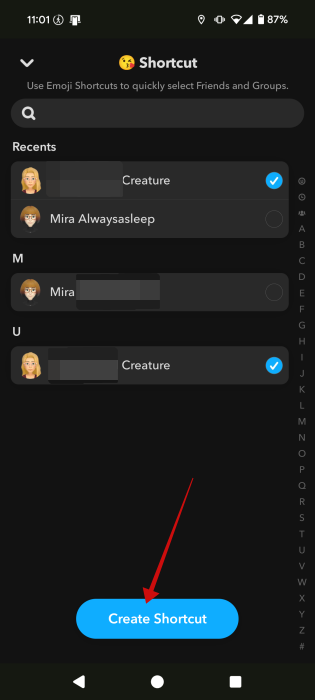
Next up, select the user(s) you want to include in this shortcut. When you’re done, press Create Shortcut at the bottom.
You will now see the Emoji you’ve chosen for your shortcut appear at the top. Select it.
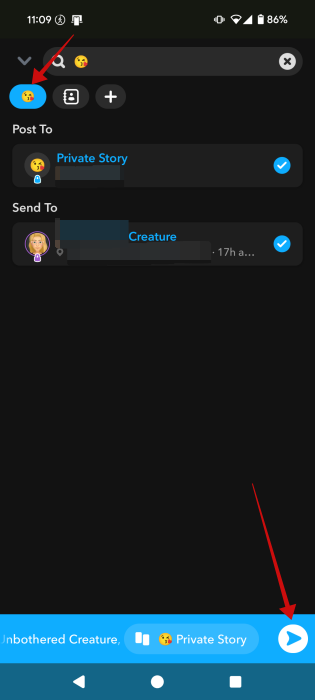
On the next screen, you can easily set up a Private Story for the people included in the shortcut. Or you can send the snap to them directly by selecting their name in the list. Press the arrow button at the bottom to send them on their way.
Viewing Shortcuts on Snapchat
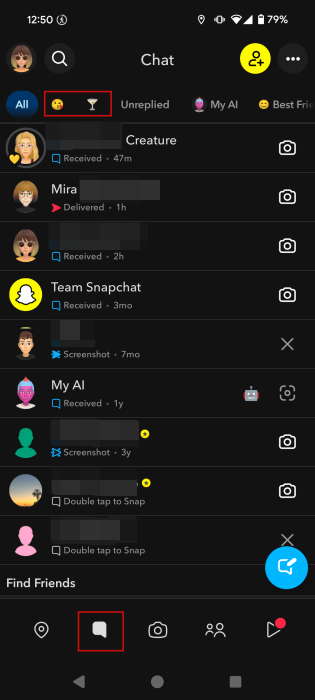
You can view all the shortcuts you’ve created in Snapchat by switching to the Chat tab at the bottom. They should appear at the very top, right under your profile picture.
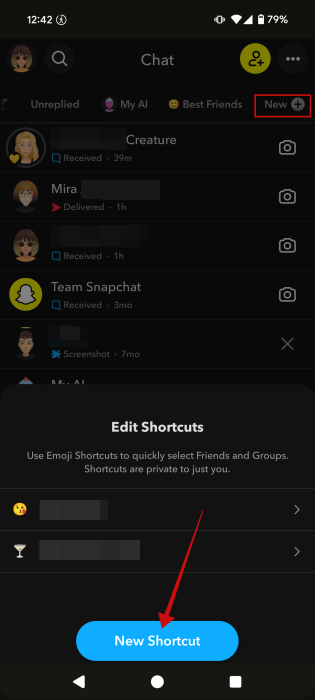
Now, if you are juggling multiple friend circles on Snapchat to which you tend to send different snaps, you can go ahead and add another shortcut by pressing the New+ button (you might have to swipe right to view it) and tapping on New Shortcut.
If you’re in the Chat screen, pressing on a certain shortcut will automatically highlight the people included. Press the camera icon to send them snaps or their names to write them a message.
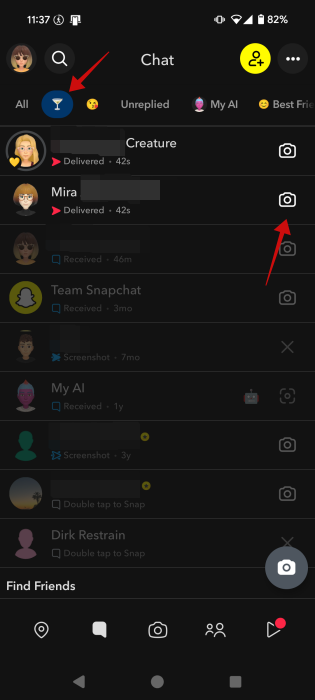
The shortcuts will also appear anytime you want to send a snap. This way, you won’t have to search through all your contacts to find the person(s) you want to send stuff to.
FYI: did you know that Snapchat calculates a score for your profile? See here if you can hide it from view.
Edit a Shortcut on Snapchat
If you realized you added the wrong person to a shortcut, or you simply want to change its emoji, you can do so by accessing the Chat tab.
Tap on the New+ button at the top and select the shortcut you wish to modify.
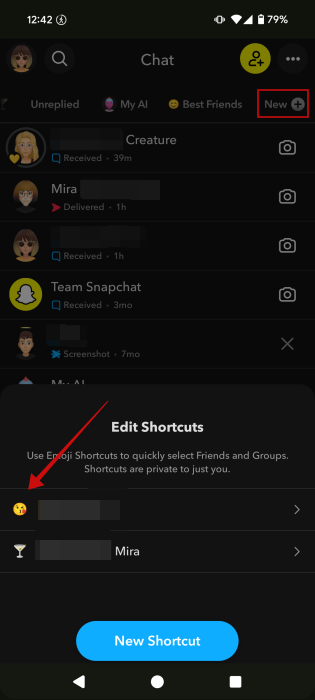
Press on the emoji at the top to change it.
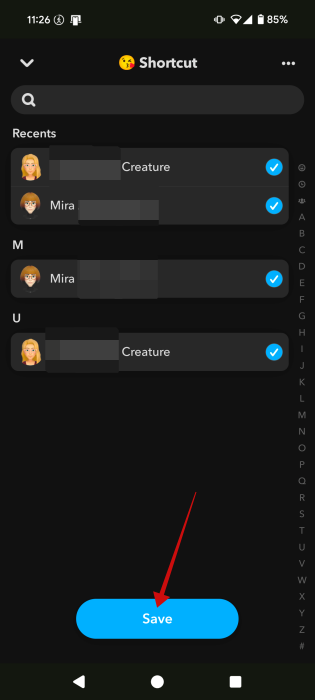
You can also add more people or eliminate others from your shortcut list. When done, press Save.
Delete a Shortcut on Snapchat
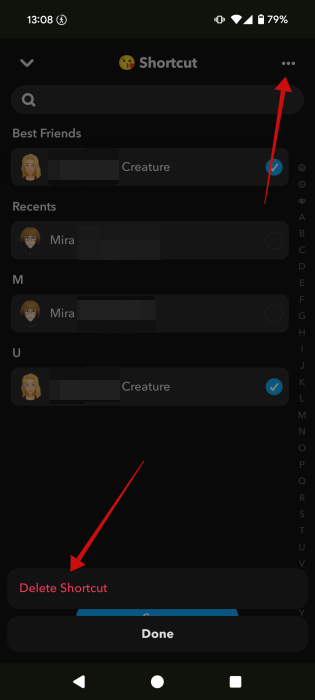
If you find that you don’t need a shortcut anymore, you can delete it by pressing the New+ button in the Chat section.
Select the shortcut you wish to remove to open it. Then, tap the three dots in the upper corner and tap Delete at the bottom.
Shortcuts help you maintain your Snapchat streaks, but how do you know when you’re engaged in a streak with someone? Check your Snapchat Chat screen and see our guide for explanations on the emoji meanings to check friendship levels.








