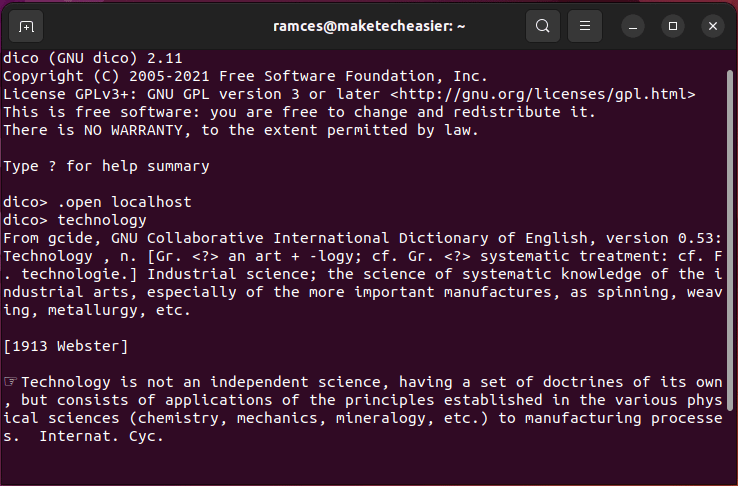
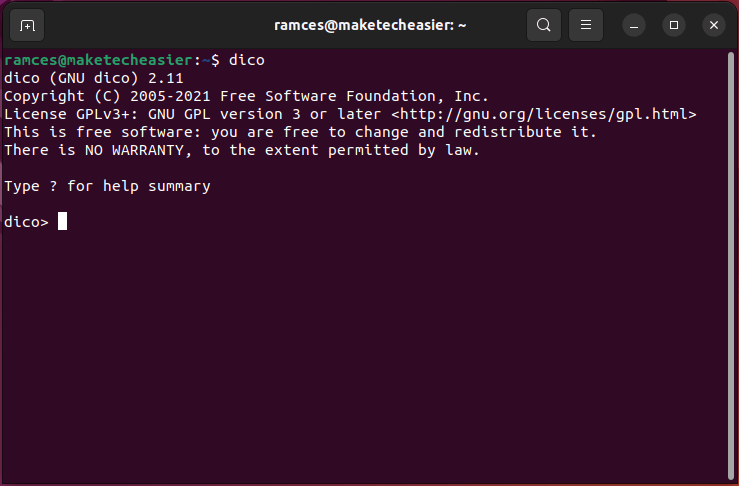
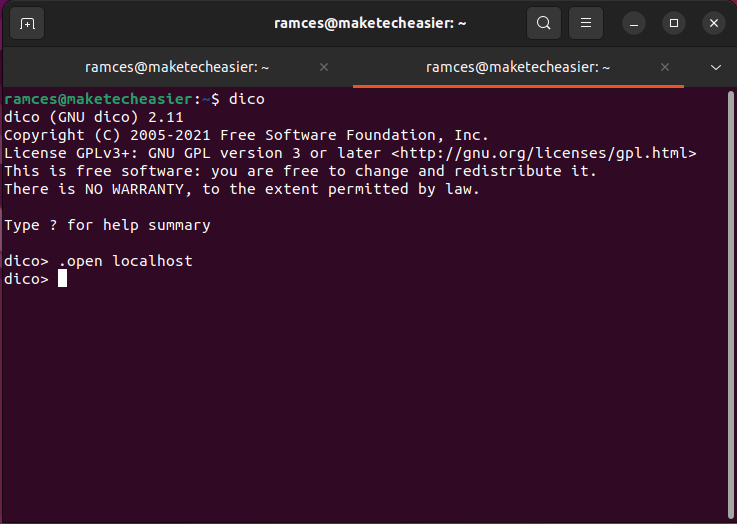
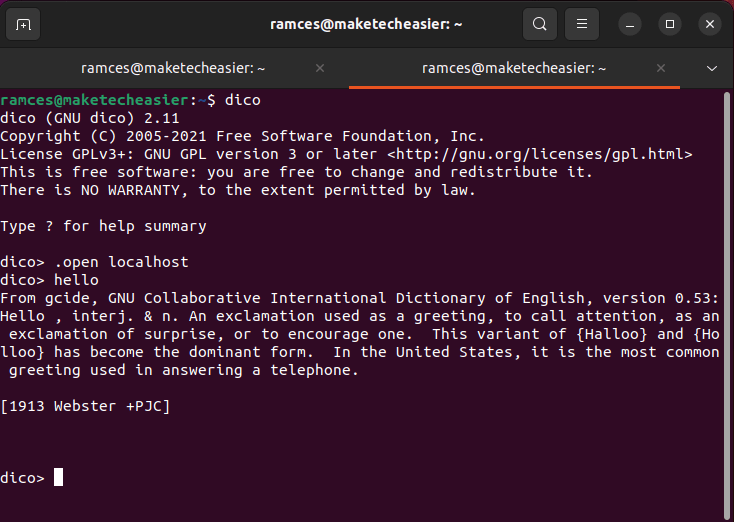
Dico is a modern implementation of the traditional DICT protocol. It aims to create a fully modular dictionary server software that you can host almost anywhere. This tutorial shows how you can install and use Dico as your local “online” dictionary server in Linux.
Dictionary (DICT) servers are Internet programs that load and serve word definitions from an internal file. Unlike web dictionaries, DICT servers can be incredibly lightweight and flexible to changes, making it attractive for users that want to maintain their own dictionary at home.
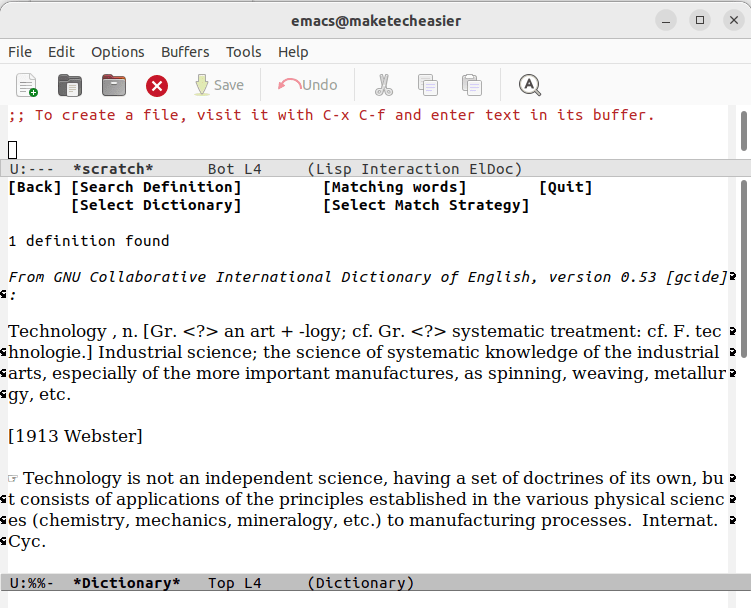
Aside from that, modern DICT servers are also fully compatible with GNU Emacs, so you can create a Dico server, link it with GNU Emacs and load word definitions from inside the editor.
Lastly, DICT servers are also simple and easy to implement. Hosting one can be a good and fun starting point if you are a beginner at deploying Internet services.
Good to know: once you have your feet wet deploying server software, a good next step would be hosting your own Email server.
Installing GNU Dico
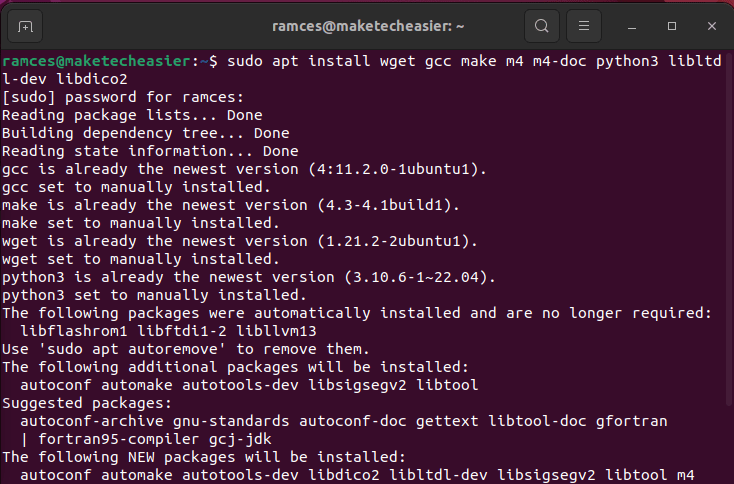
Run the following command to obtain GNU Dico’s dependencies.
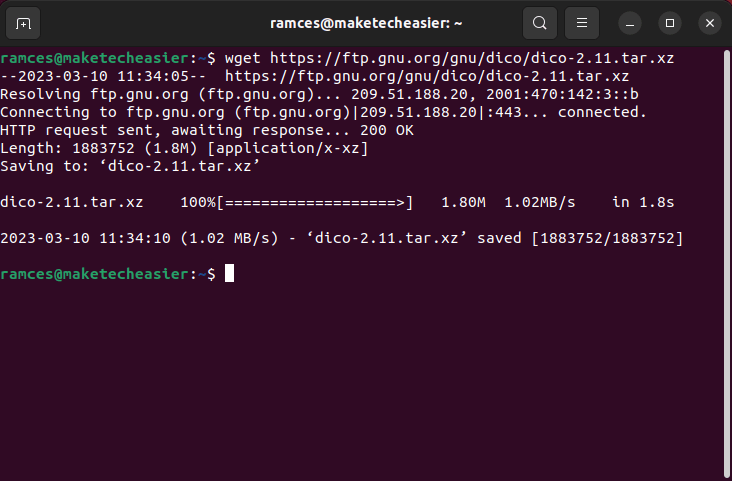
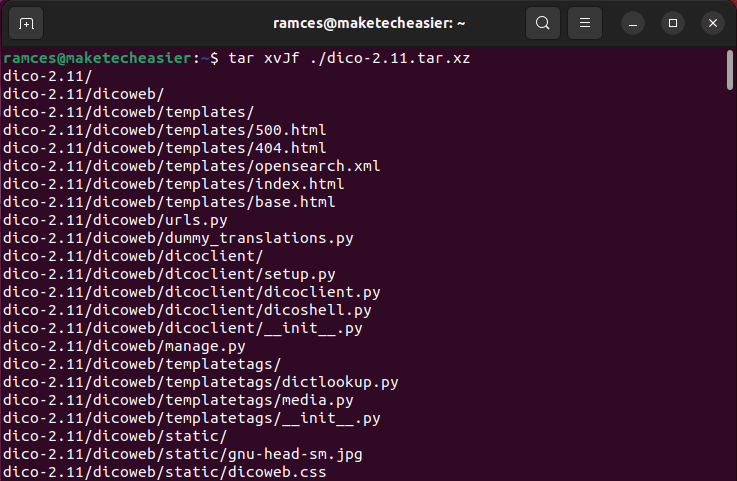
Extract the program archive in your current working directory:
tar xvJf ./dico-2.11.tar.xz
Go inside the program’s directory.
cd ./dico-2.11
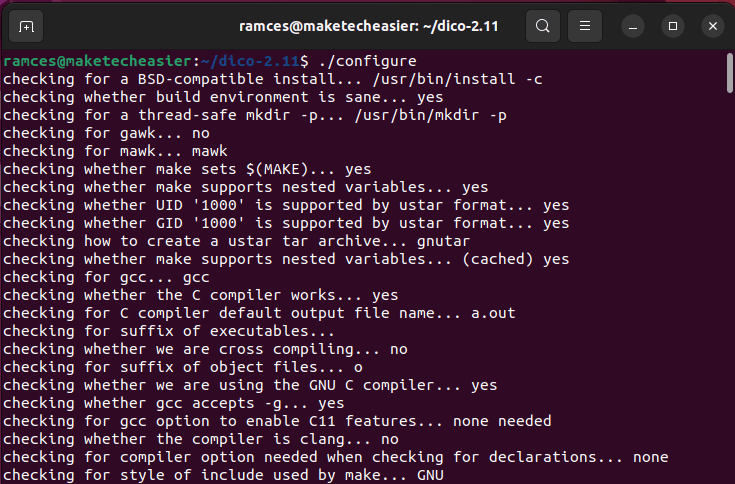
Run Dico’s initial configuration script:
./configure
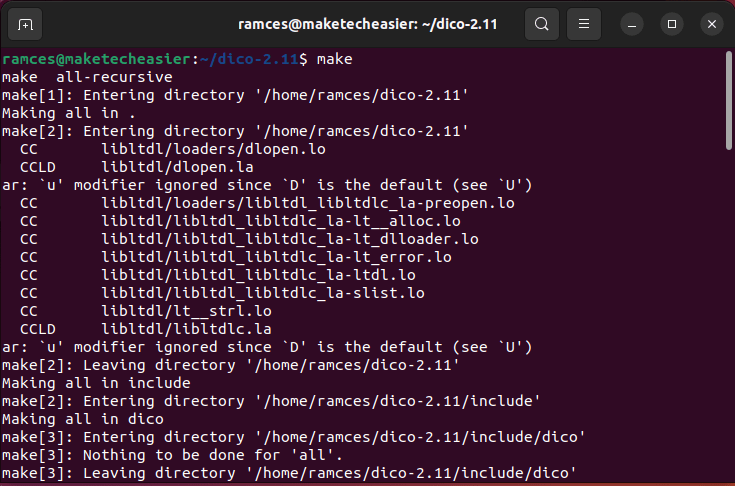
Start the program’s compilation process:
make
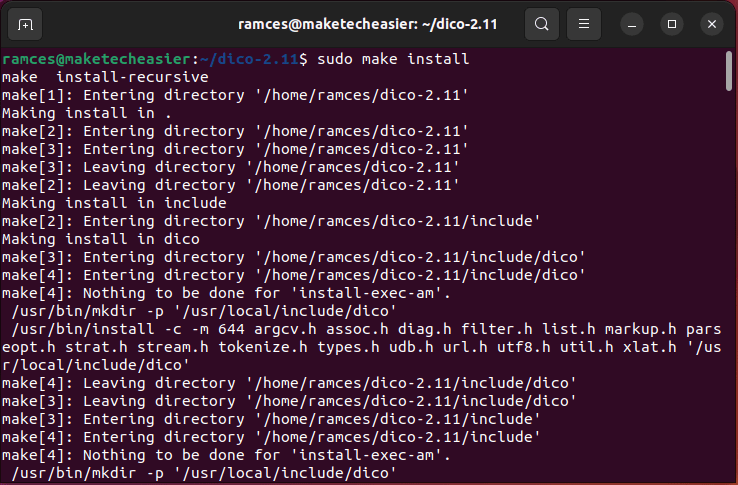
Install the program in your system’s “/usr/local/bin” directory:
sudo make install
Obtaining an Online Dictionary Database
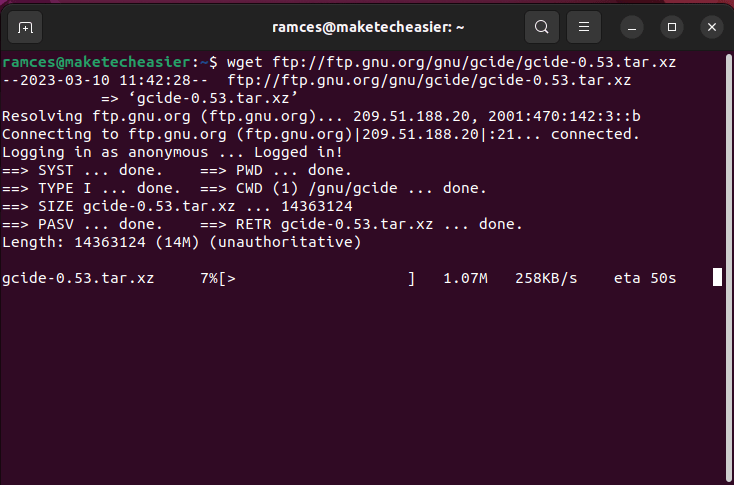
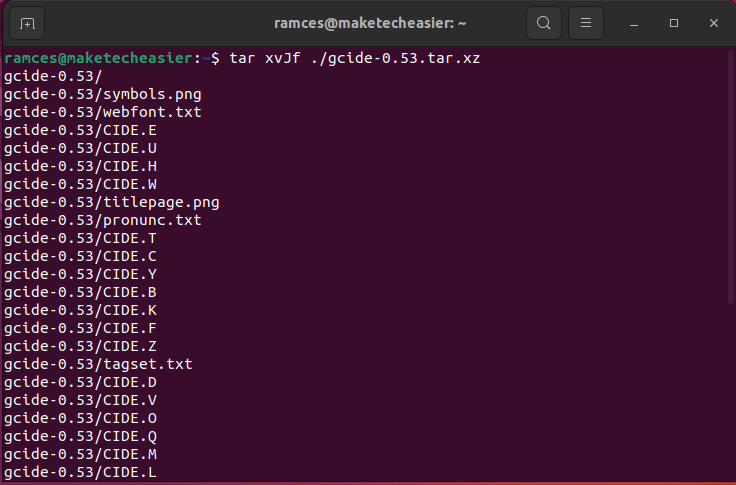
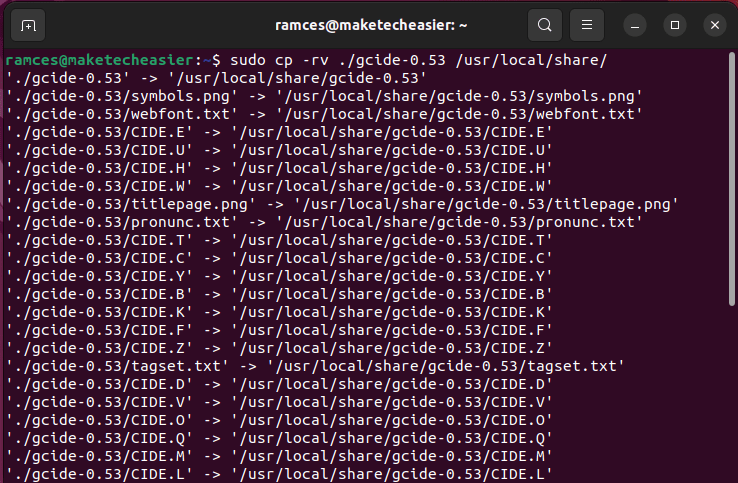
Once you have installed the GNU Dico binary, download a dictionary database. It contains all the definitions that the program will serve once it is up and running.
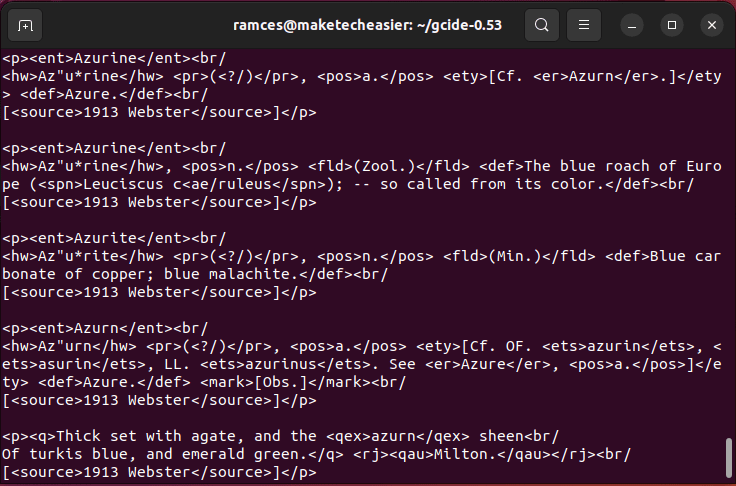
One of the easiest ways to get a dictionary database is through the GNU Collaborative International Dictionary of English (GCIDE). It’s a free and open source collection of English words and definitions that spans back to 1913.
Tip: if you intend on running GNU Dico on a public network, secure your Linux server from malicious actors.
Linking GNU Dico to GNU Emacs
Aside from using the GNU Dico console, you can also integrate your new dictionary server to external applications. For example, easily link your Dico server with GNU Emacs by using the “dictionary.el” package.
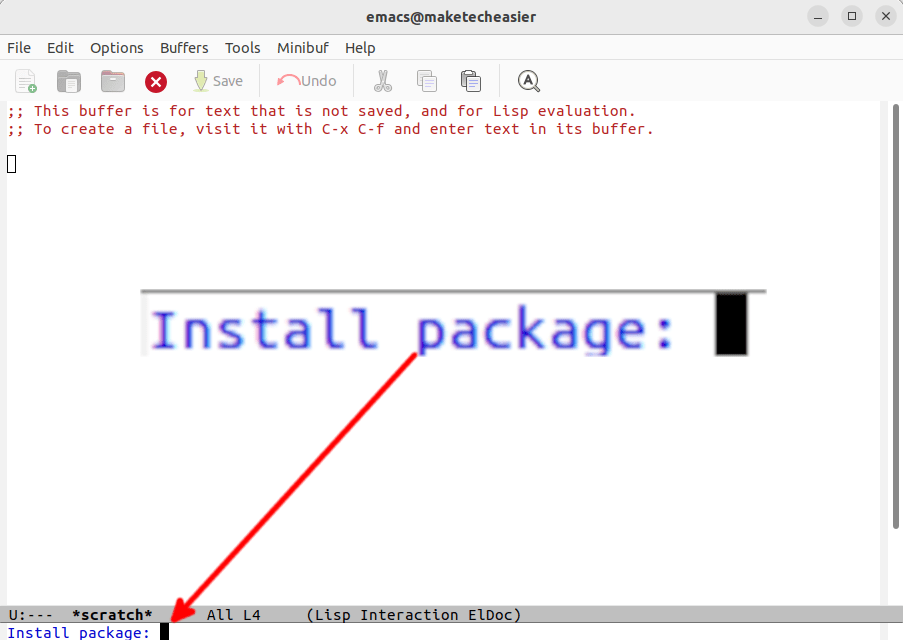
To install the package, press Alt + X, then type “package-install.”
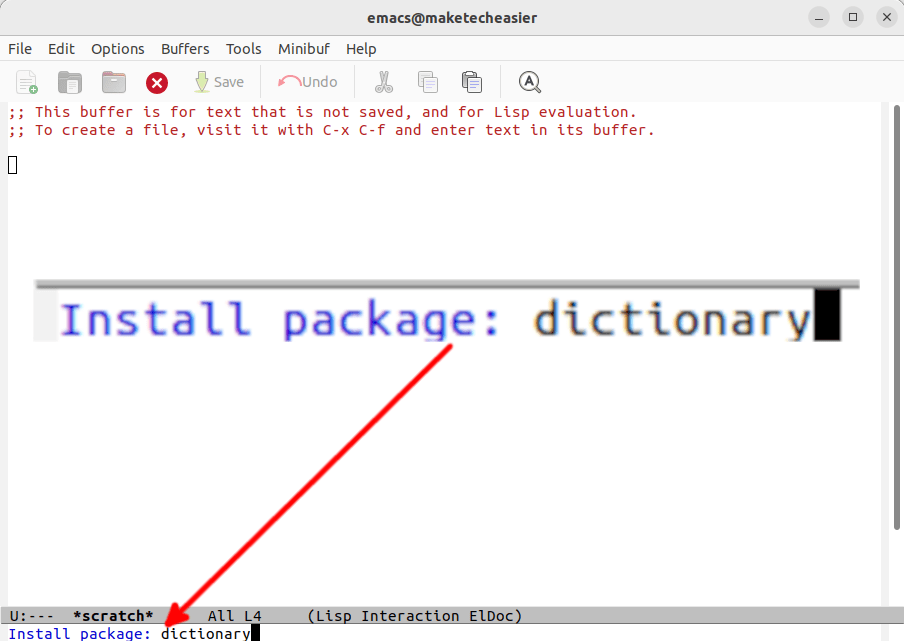
Type “dictionary” in the command buffer prompt.
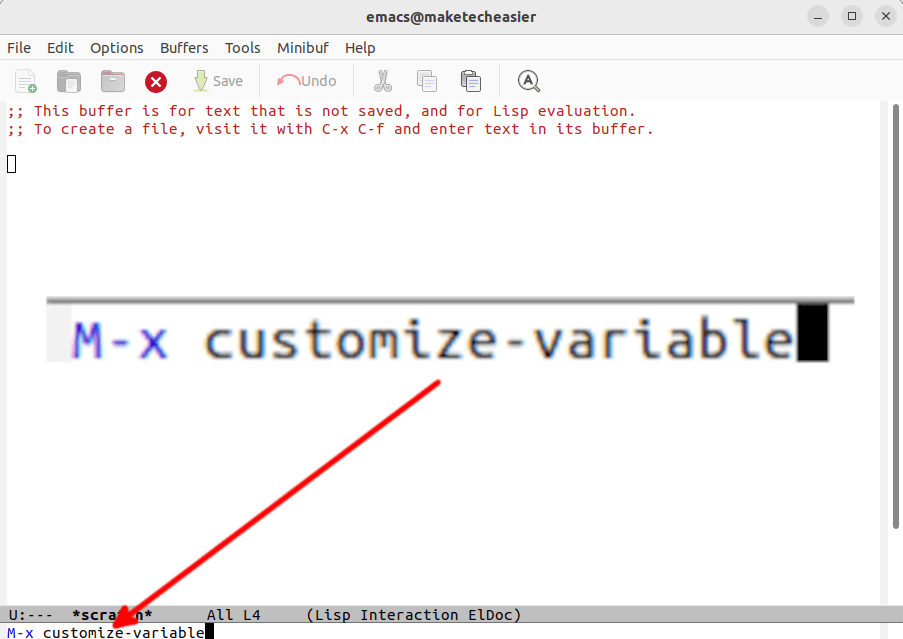
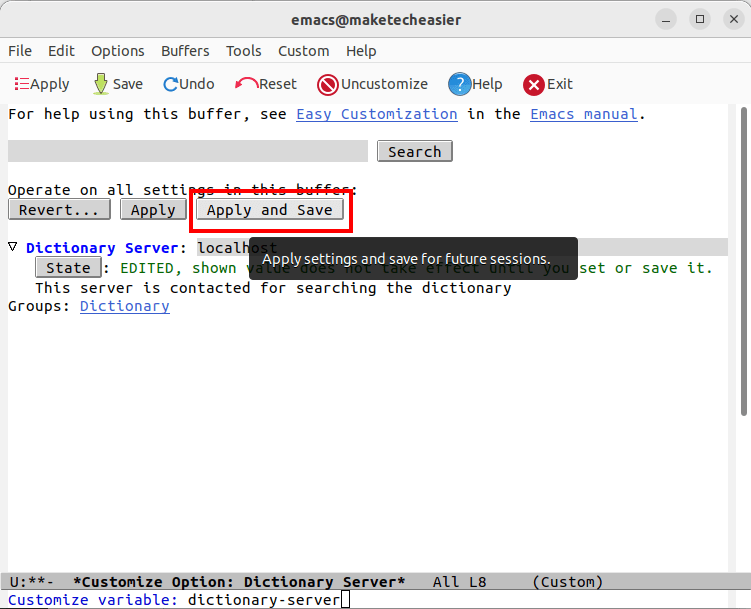
After that, press Alt + X, then type “customize-variable.”
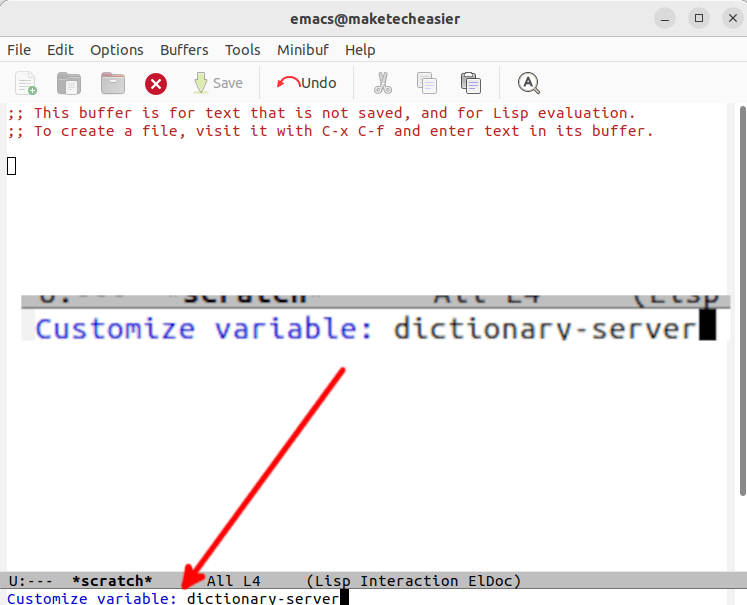
Type “dictionary-server” in the new buffer prompt.
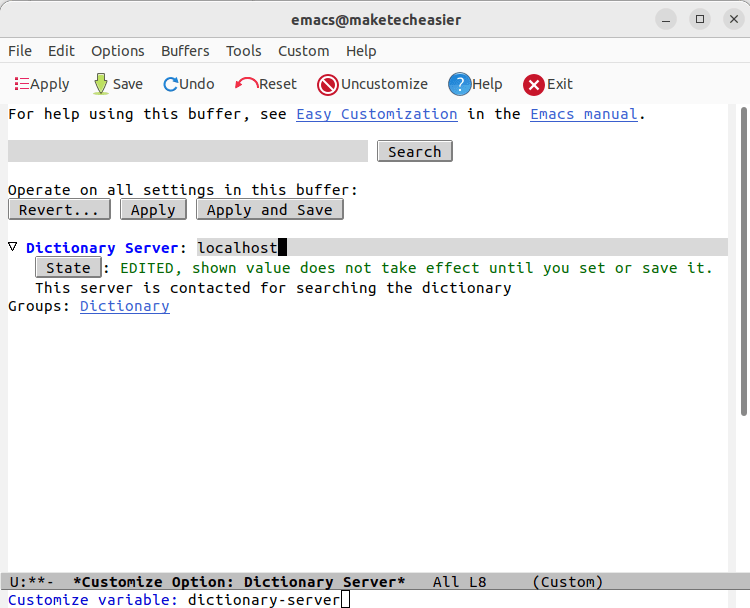
Select the text box beside the “Dictionary Server” label and type localhost.
Click “Apply and Save” to commit your new setting.
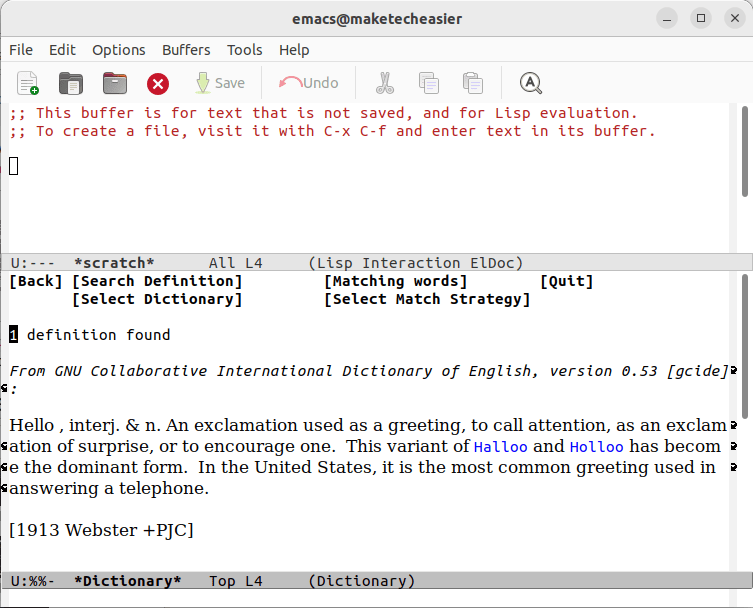
You can search your dictionary server by pressing Alt + X, then typing “dictionary-search” in the command buffer prompt.
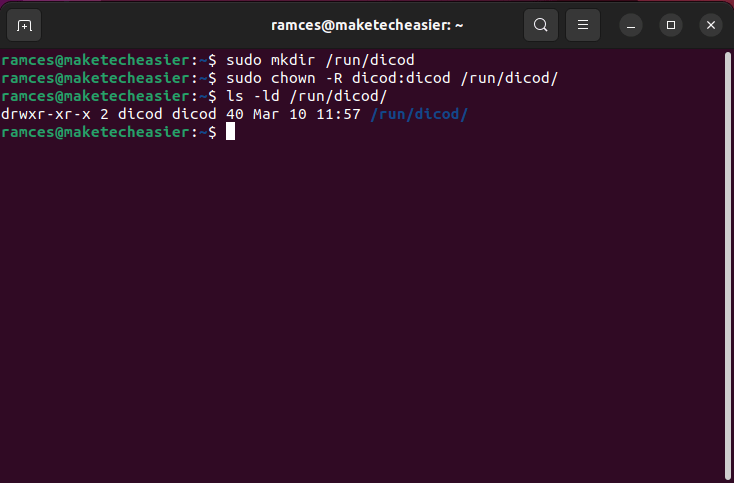
While this can be due to a number of issues, the most common cause for this is a misconfigured PID file. You can fix this by making sure that the dicod user and group exists in your system: sudo groupadd dicod && sudo useradd -s /usr/sbin/nologin -d /var/lib/dicod -g dicod dicod.
Also double check your “dicod.conf” file for any additional errors by running: dicod -t.
Is it possible to use a different online dictionary with GNU Dico?
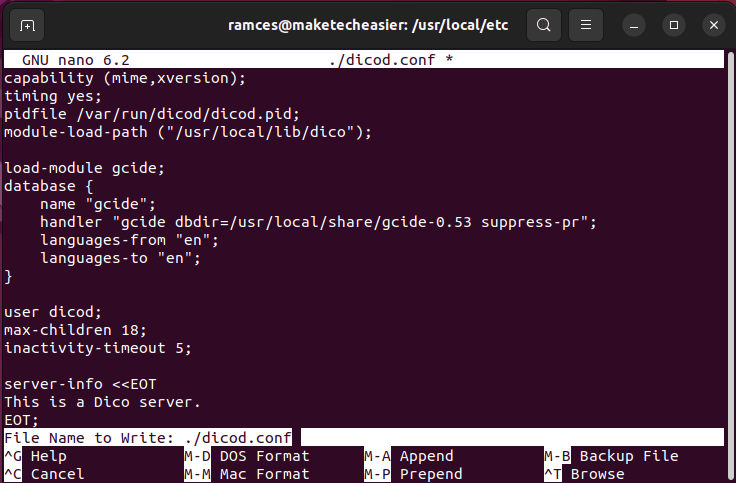
Yes. However, you also need to make sure that Dico is loading the new dictionary’s module and database block in its “dicod.conf” file. For example, to use the dict.org database, you need to download a copy of its database files and load its module in your Dico configuration file.
The dictionary.el package does not exist in my Emacs repository.
You can add the dictionary.el package by including the MELPA repositories in your init.el file. For example, the following line adds the “MELPA Stable” branch to your Emacs installation: (add-to-list 'package-archives '("melpa-stable" . "https://stable.melpa.org/packages/") t).
Image credit: Unsplash. All alterations and screenshots by Ramces Red.
Subscribe to our newsletter!
Our latest tutorials delivered straight to your inbox
Ramces is a technology writer that lived with computers all his life. A prolific reader and a student of Anthropology, he is an eccentric character that writes articles about Linux and anything *nix.