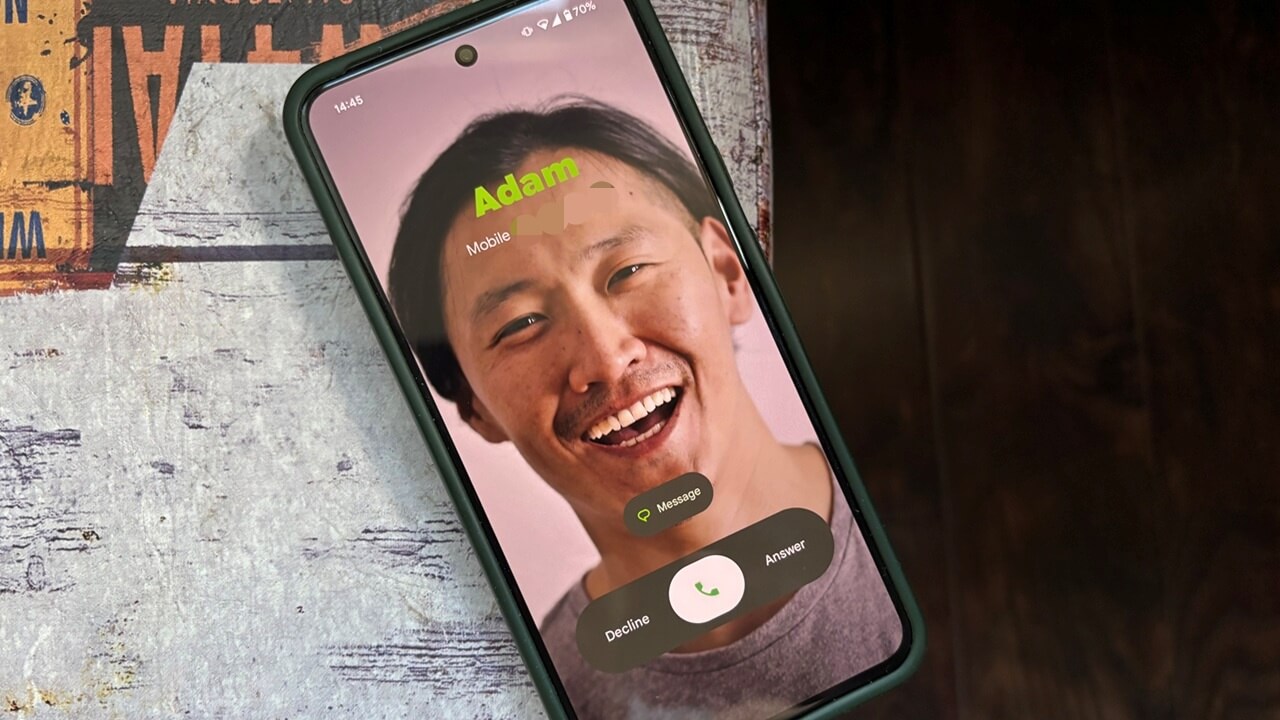
Google is bringing Android users a feature iPhone owners have enjoyed for some time. It’s called Calling Cards, and it lets you create full-screen posters for your contacts that will appear when they call. In this guide, we’ll walk you through how to create your first Calling Card using Google’s solution. If you’re not a fan of Google, we’ve also included an alternative option to create Calling Cards.
Good to know: here’s how to check whether the number calling you is a scammer.
Get Google’s Calling Cards Feature on Android
Google is offering the new Calling Cards feature through its Phone app. Many Android phones today come with Google’s Phone app installed and set as the default, but if yours doesn’t, you can always download it from the Google Play Store.
Since the new addition is currently rolling out, make sure that your Google Phone app is up-to-date. Even so, you might still not see the feature, which means you still have to wait a bit. For instance, two Android phones in my household now have the feature, while a third doesn’t yet.
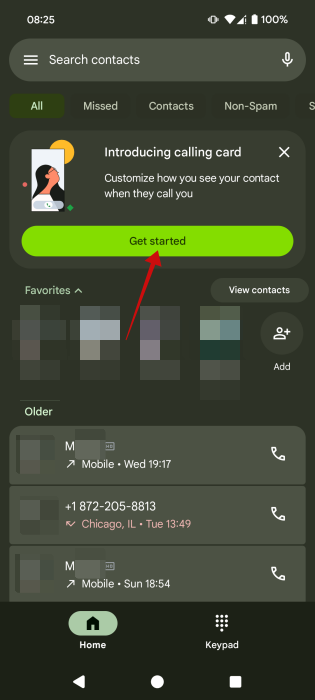
On your phone, open the Phone app. If you’re using this feature for the first time, you should notice a card at the top of the screen that says Introducing calling card. Tap the Get started button to begin.
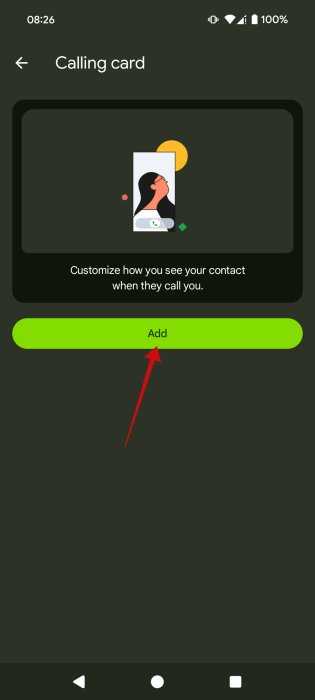
On the next screen, press the Add button.
Select a contact from your phone app for whom you want to create a calling card. Now it’s time to create your poster. Tap on Gallery to select an image for the selected contact. Alternatively, you can take a photo right now by pressing Camera or tapping into your Google Photos archive. By the way, you might want to learn how to find and delete duplicates in Google Photos for a less cluttered experience.
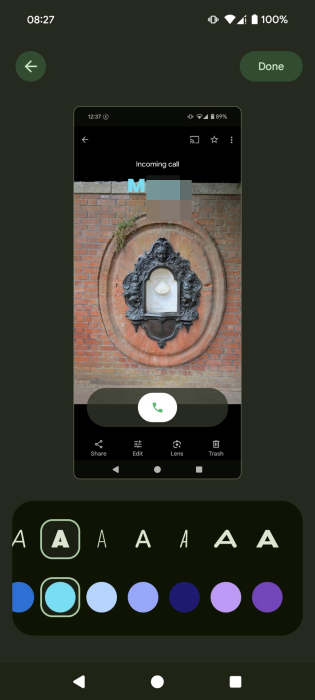
Go ahead and arrange the image with your finger to frame the subject as best you can. Depending on the image you’ve chosen, now select a font and a color for your contact name. Make sure there’s enough contrast, so you can easily read the name of the caller.
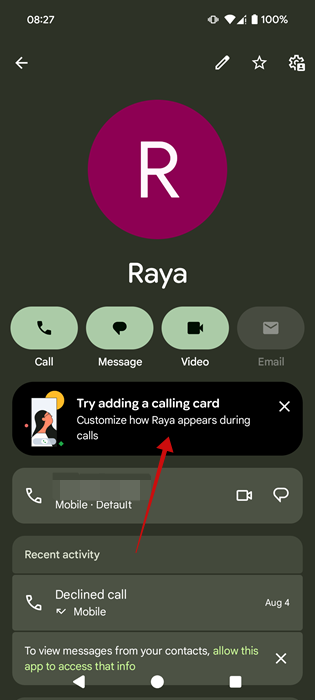
In case you can’t see the announcement banner at the top of the main Phone app screen, tap on a contact. You should be able to see the new feature alert underneath the Call/Message buttons.
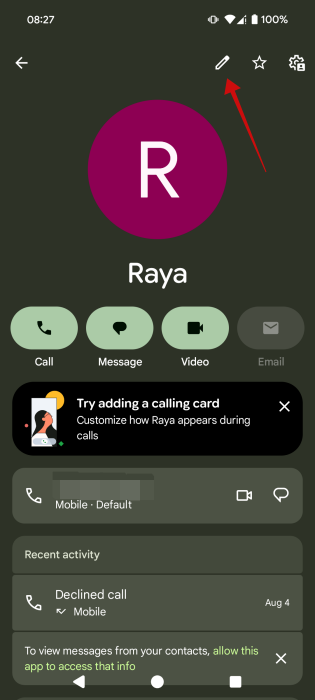
Alternatively, press the pencil icon in the upper-right corner.
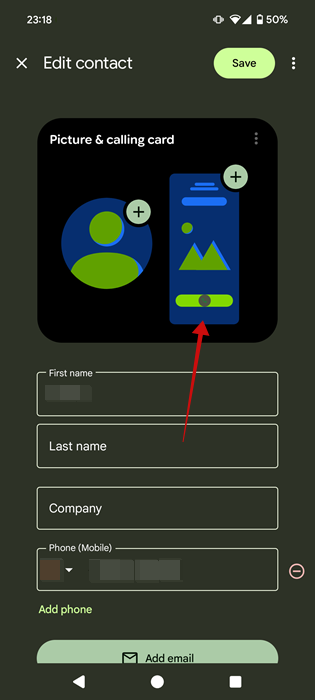
If the new feature is present, you should see the Picture & calling card section at the top. You can set a separate contact image as well as a poster that will appear when they call you on your phone. Tap the second option to set a Calling Card.
Once you’ve set it, the app will ask whether you want to use the same image as a contact card. Tap Confirm and crop to continue, or Skip if you want to set a separate one.
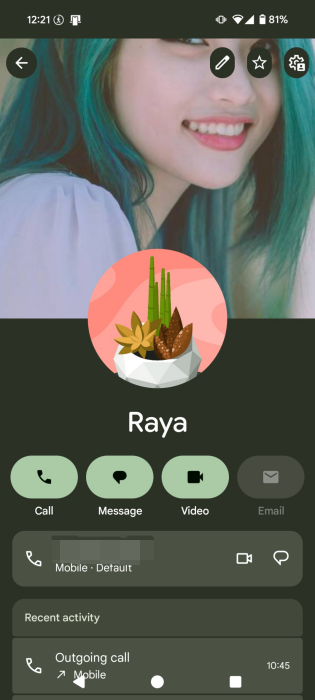
After you set a Calling Card for a contact, it will show as a cover on the contact page of the Phone app.
Now, whenever you are placing a call to this person, the image will appear on your display.
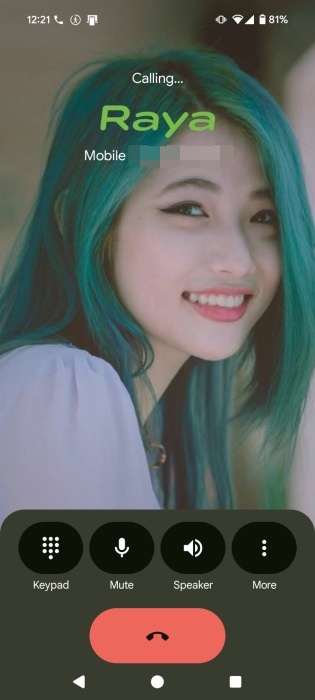
Here’s what it looks like when the contact is calling you instead.
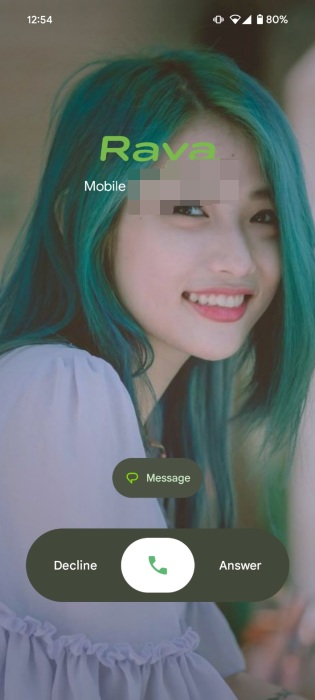
Unlike with the iPhone’s Contact Posters, you can’t design your own Calling Card that will show up on other people’s screens when you call them. The other person will have to set up a Calling Card for you on their phone, and you can’t edit how this card looks.
Tip: take a look at more enhanced dialer apps that can enhance your communication on Android.
An Alternative to Google’s Calling Cards
In case you can’t see the feature on your phone and you don’t want to wait, or you simply don’t want to use Google’s app, you can use this alternative method.
On Android, there’s the option to use a third-party app such as Jolt for similar results (and a bit more customization options).
Install the app from the Play Store, and then make sure you set it as your default phone app when you launch it for the first time.
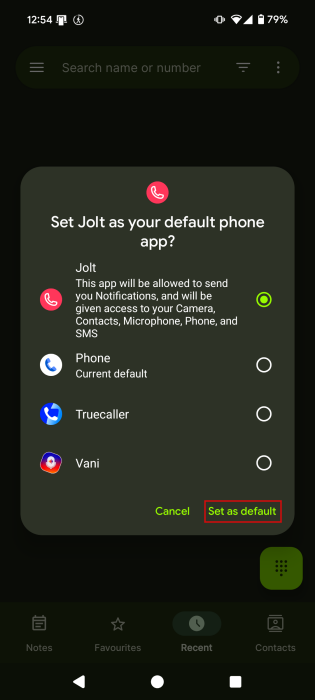
Once you open the app, you’ll notice it looks very much like Google’s Phone app. However, it does come with a few extra features, including a built-in Notes feature that you can access from the main screen.
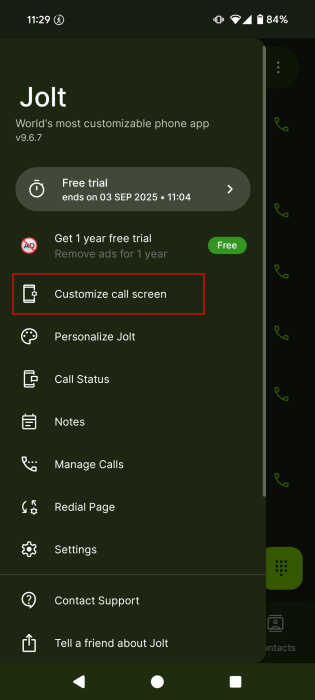
To create a Calling Card, switch to Recent at the bottom and press on the hamburger menu in the upper left corner.
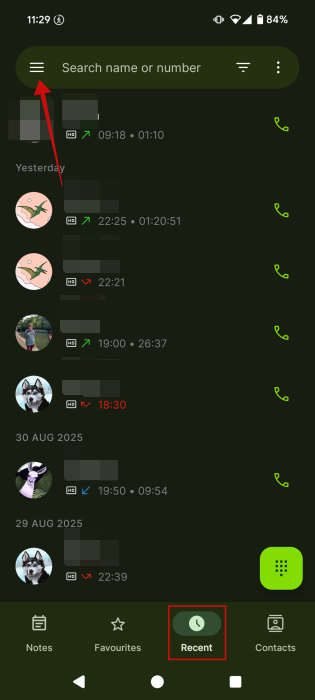
Select Customize call screen in the menu on the left.
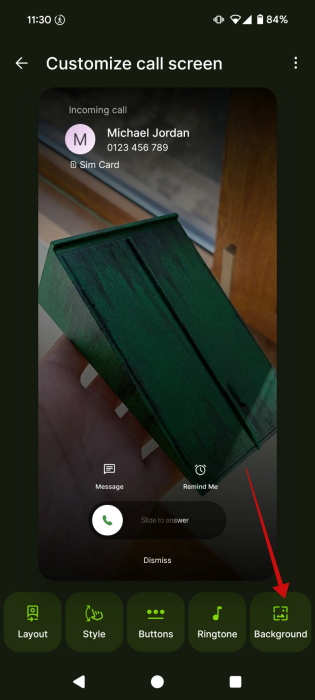
Tap on Background.
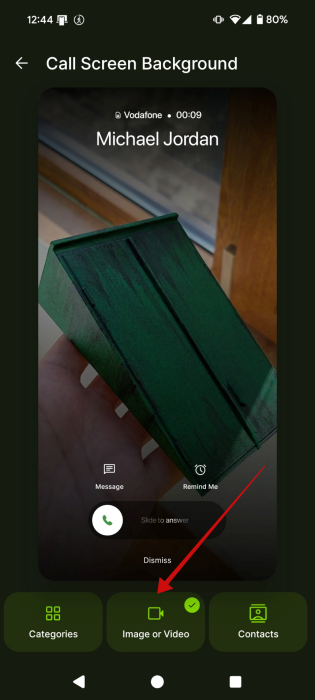
Select Image or Video. Tap on either Image or Video in the pop-up. Select your imagery.
Now, you can go back to the previous screen and tap on Style (also take note of the other options available).
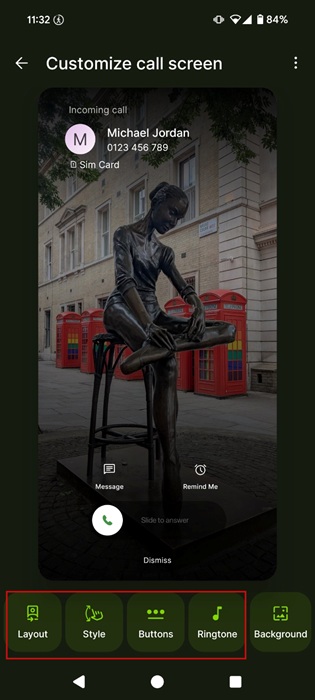
From here, you can select the style of calling screen you want to show up when the contact is calling you. You can opt for the popular iPhone or even Samsung’s.
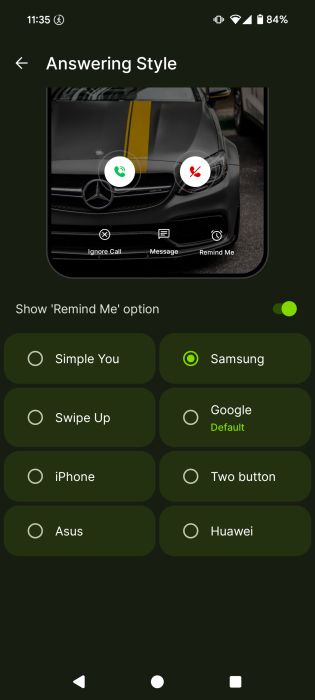
You can also customize your Calling Card’s layout, buttons, and set a specific ringtone for this contact from the same screen. Check our own result below:
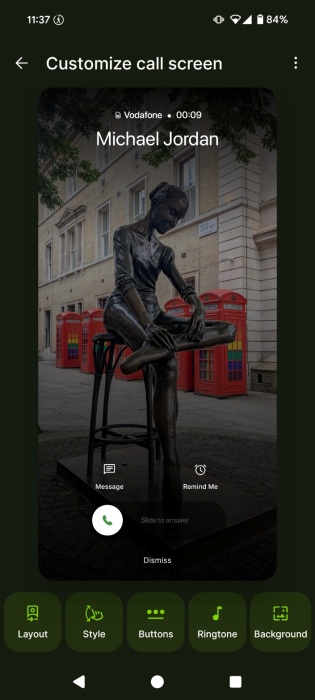
Calling Cards offer a reliable way to know immediately who is calling simply by glancing at your Android’s screen. Another method to let you know who’s at the other end is setting a custom ringtone for specific contacts. For that, you can use an app like Jolt or your Android’s built-in settings as we show in our guide.








