As short video content continues to dominate social media, Instagram has launched Edits, its own video editing app aimed at creators. Positioned as a competitor to CapCut – which has been facing restrictions in the US due to its ties to ByteDance, TikTok’s parent company, Instagram’s timing couldn’t be better. Ready to try it out? Here’s how to make your first video with Instagram Edits.
Good to know: learn how to view someone’s Instagram stories anonymously.
Get Instagram’s Edits App on your Phone
Edits is a separate app from Instagram. That being said, you’ll need to install the app from the Google Play Store or App Store. Next, launch it and sign in with your Instagram username and password.
While the Instagram app also offers a set of features that allows you to edit Reels, Edits offers additional tools. It also allows you to edit basically any video you want – whether you meant to post it on Instagram, YouTube, TikTok or another app.
The Edits app seems to be rolling out in most parts of the world, so go ahead and see if you can find it on your app store.
Create Videos with Instagram Edits
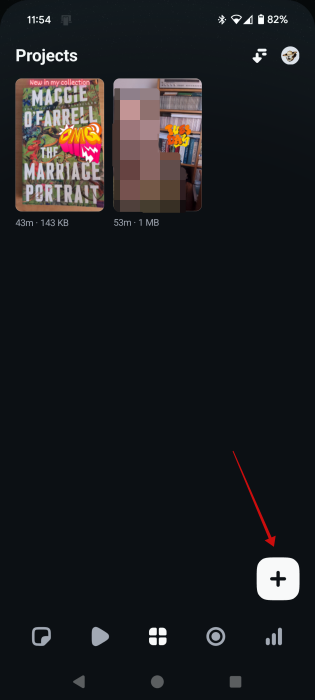
Open the Edits app on your phone, which will automatically takes you to the Projects page. To start a new project, press on the white + button in the lower right corner. This allows you to upload a clip from your device.
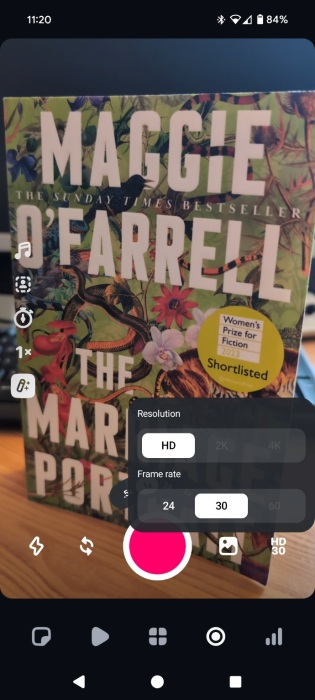
Alternatively, you can shoot your clip directly from the Instagram Edits app. Switch to the Camera screen by pressing on the record-like button at the button. Grant the necessary permissions.
Once you’ve added your video, you can go ahead and start editing it. You’ll notice the video feed underneath the main window.
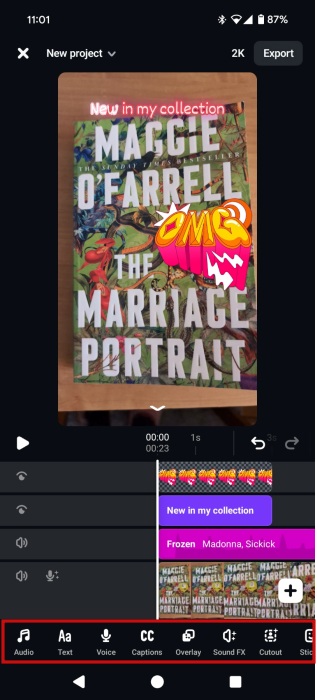
At the bottom, you’ll find the editing options you can start exploring:
- Audio – lets you add sound to your video by tapping into Instagram’s extensive library
- Text – supports adding text using a wide range of fonts, colors and effects
- Voiceover – allows you to record your voice and overlays it on top of your video
- Captions – lets you automatically generate captions for the video
- Overlay – supports adding overlays from your own gallery
- Sound FX – includes a library of sound effects to make your videos more entertaining
- Cutout – allows you to cutout objects from videos and add them to your own creation. The feature proved pretty buggy in our testing
- Sticker – lets you add stickers to your clips.
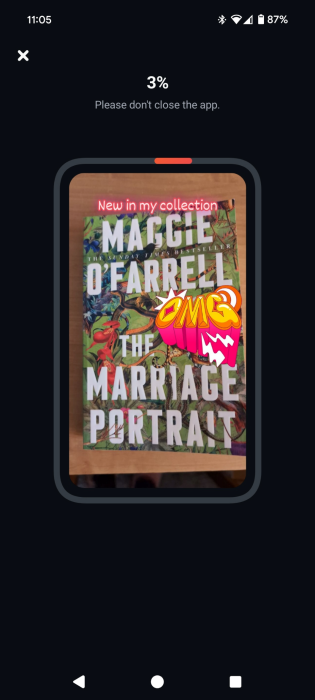
Once you’re done editing, press Export to save the video to your phone. The resulting clip won’t feature any watermark. The app also offers an easy way to share your newly created clips on Instagram or Facebook.
On the other hand, if you prefer using Edits to shoot your video, then you have access to quite a few features such as adding a green screen, modifying the frame rate and resolution, or choosing a different speed than the standard 1x.
Tip: here’s how you can change your Instagram nickname in Direct Messages.
Get Inspiration Using the Instagram Edits
Instagram Edits is also a place that can help you get inspiration for your next video. While you can’t access Edits from Instagram, you can watch Reels from the Edits app.
Tap the second icon (that looks like a play button) to get to the Inspiration tab. Here you can scroll through Reels just as you would on Instagram. Just swipe up to move to the next one. Reels shown in this section are usually videos that are popular with the community.
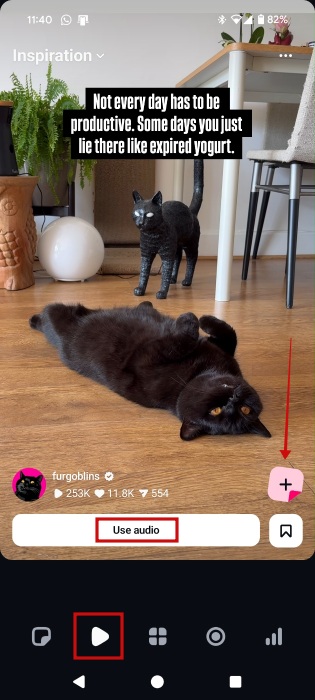
Once you stumble upon a Reel that sparks your creativity, you can save it. Or you can quickly jot down the idea by pressing on the + button on the right.
At the same time, you can tap the Use audio button to act the exact musical background to your own clip.
Note: if you want to see the Reel on Instagram, tap the three dots in the upper right corner and select View on Instagram.
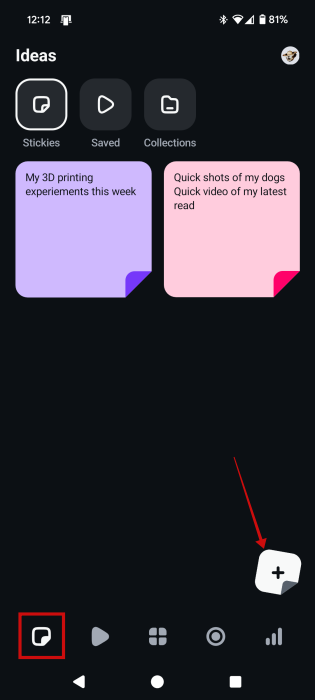
You can also create notes right from the Ideas tab. Access it by pressing the first icon at the bottom that looks like a post-it. Here you can record all your video-making ideas.
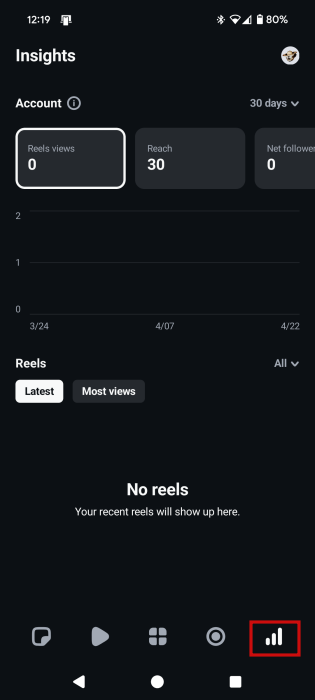
Finally, the Edits app also has an Insights tab which shows you statistics for your Instagram account.
While Edits has just launched, Instagram is already planning its next batch of features such as being able to change the look and feel of your videos with AI, collaboration tools, as well as keyframes. They note that user feedback will be key in how Edits expands in the future.
If you love browsing Reels, then you might like to learn how to use Instagram Reels with Remix to offer your own take on clips that you find intriguing. Alternatively, here are more tools to help you create awesome Reels.








