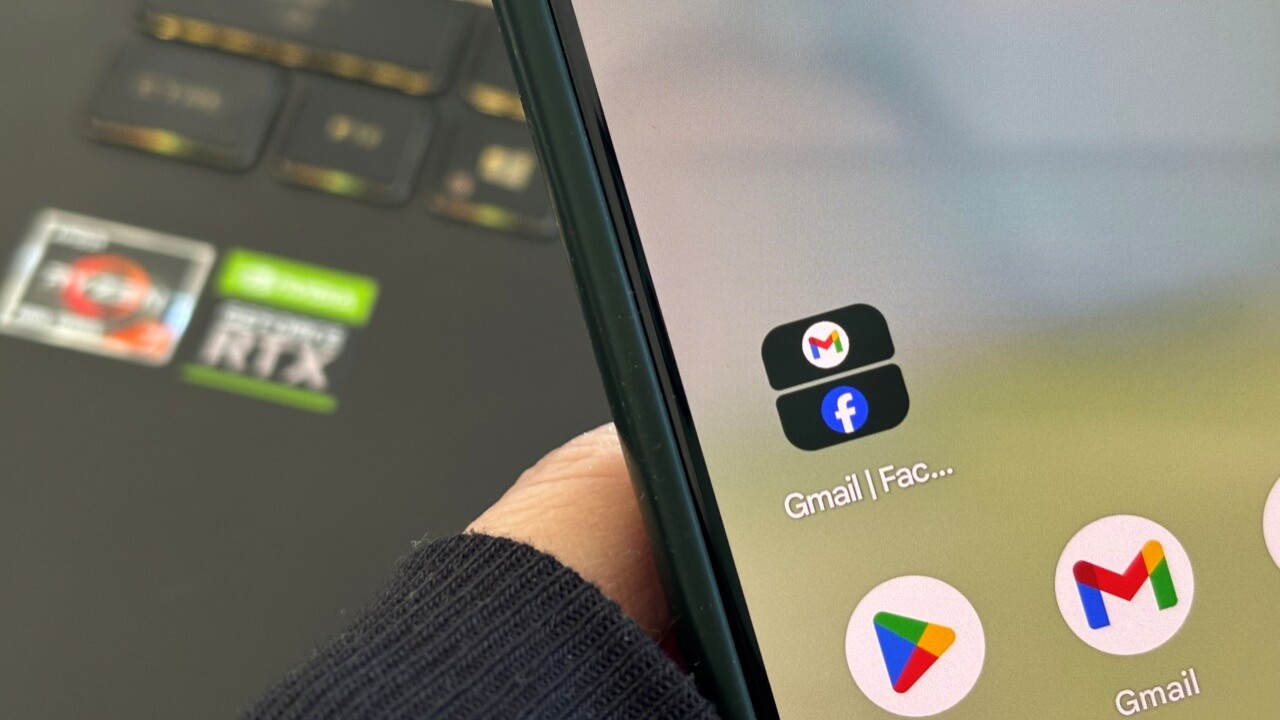
For years, Android users have enjoyed the flexibility of split-screen multitasking. But one thing was missing: the ability to save their favorite two-app combos. Google finally filled the gap in Android 15 with App Pairs – a feature that lets you create and launch side-by-side app combos directly from your home screen. Here’s how to make your first one.
Good to know: learn how to enable flash notifications on your Android device, if you haven’t so far.
Create App Pairs on Android Devices
If you have a newer Android device running at least Android 15, then you can create app pairs natively without needing to install anything extra on your device.
First, you’ll have to put two apps in split-screen view. To do so, open the apps you want to be able to switch between seamlessly.
Use the navigation button or gesture to bring up recent apps on your phone. Long press on one of the apps’ icons at the top to bring up a menu. Select Split screen.
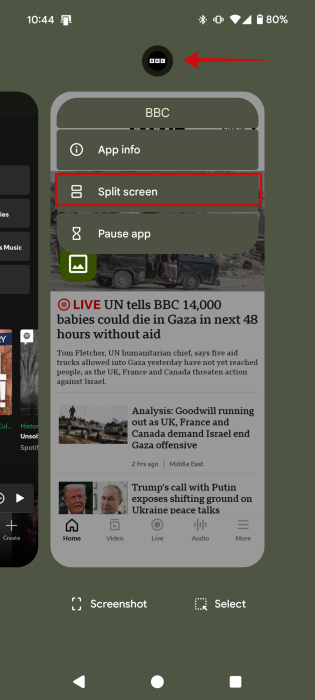
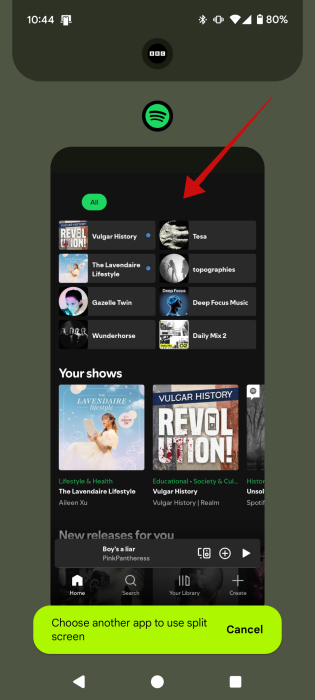
Now Google will ask you to choose the other app. Do so by tapping on it.
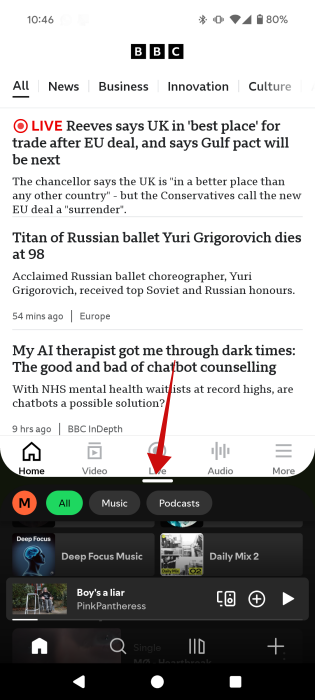
The two apps will now appear in split mode, taking one half of the screen each. You can use the dividing bar between them to resize these windows according to your preferences.
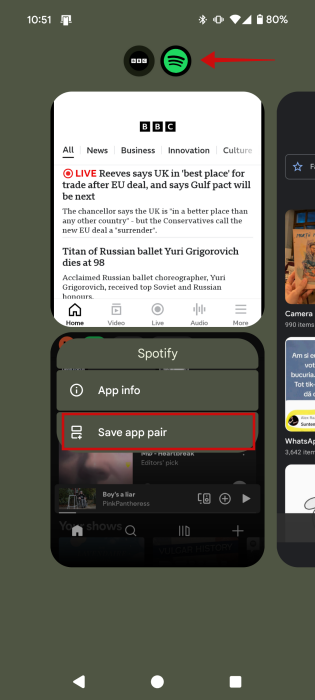
Once you have your configuration all set, go ahead and bring up your Recent apps again. Long tap on the two icons at the top of the split-screen window. Select the option to Save app pair.
Note: App pairs on Samsung Galaxy phones have been available long before Android 15. If you’re using a Samsung Galaxy device, you’ll need to tap the three dots between the two apps in split-screen mode and select the Star icon to save your pair.
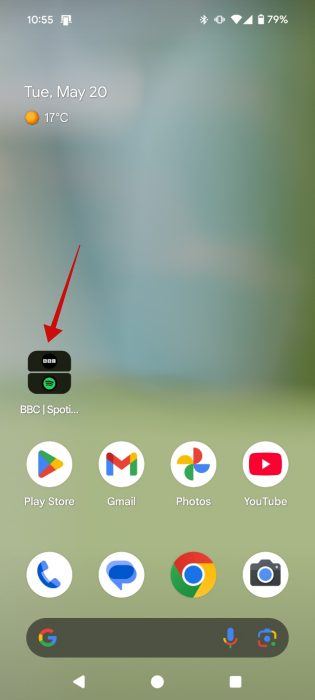
The shortcut will now appear on your Android homescreen. Now, next time you will need to use the same apps in split screen mode, you won’t have to create the setup all over again. Instead, just tap the shortcut, and voilà!
Tip: learn how to access the numbers you blocked on your Android and manage them from there.
Create App Pairs on Older Android Devices
If you have an older Android device, then you won’t be able to save an App pair natively. Luckily, you can easily fix this by turning to a third-party app such as Be Nice.
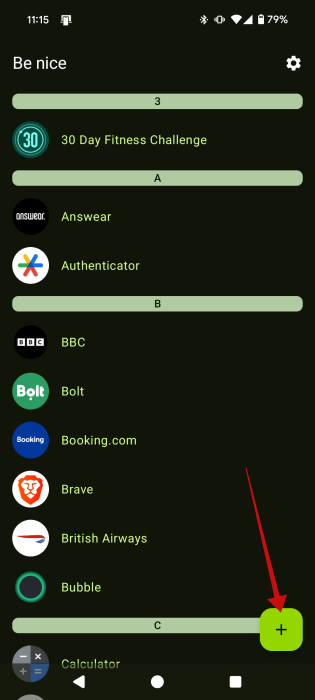
Begin by downloading and installing the app on your device. Then launch the app. The main screen will show a list of all your installed apps. Press on the + button in the lower right corner.
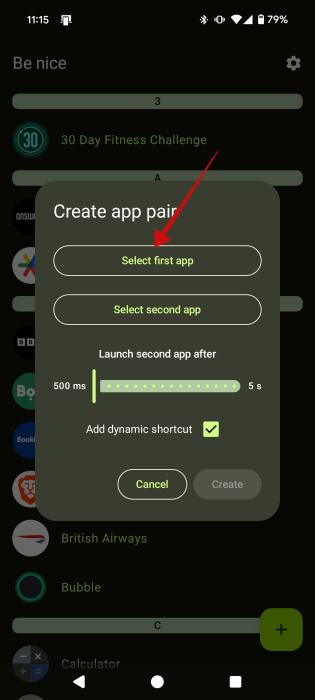
A new pop-up window will appear on the screen. Press the Select first app option.
Select the first app you want to view in split screen from the list of apps.
Next, tap on the Select second app in the pop-up. Make sure the Add dynamic shortcut option is ticked.
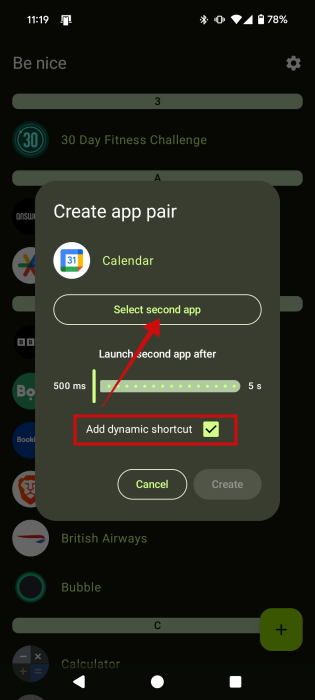
On the next screen, you can name your shortcut whatever you want and select an icon for your app pair. Once you’re ready, press the Create button.
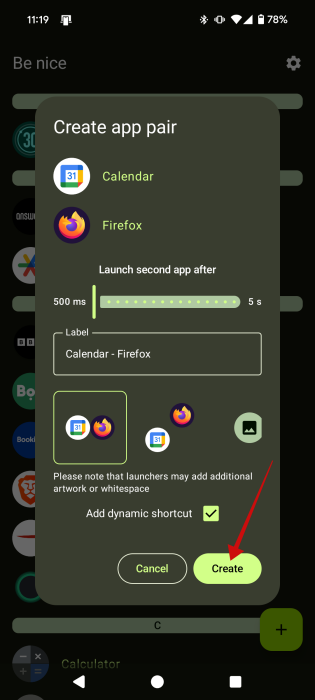
Tap on Add to homescreen in the pop-up that appears at the bottom.
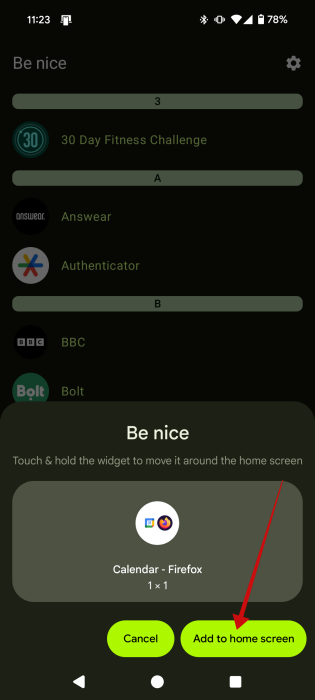
The shortcut should be waiting for you.
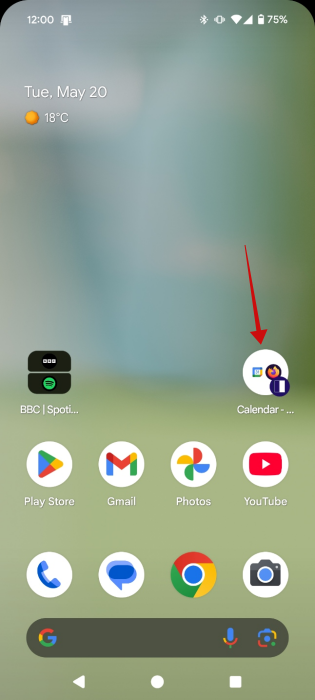
As you launch it for the first time, the two apps will each take up half of the screen, but you can resize them if you wish. However, Be Nice will not save the reconfiguration, so you’ll need to resize the app windows again the next time you launch the shortcut.
FYI: never miss an alert. Check how to access notification history on Android.
If you don’t like working in split screen for whatever reason, adding a taskbar to your Android device might simplify your workflow on your phone. Alternatively, you might also find it helpful to enable double-tapping on your Android screen to easily put it to sleep.








