
For those old enough to remember AOL’s AIM, the best part was always creating fun away and status messages to let everyone know what you were up to. Now, WhatsApp Status is getting a makeover that lets you create far more personal and engaging status messages.
WhatsApp Status Blends AIM and Instagram
When WhatsApp first introduced Status, AIM (AOL instant messenger) users were instantly taken back to the days of creating away messages. If you used the service, you know just how important a creative message was. But now, WhatsApp is making Status feel like a blend between an Instagram Story and AIM away message.
The new features are rolling out starting right away, but it could be weeks or even months before all users get access. I’m in the US and had it with the latest update. If you don’t see it, be patient. It’s coming soon.
You’ll likely recognize many of these features if you’ve ever created an Instagram Story. From layouts to music, Meta is trying to make WhatsApp feel a little more like Instagram to create a more cohesive experience between platforms. That’s why you’re also able to use Meta AI within WhatsApp. Or, chat with Perplexity AI, if you prefer.
Create WhatsApp Status Collage
Since Meta owns both WhatsApp and Instagram, it’s no surprise that Status is getting the Layout option to create photo collages. You’re able to add up to six photos to create a layout all about your day, what you’re currently doing, or pretty much anything you want.
Tap Updates in WhatsApp and tap Add status. Tap Layout at the top and select the photos you want to use. You don’t have to use six, but that’s the max possible.
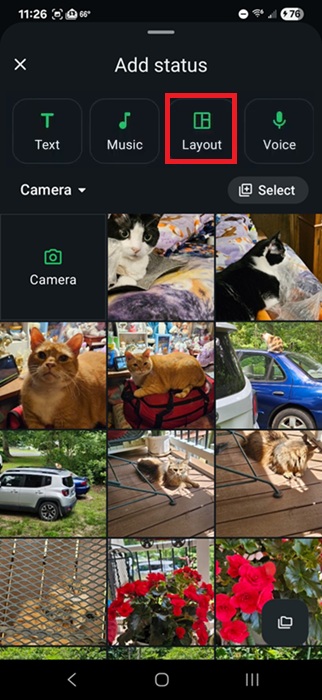
Next, choose the layout you want at the bottom. There are six different layouts, and you can adjust how each photo fits into the individual frames, including zooming in. Tap Done when you’re finished to add the collage to your status.
Add Photo Stickers to Your Status
A collage isn’t all you can do with your photos. Create photo stickers for a unique WhatsApp Status. Tap Updates -> Add Status. Tap a main photo to start your status. Then, tap the Sticker icon at the top and tap Photo. Select another photo.
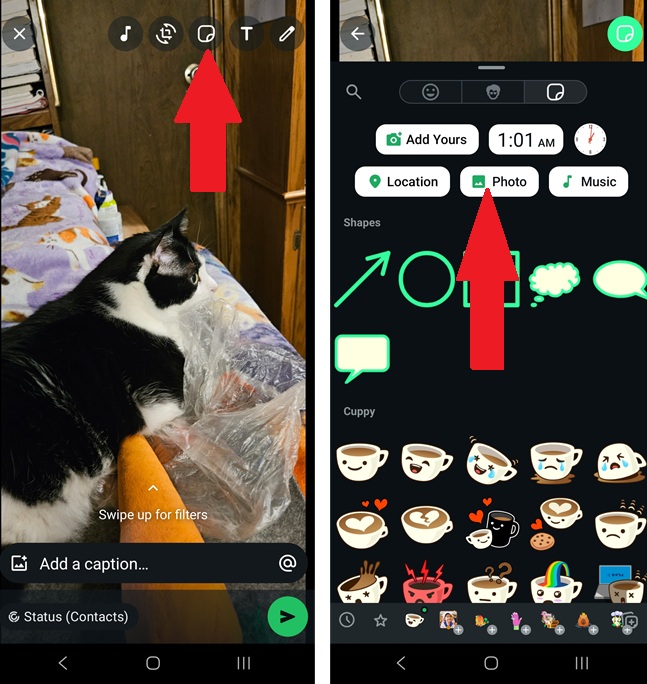
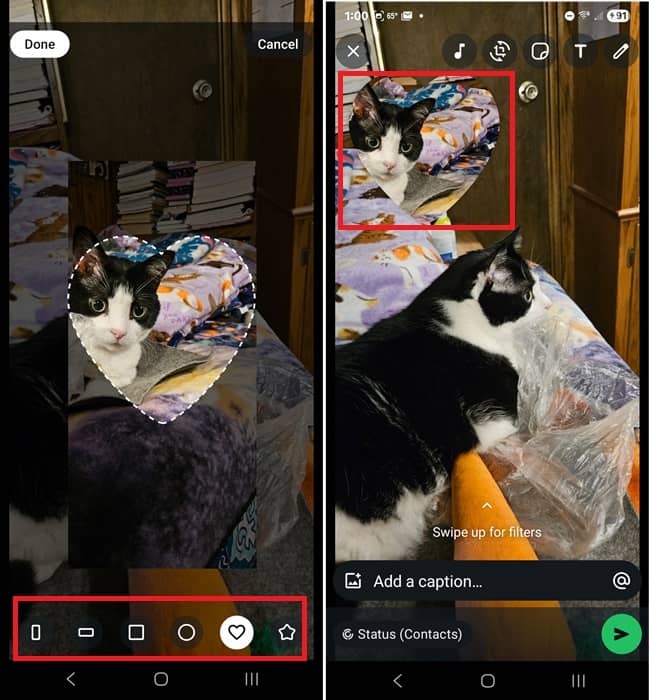
Once the second photo appears over the other, tap it and select a shape at the bottom. Center your photo however you want it. Then, move it around wherever you want it over your main background photo. Add multiple photo stickers if you want.
Let Others Add Photos With Add Yours on WhatsApp
Why should your status just be about you? Make it more interactive with the Add Yours sticker. Not only does this let your friends add a sticker to your status, but they can then share it as their own status, letting their friends in on the action as well.
Start by going to Updates -> Add Status. Select any main photo and tap the Sticker button at the top. Now, tap Add Yours. Add a topic for users to respond to and tap Done.
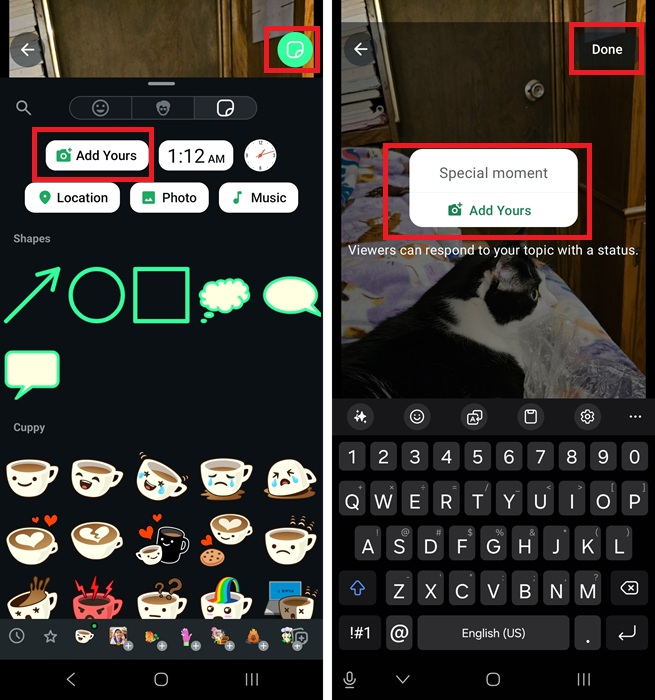
Once it’s set, users tap the Add Yours button to respond and add their own photos to the topic. Don’t forget to check out your friends’ statuses to see how others are responding as they share the status.
Add Music to Your Status
What’s a status without music? Make your WhatsApp Status far more engaging and meaningful by adding music to go with it. Music was already added to WhatsApp recently, but it’s gotten a slight upgrade with this latest set of features. There are two ways to do this.
The first lets you create your entire status around a song. When you create a new status, tap Music and search for a song. This creates a status with the album cover. I suggest making it even more personal by adding photo stickers and/or text. The Add Yours sticker also works well here.
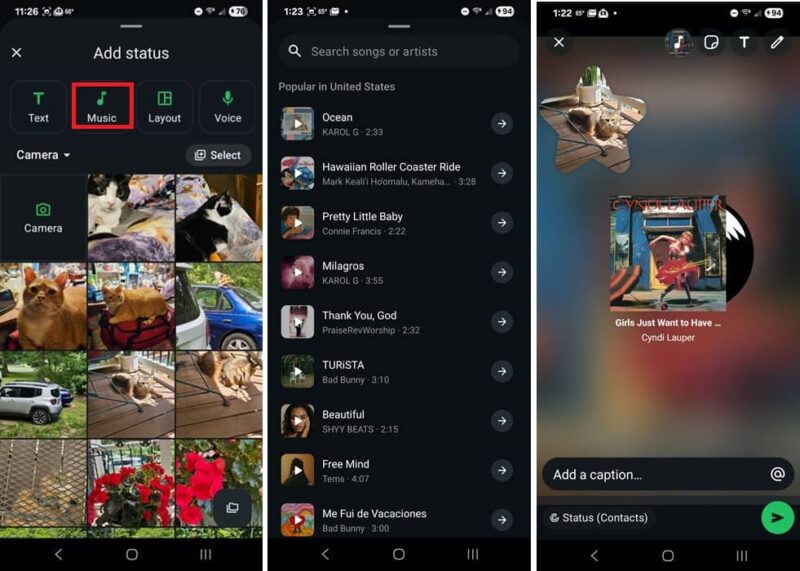
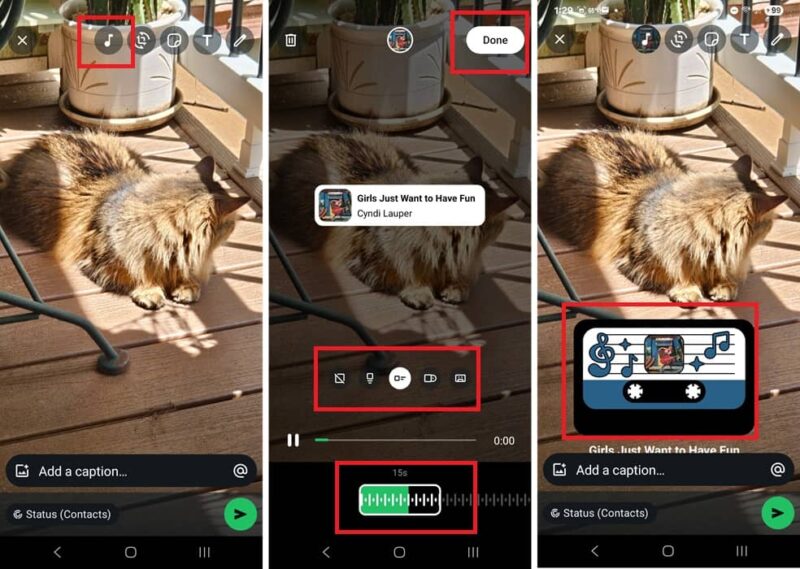
Or, if you want to create a status using your own photo for the background, add the music later on. Start your status by selecting a photo. Then, tap the Music icon at the top. Add any song you want.
Then, select a music sticker, or the music only option. Also, choose which clip of the song you want. Tap Done to finish. You’re free to move the music sticker around, and even add a photo sticker too to fully customize it.
Of course, the Add Yours sticker is also a nice addition here and a way to see how your friends respond.
Get creative and see which of your friends can create the most unique status. But, don’t forget to still be cautious when using WhatsApp and use these these tips to avoid malware.








