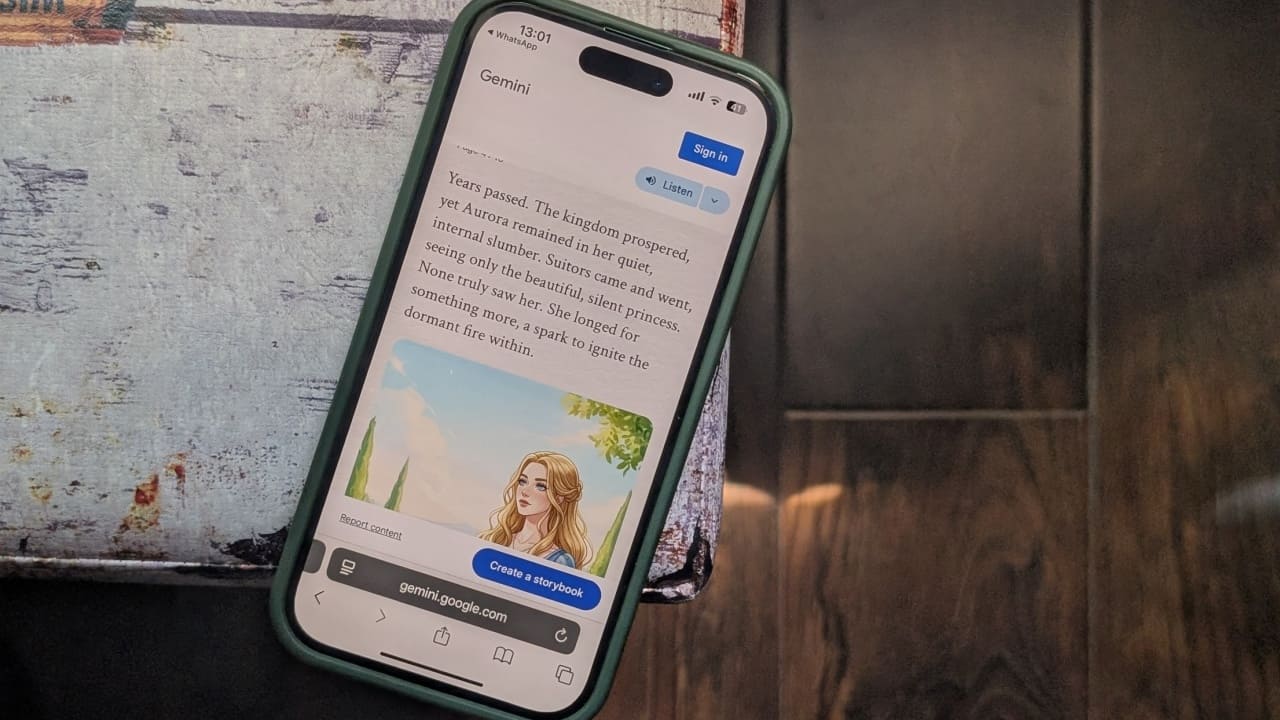
Google’s Gemini AI chatbot is breaking new creative ground with its latest feature: turning your prompts into captivating visual storybooks. If you’ve ever dreamed of seeing your stories come to life, now’s your chance! Here’s how to create your first storybook with Gemini.
Good to know: you might also want to check how to use Gemini to identify songs on Android.
Accessing Gemini’s Storybook Feature
Since this is a new feature, it’s rolling out gradually, so it might not be available for everyone just yet. Currently, I can only access and use the feature through Gemini on the web. The feature hasn’t yet appeared in the Gemini app on Android or iPhone, but it may be introduced in the upcoming weeks. For now, you can create storybooks on your mobile device via a mobile browser.
The good news is that the feature is free to try, meaning you don’t need to upgrade to one of Gemini’s paid tiers to take Storybook for a spin.
Activate Gemini’s Storybook Feature
To get started using Storybook, open Gemini in your browser and create a prompt. For instance, I started with: “Can you create a story that explains the origins of the universe to a child?” This was my first idea, since storytelling is an effective way to help a child grasp complex topics or learn important lessons, but you can use the feature in other ways too, as we will see below.
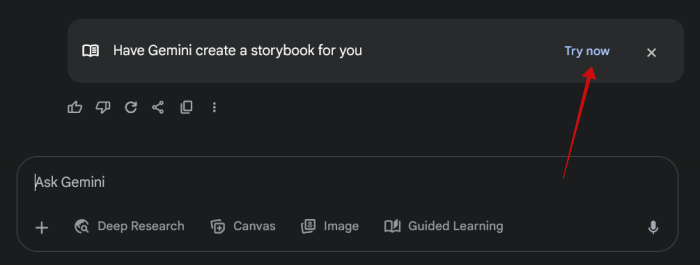
Gemini will proceed to generate a short story for you in text format. However, if you have the feature, you should be able to spot the “Have Gemini create a storybook for you” prompt at the end of this text. Click the Try now button.
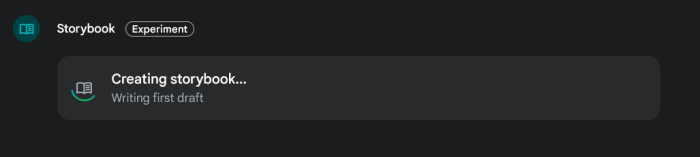
Give Gemini a few minutes to create your storybook.
Once the process is done, you’ll be able to see the results on the right part of the screen. Gemini will effectively create a digital booklet that has your name on the cover.
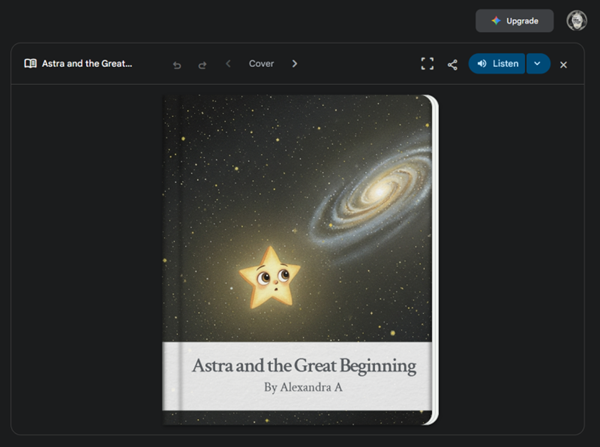
You can browse the creation by using the arrows at the top to view each page and illustration.
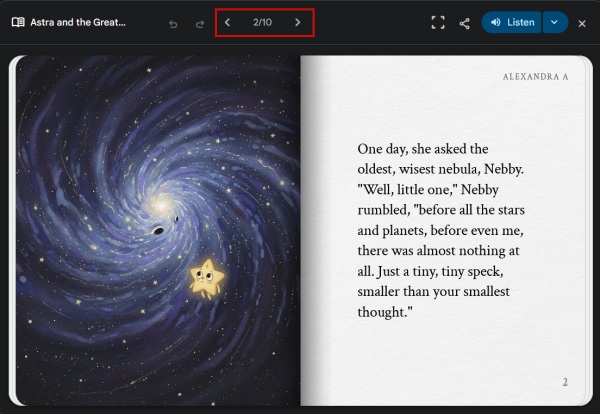
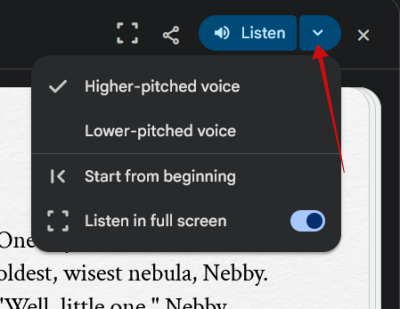
Alternatively, you can Listen to the story by pressing the button to do so. Clicking the tiny arrow next to it will reveal a few more options, allowing you to change voice pitch or listen in full mode.
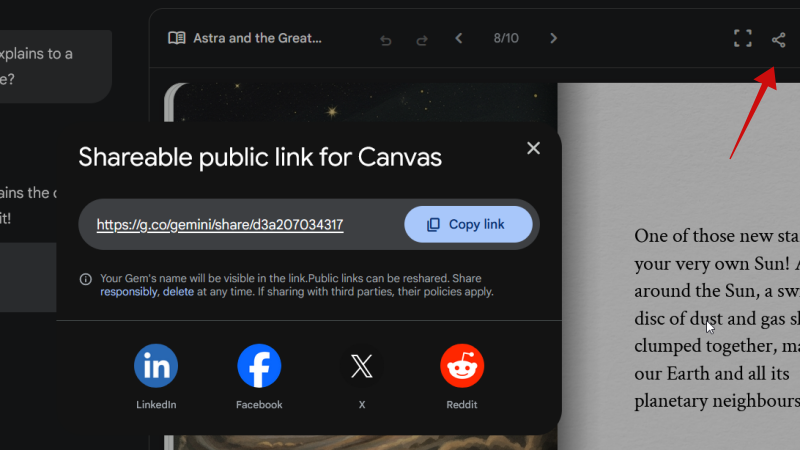
If you want others to view your creation, press the Share button and either copy the link or send it through one of the apps listed at the bottom.
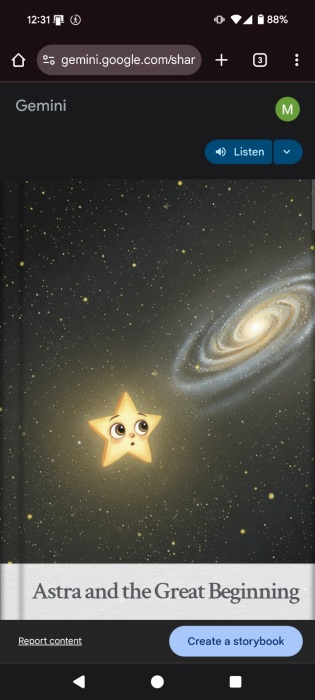
The person accessing the link will be able to view and listen to the booklet. The option for them to create their own storybook is also available.
Tip: learn how to run Gemini CLI AI agent on your terminal.
Best Ways to Utilize the Storybook Feature
Storybook is part of Google Gemini’s Gems. Gems are custom versions of Gemini that are created for specific tasks, in this case, creating storybooks.
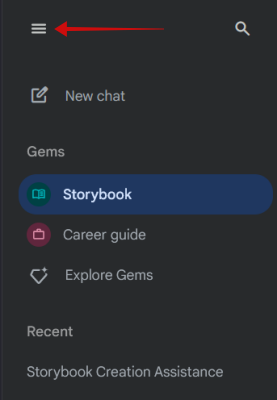
You can also access Storybook by clicking on the hamburger menu in the upper left corner and selecting Storybook under the Gems menu.
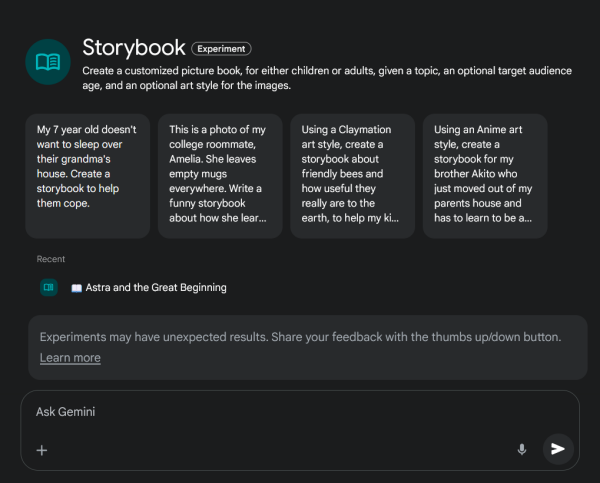
This will open up the Storybook Experiment page in Gemini, which also gives a few suggestions on how to best use the feature. For instance, creating a storybook for a child who doesn’t want to spend the night at their grandmother’s house.
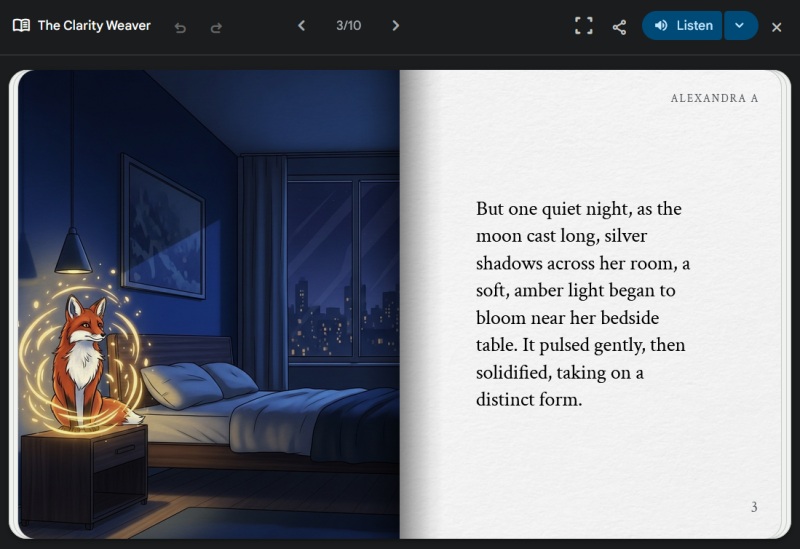
The cool part, however, is that creating storybooks doesn’t have to be just for kids. For instance, you can create a fun story for a friend or loved one using one of their photos or sketches. Or simply ask for that the story to be for adults. In this example, I’ve taken a sketch of a fox done by one of my friends of one of their dreams and turned it into a fun storybook character
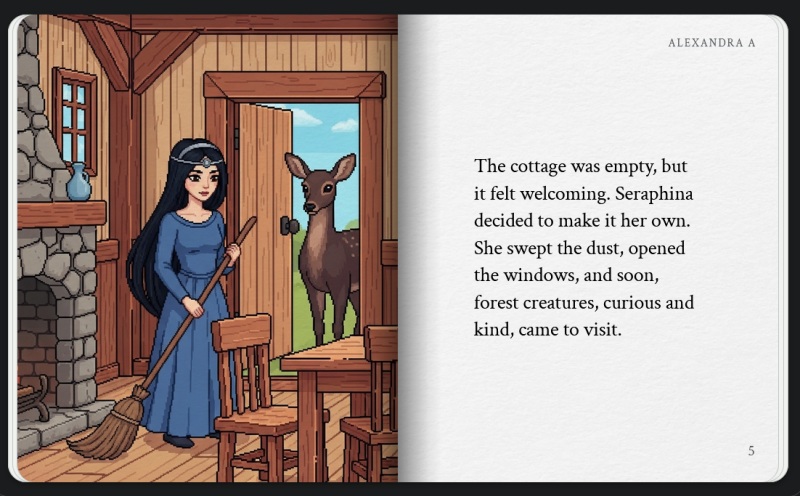
Furthermore, you can ask Gemini to emulate various art styles such as anime, pixel, or caricature art when creating the story. For instance, I requested a Pixel art storybook that explores an alternate version of Snow White’s life, one in which she never encounters the seven dwarves.
I also experimented with the anime style to create a quick comic book.
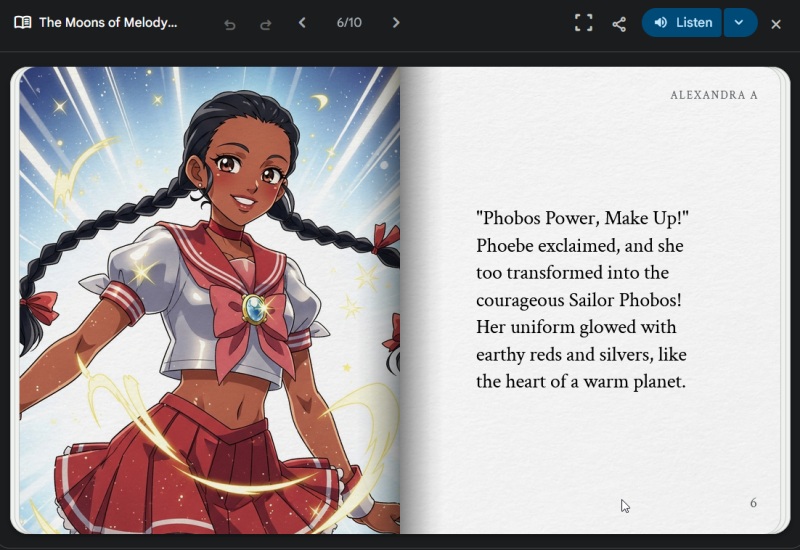
Each Storybook caps at 10 pages, so you may want to divide your story idea into multiple prompts for Gemini to explore it in greater depth.
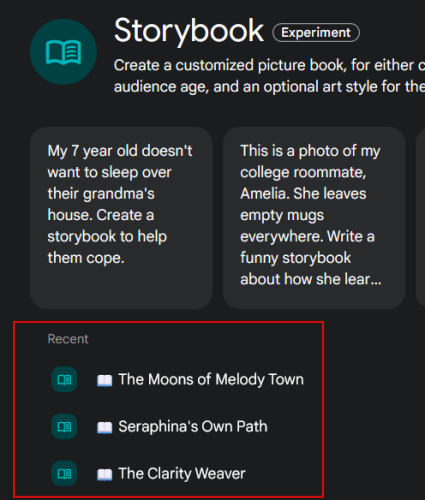
Also, you can navigate back to the Storybook Gem page to view and explore all your storybooks.
Google has made Gemini easier to use by integrating it with several of its services. For instance, you may find it useful to explore how to use Gemini to search for videos on YouTube. Alternatively, if you had enough of AI, check how to disable Gemini in Gmail and other Google Workspace apps.








