

While there are plenty of Facebook plugins for WordPress, nothing is sweeter than having the official support from the Facebook team. The new Facebook For WordPress Plugin, the official WordPress plugin by Facebook, gives you the ability to cross publish from WordPress to Facebook, and comes with bonuses like mentioning specific friends and Pages in your post. With this Facebook plugin, you can do things like select who sees this content by adding the names of the people or pages you want, select settings that enable a story and link back to your site to be posted on the user’s news feed when they press the Like button, and more that will get your content more widely distributed.
Install and Configure The Plugin
Open your WordPress dashboard and download the plugin. If you don’t have a Facebook app for the website, you’ll be required to create one before you can proceed.
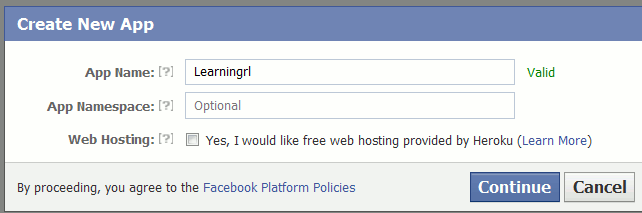
For the sake of simplicity, I’m going to walk you through the steps of creating a Facebook app from within the Facebook For WordPress plugin. Navigate to the Facebook Developers page and in the top right corner click “Create New App”. Name the App and click “Continue”.
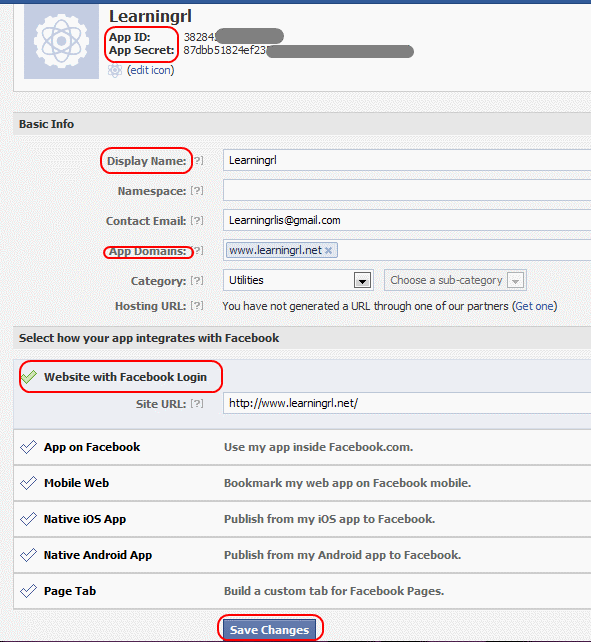
You’ll now see a screen displaying your “APP ID” and “APP Secret”, which you will need below. Scroll down and enter your contact email, domain, and category. Next copy and paste your URL into the “Website With Facebook Login” section and select any other tabs there that fit your needs. When you’ve selected all your options, click “Save Changes”.
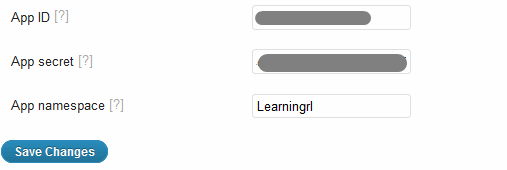
Go back to your WordPress dashboard where you’re configuring the plugin and enter the App ID, App Secret, and App Namespace (optional) then click Save Changes.
Post And Page Settings
Select how you want to use the Facebook For WordPress Plugin by ticking the boxes of features you want to enable for your site. Each category has a description of the functions it can perform so you can make the best decisions for your usability.
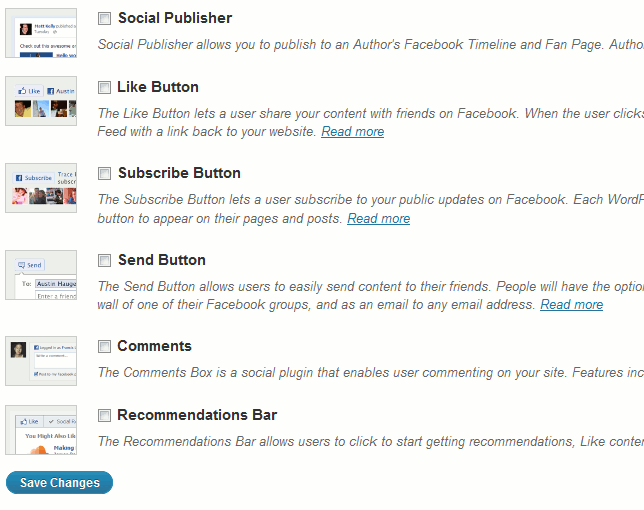
A few of the features are straight forward such as the “Recommend” and “Subscribe” tabs. Other tabs have unique features that will take your Facebook experience to a new level. “Social Publisher” will allow you to select who’s Timeline your post can appear on and can also be done for Pages. To set that up, tick the box to allow that setting and click the link to connect your Facebook and WordPress accounts. You’ll need to allow the app to access your account and from there, you can select which Facebook Page these posts will be published to.
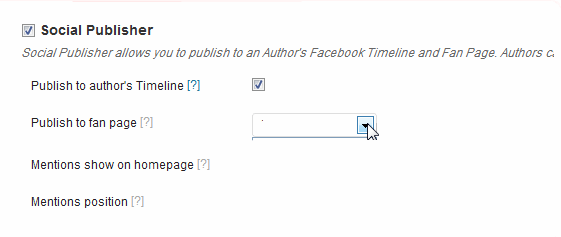
The “Like” option is not just a “Like” button with this plugin. If someone “Likes” or “Shares” your post, a story appears in the user’s news feed along with a link back to your site. This is a great feature for getting more traffic to your site and to ensure your content is more widely spread.
The “Comments” tab allows comments of your article to be visible in the article and they will also now appear in the Facebook feed. To see how all of the changes will look on the website, click on “View Site” in your WordPress dashboard. You’ll now see the Facebook Like and Send icons in the locations you selected in the Like section during setup. I chose to keep the default setting displaying them at the top and bottom of my pages to ensure they are seen!

Widgets
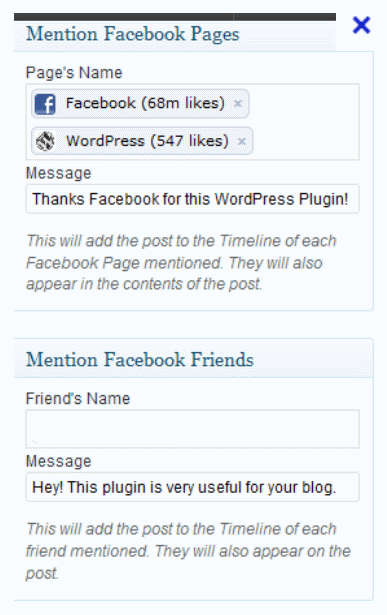
To use the functions of your “Social Publisher”, open a new post in your WordPress dashboard. As you scroll down, you’ll see the new widgets for the Social Publisher in the right sidebar. Enter the name of Facebook Pages you want the article to appear on and click “Add”. Do the same to mention friends and to post the content directly to their timeline.
The tool is super simple to use but adds a ton of features to get your content shared more efficiently. The plugin is already being used by many tech savvy blogs including TechCrunch who have seen the value in this great tool. Be more engaged with your content and your Facebook community to expand your reach! If you’ve already been using this plugin, let us know what you think and what you find most useful about it.