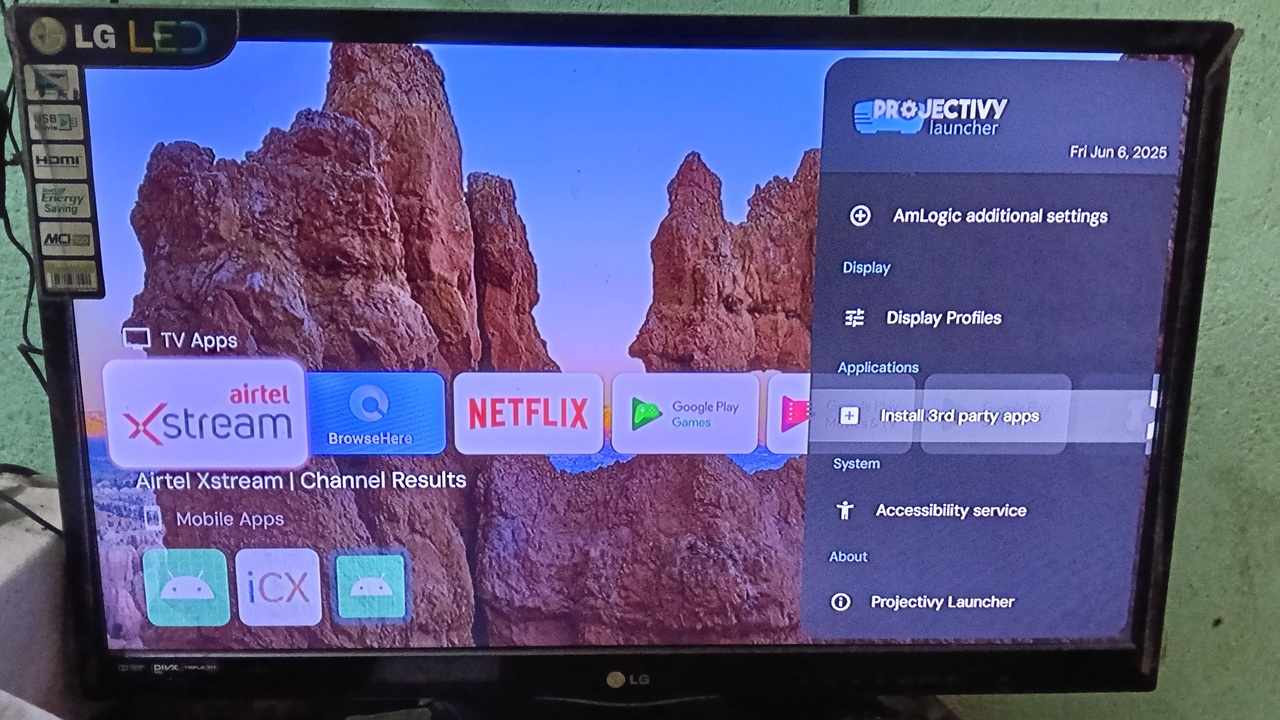
If you’re experiencing slow speeds on your Android TV, with videos taking forever to buffer and games not loading properly, it’s often a TV cache issue. Accumulated cache also causes app crashes, a clogged user interface, and poor loading times for video thumbnails and search retrieval. In this guide, we show you how to clear the Android TV cache for different TV brands.
Why Clear Android TV Cache? Here’s Why It Matters
The term “cache” refers to a storage location on an Android TV (or an Apple TV device) where temporary files from websites and apps accumulate to load faster in the future. You would be familiar with the concept of clearing cache on a smartphone, desktop, or laptop device. The same applies to smart TVs.
Several apps on Android TV, particularly those with high data demands, can accumulate significant cache, impacting performance. If you play a game like GTA 6 on your Android TV, the cache buildup happens very fast. This is mainly due to high-resolution elements, user characters, and environmental data. On my personal device, YouTube is a significant cache accumulator.
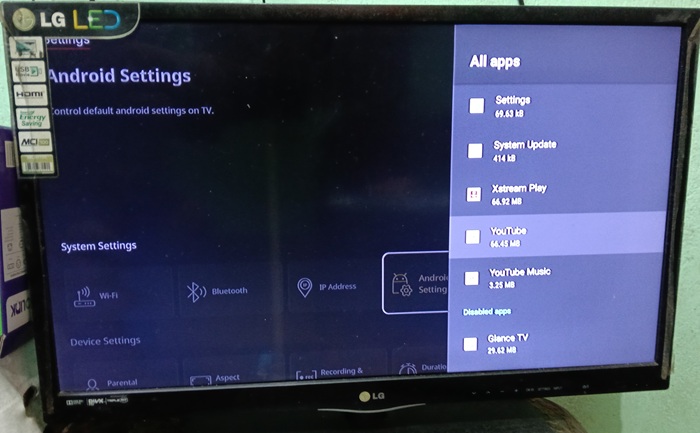
Moreover, most Android TVs typically lag behind modern smartphones in processing power and storage. A typical mid-range TV model by LG or Sony, or Chromecast by Google TV, carries 8-16 GB of storage and 4-6 GB of RAM. In comparison, even the cheapest Apple TV 4k model offers at least 32 GB of storage. With more powerful processors, they’re better suited for managing cache and running multiple apps.
On the other hand, an increase in the number of apps you use on your TV leads to data overload. Instead of faster retrieval, you encounter slower speeds and buffering. This is a bigger issue if your home network’s Internet speed is modest. Connecting to a faster Wi-Fi, adding a dedicated IP to the TV, or enabling location access are some ways to get around the problem.
How to Fix Android TV Cache
Clearing Android TV cache varies from model to model, but largely there is consistency. We will show the general steps for specific Android brands.
Google TV/LG
Most LG smart TVs run on webOS, a Linux-based version of Android TV. There are two ways to remove the cache on LG.
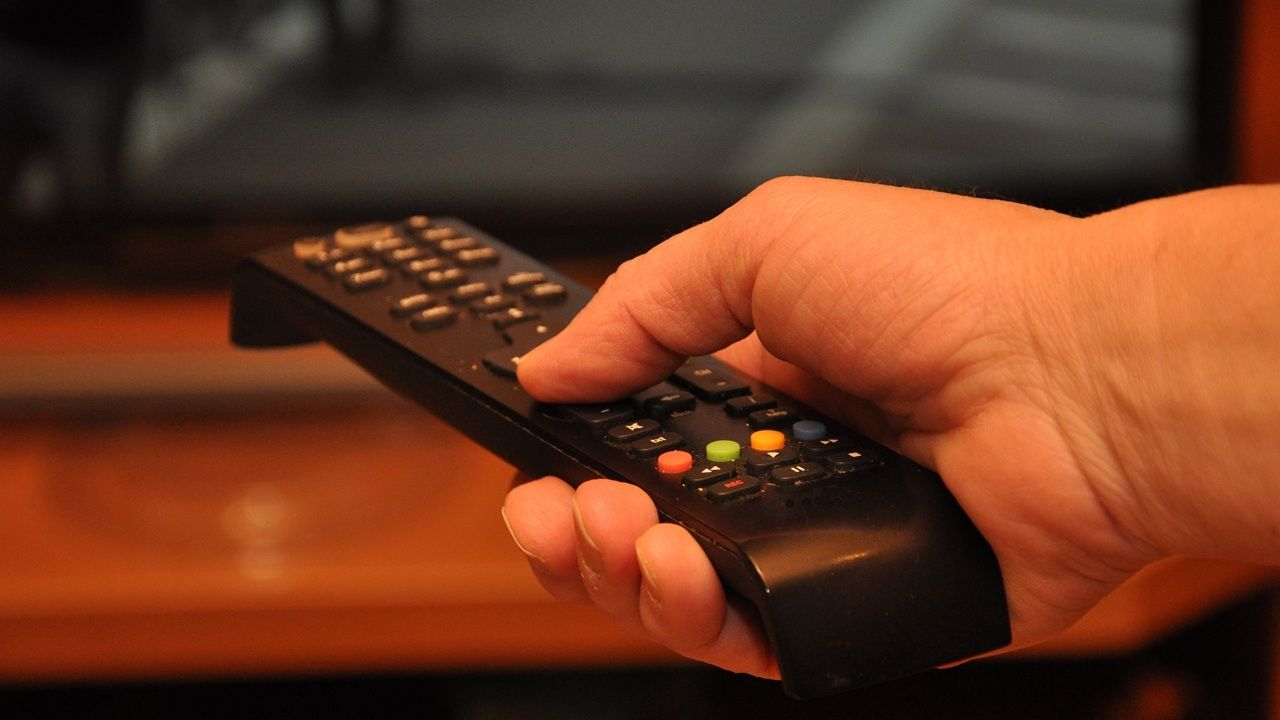
In the first method, press Settings on your remote. Go to a menu called OLED care or General -> Device self-care (depending on model). Here, you should find an option called Memory Optimizer. Click on it.
There is another standard option available for Google TV, common with many LG TV models. Go to Settings -> Android Settings -> Device Preferences. Under the Storage section, you should find a Cached Data (or Cache) option.
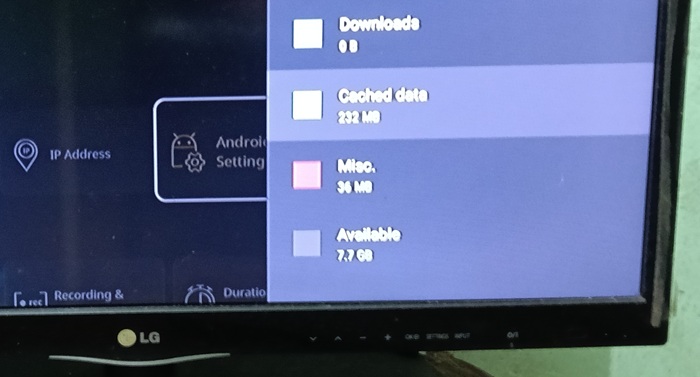
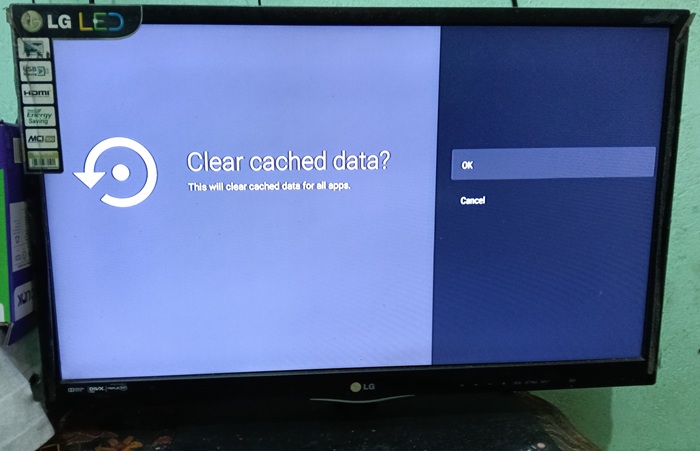
In the next step, you can view the Clear Cached data option. Click OK to approve it.
If you want an app-specific cache clearing, go to the Apps -> All Apps menu. Here, you can select individual apps whose cache is too huge.
Also read: check out some of the best Android TV launchers for a sleek appearance.
Samsung
Samsung smart TVs run on a variation of Android called Tizen, which is common to its Neo QLED, OLED, and Crystal UHD models. The cache clearing strategy is similar to certain Google TV/LG models above.
Go to Settings -> Android Settings -> Device Preferences -> Storage & Reset -> Cached data.
In the next step, click the Clear Cached data option to clear the cache.
Sony
Sony smart TVs run on stock Android TV or Google TV versions, and there are little differences in the method for clearing cache. The following steps are common for popular models like BRAVIA XR, A80J, and X90K.
Go to the Home button on your remote. Click Settings, or even Quick Settings if available. From here, select Device Preferences -> Internal Storage -> Cached data. Select Choose Clear cached data, followed by OK.
TV Still Slow After Clearing Android TV Cache? Here’s What to Do
In case you’re still facing issues after clearing cache, the first thing you should do is what is called a soft reset through device restart. For this, access the Device Restart button from the Settings app. Wait for the entire restart process to complete. It may take a few minutes.
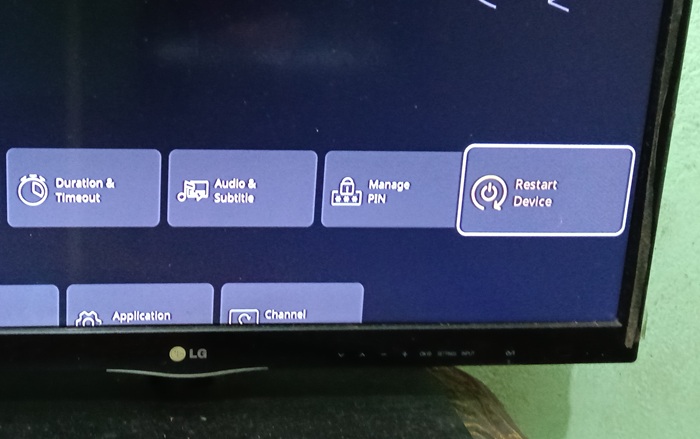
The above restart step is not simply turning off the power button on your TV but going for a full reboot that clears temporary glitches and refreshes the memory. Going for a system update on your smart TV is another methodical way to ensure that the speed and buffering issues get tackled on time.
Uninstalling any unused apps and removing the background apps on a smart TV frees up storage space, including cache. Slowdowns may also stem from weak Wi-Fi, so it is important to fix the Internet issues for your TV at the earliest.
Some TV performance issues stem from not getting a proper signal which can be troubleshooted easily. If you’re using a voice guided assistant like Google Assistant or Gemini with smart TV, check out its impact on the device and uninstall or disable it if not needed.