If you’re using passwords managers to only store passwords, you’re missing out. Instead of just a list of logins, transform your password manager into a digital vault for other types of private information. Many password apps even have features built-in to store other types of data.
1. Credit Card Numbers and Details
I’m sure you probably already store your credit card logins in your favorite password manager app. But, what about the credit card numbers, phone numbers for locking or canceling, interest rates, and any other relevant data. You can even use the credit card numbers for autofill when shopping online.
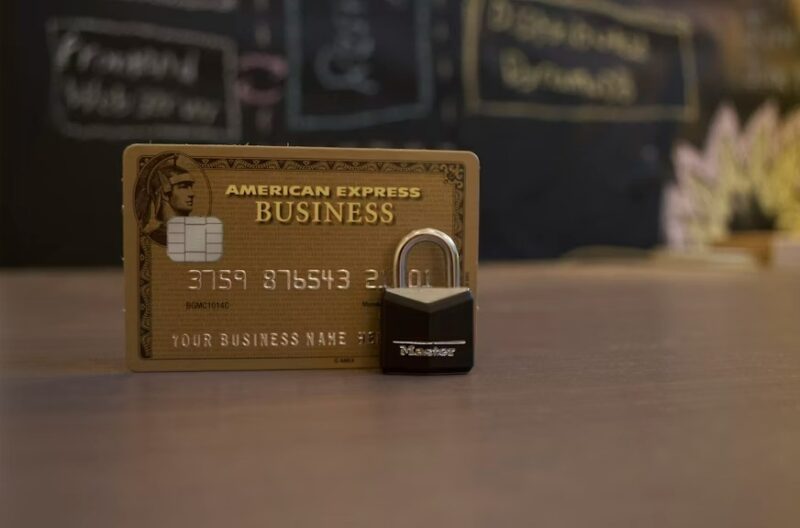
For instance, maybe you’re taking advantage of a promo period or balance transfer. Most password managers offer an area to make notes about your entry. Use this to add any special rates, the start and end dates, and what you should pay monthly to pay everything off on time.
While browser password managers, like Google Password Manager, can store credit card details, these aren’t always the most secure.
2. Banking Information
Much like your credit cards, add your banking details alongside your passwords. For example, my login details aren’t the same as my member ID I have to use when visiting the bank in person or calling for support. I add this in with my password.
You could also add account numbers for easy access when filing taxes online, setting up direct deposit, or verifying your account on other financial sites.
3. Contacts
Yes, your phone has this handy feature for storing contacts. But, consider storing contacts in password managers too. This makes a great backup if you ever lose access to your phone or the cloud service they’re backed up to. Plus, if you happen to have any contacts you don’t want others seeing, they’ll be stored safely in your password vault.
I still send physical letters to a pen pal, so I keep their address in my password manager along with their email address so I never lose it. For me, it’s just nice having one app to store so much information without having to jump between apps.
4. Private Notes
While it’s a terrible idea to store passwords in an unencrypted Notes app, it’s a genius idea to store your private notes in password managers. Some passwords apps don’t support notes, so you’ll need to make sure the one you choose does let you add notes.
I wouldn’t use this as a private journal or anything like that. These apps aren’t Evernote alternatives. Instead, create private shopping lists for holidays, where you store confidential documents, job search contacts, appointments, medical information, financial tracking, and much more.
5. IDs and Documents
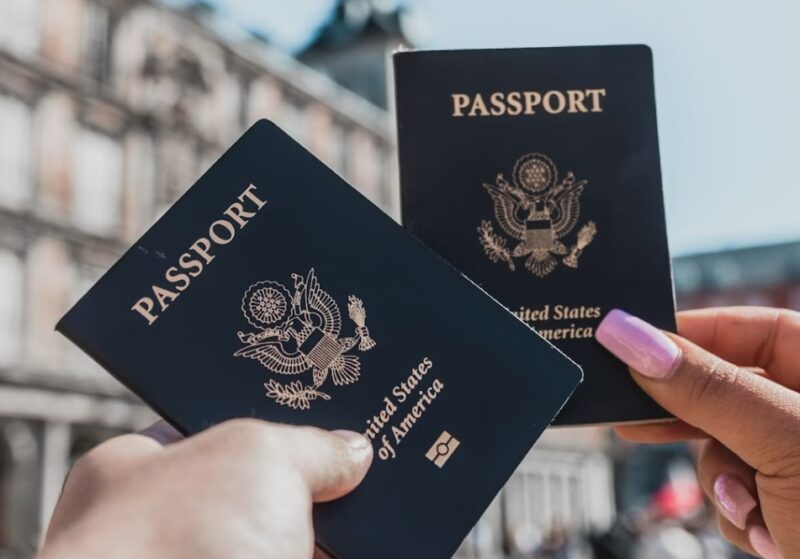
This one depends on what type of items your password manager allows you to store. However, some do support uploading IDs and documents, such as your passport, driver’s license, tax files, insurance card, financial statements, and more.
Typically, password managers are locked down more securely than your average cloud storage service. That’s why you usually shouldn’t back up private files to cloud services.
6. All Your Tech Codes and Licenses
Thanks to so many cloud-based services, you don’t have to deal with software licenses quite as much as you used to. Still, you have Wi-Fi passwords, network names, digital licenses, backup codes, pin numbers, and more.
7. Passkeys and Recovery Codes
Many people are switching to passkeys as a replacement for traditional passwords. Yet, these passkeys are linked to your device. If you lose it, you have to rely on recovery codes to get back in. Or, you have to setup passkeys again using your original passwords.
The good thing is, most passkey providers offer a way to back up your passkeys to switch to a new device easily. Take the time to store these backups and recovery codes safely in your favorite password manager.
8. Security Questions and MFA Answers
Requiring multiple steps to log in to an account might feel tedious, but it does keep your accounts more secure from password crackers. Now, if I could only remember the answers to the security questions I created 10 years ago or what random phrase or answer I set up for multi-factor authentication challenges.
Once again, my handy password manager saves the day. Any time you save a new account, add in all the other details. List all the questions and answers. If anything changes, update your entry immediately. Then, you’re not getting locked out just because you can’t remember your favorite teacher from elementary school.
9. Travel Itineraries
No one needs to know all the details about your travel planning, except you. Keep your flight numbers, addresses of where you’re staying, booking numbers, and more confidential in password managers.
Create these as a special note or set up a password entry for the travel site you use to plan everything. Then, add in all relevant details. Not only is everything in one place, but it’s kept private. If you’re having trouble planning what to do, use a travel planning app to help.
Picking the Right Password Manager
There isn’t a one-size fits all option. It all depends on what you want to store. I personally love KeePass, which is an offline option. But, that’s not right for everyone.
If notes are important, try 1Password. The service has a secure notes feature for storing anything that doesn’t fit into other areas of the app.
With Bitwarden, easily store passkeys, IDs, and credit cards. You even get reports about compromised or weak passwords in your vault.
For securing files, try NordPass. It works much like Bitwarden, but also lets you upload file attachments in the premium plan. Still, you have many other options to choose from.








