
In Linux, user groups play a crucial role in managing access control and permissions for system resources. Understanding which users belong to specific groups can be essential for administrators and superusers, as it allows them to track privileges, configure access controls, and troubleshoot security issues. Fortunately, Linux provides several commands and tools that make it easy to check user groups. In this guide, we’ll explore the various ways to check user groups in Linux.
Understanding Linux Groups and User Permissions
In Linux, user groups make it easier to manage user permissions. Instead of granting access to each user one by one, administrators can assign permissions to a group, and every member in the group automatically inherits those rules. This saves time and ensures consistent permission management, especially when dealing with multiple users who need similar access.
When you create a new user, Linux automatically sets up a primary group with the same name as that user. Along with this, users can also join secondary groups to gain additional access where needed. This gives administrators flexibility in controlling who can access specific files, directories, or system resources.
Check User Groups With the groups Command
The groups command is part of the GNU coreutils package and comes pre-installed. You can use it to check which groups a user belongs to. The basic syntax for the groups command:
groups [username]If you provide a username, it shows all the groups that the specified user belongs to. However, if you omit the username, it shows the groups of the currently logged-in user.
For example, to check the groups of the current user, run the groups command.
groups
To check the groups of a user named linuxuser:
groups linuxuserYou can see that the user is in the primary group linuxuser and several secondary groups.

Find Group Details With the id Command
Another simple way to check which groups a user belongs to is by using the id command. This command displays a user’s identity information, such as user ID (UID), group ID (GID), and the groups they are part of. You can use this command with the -G option to get the numeric Group IDs.
id -G linuxuser
To view group details in a human-readable format, use the -G option with the -n option.
id -Gn linuxuserThis time, the id command prints the names of the groups instead of numeric IDs.

If you omit the username, the id command displays the UID, GID, and groups of the current user.
id
View User Groups Using the /etc/group File
You can also check which groups a user belongs to by looking into the “/etc/group” file. This file keeps a record of all groups on your system, including which users are part of them. You can open or search this file to see both the primary group and any secondary groups assigned to a user. Each line in the “/etc/group” file represents one group and follows this format:
group_name:password:group_id:user_listWhere group_name represents the name of the group, password is usually left blank or marked with x, group_id (GID) is a numeric ID assigned to the group, and user_list is a comma-separated list of users who belong to this group. You can display the contents of this file using common Linux commands like cat.
cat /etc/groupFrom here, you can manually search for your username. If the username appears in the “user_list”, it means that’s one of your secondary groups. If the “group_name” matches your username, that’s your primary group.
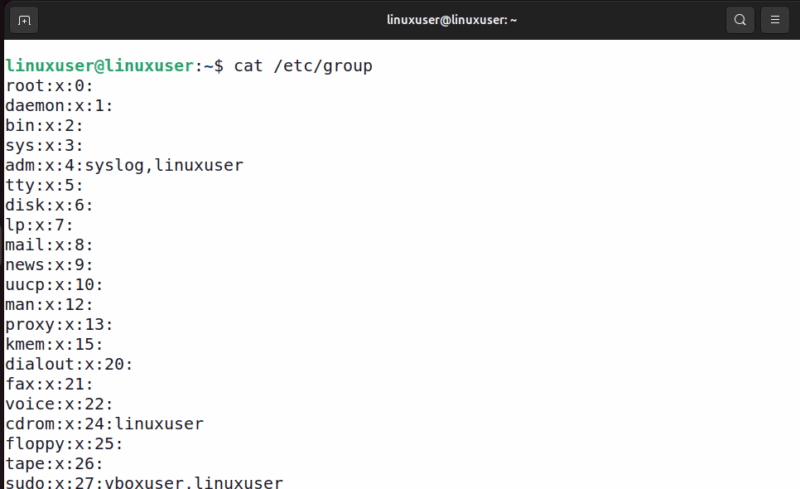
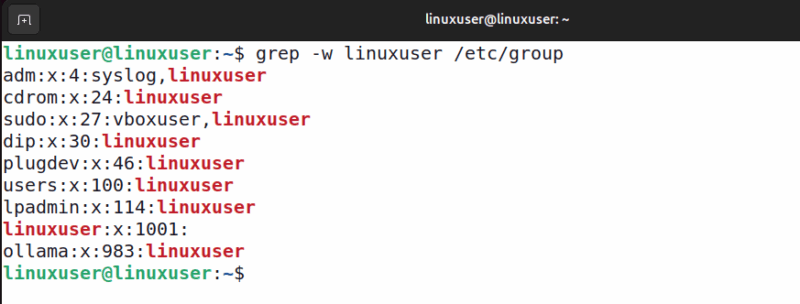
However, this method is not recommended because the file can be quite large, which makes it difficult to search manually. It is best to use the grep command to look for text patterns in the “/etc/group” file instead. For example, the following command checks the user groups for linuxuser in the “/etc/group” file.
grep -w linuxuser /etc/groupHere, we use the -w option to make sure that only exact matches for the username are shown.
Check User Groups Using the getent Command
Another useful option is the getent command. Unlike simply viewing the “/etc/group” file, getent retrieves information from important system databases such as “/etc/passwd”, “/etc/hosts”, and “/etc/group”. This makes it more reliable, especially on systems that use network-based authentication like LDAP or NIS. With getent, you can easily list all groups available on the system or filter results to check the groups for a specific user.
getent group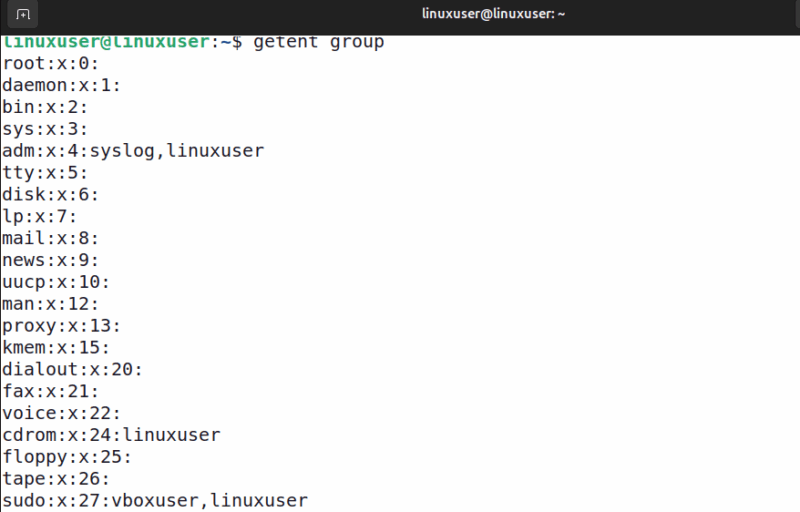
However, manually searching in the output can be time-consuming. It is best to combine it with the grep command to save time and be more efficient.
getent group | grep -w linuxuser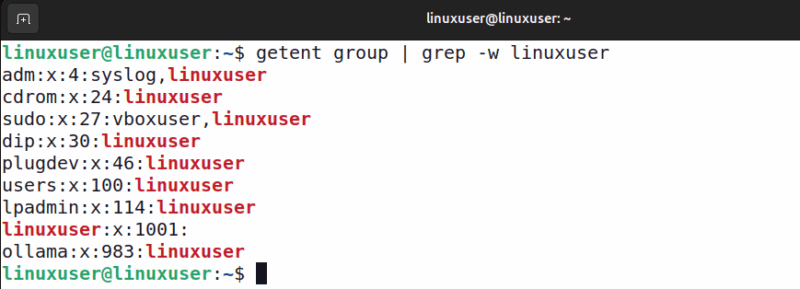
Wrapping Up
With commands like groups, id, or checking the “/etc/group” file, you can quickly see which groups a user belongs to. Once you understand group memberships, you can move on to managing groups and adding users where needed. This makes it easier to manage access, troubleshoot issues, and maintain a smooth workflow.








