With the release of macOS 26 Tahoe, Apple has finally filled a long-standing gap by adding native clipboard history support. It’s a surprisingly late addition for macOS, but one that many users will welcome. Learn how to take advantage of this new functionality on your Mac.
Good to know: learn how to easily AirDrop files between your Apple devices.
Enable Clipboard History on Your Mac
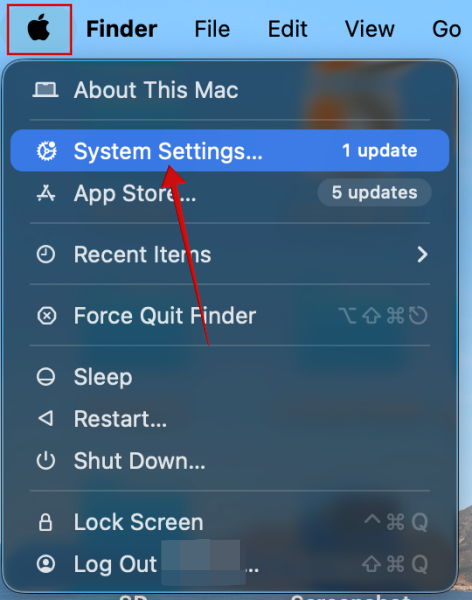
Clipboard history is disabled by default on your Mac, so you will need to enable it manually first before you can take advantage of it. First, you might want to check that your device is running the right software. You can check your version, by clicking on the Apple icon in the upper-left corner and selecting System Settings from the menu.
Click General in the left menu and then Software update to see what OS version your Mac is currently running and whether any new updates are available for your device.
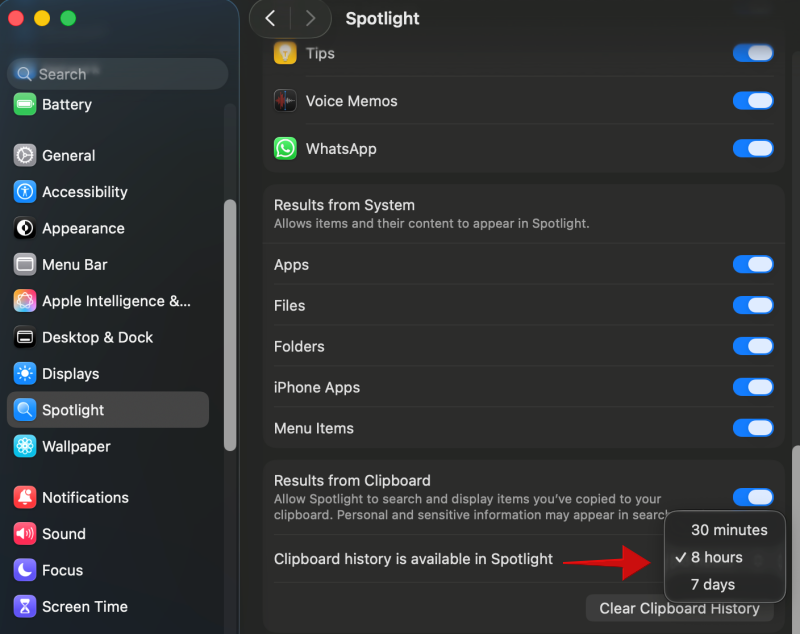
With this step out of the way, don’t exit System Settings, but go to Spotlight instead. On the right, scroll down toward the bottom (after the app list) and toggle on the Results from Clipboard option.
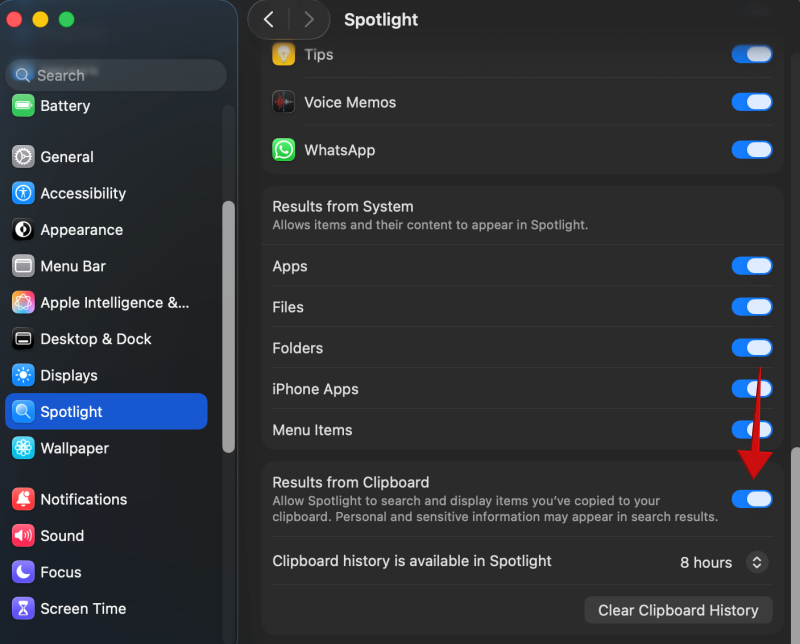
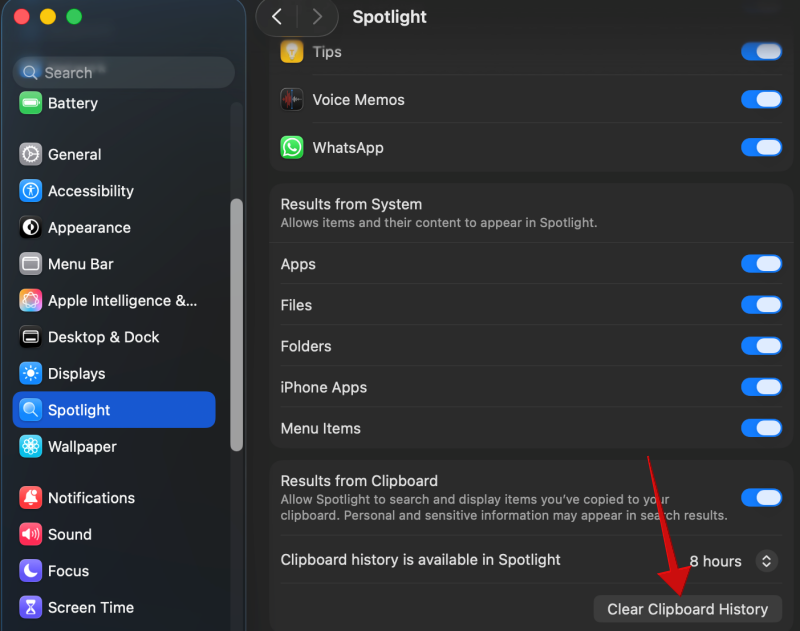
Click below next to Clipboard history is available in Spotlight to choose for how long you want your Mac to remember your history. The default is 8 hours, but you can also select 30 minutes or 7 days. You can’t go beyond this limit, so if you need to save an item for longer, we suggest you do in another app, such as Notes.
Tip: here’s how to share your Mac’s internet connection.
Viewing Your Clipboard History on Mac
With the option on, you can bring up the clipboard history through Spotlight Search by pressing Command + Space. Then press Command + 4.
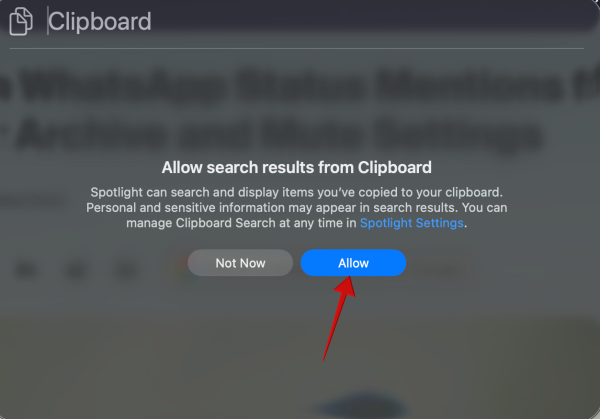
If this is the first time you’re accessing your Clipboard history, your Mac will ask you to allow search results from Clipboard. Press the blue button to continue. Now, proceed to copy/paste a few files.
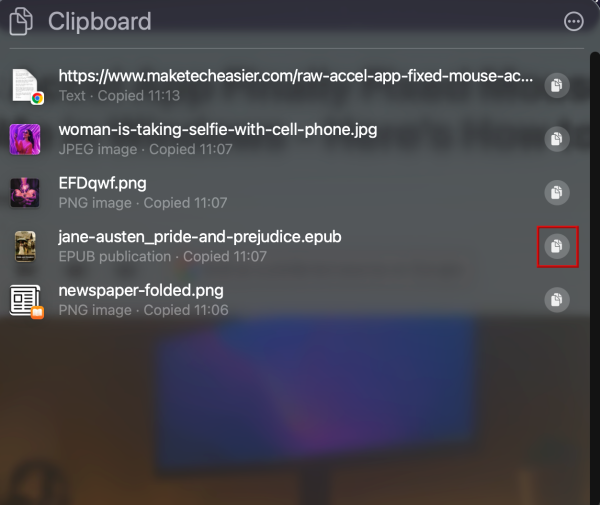
Reopen your Clipboard history to see all the items you recently copied. If you wish to re-copy an item, just press on icon next to it that looks like a file.
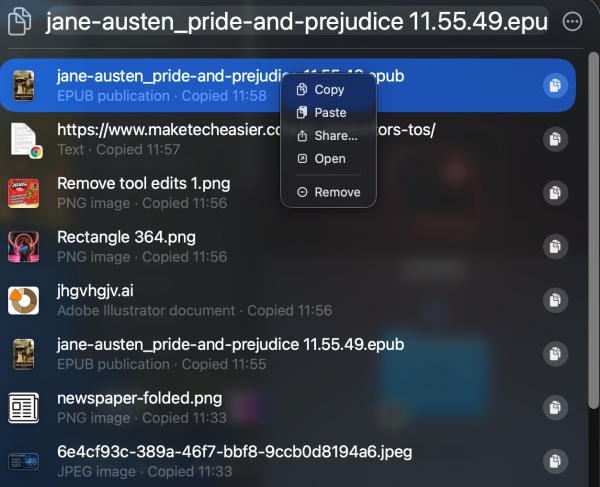
Your Clipboard history is also searchable; just click at the top and search for an item using a keyword.

If you right-click an item, you can opt for additional options to Paste (at a previously opened location), Share, or Open the file.
Now, if you routinely copy passwords from Apple Passwords or other password management apps, the good news is that they won’t show up in your Mac’s Clipboard history. On the other hand, if you have your info saved up in a text file or a messaging app like WhatsApp, you might want to think twice about enabling Clipboard history, as this information will appear in here.
FYI: learn how to search your browser bookmarks from Spotlight on Mac.
Deleting Your Clipboard History on Mac
To delete a single icon from your clipboard, bring it up and right-click on it. Then select Remove.
To delete all your history, click on the three dots in the upper-right corner and select Clear History.
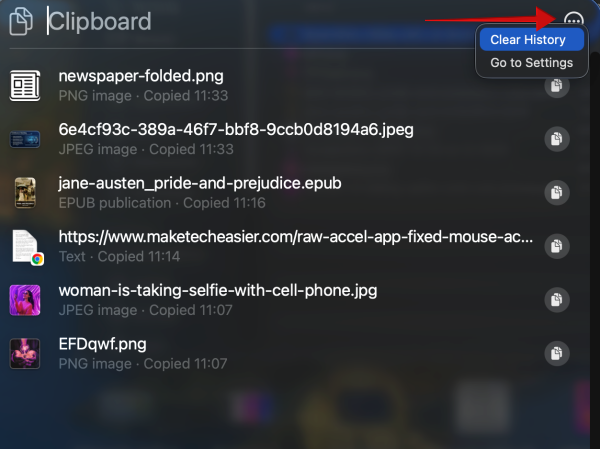
You can also do it from Spotlight, where you can click the Clear Clipboard History button at the bottom.
Alternatives for Native Mac Clipboard History
Up until now, users who wanted to access their Clipboard history turned to third-party options to make up for the lack. Now, while the native option is finally available, users who are running older macOS versions or who would like a fuller Clipboard history experience might still prefer third-party options.
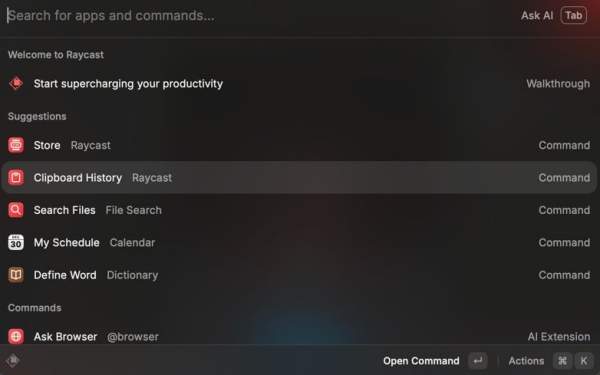
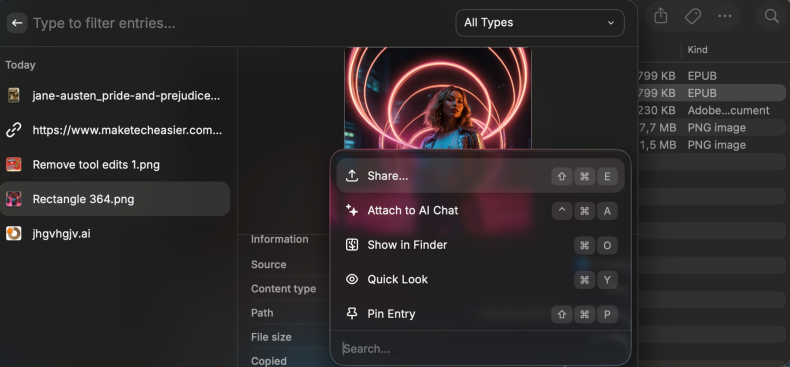
For instance, Raycast offers many options to view and manage your Clipboard history. Once installed on your PC, you can access your history directly from the main command bar.
With Raycast, you can check a preview of the file you’ve copied so you can easily identify it, which can be of great help. But you can do a lot more with Raycast.
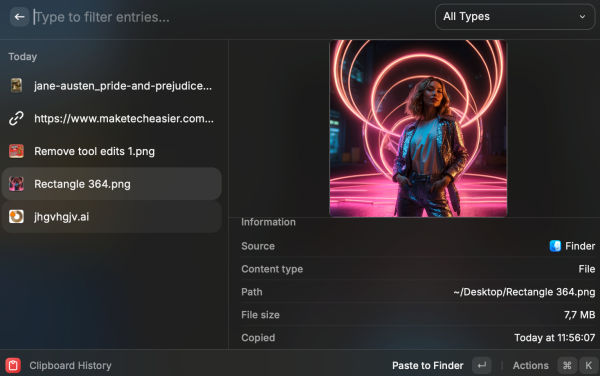
Depending on the item, you can also do many things such as editing a link, attaching an item in an AI chat, copying text from image, pin items and a lot more.
There are some limitations depending on whether you’re using the free version or a paid plan, which you can read more about in our article comparing Raycast to Alfred, another third-party option that offers a worthy Clipboard history functionality.
If you need more clipboard managers for your Mac, check this post featuring more options for you to try out.