When your PC’s performance starts to dip during gaming or demanding tasks, it’s usually a sign of a bottleneck. Figuring out whether it’s your CPU or GPU holding you back can help find the correct solutions. Here are the ways you can use to identify CPU and GPU bottlenecks in your PC.
What Are CPU and GPU Bottlenecks
The CPU is responsible for handling general logic and calculations like inputs, scripts, physics, AI, etc. After calculations, the CPU sends draw calls to the GPU to render the frame that we see on the screen.
This process happens multiple times in a second, allowing the GPU to render the frames as it receives the instructions. If the CPU isn’t powerful enough compared to the GPU, the GPU will have to wait for the CPU to process the information, effectively decreasing frame output speed. In this situation, the CPU is the bottleneck, limiting GPU power.
What is GPU bottleneck?
Everything we visually see on the screen is rendered by the GPU. After receiving instructions from the CPU, the GPU generates frames by processing geometric data, rasterizing it into pixels, and applying fragment shaders to determine the final image.
For example, in a game, the CPU tells the GPU that the player character has lost 100 health, but the GPU shows the decrease in the health bar size and numerical value.
The GPU becomes a bottleneck for the CPU when it can’t render the frames fast enough compared to the data being sent by the CPU.
How to Identify CPU and GPU Bottlenecks
The process to detect CPU and GPU bottlenecks is the same; the difference is in interpreting the information. Here’s what you need to do:
Prerequisites
A heavy program: you’ll need a heavy game or program on which you are having trouble achieving the desired performance goals. I don’t recommend Stress test tools for finding bottlenecks, as they always make the component reach its maximum limit and don’t replicate real-world scenarios precisely. Just make sure the program/game is configured to run at your desired performance settings that your PC is unable to achieve.
Usage tracking method: you’ll also need a way to track CPU and GPU current usage. You can open the Task Manager in Windows to view current usage for both CPU and GPU in the Performance tab. If you prefer to use a third-party tool, I recommend using MSI Afterburner, as it shows history over a longer period with exact measurements.
Identifying GPU Bottleneck
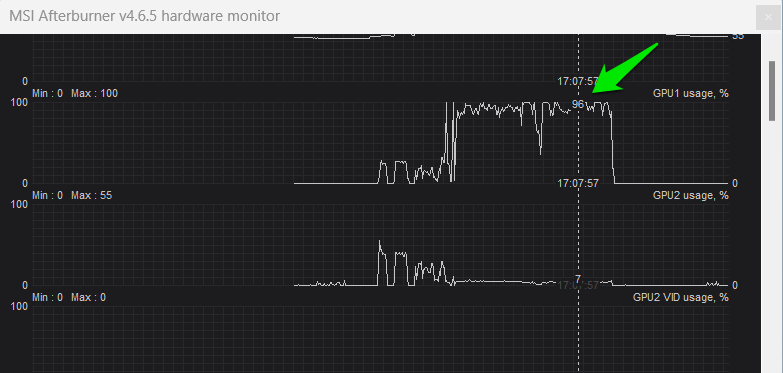
Open MSI Afterburner and click on the hardware monitor button to view the CPU and GPU usage. Run the resource-intensive program and use it even when it doesn’t provide the desired FPS. You can check the hardware monitor after a few minutes of use.
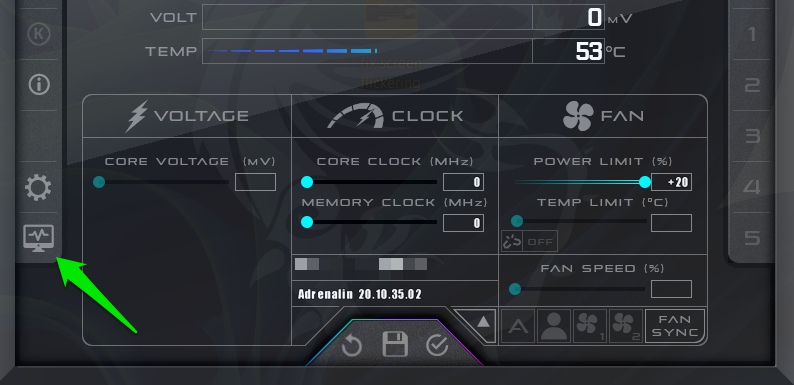
Look at the GPU usage % and CPU usage %. If the GPU usage is consistently very high – like over 90% – while CPU usage is low, then the GPU is the bottleneck. High usage means that the GPU is getting all the data it needs from the CPU to render a frame and work at its full potential. However, its full potential is not enough to provide you with the performance you require.
Identifying CPU Bottleneck
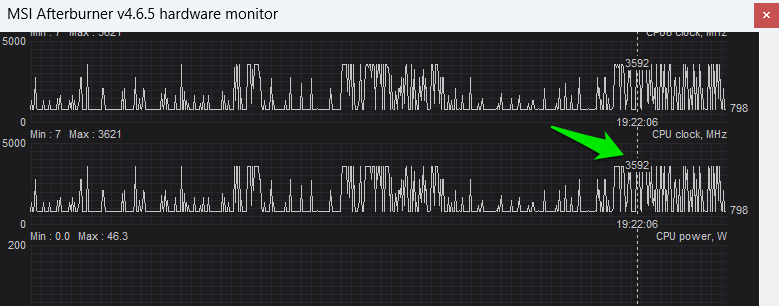
You need to check GPU usage to identify CPU bottlenecks as well. If the GPU is constantly below the 80% usage state, then it means the GPU is not being utilized to its full potential. The CPU is probably not providing the frame information fast enough for the GPU to process, acting as the bottleneck.
To further confirm, you may look at CPU usage to see if it’s high as well, like over 90%. Along with usage, if the CPU clock speed is also maximum consistently, then it’s a strong indication of a CPU bottleneck.
Check GPU and CPU Bottleneck Before Buying
The above process will confirm the bottleneck on a PC that is already in your hand. However, many people would want to know if a CPU or GPU will bottleneck the system before buying these components. In that case, you can use an online bottleneck checker tool like the PC-Builds Bottleneck Calculator to get an idea of whether your CPU and GPU can keep up with each other.
Just pick your CPU and GPU from the list and select the resolution you want to run the PC on. The tool will tell how both the components will interact and which one can cause bottlenecking.
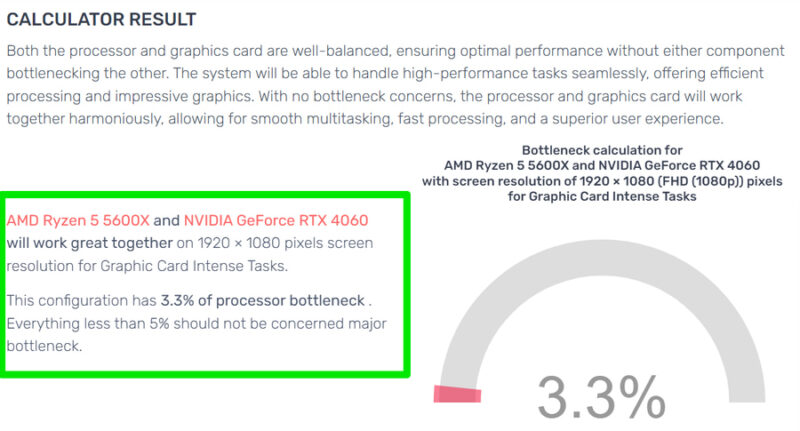
It won’t give a perfect estimate compared to practical testing, but it will give an idea of what to expect.
Secondary Factors That Can Cause a Bottleneck
There are also secondary factors that can cause a CPU/GPU bottleneck. Before making any decisions, make sure any secondary factor isn’t affecting the CPU or GPU performance. Below are some common secondary bottlenecking factors:
RAM Capacity and Bandwidth Bottlenecking the CPU
CPU heavily depends on RAM speed (frequency, like 3200MHz) to receive data to process. If it’s slow compared to CPU needs, it will result in a bottleneck in the CPU, which will then affect the GPU. This can also happen when RAM capacity is low for the program/game, and it starts to depend on the slower pagefile for stability. Follow our guide to detect and fix a RAM bandwidth bottleneck.
PCIe Lane Configuration and Generation Mismatch
A new GPU can physically fit in an older PCIe lane, like PCIe 3.0, but it doesn’t mean it will run at its maximum speed. You need to make sure you attach your GPU to a slot that is meant to provide the required bandwidth to run at full potential; otherwise, the PCIe lane will become the bottleneck.
You need to search online exact PCIe lane generation and the lane configuration required by your GPU. Afterward, compare it with your motherboard’s supported PCIe lanes to ensure the GPU is properly installed.
Power Delivery Issues
If your PC PSU is faulty or small, it may not provide the required power for the CPU or GPU to work at full potential. While crashes and freezes are common signs of a faulty PSU, modern CPUs and GPUs can also throttle performance to deal with power delivery issues. Follow our guide to ensure your PSU can handle the CPU and GPU.
Thermal Issues
If your PC’s cooling system is unable to handle the heat generated by the CPU and GPU, it can throttle the components to stay cool. You need to make sure both GPU and CPU temperatures are within safe limits, even under heavy load. Otherwise, thermal throttling will bottleneck them.
To check GPU temps, open the Task Manager, move to the Performance tab, and you’ll find GPU temperature right next to its usage. Ensure it stays below 90°C under maximum load (even 95°C is acceptable). For CPU, follow our guide to find multiple ways to check CPU temperature.
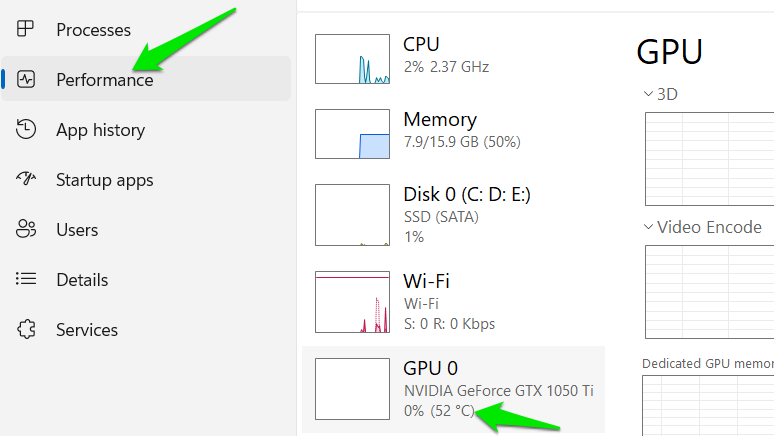
If any of the components are heating up beyond safe limits, you need to make changes to cool them down to achieve maximum performance. Follow our guides to cool down the GPU and CPU for exact methods to keep them cool.
Tips to Fix CPU and GPU Bottlenecks
You don’t have to upgrade hardware to fix CPU or GPU bottlenecks; there are many software tweaks to optimize GPU and CPU performance. Most PC optimization tweaks focus on optimizing both CPU and GPU, but you need specific tweaks for either CPU or GPU.
Fixing CPU Bottleneck
You need to decrease the logic handling and calculations for the CPU to decrease the load on it. Unfortunately, it’s difficult to do that without directly closing the processes. Here are some ways you can avoid CPU bottlenecks.
- Close unnecessary apps and background processes.
- In games, disable CPU-intensive settings like draw distance, AI complexity, object count, etc.
- Ensure the program settings are configured to use multi-cores.
- Enable Hardware Accelerated GPU Scheduling in Windows Settings by going to System -> Display -> Graphics -> Default Graphics. It can offload many CPU tasks to the GPU.
- Ensure your CPU can reach its maximum advertised clock speeds. Using the High-Performance power plan will allow that. You can also look into overclocking the CPU instead of upgrading. Here’s how to overclock AMD Ryzen CPUs.
- You can also offload some CPU tasks to other components to free up CPU resources.
Fixing GPU Bottleneck
Tweaks that directly impact what you see on the screen will decrease the load on the GPU. In most cases, you can decrease GPU load without affecting visual quality too much.
- In games, lowering most of the graphics settings will directly decrease the load on the GPU, such as lowering antialiasing, texture quality, shadow quality, etc.
- Decreasing the operating system or game’s resolution will heavily decrease GPU load, as it has to generate a lower number of pixels.
- Avoid using third-party overlays as they can consume GPU resources.
- Disable visual effects in Windows settings. Go to Accessibility -> Visual effects and disable Transparency effects and Animation effects.
- Overclocking the GPU might be a better option than upgrading.
The above information should help both identify and possibly fix bottlenecks. However, if the performance gap between the components is too large, a hardware upgrade might be necessary. You can refer to our CPU buying guide and GPU buying guide to make an informed decision when upgrading.