While having some extra voices to choose from in Google’s AI Mode was nice, users wanted those options to extend to general voice searches in the Google app. Finally, Google listened and you can change your voices on Google for general and AI searches.
Change Voices on Google in the Google App
Until now, you only had a single female voice available. Beta testers had access to a few extra voices, but those extras are rolling out to all users on both Android and iOS.
The first thing you need to do is update your Google app. I didn’t see any way to change the voice until I updated.
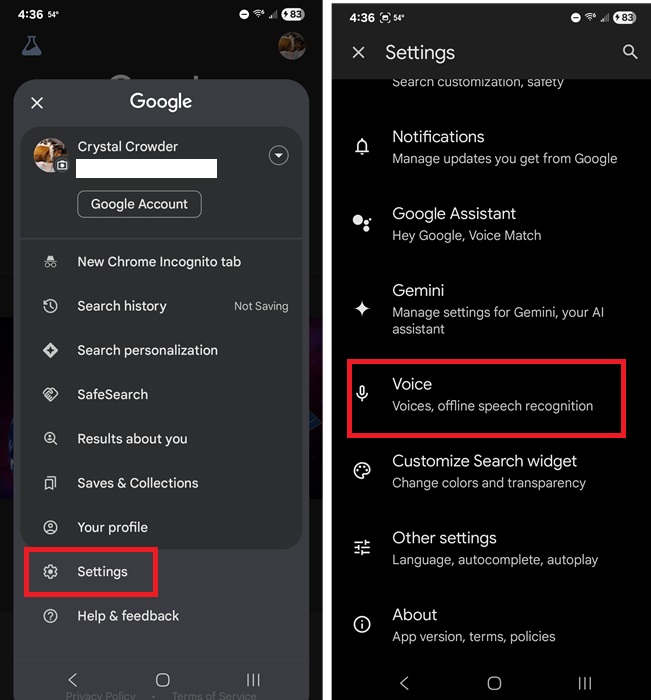
Once updated, open the Google app, tap your profile icon at the top right, select Settings, and tap Voice.
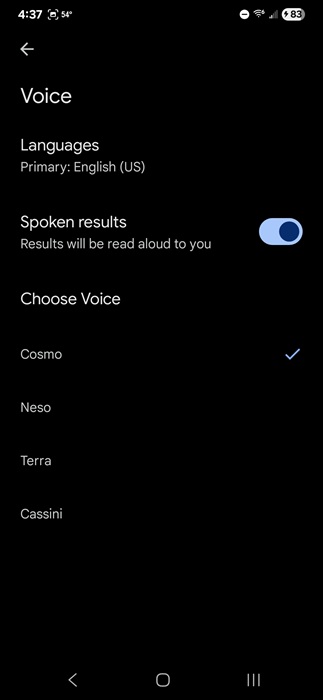
Currently, there are four space-inspired voices to choose from:
- Cosmo – Feminine
- Neso – Masculine
- Terra – Deeper feminine
- Cassini – Tenor masculine
Cosmo is the default. The voices read your search results to you. If you don’t want any voices, just toggle off the Spoken results option in the Voice settings.
These voices also apply to Google AI Mode. Originally, the four voices had different names, but when Google released the feature for general search as well, the names were changed.
Change Gemini Voice
If you prefer using Gemini over the Google app, you have even more voices on Google options. You have two ways to access the voice settings.
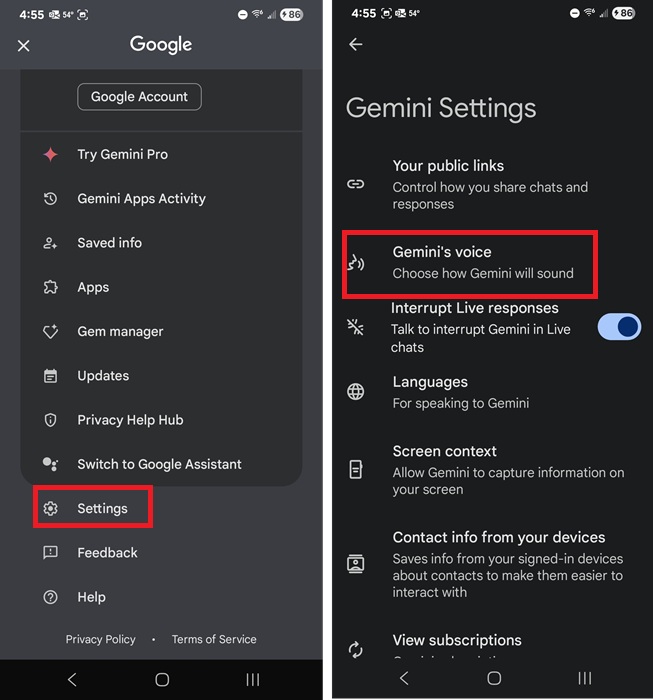
Open the Gemini app, tap your profile icon at the top right, tap Settings, and tap Gemini’s voice.
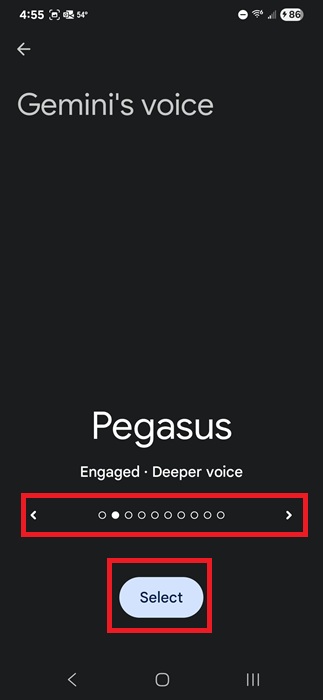
Unlike the nice list in the Google app, you’ll need to swipe to hear each of the 10 available voices. When you find the one you like, tap Select to switch to it.
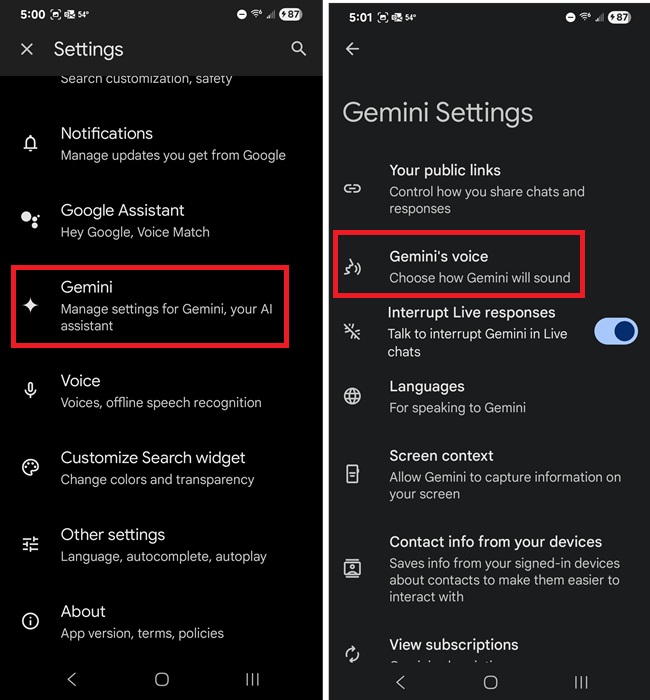
Alternately, you can change your Gemini voice within the Google app. Go to your profile icon in the top right corner, and select Settings -> Gemini -> Gemini’s voice.
Change Google Assistant Voice
Google is phasing out Google Assistant and replacing it with Gemini. But, for now, you’re still able to change the Google Assistant voice. Currently, Assistant settings should be available in the Google app, but if you don’t see them, try these other methods for accessing the settings.
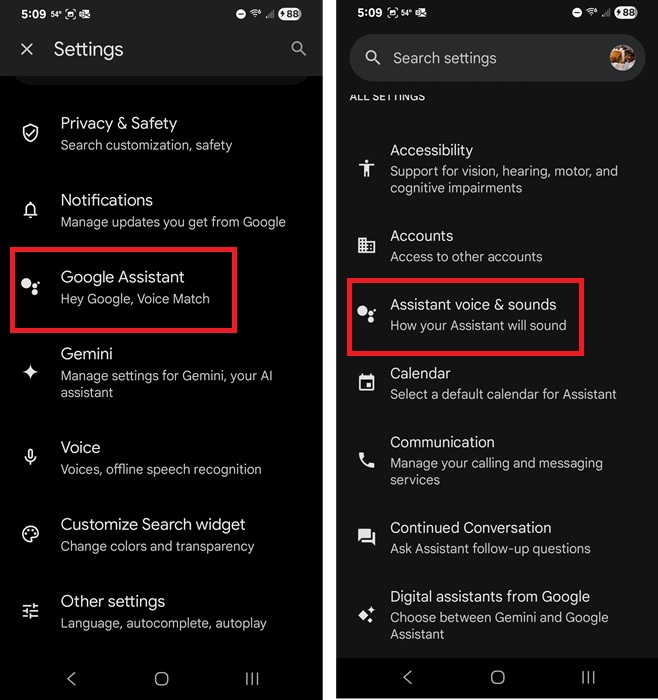
Open the Google app, tap your profile icon, and select Settings -> Google Assistant -> Assistant voice & sounds.
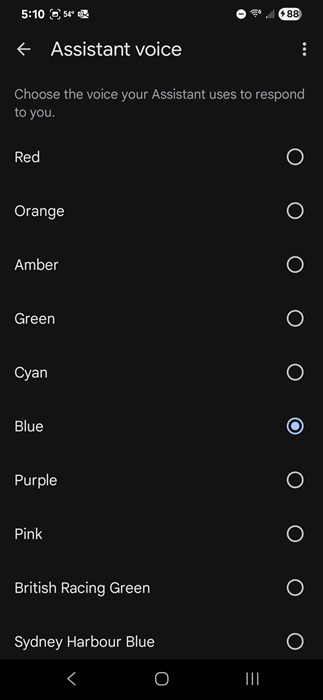
Select your favorite voice from the list.
If you want to change your Google Assistant voice for your smart speaker or Nest display, use the Google Home app instead. This follows the same steps just within the Google Home app.
Changing the Voices for Gemini in Browser
Currently, Google doesn’t offer an official way to change the voices for Gemini if you’re using it in your browser. The main workaround was to use your browser’s read aloud feature. However, there is another method that also lets you choose between different voices.
This won’t affect your experience in the Gemini app. Any voice settings in your browser won’t sync either.
In Chrome or your favorite Chromium-based browser like Brave or Edge, download Voice Control for Gemini. Once installed, launch Gemini in a new tab and log in as usual.
Just above the chat box, you’ll see a tiny box with three controls – mute, skip, and settings.
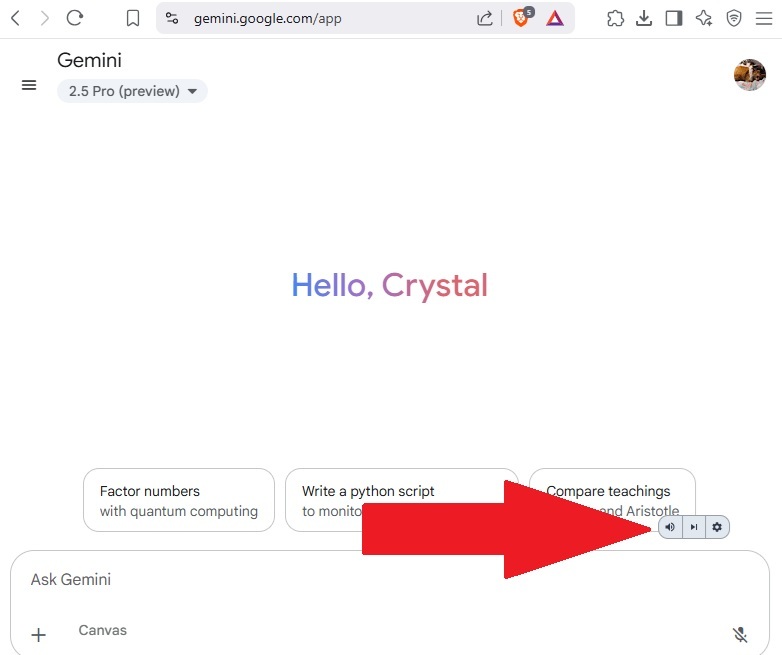
Click Settings on the control bar and select a voice from the drop-down box. Voices will vary based on your default language. For American English, there are only four options.
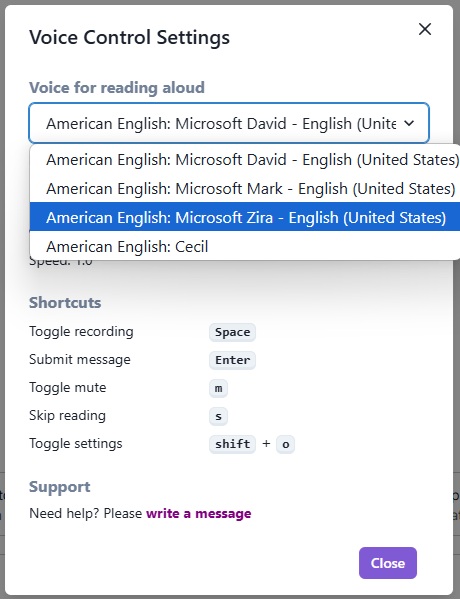
You’ll also see several keyboard shortcuts for controlling this extension. For instance, press Shift + O to quickly access the Settings menu.
If you’re using Gemini on Windows, try out Windows Voice Typing to continue using your voice outside of Gemini to control your device.
Issues With Voices on Google Changes
If you run into issues when trying to change the voices, there are several things you can try.
- If you don’t see any extra voices available, the feature may not be available to you yet. Also, available voices vary based on region.
- Try updating your Google, Gemini, and/or Google Home apps.
- Uninstall and reinstall the app that’s not letting you change the voices on Google settings.
- Restart your device and try changing the voice again.
- Ensure you’re logged in to the correct Google account. Voice settings sync, but only if you’re using the same account across devices.
One issue Google has acknowledged is the voice may randomly revert to the default, especially for the Google Assistant. If this happens, either clear the Google Assistant or Google app cache or reinstall the app you’re changing the voice in.
While it’d be great if we could download third-party voices to truly customize Google’s voice, it’s nice to at least have a few more options than before. For those who love customizing voices, see how you can customize the voice in Waze, a popular Google Maps alternative.








