
Tired of seeing the same old fonts on your iPhone? Good news, you can switch things up! Some apps let you customize fonts for a more personal touch. Read on to learn how to update your fonts on iPhone for a fresh new look.
Good to know: here’s how you can also change the lock screen shortcuts on your iPhone.
Can You Change System Fonts on iPhone?
Unfortunately, the answer is no. Not without jailbreaking your device. While you can’t change the default system font on your iPhone, there are some ways to modify its appearance. For instance, you can increase or decrease the size of the font on your device. You can even bold the font for improved visibility.
As for changing fonts, you can only do so in select apps on your iPhone. Natively, you have the option to use different fonts in some of Apple’s own apps, such as Mail, Pages, and more. In addition, with the help of third-party apps, you’ll be able to change fonts even in apps such as WhatsApp, Facebook, and more.
How to Change Fonts in Apple’s Apps
Open one of Apple’s apps that come preinstalled on your iPhone. For instance, the Mail app.
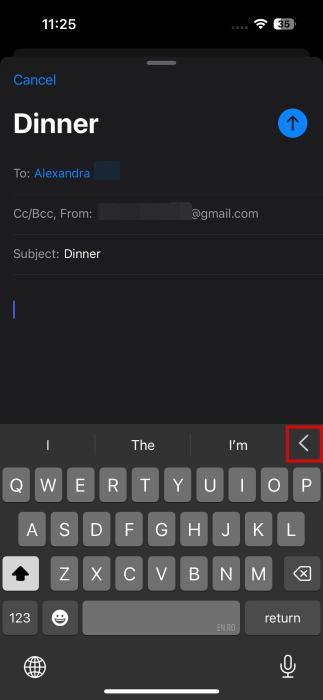
Start a new email. Before you begin jotting down your ideas, take a look at the bar above your keyboard and press the arrow on the right.
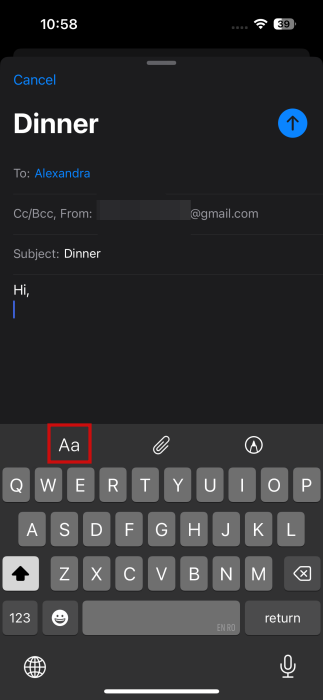
Tap on the Aa option.
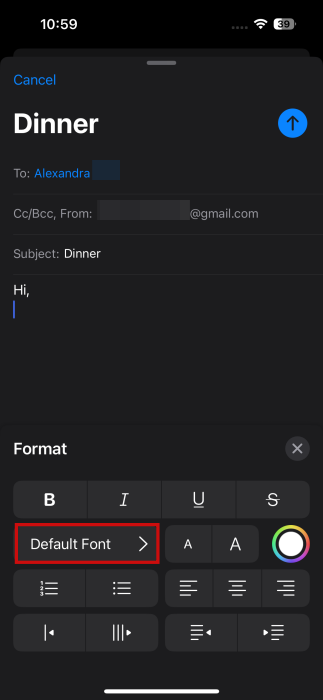
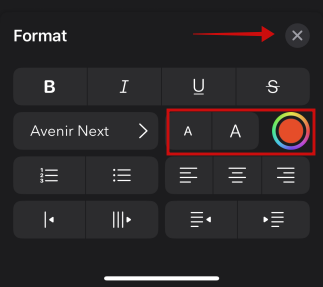
This will open the Format screen for your text. Press on the Default Font to change the font.
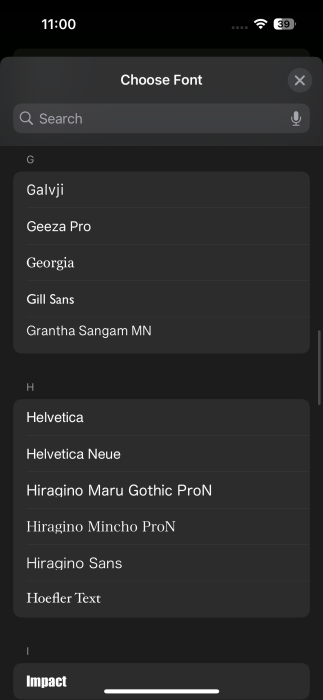
Swipe through the options and select the font you want. By default, there are quite a few to choose from.
From the same Format screen, you can enlarge or shrink the font as well as change its color, if you want to. Once you’ve made your selection, tap the X button to start typing your text.
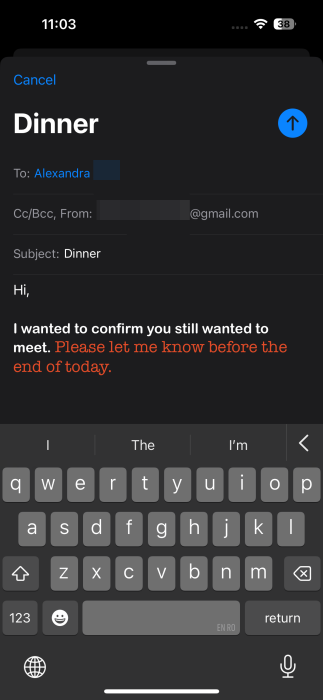
When you’re ready, you can send your email.
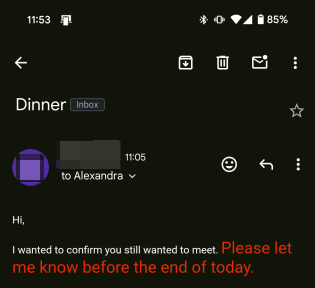
Depending on the device and mail app the receiving party is viewing the mail on and what fonts are supported on that device, they may not see the exact fonts you used when writing the email. Here we’re viewing the email on an Android device via the Gmail app.
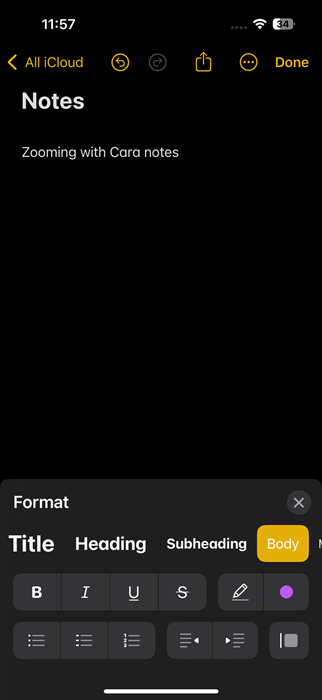
Unfortunately, not ALL pre-installed Apple apps support font changes. For instance, you can’t natively change fonts in Notes or Journal apps. You can, however, play with text styles (title, subheading, body) in the case of the former, or format to bold, italics in both instances. Additional Apple apps, such as Keynote or Numbers, support font changes and tap into your iPhone’s font library.
Tip: learn all about using the Samsung Galaxy Wach with your iPhone.
How to View iPhone’s Font Library
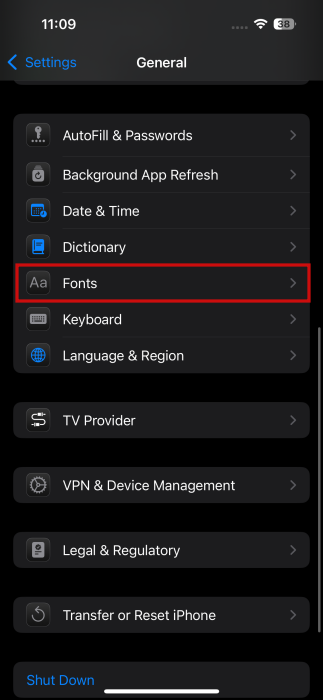
If you’re wondering how to view your iPhone’s font library, open the Settings app and navigate to General -> Fonts.
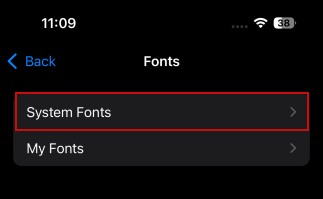
Tap on System Fonts.
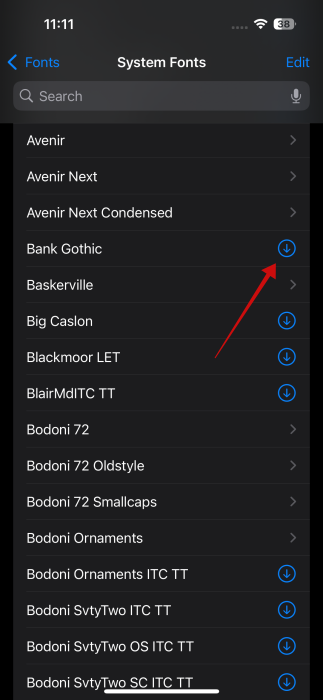
You’ll see the list of system fonts that are available for your device. As you can see, some aren’t installed. If you want to get them on your phone, tap on the download icon next to each. Wait until the font loads.
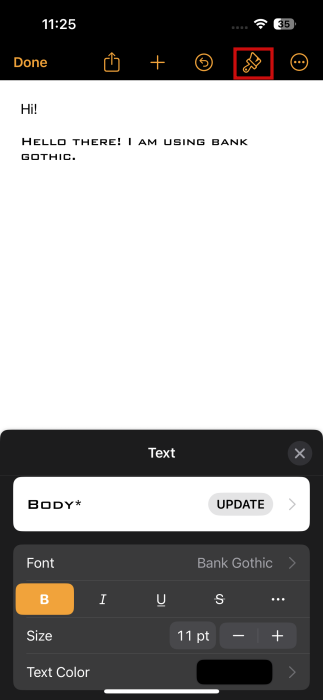
Open one of the Apple apps that support font changes to begin using that font. Below, we’re using the Bank Gothic font in the Pages app.
Add New Fonts to Library
To add new fonts to your iPhone’s font library, you will need to install a third-party app like Font Diner. There are other options in the App Store, such as Fonts or Install Fonts.
Install the app and launch it on your phone.
Browse through the available font sets. Most of them are paid options, but you’ll find some that are free for personal use only.
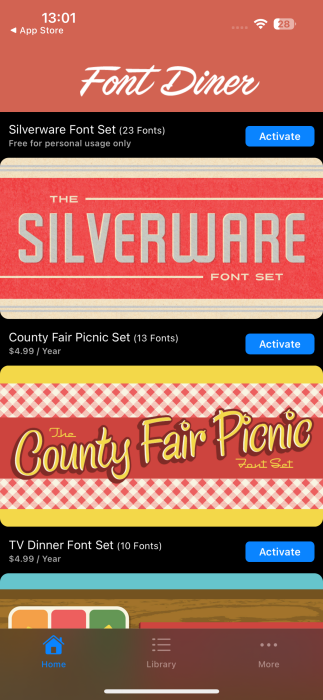
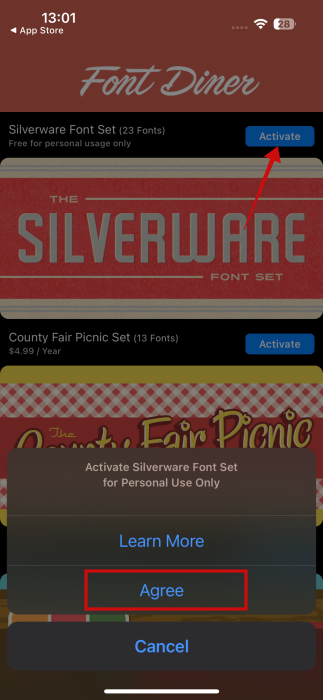
Tap on Activate to view individual fonts for a font set. Press Agree at the bottom.
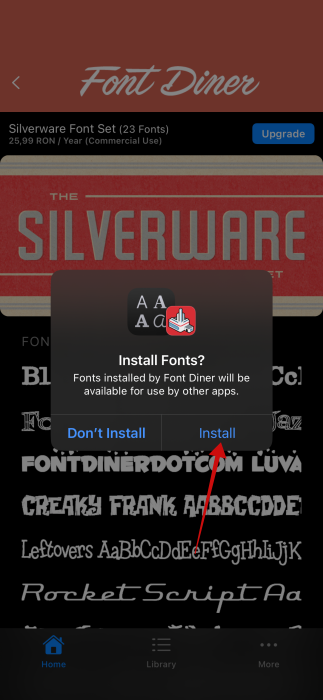
Press Install in the pop up that appears.
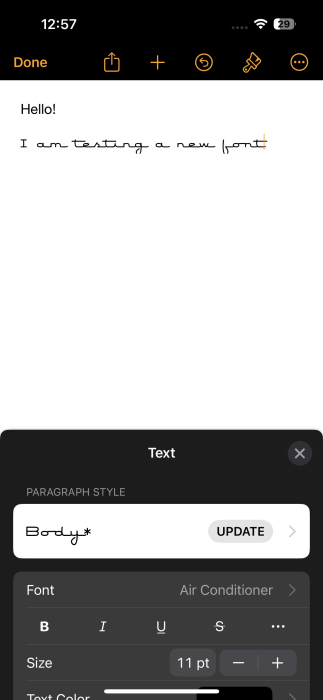
That’s it, you’ll now be able to see the new fonts in compatible apps such as Pages.
To view all your newly installed fonts, go to Settings -> General -> Fonts -> My Fonts.
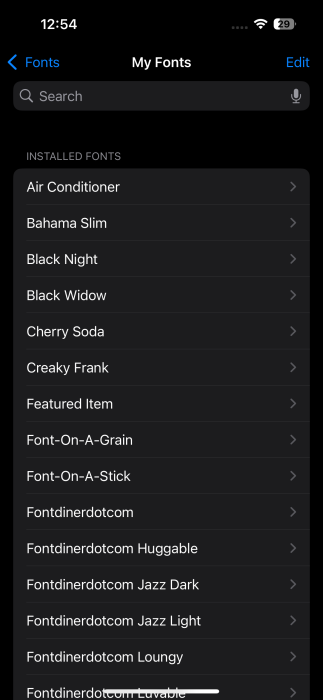
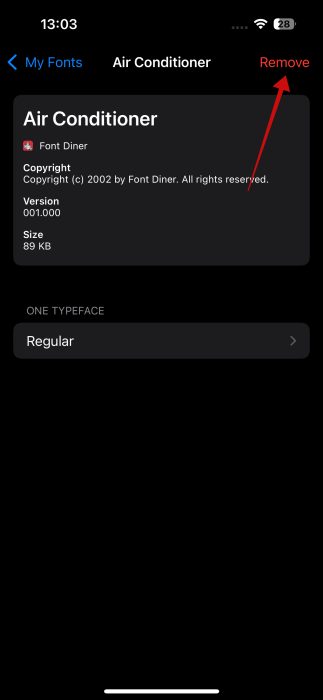
You can remove a font from there if you want by tapping on it and selecting Remove.
FYI: learn how to hide or lock apps on iPhone.
Change Fonts in Messaging Apps and More
If you want to change fonts in apps like WhatsApp or Facebook Messenger, you can, but you’ll need to install a third-party keyboard app such as Fontix.
Keep in mind that Fontix will overhaul your keyboard completely. However, the good news is that you can switch between keyboards easily on iPhone.
Once you install the app, navigate to Settings -> Apps -> Fontix -> Keyboards.
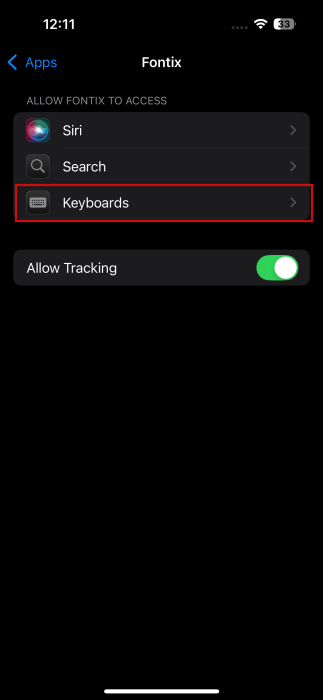
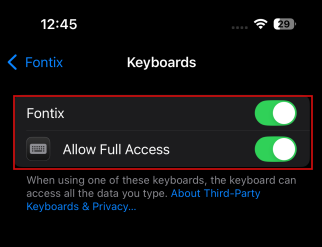
Toggle on both Fontix and Allow Full Access.
Now, open a chat app such as WhatsApp and go to a conversation. Bring up the keyboard.
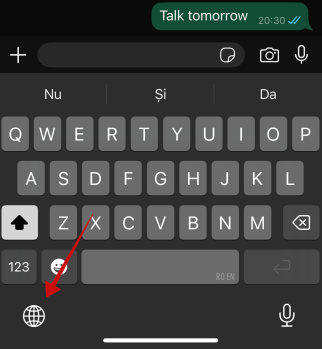
Tap on the globe icon at the bottom to change keyboards. Tap until you find the Fontix keyboard.
Swipe through the font options visible on the strip at the top of the keyboard. Select your favorite (some options are paid) and start typing your message.
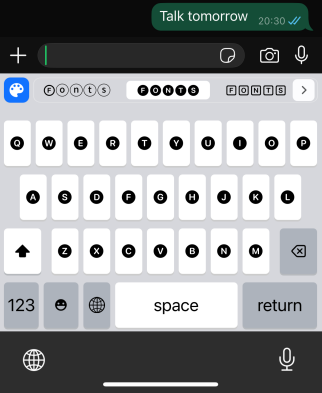
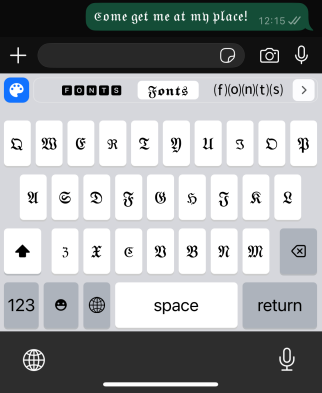
Press send so that the other person can view your message using a custom font.
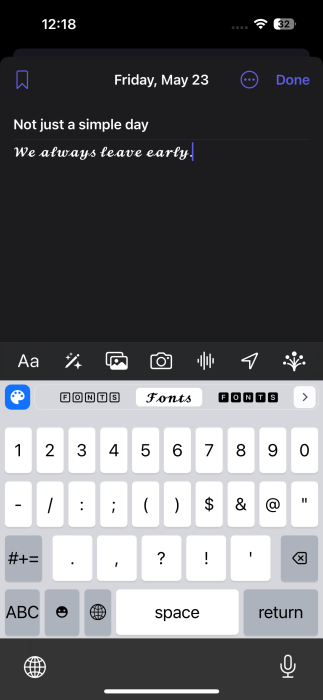
Fontix also works with Apple apps, notably Messages, but also Journal and Notes.
The best part is that if you don’t like the Fontix keyboard, you can type up your message and then quickly revert to your usual keyboard.
If you wish to continue customizing your iPhone experience, check how you can hide the Dynamic Island at the top of the display. Or you can check how to give your iPhone icons a makeover.








