Many sites try to stuff as much as possible onto the precious real estate of your tiny mobile screen, but it’s hard to see anything with so much clutter. Now, use the Brave Block Element feature on Android to get rid of annoying parts of the page you don’t care about.
Understanding Brave Block Element
Think of this feature as a type of ad blocker, but for individual elements on a web page. Large headers getting in the way of seeing the stories underneath? Don’t need a large chunk of suggested sites? Maybe you don’t care about weather or horoscopes or any of the other extras clogging up your screen (I’m talking to you Yahoo!).
If so, the Block Element feature lets you select exactly which elements to block so you can focus on what matters most to you.
Before you get block happy, don’t overuse this feature. Blocking too much may make the web page break. Then, that defeats the purpose of making a site/page easier to use. The good news is you can undo your blocked elements at any time.
Also, blocking only applies to that specific site. If you block a sidebar element on one site, it won’t affect any other sites you visit.
As a final note, if a site changes its code and design, you may need to block elements again.
Blocking Elements on Android
First, make sure you have the latest version of the Brave browser for Android installed. You can even set it as your default. Then, visit the site you want to block a few things on.
Tap the Brave shield icon at the top right and select Advanced controls. Tap Block element. Tap an element you want to block and tap Block element.
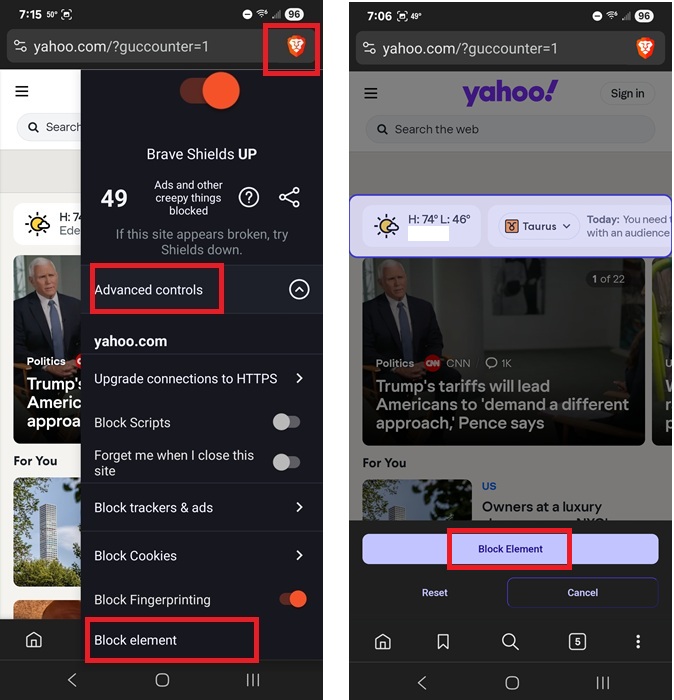
You may need to tap around a bit to get the exact element. For instance, when I was blocking the weather and horoscope section on the Yahoo homepage, I could select just the weather, just the horoscope, or all of it.
You can only block a single element at a time. Once you tap Block element, it should disappear. Then, tap another element, if you want, and repeat the process.
All done cleaning up a webpage? Tap Cancel to finish.
Undo Blocked Elements
Want to get back to the way things were? With Brave Block Elements, there’s a simple undo option. The only downside in my opinion is it’s an all or nothing undo. I can’t just unblock a single element. I have to clear everything at once. But, if a page is broken or the design’s changed and everything looks extra weird, it’s best to clear everything and start from scratch.
Tap the Brave shield icon at the top right and select Advanced controls. Tap Block element. Now, instead of blocking anything, tap Reset to restore the page to its former glory.
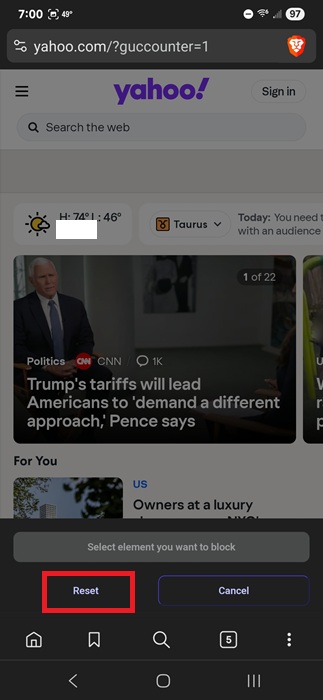
On some devices, the steps may differ slightly. If you don’t see a Reset option, tap the Brave shield icon and look for Clear all blocked elements.
Further Blocking on Brave
You might have noticed a few other things to block outside of Brave Block Element option. Under Advanced controls, you can also:
- Block scripts
- Block trackers and ads – Tapping this lets you set the blocking level. I usually stick with Standard as it allows some minimal ads from trusted partners in Brave.
- Block cookies – Just like with trackers and ads, Brave lets you customize whether you want to block none, all, or just third-party cookies on sites.
- Block fingerprinting
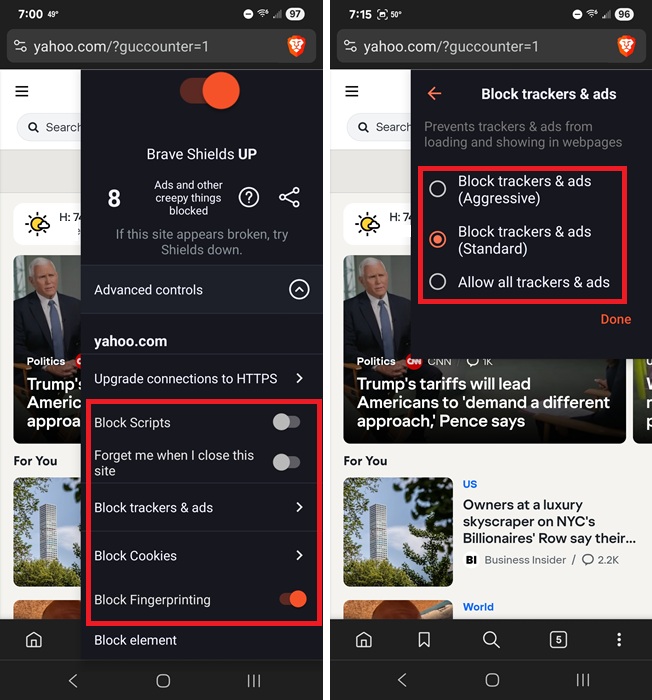
I also recommend turning on Forget me when I close this site to delete any stored details when you leave a site.
You should also check out some of Brave’s other useful features to customize your experience, including Tab Focus Mode.
Not Just for Android
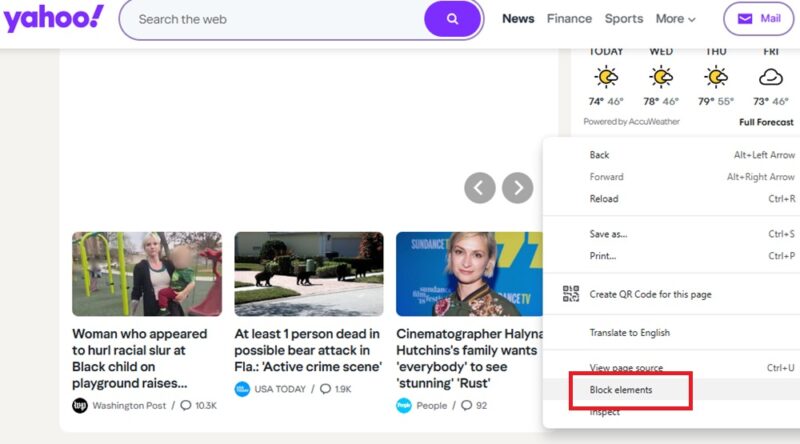
If you use Brave on your desktop, you get to block elements too. Open any site and right-click anywhere on the page. It doesn’t matter where. Click Block elements.
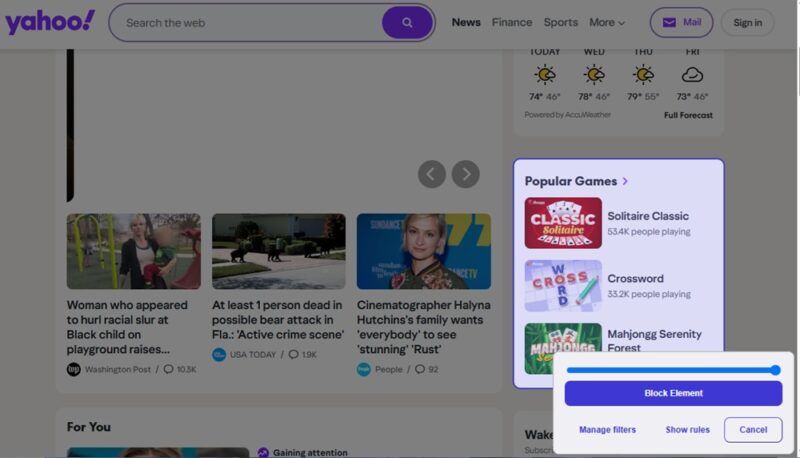
Select an element to block and click Block Element. Use the slider to further customize the blocked element, such as blocking similar elements, if necessary. You can also customize other content filters from here by clicking Manage filters or click Show rules to show the custom rules Brave creates when hiding an element.
To undo your blocked elements on desktop, click the Brave shield icon to the right of the address bar and select Clear all blocked elements at the bottom of the menu.
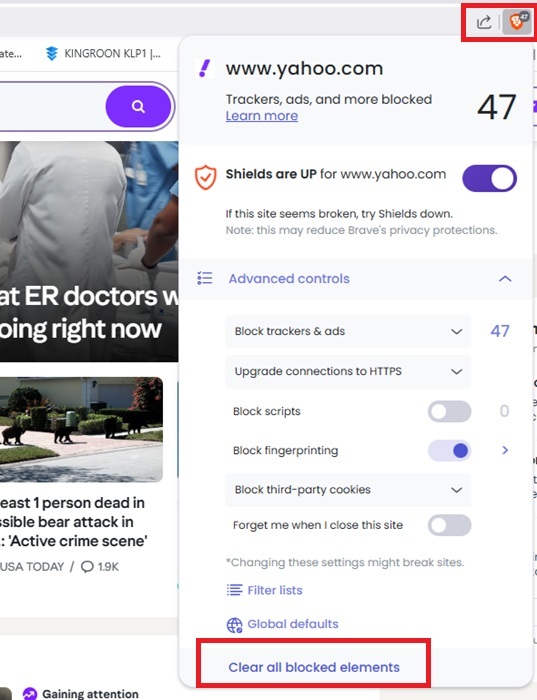
Just like on Android, you can also block other items when you click the Brave shield icon, including scripts, cookies, ads, and more.
Limitations
While Brave does sync most of your preferences between devices as long as you’re logged in, some custom filters and blocked elements may not sync. This is especially true when using different platforms, such as between Windows and Android.
This has been an issue with Brave for years, though syncing has improved. If the Brave Block Elements feature doesn’t sync your preferences, you’ll need to manually block elements again on your other device(s).
If you’ve switched from Tor to Brave, you can still use Brave to open Onion links.








