
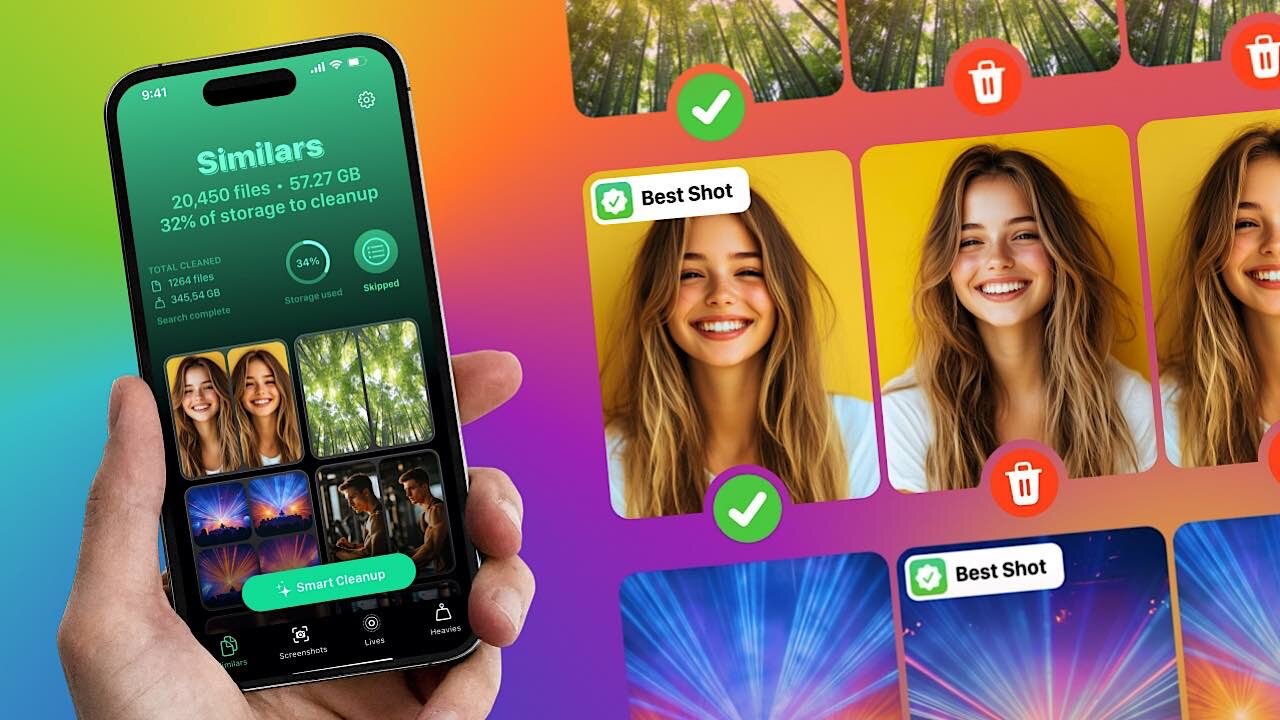
If your iPhone keeps showing that dreaded “Storage Almost Full” notification, the most obvious and effective solution is to go through your gallery and delete everything you don’t need, such as duplicate or near-duplicate photos, blurry shots, and old screenshots. But doing so with built-in cleanup features in iOS can be tedious and time-consuming. Fortunately, you can use a free third-party app, Clever Cleaner, to reclaim gigabytes of storage in just a few taps.
The content contained in this article was paid for by CleverFiles. Although this article is promotional and contains no opinions, Make Tech Easier did a thorough fact-check to ensure accuracy.
Why Clever Cleaner Works Better Than Built-In iOS Tools
iOS includes some storage management features, but their limitations make it nearly impossible to thoroughly clean up a large collection of photos, videos, and screenshots.
For example, the native Photos app still doesn’t let you sort files by size, so finding those space-hogging videos requires manually scrolling through your entire library. Another example is the Duplicates album in Photos, which should include both exact matches and photos that are slightly different, but there are many people who complain about the feature not properly detecting photos that should clearly be flagged as duplicates.
Clever Cleaner for iPhone and iPadOS is an app developed by CleverFiles (the creators of popular data recovery software Disk Drill). It addresses the limitations of built-in iOS cleanup tools with features that are both capable and simple to use.
“With Clever Cleaner, our mission is to give iPhone users a high-quality, reliable tool to keep their devices organized. It’s completely free now, and we’re excited for as many people as possible to enjoy it while we continue shaping its future,” said Roman Kropachek, founder and CEO at CleverFiles.
Unlike many similar apps that hide essential features behind paywalls or bombard you with ads, Clever Cleaner provides all its functionality completely free, with no ads or subscription prompts interrupting your cleanup process. It is one reason it currently has a 4.8 rating from 20,367 reviews in the U.S., ranking it #107 in the Productivity category.
How to Clean Up iPhone Storage With Clever Cleaner
Getting started with Clever Cleaner takes just one minute. After downloading Clever Cleaner for free, the app asks for permission to access your photos. Once granted, it immediately begins scanning your library to identify potential space savings. The entire scanning process typically completes in under a minute, even with thousands of photos.
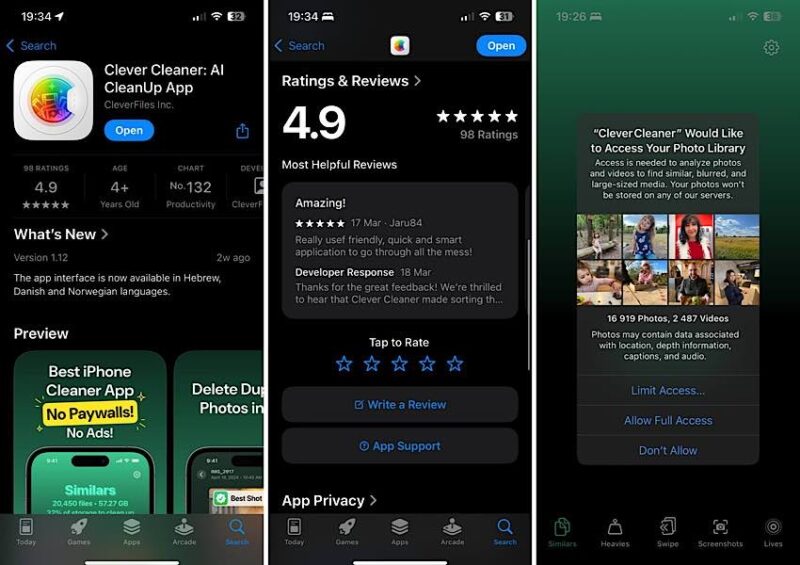
The app organizes its cleanup tools into five main tabs at the bottom of the screen, and each tab tackles a specific type of storage problem. At the top of each section, you can see how many files could be cleaned up and how much space you stand to recover.
Good to know: all deleted items first move to the app’s built-in trash folder rather than being immediately removed, giving you a chance to change your mind so that you can clean up storage on your iPhone confidently without worrying about accidentally losing important memories.
Finding and Removing Similar Photos
The Similars tab is where most users will want to begin. This feature uses AI-based similar photo detection to identify duplicates as well as near-identical shots that iOS typically misses. When you take multiple photos of the same scene or subject, the app groups them together and automatically selects the best quality image from each group while marking the others to be deleted.
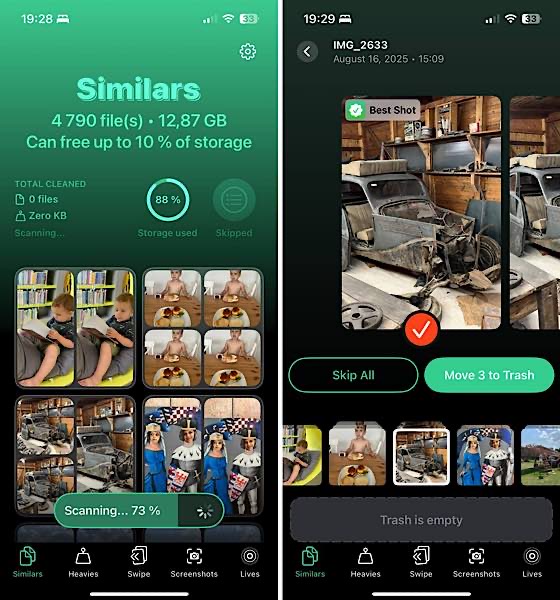
You have two options: tap Smart Cleanup to clean similar photos in a single tap and trust the AI’s selections, or manually review each group to adjust which photos to keep. Clever Cleaner’s algorithms excel at consistently choosing sharp, well-composed shots over blurry or poorly framed alternatives, so you’ll rarely feel the need to override its suggestions.
Managing Large Videos with Heavies
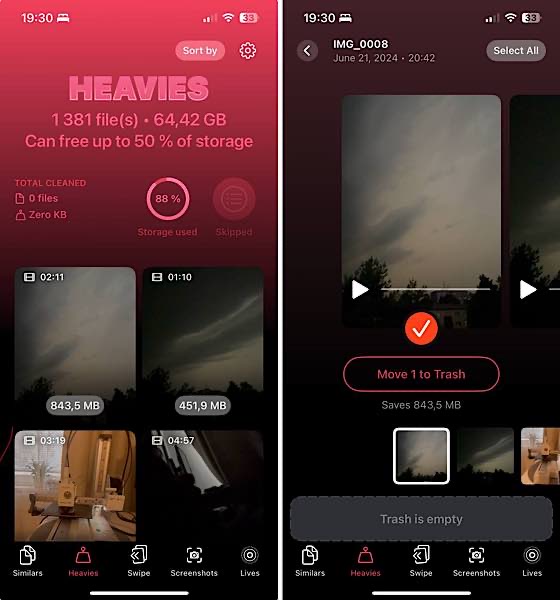
The Heavies tab solves an annoying iOS limitation by letting you sort videos by size rather than date. This makes it simple to identify those forgotten 4K recordings that are consuming gigabytes of space but are actually not needed anymore. Each video displays its file size prominently, and you can preview any clip directly in Clever Cleaner before deciding whether to delete it. With this feature alone, you can effortlessly free up space on your iPhone quickly when storage is critically low without getting rid of anything you might miss later.
Clearing Out Screenshots
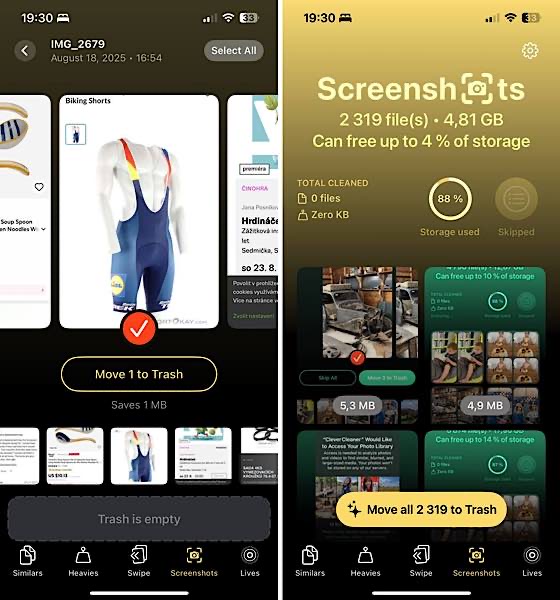
The Screenshots tab addresses another common storage issue. Most of us take screenshots for temporary reference but forget to delete them later. Clever Cleaner identifies all screenshots in your library and displays them with their file sizes. You can either use the **Move all to Trash** button for a complete cleanup or scroll through to keep the ones you still need. With 2,000 screenshots usually taking up around 5 GB, this feature can provide instant relief when your iPhone storage full warning appears.
Converting Live Photos
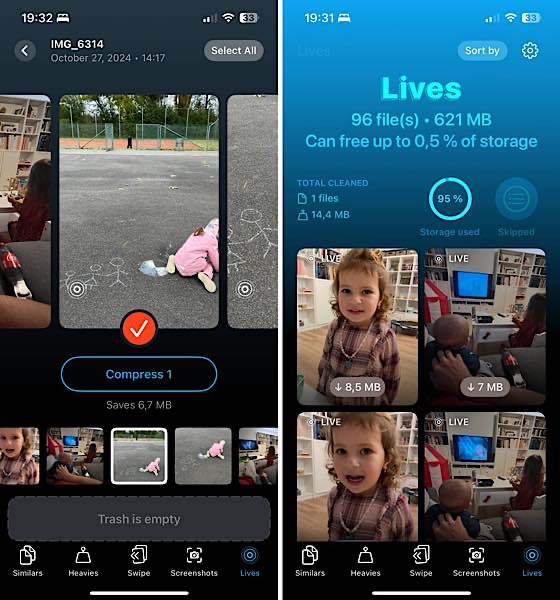
The Lives tab offers a unique solution that even paid competitors often lack. Live photos capture a few seconds of video along with each still image. While they’re nice to look at later, each live photo takes up roughly three times the storage space of a regular photo. Cleaner lets you convert live photos to regular photos so that you can keep the still image while removing the video component. Each live photo you review in the app shows exactly how much space you’ll save by converting it.
Swipe Mode: Another Way to Clear Storage on iPhone
There’s a reason we skipped the Swipe tab earlier, even though it appears third in the app’s navigation. This feature deserves special attention because it offers a completely different approach to cleaning up your photos.
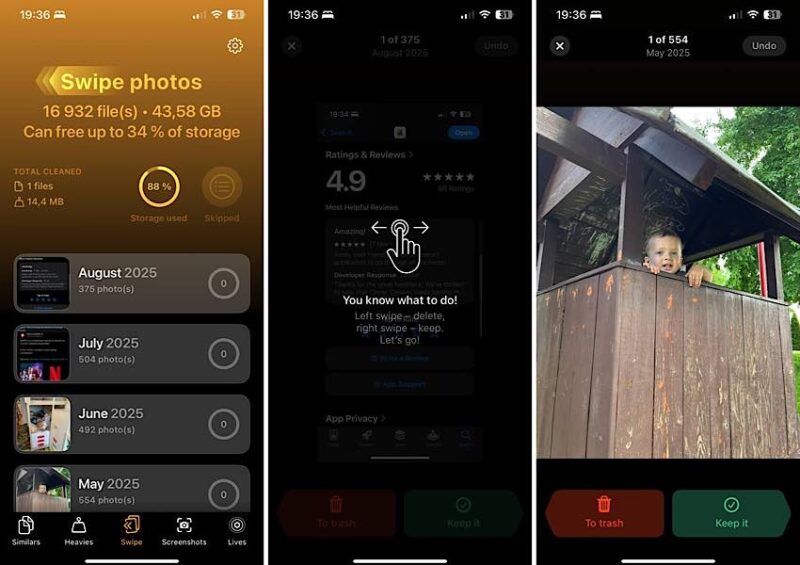
While the other tabs use smart algorithms to identify specific types of files, the **Swipe** tab puts you in complete control. Photos are organized by month, and you simply swipe left to delete or right to keep an image. The swipe mode feels intuitive and surprisingly satisfying, as it turns what could be a tedious task into something more engaging.
The Swipe tab presents your photos chronologically rather than randomly, bundled by month. Thanks to these convenient bundles, what initially seems like an overwhelming task of sorting through thousands of photos becomes much more manageable. You can easily tackle just one or two months at a time, spending maybe 10 minutes cleaning up photos from the previous month, then returning the next day to handle another batch.
Whether you choose the quick AI-powered cleanup or prefer the hands-on swipe approach, Clever Cleaner makes it simple to reclaim your iPhone’s storage space. Best of all, you get all these features without any cost or interruptions (you don’t even pay with your data since all processing happens locally on your device), which is refreshing in a category where most apps try to monetize every feature.








