Spoilers are everywhere online, especially when new shows or movies drop. To help users stay in the clear, Threads (Instagram’s answer to Twitter) now offers a feature that lets you blur/hide text in your posts. Check this post to learn how to make the most of it.
Good to know: here are a few things you should know before signing up on Threads.
Using Threads’s New Spam-Blocking Feature
Spam-blocking features aren’t a novelty in the world of social media. Apps like Reddit or Bluesky already offer this option, and now it’s time for Threads to join the fold.
Since this is a new feature, make sure you’ve updated your Threads app to the latest version. Visit the Google Play Store or App Store and search for Threads. If an Update button is available, hit it.
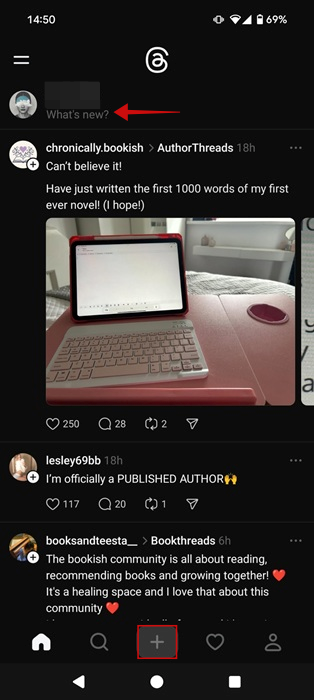
Next up, open the Threads up and press on the What’s new field at the top to start writing a new post. Or you can press the + button at the bottom.
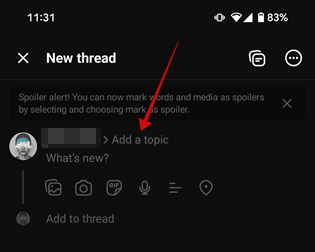
On the New thread screen, tap on Add a topic. This will make it clear what your post talks about, offering an additional spoiler alert.
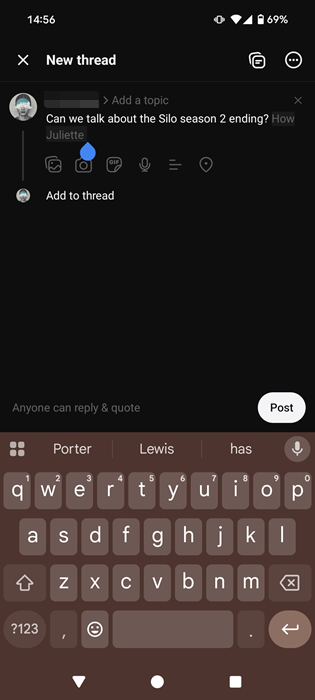
Start writing the text. Long-press on the part of text that you want to hide and select all of it by dragging your finger left or right. In the pop-up menu that appears, select Mark spoiler.
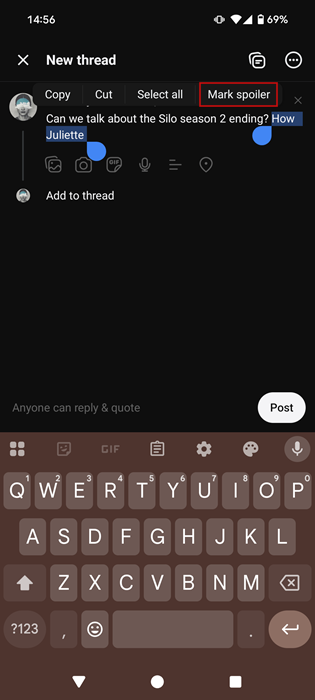
The text will now appear with a transparent gray background, indicating that it will be hidden from view.
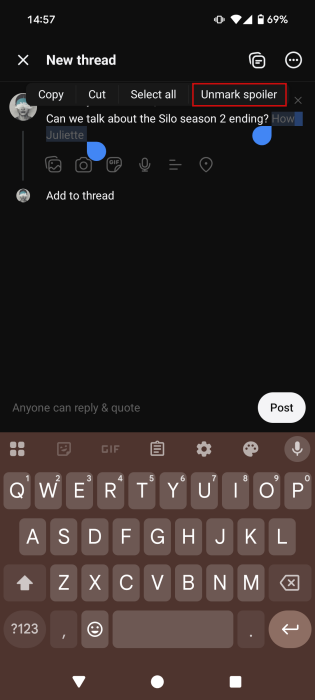
Review your text. If you made a mistake, or you simply want to hide less text, select it again and press Unmark spoiler.
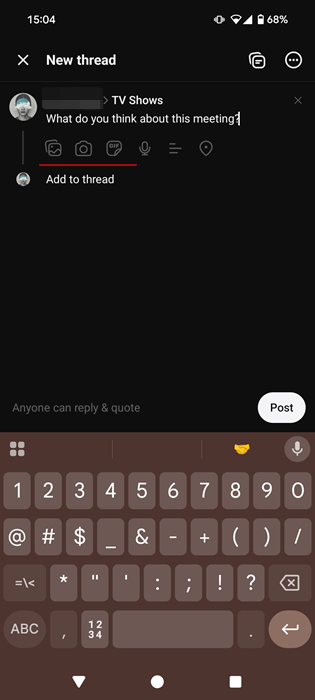
You can also add spoilers if your post contains a photo, video, or GIF. Add the media by pressing on the photo or GIF icons underneath the What’s new field.
Now tap on the three dots on the media. In this case, an image. Select Mark as spoiler.
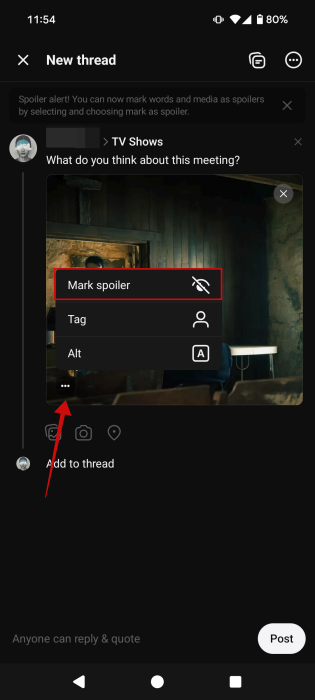
The image will now be blurred.
Tip: use this tools to easily delete Reddit posts and comments.
If you tend to use Threads more on your PC in your browser, no problem. You can use the blurring feature here too.
Go to Threads in your browser and click on the What’s new bar at the top.
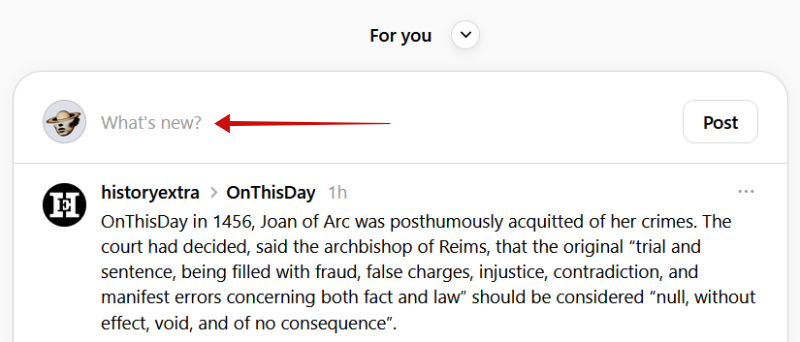
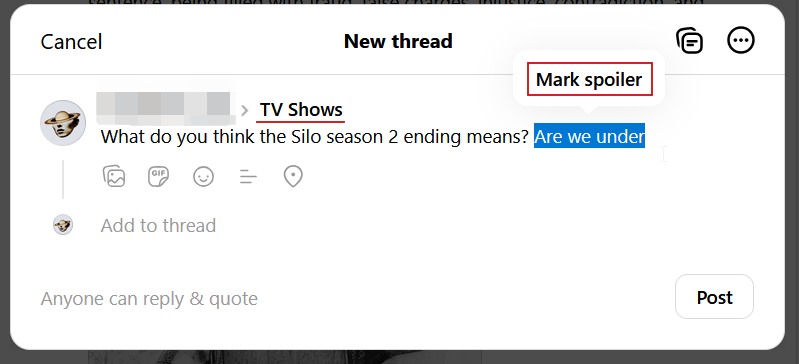
Add your topic by typing directly in the Add topic field. Write the text. Click your mouse on the first word and then select all the text that you want to hide. The option to Mark as spoiler will immediately pop up above – select it. The text will now appear with a subtle gray background indicating it is hidden.
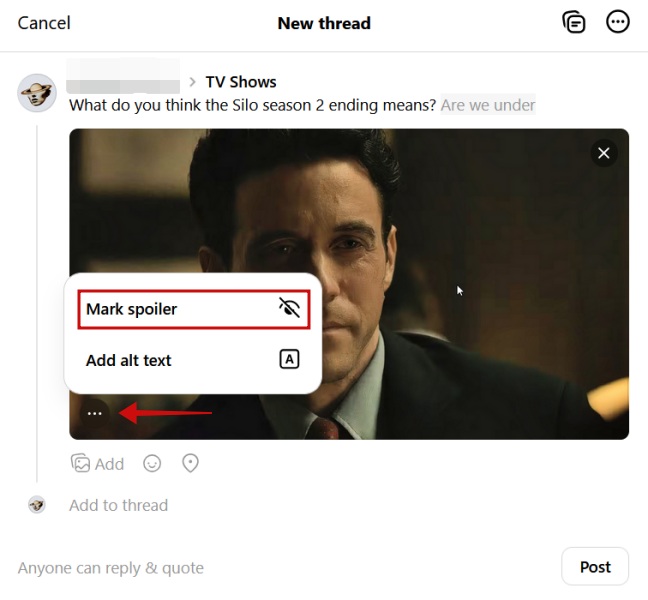
As for media, first add your photo, video or GIF to the post. Then click the three dots on the image and select Mark as spoiler. That’s it!
How Blurred Spoilers Appear to Other Users on Threads
One thing you need to keep in mind is that in order to stay safe from spoilers on Threads, you’ll need to browse the app or site while you’re logged in with your account. If you skip this step, you risk viewing all the spoilers, since Threads will not bother to blur the content.
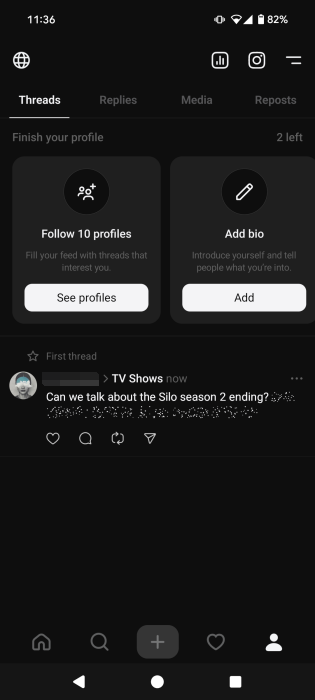
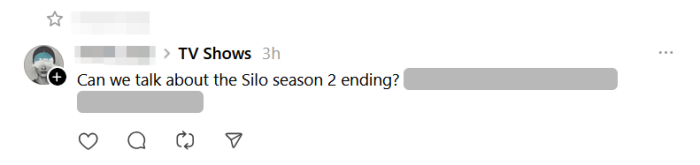
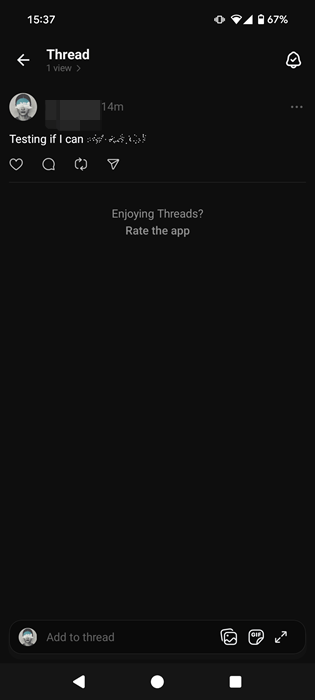
In posts, text that is blurred appears like particle dust. It’s pretty similar to the option in Messages on iPhone. Here’s how it looks on a post I’ve marked as spoiler.
Interestingly, on PC when you view a post that contains spoilers it will show the sensitive text in a way similar to Reddit, with a gray bar covering it all.
As for media, Threads will show a small Spoilers warning on the photo, video, or GIF.
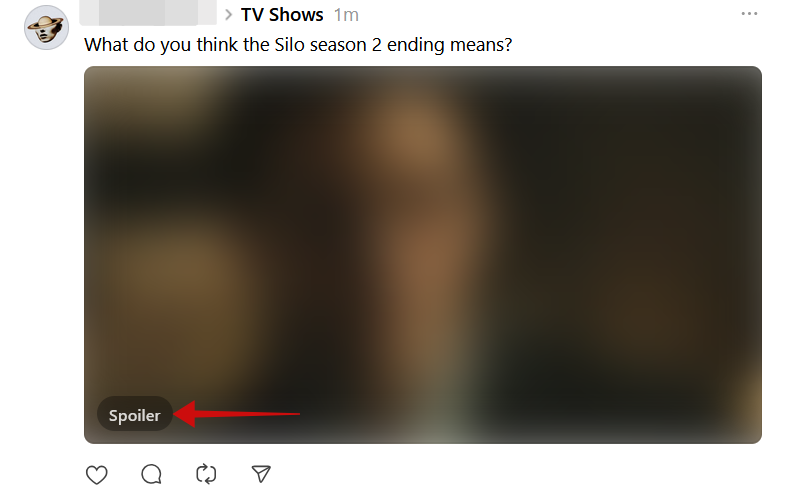
When coming across a post like this, simply tap or click on the content to reveal it.
This feature gives Threads an edge over Instagram, where there’s no straightforward way to blur text for spoilers. And while there’s a way to share Threads posts on Instagram easily, the blurring won’t carry over.
Tip: have you tried Instagram’s Blend feature that allows you to set up custom Reels feed. Here’s how to make yours.
Can You Unblur Content on Threads?
If you want to remove the blurring from a text in one of your older posts, you should know that, unfortunately, that’s not possible. Once you’ve marked something as a spoiler, you can’t undo it.
You can, however, delete the post completely. Then recreate the post from scratch without the spoilers alert.
On the other hand, if you have created a simple text post, you can rewrite it and add spoiler warnings later on. Open the post in question and press on the three dots in the upper right corner. Select Edit.
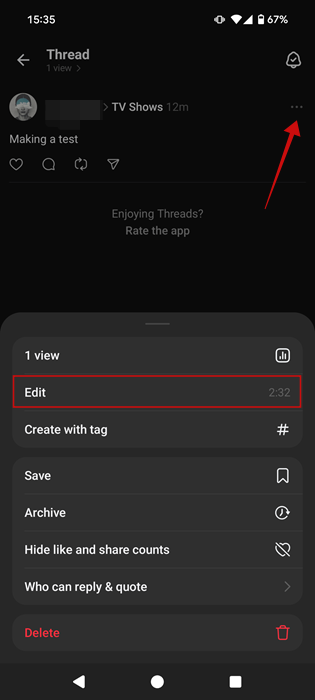
Rewrite the post. Select the text and mark it as spoiler. Then press the Post button.
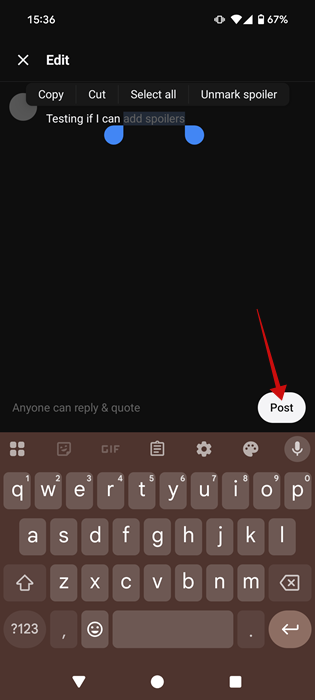
The text will now be hidden from view.
If you tend to prefer Instagram to Threads, then you might enjoy continuing to read our post that details how to create quick travel itineraries directly from Instagram. Alternatively, learn how to repost on Instagram and share content you like.








