
You must have noticed the warning text, “This extension may soon no longer be supported” on some Chrome web store extensions. It’s because Chrome’s shift from Manifest V2 to V3 has crippled many extensions, especially ad blockers that depend on Manifest V2 to function properly. While Manifest V2 ad blockers are disappearing, there are still many ways to block ads, and we are listing the best ones below.
1. Get a Manifest V3-Compliant Ad Blocker Extension
Many ad blocker extensions have adjusted to the new set of rules of Manifest V3 to comply with the latest standards. Some updated the existing extension, and some launched new versions. Manifest V3-compliant extensions can still block most of the ads, but they are less powerful with limited customization options.
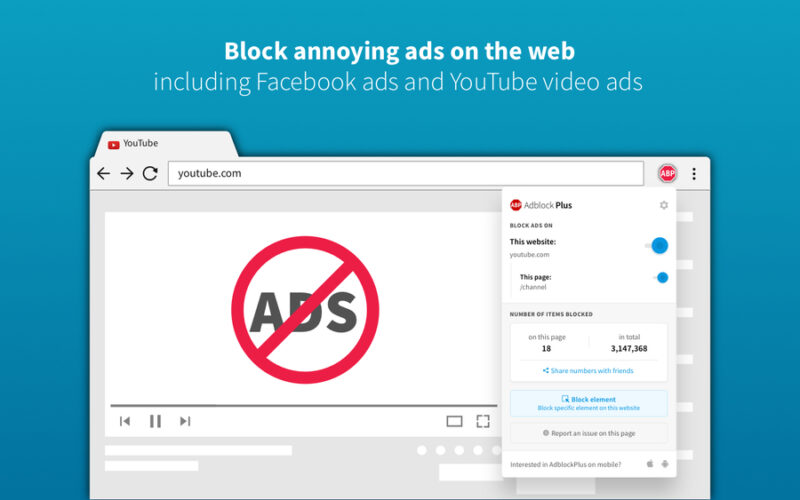
If you are fine with some ads skipping past filters once in a while, then a Manifest V3-compliant extension will be enough. Below are some ad blocker extensions that are manifest V3-compliant.
uBlock Origin Lite: the Manifest V3-compliant version of the popular uBlock Origin extension. It trades some of its rule-editing features for a lighter and faster experience.
AdBlock: this popular ad blocker got updated to comply with Manifest V3 and still offers its powerful filters, allowlists, and custom element blocking.
Adblock Plus: one of the oldest ad blocker extensions is also updated to comply with Manifest V3. It still blocks third-party trackers and has powerful personalization options. The premium version is also working fine with additional content blocking.
If you choose any other ad blocker extensions, make sure it doesn’t have the warning from the Chrome web store and mention support for Manifest V3.
2. Switch to Another Browser that Can Block All Ads
Manifest V3 addition and removal of Manifest V2 is mainly a Chrome issue. Most browsers either don’t depend on this change or are delaying the Manifest V2 removal. Firefox has its own extension engine; it doesn’t have to follow limitations of Manifest V3 and fully supports Manifest V2 extensions. Most popular ad blocker extensions like Adblock Plus or uBlock Origin are available with full functionality.
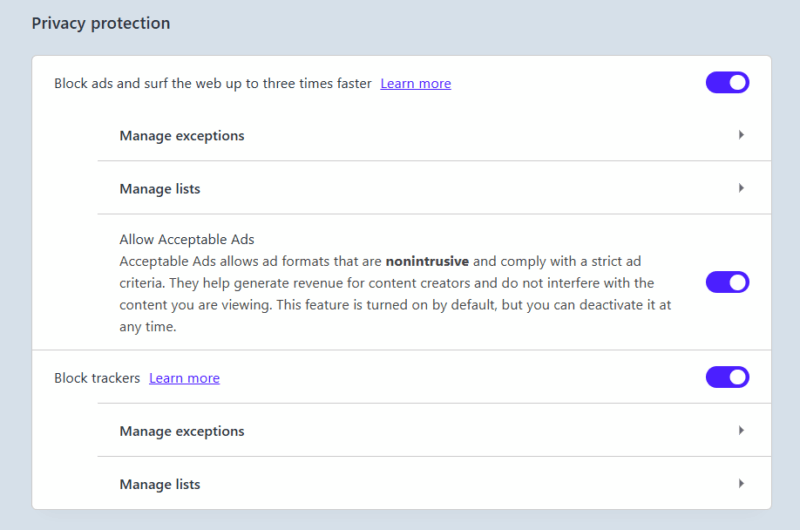
If you want a Chromium-based browser, Brave and Opera have their own built-in ad blockers that aren’t bound to these limitations. They also support Manifest V2 extensions for the foreseeable future.
3. Use a Desktop-Based Ad Blocker
For a more powerful and system-wide solution, a desktop-based ad blocker would be a great choice. It will block ads in all apps on your PC, including Chrome, without being bound to the app’s restrictions/policies. We recommend AdGuard as it has powerful features beyond just ad blocking. It’s available for Windows, macOS, and Linux, and it’s very easy to set up.
After installation, it will go through an initial setup where you can determine what type of protections you want to enable, like blocking trackers or search ads. In the Settings, you can block ads in Windows, add custom filters, manage tracking protection methods, enable DNS protection, and much more.
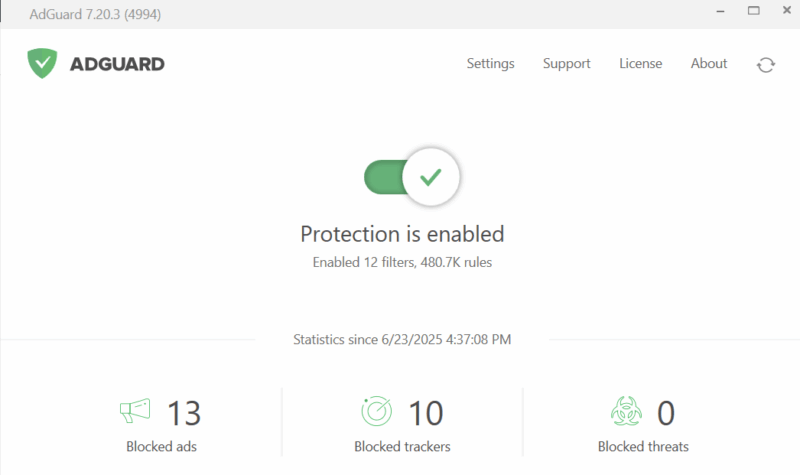
It comes with a fully functional 3-day trial, after which, you’ll have to get a premium subscription or a lifetime license. Alternatively, you can also give NextDNS and Pi Hole a try.
4. Use DNS-Based Ad Blocker
While desktop ad blockers are great, they are usually paid apps and also need to run continuously in the background. DNS-based ad blocking might be better for you if you want a free ad blocker that doesn’t run any processes in the background.
To use them, you just have to change your DNS address in your OS or even router (for network-wide blocking). Most DNS-based blockers provide the DNS address and step-by-step instructions to set them up.
We recommend AdGuard DNS and NextDNS for this purpose. AdGuard DNS is completely free, but with limited customization options. NextDNS has a limited free version with 300,000 queries/month (enough for most people), but its powerful filters allow blocking of ads, trackers, malicious websites, and adult content.
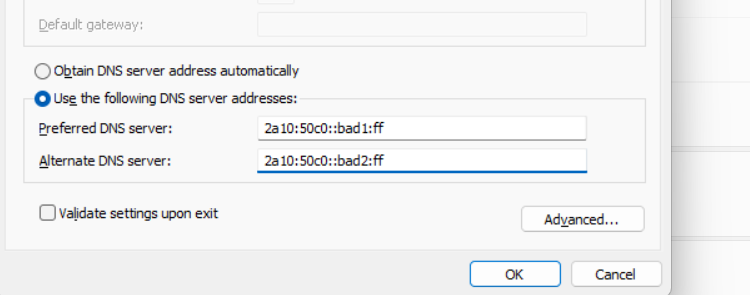
However, DNS-based ad blocking is less powerful as it only blocks full domains that are marked for serving ads. If a website/service self-hosts ads, it will not block them. Many people prefer to combine DNS ad blocking with a Manifest V3-compliant ad blocker extension for a robust ad-blocking solution.
5. Use a VPN with a Built-in Ad Blocker
While it may not be feasible to get a VPN just to block ads, if you are already looking for a VPN for other security/privacy reasons, then get one with an ad blocker. Popular VPNs like NordVPN or ExpressVPN have a built-in ad blocker along with other powerful online privacy features.
While Chrome has made it difficult for ad blocker extensions to block all ads, it doesn’t mean that’s the only way to block ads. With these solutions, you’ll be browsing the web (and even using other apps) without ads. If you are really tired of ads, network-wide ad blocking might be the better option for you.








