Having AI chatbots in WhatsApp lets you be more productive without having to constantly switch between apps. But, Meta doesn’t want to share anymore and is cutting off third-party AI services, including Copilot. You can, and should, back up your Microsoft Copilot chats in WhatsApp now before it’s too late.
Copilot Chats Disappear in January 2026
Most of us have a favorite AI chatbot and for many, it’s Microsoft Copilot. I admit, I tend to use it more since it’s a convenient icon on my Windows taskbar. Plus, even us free users get access to OpenAI’s o1 model, which is typically only for premium ChatGPT subscribers.
So, if you tended to use Copilot in WhatsApp to quickly look up info before responding to messages, help you find local businesses, or even craft more professional responses, you’re now losing access as of January 15, 2026.
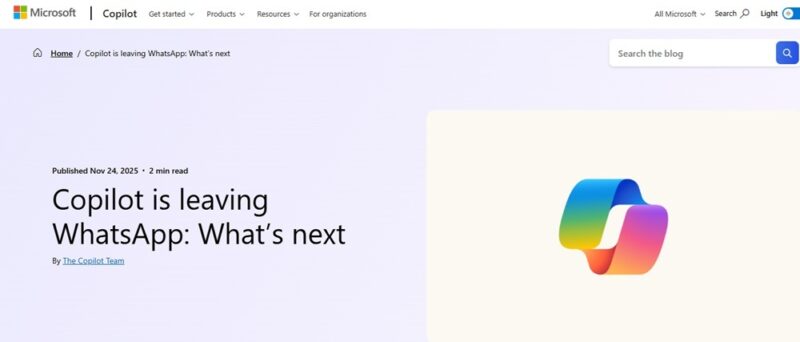
Why? Meta isn’t thrilled with third-party chatbots on their messaging app. This means you’ll be using Meta AI exclusively if you want to use AI within WhatsApp. Just know that Meta is using chat data to help provide more targeted ads across all Meta properties, such as Facebook and Instagram. There’s no opt-out, but you can opt-out of using Meta AI at all if you want.
No Option to Import Directly into Copilot
Since WhatsApp didn’t require any Microsoft account authentication to use Copilot, your chats aren’t tied to your Microsoft account. Long story short, when WhatsApp cuts ties, your chats go bye bye.
This doesn’t mean any important work or personal chats are gone forever. You still have time to export them. And, if you’ve created any incredible Copilot prompts that make your life easier, you’ll definitely want to export those to start using in Microsoft Copilot app on the Copilot site, Windows, Office 365, iOS, Android, and within the Edge browser.
I highly recommend only using Copilot in places where you can login with your Microsoft account so your chats sync. I know the pain of suddenly having to scramble to make backups after using an app without an account or when an app I love (and have an account with) decides to shut down.
The Workaround to Back up Copilot Chats in WhatsApp
A direct export/import solution would be awesome, right? It’d save time and make life much easier if you have numerous Copilot chats to back up.
I hate to tell you, but it’s going to be a multi-step process and things still won’t be perfect. Yet, you’ll still get to keep any important workflows.
Start by exporting your Copilot chats in WhatsApp just like you would any other chats.
On Android, open the Copilot chat, tap the three dot menu, and tap More -> Export chat. Choose whether to include media or not. If you’ve never used media in your chats, then skip media. Choose where you want to export to. This can be email, text, cloud backup, etc.
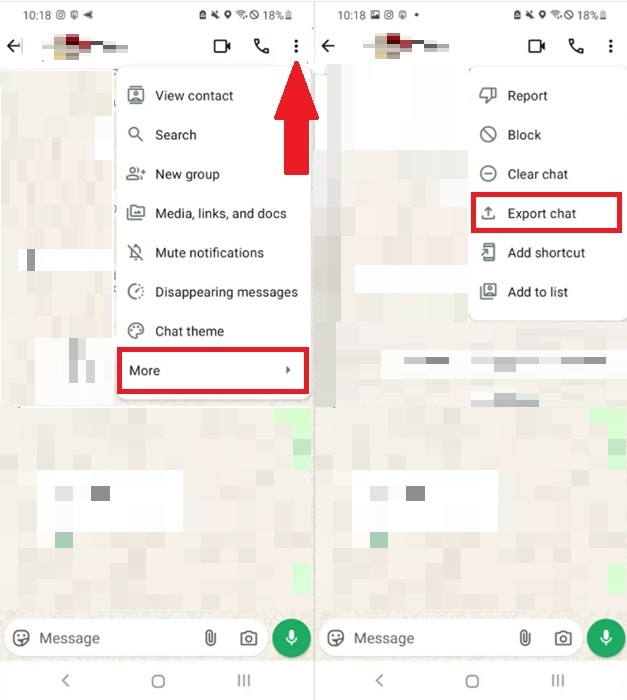
On iPhone, open the Copilot chat, tap the Copilot contact name at the top, and then tap Export chat. Once again, choose if you want media or not and where to export the chat to.
This creates a text file. No, it’s not the same as a direct export/import, but you do have several options once you have this text file.
Make Your Copilot Chats Useful Again
Trying to reference page after page of a .txt file isn’t easy. Depending on just how much you used Copilot in WhatsApp, you could have hundreds of pages to dig through.
Since these files aren’t structured as a Copilot conversation, you’ll have to get creative.
I personally recommend doing this on a computer if you have numerous chats. It’s just easier to read and organize this way.
If you have Copilot in Word, open your .txt file in Word and use Copilot within Word to organize your chats into summarized conversations with the prompt for each.
Whether you’re using the free or premium version of Copilot, you can also upload your .txt file within the Copilot app (desktop or mobile), Copilot in Edge, or the Copilot site.
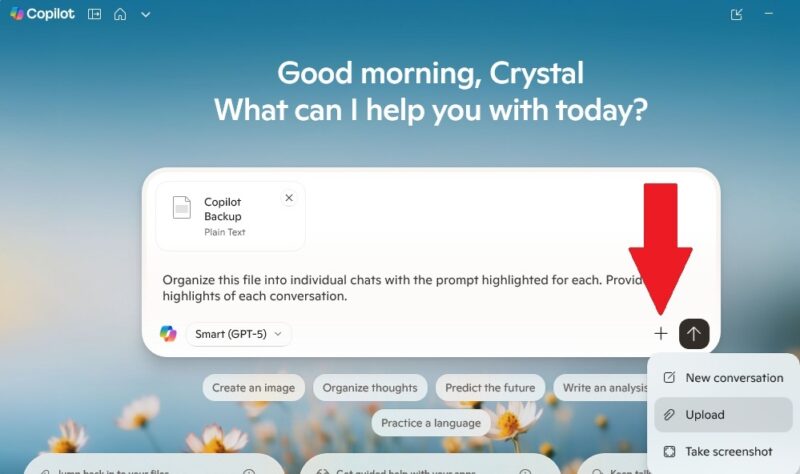
Now, it’s time for the real magic. Getting Copilot to turn this mass of text into something useful.
Try some of the following prompts:
- Organize this file (or text) into individual chats with the prompt highlighted for each. Provide highlights of each conversation.
- Pull out the Copilot prompts throughout this text file. Organize them into lists by topic.
- Organize every chat in this text by topic and provide highlights for each. Include prompts for future reference.
I’d then recommend uploading your most useful prompts and chats into Word files or PDFs as backups. Or, use Notion templates to better organize the results. This is also a great way to keep track of Copilot (or any other AI chatbot) prompts for future use. Once you learn these Notion productivity tips, you’ll find it’s a great companion to Copilot. If you’ve never used Notion before, see how you can use it to organize both your professional and personal life.








