I love playing games on my Android phone, but some are so ads-heavy, they’re impossible to enjoy. Instead of installing more app to block ads, I now use this one simple setting to block ads on Android.
Why Avoid Third-Party Ad Blocking Apps
I’ve tried apps to help block ads on games and sites on Android. The problem is apps often require me to root my device. Rooting isn’t difficult, but it may void your phone’s warranty. And, if you do it wrong, you could brick your device.
The other issue is most of these apps require you to pay for the full features. And, many I’ve tried don’t do a great job at blocking ads overall. They might work for sites, but not apps or vice versa.
I also value my privacy. Having a third-party app viewing everything I do doesn’t sit well with me. That’s why I turned to a simple, yet overlooked Android setting.
Use a Private DNS Provider
By default, Android uses the DNS (Domain Name System) provided by your mobile carrier or ISP. The default DNS doesn’t have any built-in ad filtering. You’re left to figure that out all on your own. Plus, your carrier doesn’t care if you spend the majority of your time waiting for ads to play.
A private DNS lets you override the default settings and use a custom option with built-in ad filtering. No matter how you connect, whether is mobile data or Wi-Fi, you get to block ads on Android.
Set Up Your Private DNS
I’m using AdGuard DND for my example, but you do have other options. No matter what you choose to use, the steps are the same.
On your Android device, go to Settings → Network & Internet → Private DNS. On Samsung (which I’m using), go to Settings → Connections → More Connection Settings → Private DNS.
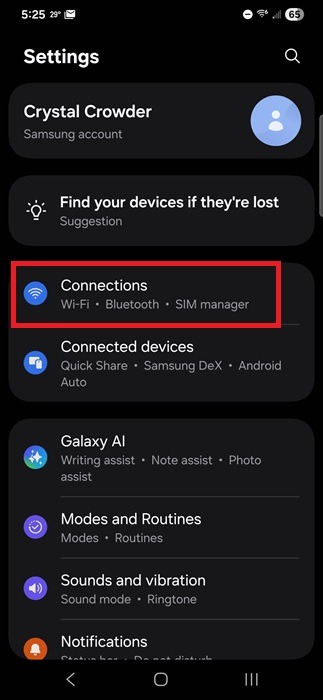

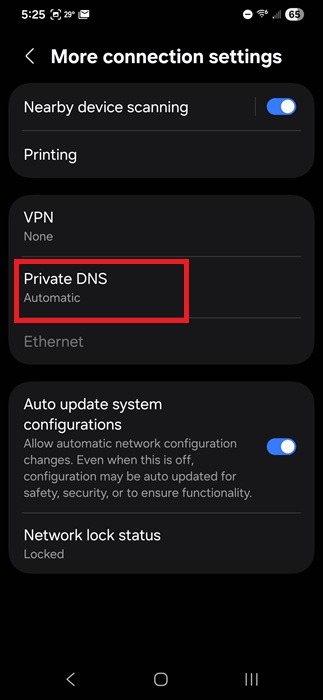
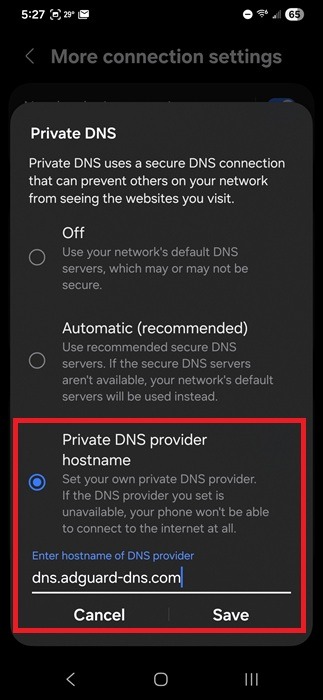
The default is Automatic or Off. Select Private DNS provider and enter the address of your private DNS provider. In this case, I’m using dns.adguard-dns.com. Tap Save to make the switch.
A few other options to use versus AdGuard DND, include:
- Control ID – p2.freedns.controld.com
- Mullvad DNS – adblock.doh.mullvad.net
- Quad9 – dns.quad9.net
Blocks Ads on Android, But Not Perfectly
I want to be completely upfront. A private DNS on Android isn’t perfect. Even DNS providers that promise a 100 percent ad-free experience still let some ads leak through. Part of this is due to the types of ads sites and apps use.
If the ad network or type isn’t on their block list, it’ll still pop up while you’re playing games or browsing. In that case, you can either try a different provider or just accept your life went from numerous ads to just a few.
For me, I was thrilled to be able to play some of my favorite games without an app every few minutes. Yes, I had some games with that many ads.
Issues With Ad Blocking on Android
Some sites and apps you use may no longer work when you enable private DNS. If you see a message that you must disable your ad-blocker to continue, you’ll have to first go back to the Automatic or Off setting in the Private DNS settings to engage with that site or app.
More and more sites and apps are doing this to protect ad revenue. I completely understand this. That’s why many apps and sites offer ad-free subscriptions. I highly encourage you to buy a subscription or donate to the site/app to help support development whenever possible.
One other issue is public Wi-Fi. Sometimes, it’s impossible to log in to the public Wi-Fi network with private DNS enabled.
I didn’t encounter too many issues when using private DNS myself. But, it can be cumbersome to keep changing the settings.
Other Options for Blocking Ads
If private DNS isn’t working right, or you hate going into your Android settings often, use an ad-blocking app on Android. These make it easy to quickly turn them on/off and whitelist certain sites/apps.
Built-in ad blockers in some Android browsers work well for blocking ads on websites, but not apps. These also let you whitelist sites.
One final option is to use an Android firewall with built-in ad-blocking and whitelists. This is a great way to also secure your device. Of course, there are multiple ways to secure your Android device beyond using a firewall.
While I understand why apps and sites use ads, I often block ads on Android to further protect my device. This helps protect me from some forms of tracking and potentially malicious ads. But, if you want an across the board ad-blocking experience with no special apps needed, take advantage of private DNS.