Virtual memory is a staple for PC stability, yet it remains an optional and usually disabled setting on most Android devices. If Android is designed to work well without it, what changes when you flip the switch? Here is a look at the technology behind virtual RAM and whether you should actually use it.
What is Virtual Memory in Operating Systems
RAM is a crucial component where all the active data resides for the apps you are using. If there is no free RAM left, your OS will crash instead of loading more data. To prevent this, the operating system uses a portion of your device’s storage as if it’s RAM.
This allows the OS to move inactive data to the slower storage drive, freeing up RAM (fast memory) for the tasks you’re actively using. When that inactive data is needed again, the OS simply swaps it back into RAM. This portion of storage drive space is called virtual memory, and it’s saved as a file on your drive called the pagefile in Windows or swap in Linux, macOS, and Android.
Is Android Memory Extension the Same as PC Pagefile/Swap
Technically speaking, the memory extension feature in Android is the same as the pagefile or swap feature on PCs. It is a dedicated space on your storage drive that the OS treats as RAM. However, the way Android handles data in RAM is very different from how PCs do, which makes the use of virtual memory distinct as well.

On PCs, the OS keeps adding data to the RAM as you open apps until it’s full and the system outright crashes. Android is much more aggressive in this regard. It doesn’t wait for applications to fill the RAM to full; at a specific threshold, it will just terminate the oldest app you opened. The RAM never gets full because the OS will just kill the old processes, even if that means losing user data.
If you extend memory on Android using virtual memory, the threshold to terminate processes will increase. Android will first move the app data to storage before terminating, allowing more apps to be open at a time. Of course, this also comes with slower performance due to the slower speed of the storage drive.
There is also a difference in hardware between an Android device and a PC. The UFS (Universal Flash Storage) is generally slower than an NVMe SSD in a PC, leading to slower performance when the OS uses it as RAM. Battery drain is another issue, as writing data to storage uses CPU cycles and keeps storage active, which is much more prominent on a phone compared to a laptop.
When Should You Turn on Memory Extension on Android
Android keeps memory extension disabled by default to prioritize fast performance all the time. However, there are scenarios where enabling memory extension would be beneficial. The main benefit of enabling memory extension is that your phone will keep more apps open by moving their data to the storage drive. This is very helpful if your phone keeps killing important background apps like the Maps app or the media player.
Of course, this also means your phone will slow down heavily as it’s now moving and exchanging data with a slower storage drive instead of terminating the app. However, this slowdown only happens when the RAM is actually getting full, which means it is more likely to happen on phones with lower RAM.
If your phone has 4GB or even 6GB RAM, then enabling memory extension is worth considering if having more apps open is a priority, and you can manage faster battery drain and slow performance. On most phones with 8GB+ RAM, it’s better to keep it disabled, as you’ll have sufficient RAM for important apps and you’ll get the best performance.
How to Turn on Memory Extension on Android
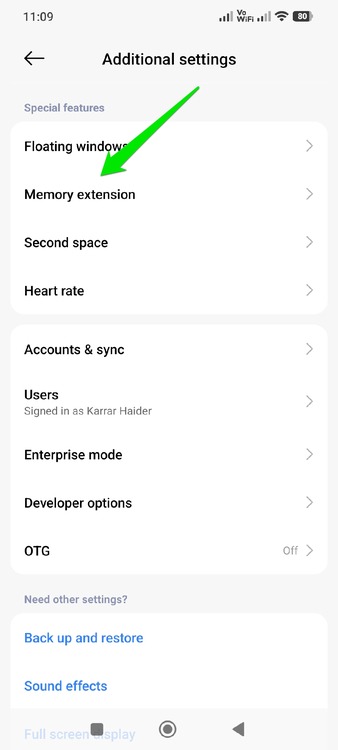
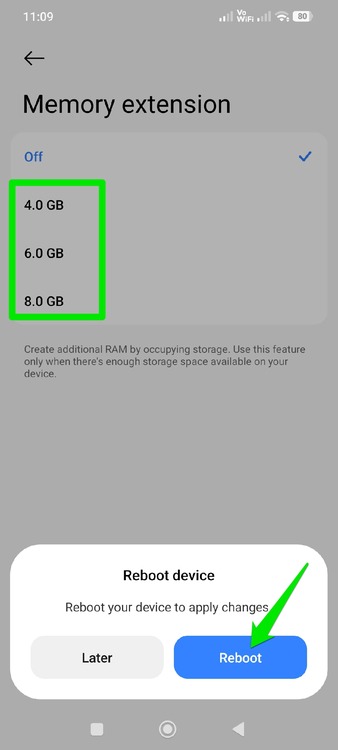
If you are interested in enabling virtual memory on your Android phone, you can easily do so from the phone’s settings. However, it has different names depending on the manufacturer, like RAM Plus on Samsung, Memory Extension on Xiaomi, and RAM Boost on Motorola devices. You should be able to detect it, as it always means “extending memory/RAM”.
In your phone Settings, you’ll find the feature either in the About Device section or under Additional settings. An easier way to find it is to just search “RAM” or “Memory” in the Settings search bar. When enabling, you’ll be provided with multiple sizes for virtual memory. Since this will directly take away your phone’s storage space, choose the value you can easily sacrifice. Your phone will restart to enable it.
Keep in mind that memory extension won’t help much with your active app. If you are playing a game that needs lots of RAM, enabling memory extension will heavily slow down the performance, as the game tries to depend on slower memory. In that case, it is better to optimize your Android for gaming.