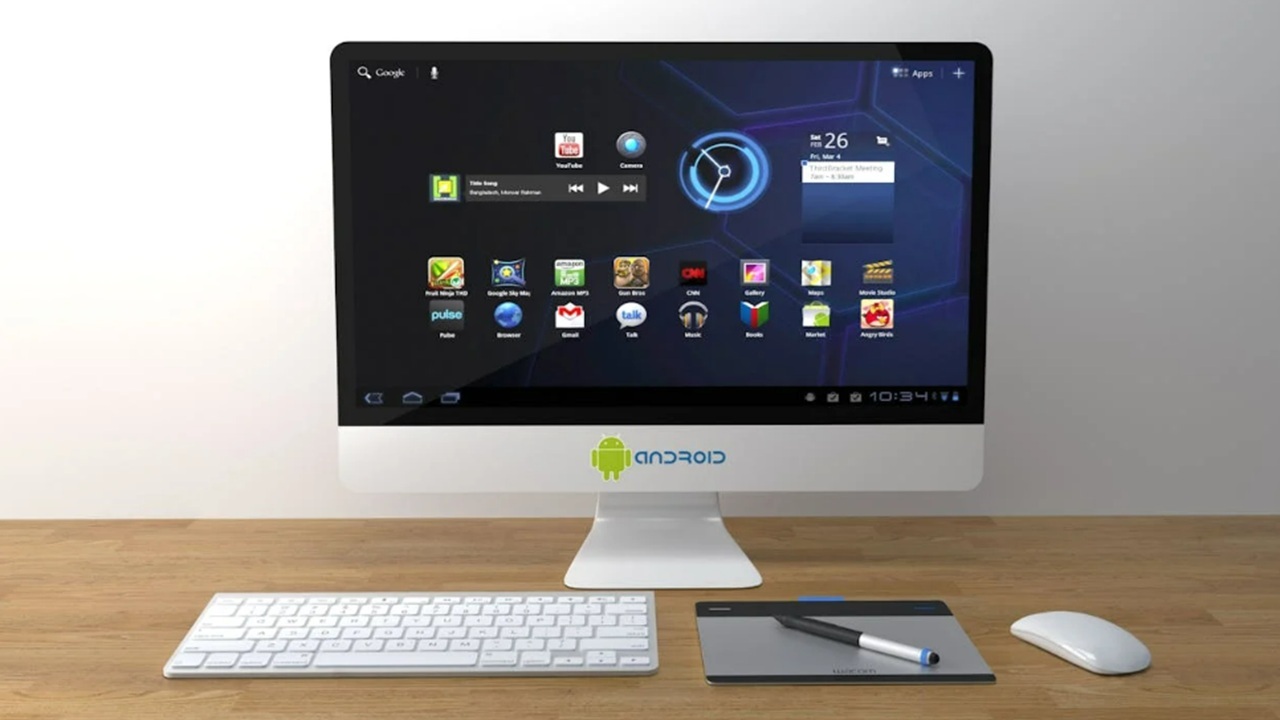
If you love your Android phone, why not bring some of the same features to your desktop. With the help of certain tools, you can turn any PC into an Android desktop. Then, enjoy your favorite mobile-only apps right on your desktop.
What Is Android Desktop?
Before we dive into comparing Android desktops, let’s talk about what they actually are. If your first thought is your computer will look like your mobile phone, you’re pretty much right. Basically, the system itself is similar to what’s on Android smartphones but designed to work with desktop/laptop hardware and environment.
Despite the word “desktop,” an Android desktop is a full operating system, just like Linux or Windows. You can run it as your only operating system, dual boot it, or even create a Live CD (or USB) to run the OS independently without installing anything on your computer.
Who Can Use It?
Typically, Android systems are made to work with Windows PC hardware, though they may also work well with Linux systems. Most are not made to natively install on Macs, though. For Macs, you’d be best to use a Live CD/USB option or try an Android emulator.
While each desktop has its own requirements, they’re usually made to function well on older PCs, so you’re not going to need the same higher-end requirements as Windows 11 does. Ideally, you’ll need 8GB to 20GB for the system itself. You can often get by with 1GB RAM.
What’s the Point?
There are two main purposes of Android desktops. First, an Android OS requires far less resources than Windows and more robust Linux systems. This makes it perfect for breathing life back into an old desktop or laptop.
Secondly, they can come in handy if you just want to enjoy your favorite Android apps on a larger screen, such as games and productivity apps. Since some apps are mobile-only, Android desktops give you the chance to use them on your computer versus just a smartphone or tablet.
If you just want a larger screen, consider casting your Android screen or just connecting it to an external monitor. You can even just use your Android device as a controller for your Windows PC.
1. Android-x86 – Ideal for Tinkers and Old Hardware
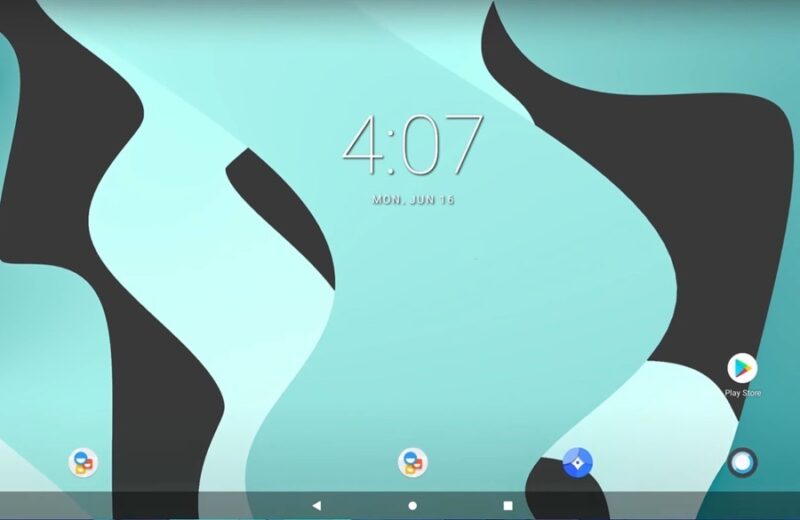
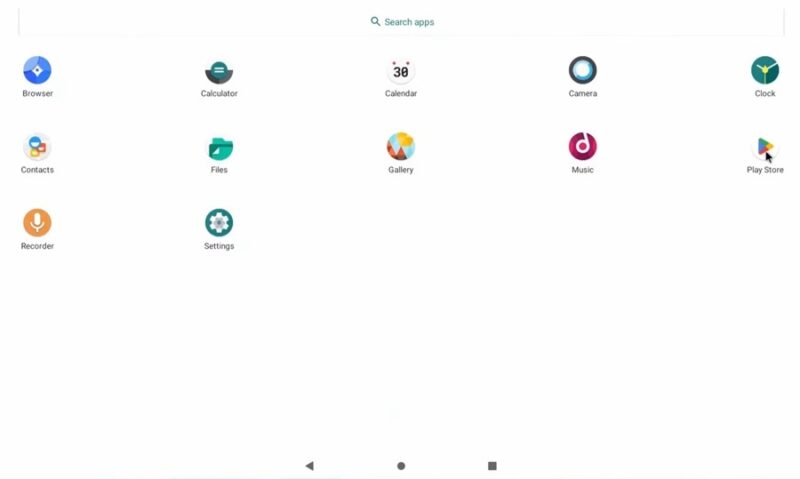
While Android-x86 used to be a no frills choice, later versions feel much more like today’s Android, just on your desktop. Easily scroll through installed apps, visit the Play Store to install new apps, and adjust your settings.
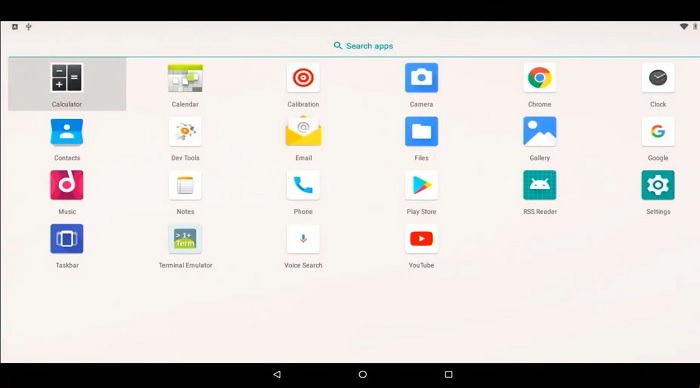
App-wise, you get YouTube, Chrome, Google, calendar, and a handful of other apps, but it’s still pretty barebone. You won’t get very far without logging into Google Play and grabbing what you need from there.
The only main issue is the last stable version is for Android Oreo (Android 8). You’ll likely run into issues with newer apps that don’t support older versions of Android. One workaround is to update the Play Store immediately when you install Android-x86. This may let you download some newer apps.
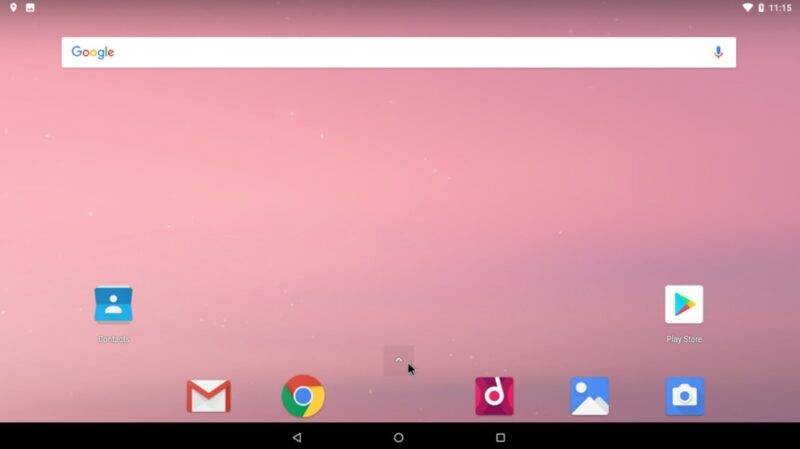
Another option is to sideload older versions of apps. Just make sure you’re doing it from trusted sources.
2. FydeOS – Perfect for ChromeOS Users
If you love ChromeOS, you’ll probably enjoy FydeOS. It’s easily one of the best Android desktop environments and blends Android and ChromeOS for a unique, yet familiar experience. It works well on older hardware, so it’s a great way to revive an older Windows PC. Or, give it a try using the VMWare version.
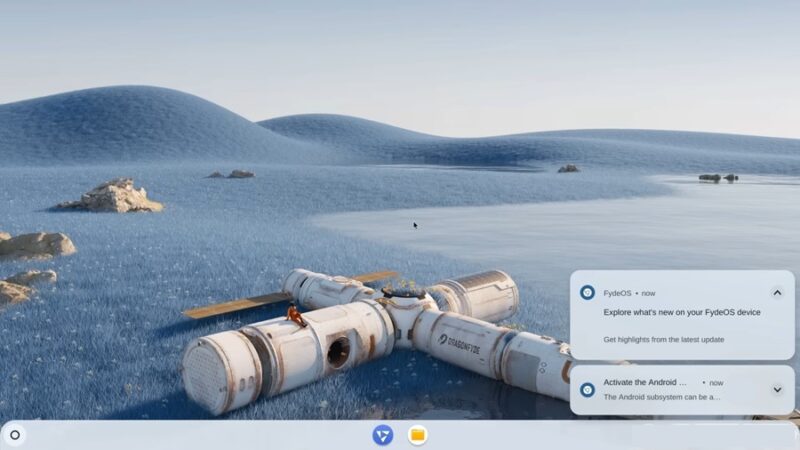
Unlike Android-x86, it’s got a much more modern feel and is actively updated. You’ll find ample support for both web and Android apps (via Google Play Store), along with most Linux apps.
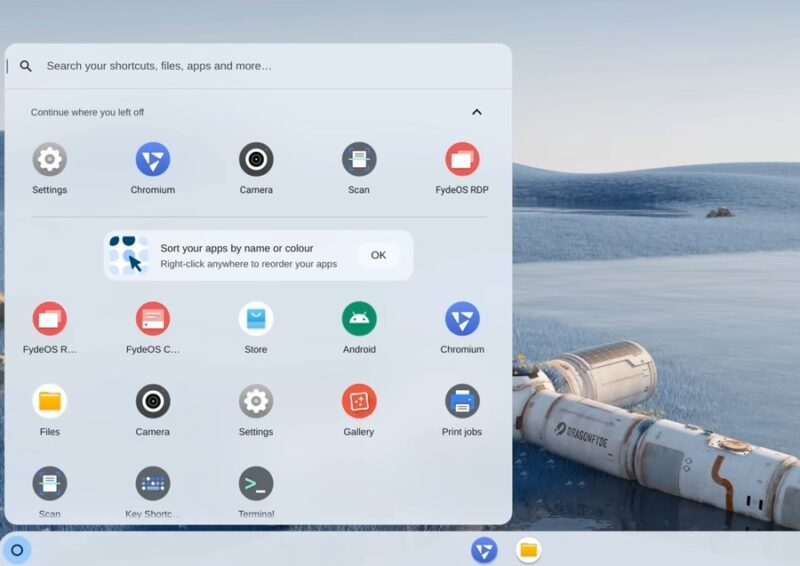
It’s not ideal for high-end gaming, but casual Android games work fine. It’s free to use, though a premium enterprise version is available. If you want to help support development, you can purchase a FydeOS laptop.
3. Waydroid – Android Container for Linux Users
For Linux users, Waydroid is the way to go. The free and open-source Android desktop lets you access most Android apps on GNU and Linux-based platforms. Instead of replacing your OS, Android is run in a container that has full access to your system’s hardware.
Since it’s not another OS, you’ll still see both your Linux and Android apps together. It’s a fully integrated system. Think of it as Linux, just with Android baked in.
Waydroid uses a version of Android based on LineageOS, which uses Android 11. So, you’re not getting the latest Android features. Some apps that require later versions may not work properly. But, it’s still a good way to have Android within Linux.
4. Android Emulator (AVD via Android Studio) – Mainly for Developers and Testing
Unlike other Android desktop options, Android Emulator (AVD via Android Studio) isn’t designed for casual users wanting to play their favorite Android games. Instead, this is for developers wanting to test their apps. The emulator creates an AVD (Android virtual device) for you to test with.
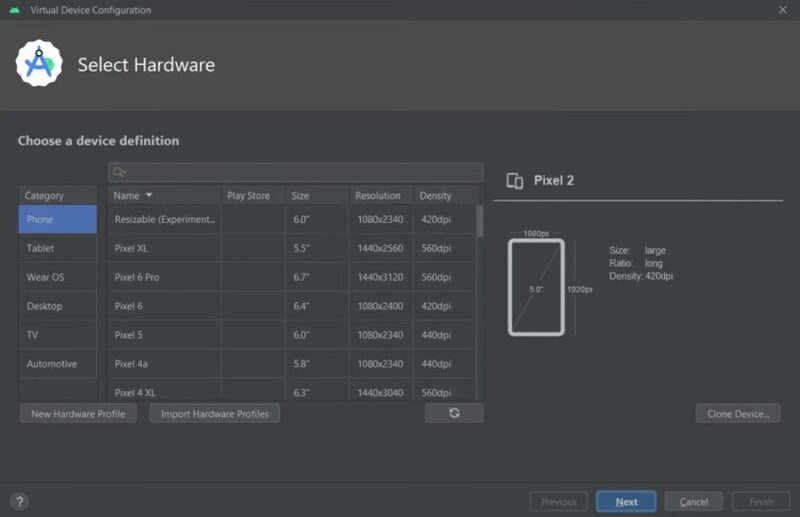
You’ll first need Android Studio. Android Emulator is one of the available tools to let you create AVDs. Then, you’re able to test your apps on various devices to see if they work properly. The benefit is this options supports the latest version of Android.
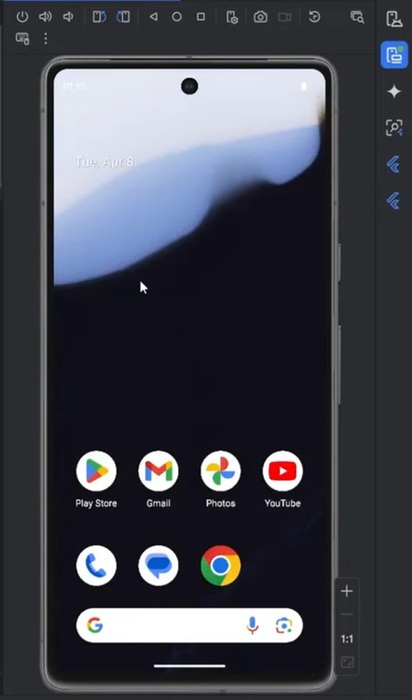
It works on Windows, macOS, Linux, and ChromeOS, though your device must meet certain hardware requirements, such as 16 GB of RAM and 16 GB of disk space. While you can use apps from the Google Play Store, the setup may be too complex for non-developers, especially with other Android desktop options available.
Frequently Asked Questions
Isn’t an Android desktop the same as ChromeOS?
No. ChromeOS is only designed to work on specific hardware and is mainly for web access. You’re also limited to the Chrome Web Store apps. While there are similarities to Android, ChromeOS isn’t identical to what you might use on your smartphone.
Android desktops give you more options, such as more apps from the Google Play Store. Plus, you can dual-boot with an existing OS, replace your current system, or boot from an external source. Think of Android desktops as being more flexible and compatible with far more devices.
If you want a quick and easy setup that’s regularly updated and may be more secure overall, ChromeOS on a Chromebook is the simplest approach. But, if you want to use an existing device and have more customization options, an Android desktop is best.
Are Android desktops secure?
Consider an Android desktop to have the same security as an Android smartphone or tablet. Using a desktop that’s regularly updated is your best option to prevent security flaws. However, the apps you use and the sites you visit can all compromise your system’s security – just as with any operating system.
What should I do if I just want to test an Android desktop?
If you just want to take an Android desktop for a test drive, you don’t want to wipe your hard drive first. Instead, install the desktop on a Live CD or USB drive and boot from that. You’ll get to see how the desktop system functions without changing anything on your PC.
On the other hand, if you just want to use Android apps on Windows without a dedicated Android OS, see how Windows 11 lets you do just that.








