Following the recent rollout of Photoshop on Android, Adobe is back with another exciting update for mobile users. The company has officially launched its generative AI platform, Firefly, on both Android and iOS. The app is free to use with some limits. Here’s how to try it for yourself.
Getting Started with Firefly App
First, install the Firefly app on your Android or iPhone. Once you launch the app, create an account or log in with an existing one. This way, you’ll be able to easily sync your creations from the Firefly mobile app with the desktop version or other Adobe apps via the Creative Cloud.
Adobe Firefly app provides easy access to text-to-image, text-to-video, and image-to-video tools. It also supports Generative Fill and Generative Expand, features you might already be familiar with from Photoshop.
On top of offering access to its own generative models, Firefly allows you to choose from several third-party AI models, such as Google’s Imagen 3 and 4 for image creation, Veo 2 and 3 for video generation, and OpenAI’s image generator (of course, these are paid options).
As expected, some AI features on mobile will require spending Firefly credits, which you can get through a Creative Cloud plan or a separate Firefly subscription.
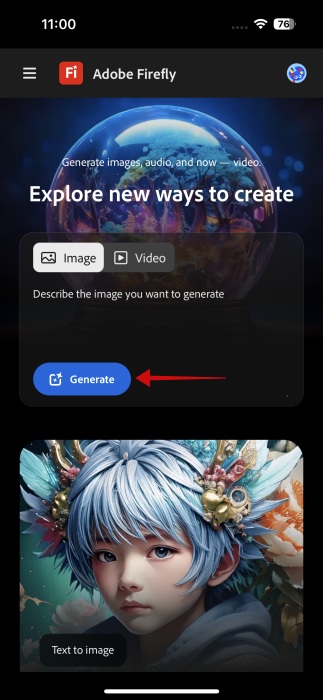
To start a project, swipe through the app’s main screen to browse the available tools. At the very top, you can jump right to generating an image or video. Type your prompt and click the Generate button.
Tip: read all about the best ways to use generative AI in your life for free.
Generating Content with the Firefly App
Write your prompt with as many details as possible. Then allow Firefly to do its thing. For this example, we’re generating an image.
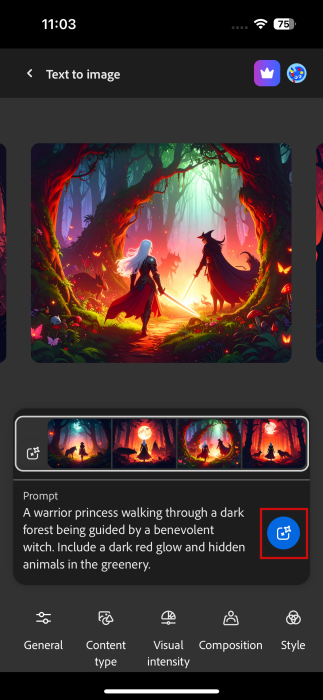
Firefly will quickly generate four versions for you, which you can then fine-tune, using the menu at the bottom. If you need more alternatives, you can try pressing the generate button once again, but keep in mind it will cost you a credit.
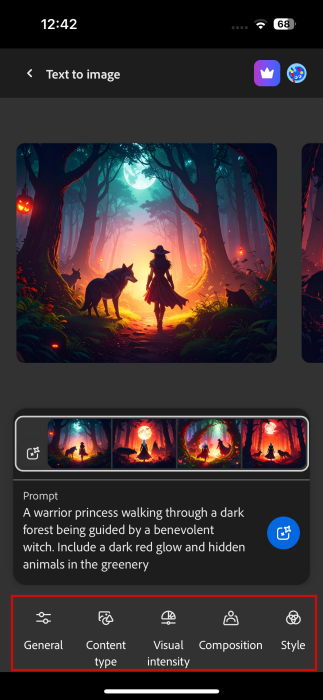
From the menu, you can change the generative model by pressing the General button and switching from there.
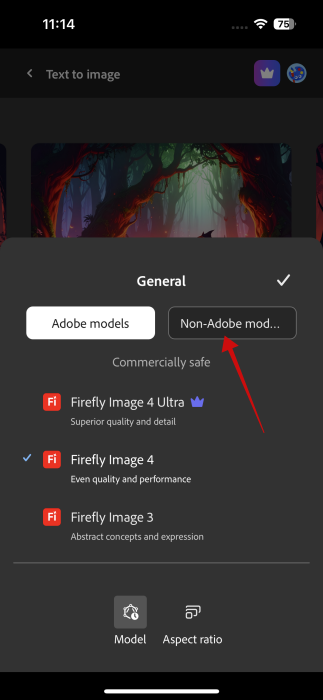
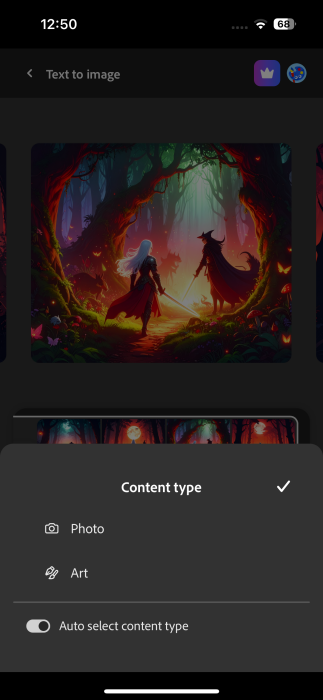
You can also adjust the Content type and opt for whether you want Firefly to generate straight-up Photos or Art.
For those looking for more subtle imagery, it’s possible to play with the visual intensity of the characteristics in your image.
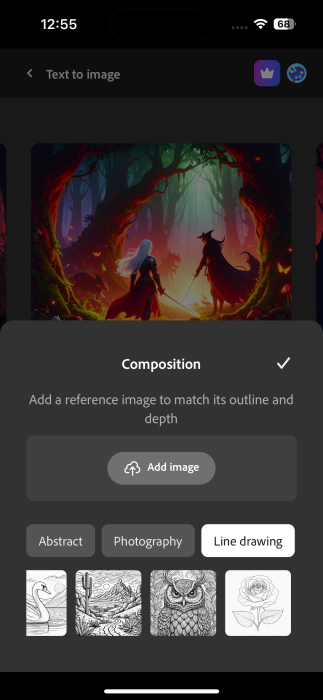
In addition, you can specify the Composition type you want Firefly to create. For instance, you can turn the image into a line drawing or abstract painting.
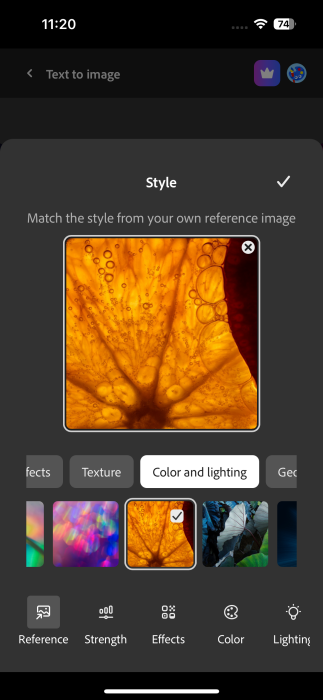
Alternatively, you can even ask Firefly to create the image in a different Style. For example, we opted to add a Color and lighting style.
Note: you can also add effects and change various other parameters such as color, lighting, and more.
You will have to press the Generate button again to have Firefly apply your selection. Here’s one of the results made in that particular style. As you can see, Firefly made some profound changes to the initial image.
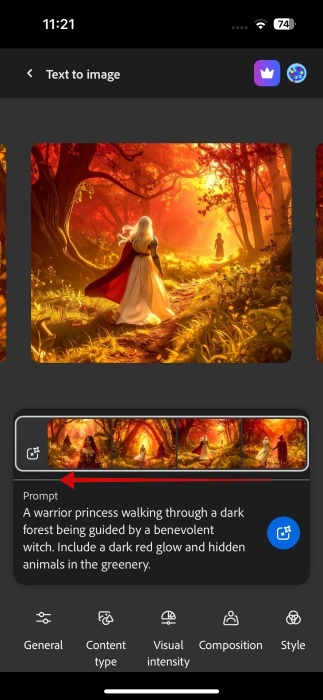
If you want to go back to the previous images you’ve generated, simply swipe left on the carousel sitting on top of the Prompt window.
Now, if you’ve identified an image that you like, you can modify it further. Tap on it and press the Edit button. Alternatively, if you’re happy with it, you can download it from there.
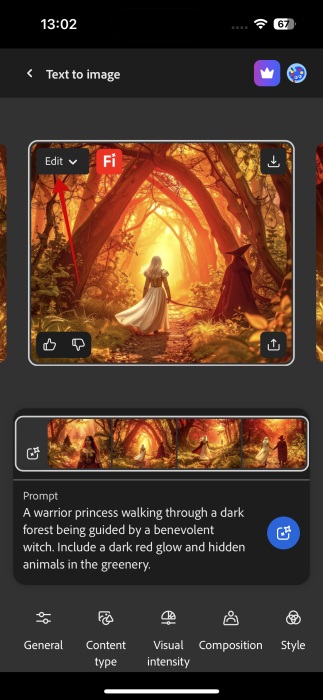
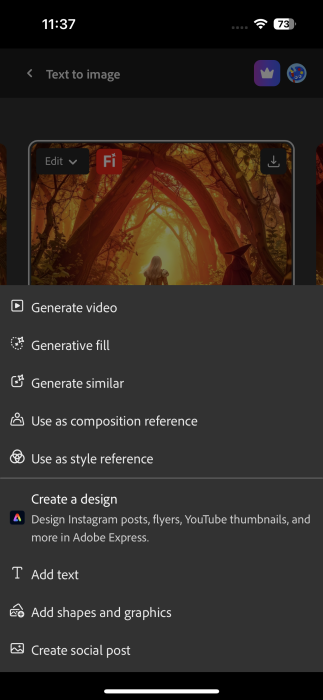
The Edit feature opens up a different menu that allows you to use tools like Generative fill or simply Add text, as well as shapes and graphics. Moreover, you can ask Firefly to create a video for you inspired by the image.
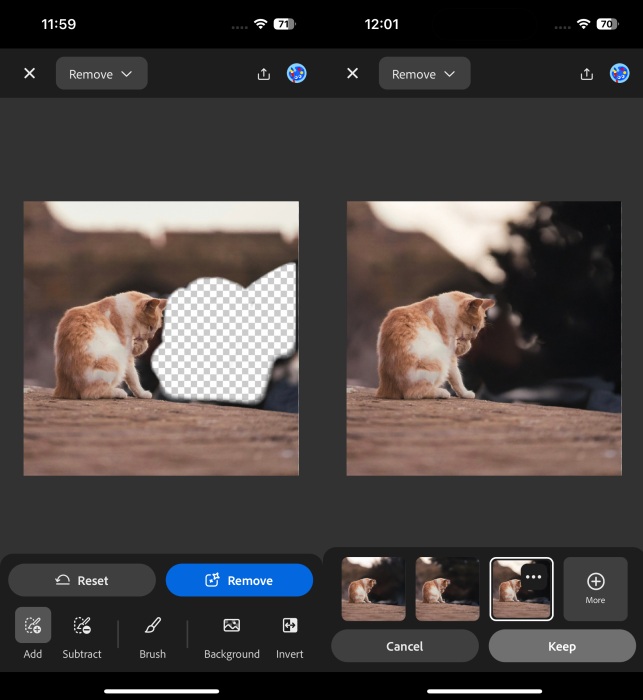
Here, we opted to use the Generative fill option to expand the image above. Check one of the results below, which looks pretty good (albeit not perfect.) If you’d like to retain the edited image, press Keep.
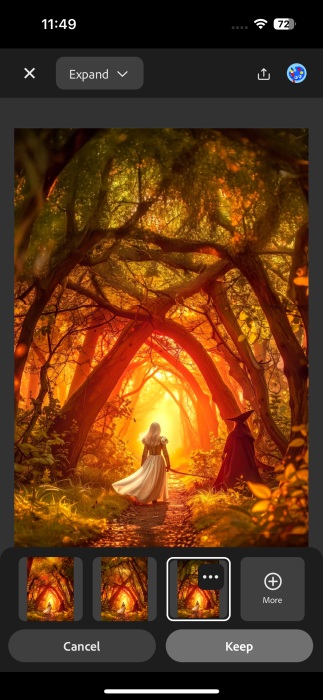
Of course, you can use Generative fill for all kinds of additional tasks, such as removing objects or adding new ones.
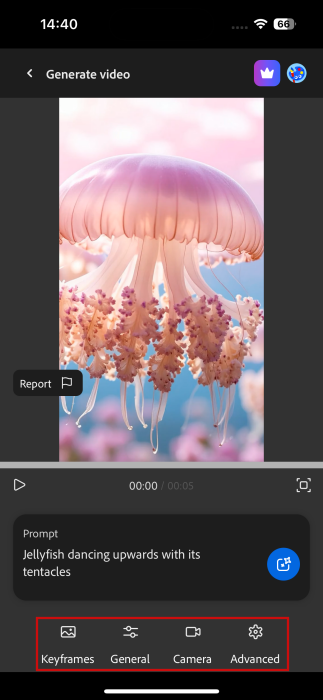
If you’ve opted to generate a video, the menu below will give you options to add keyframes, adjust camera settings and angles and more.
FYI: did you know Samsung now lets you shop from your Galaxy phone’s lock screen? Here’s how to start using Glance AI.
Getting Inspiration in Firefly App
Don’t have any ideas? No problem, swipe all the way down until you find the Find inspiration in the gallery section. Or press the hamburger menu in the upper left corner and select Gallery.
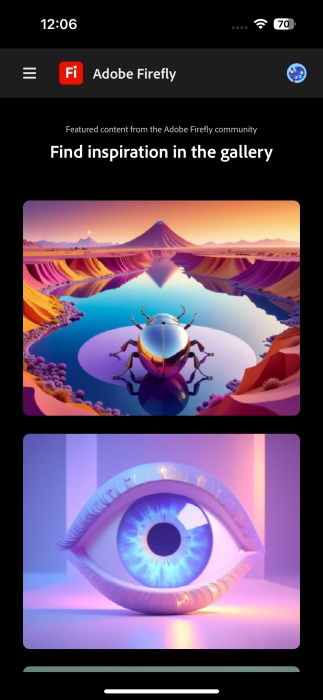
Here you can browse various assets that were created using Firefly. Tap on one to open its page and see the prompt that was used to create it. It will help you come up with your own inputs.
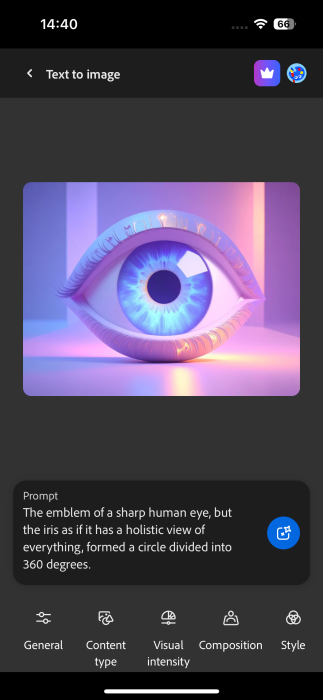
You can also go on and edit the images or videos using the menu at the bottom and completely transform them in the process.
Anyway, Firefly for Android and iOS offers 10 free generations per month per account. If you’d like to unlock more, you will have to upgrade to a paid plan.
The range of Adobe’s mobile apps has been steadily growing over the years. That said, you might also want to get acquainted with Adobe Premiere Rush, a worthy short-video editing alternative for CapCut. Or you can check out Lightroom, which we featured in our list of one of the best mobile photo editors.