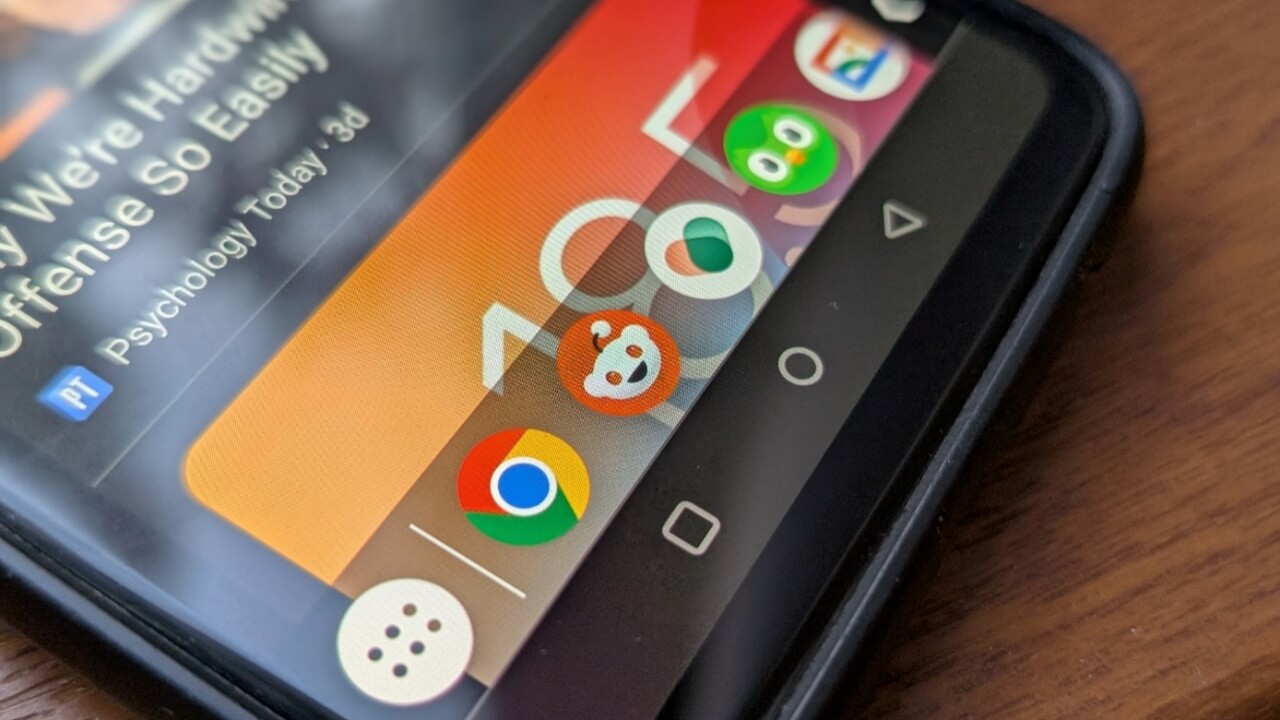
Accessing your favorite apps on your phone will soon become easier. Google is working on a taskbar feature for phones, just like the one you can find on some tablets. While it isn’t officially available, learn how to get a taskbar on your Android without the wait.
Good to know: did you know that you can play Google Play games on your PC? Learn how to begin your gaming session.
Google Working on a Taskbar for Android Phones
Google has been experimenting with a taskbar feature for Android phones since the release of Android 15 Beta 4. As an adapted version of the tablet taskbar, the phone taskbar features a button that offers quick access to six of your most recent apps, as well as apps of your choice.
While it’s unlikely the feature will debut in Android 16, it may become available at some point. In the meantime, if you’re eager to try a taskbar on your phone, read on to learn how to get the feature before everyone else.
Add a Taskbar to Android Phone Natively
If you have a Google Pixel phone, you can customize some of your Android’s settings to get a taskbar view on your phone. However, note that this solution will require you to spend some time reorganizing your home screen.
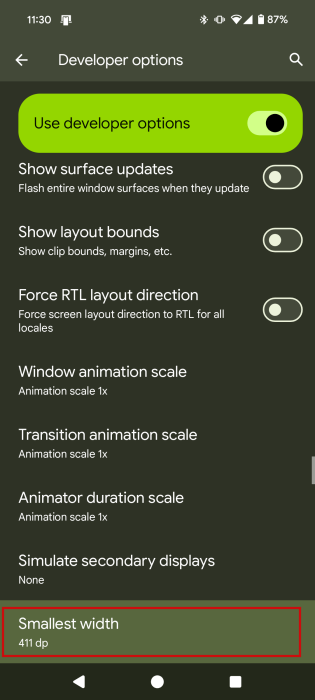
To try this workaround, you will need to have Developer Options enabled. Once enabled, go to System -> Developer Options, and use the search bar at the top to look for “smallest width.” Jot down its current value.
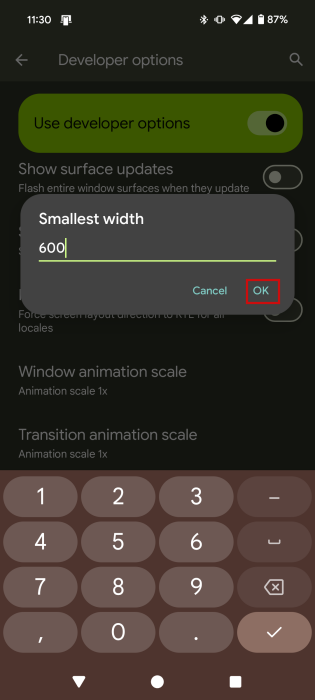
Tap the option, input 600 as the value, then select OK.
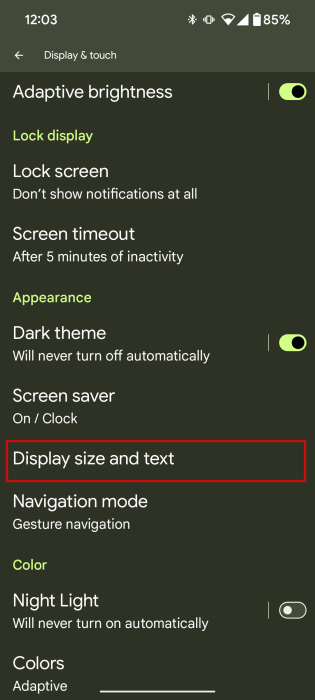
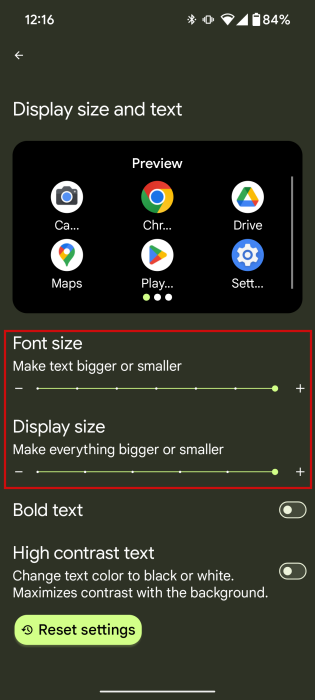
Go to Settings -> Display & touch -> Display size and text.
Drag the sliders for Font size and Display size to the maximum.
Exit Settings to see your taskbar at the bottom.
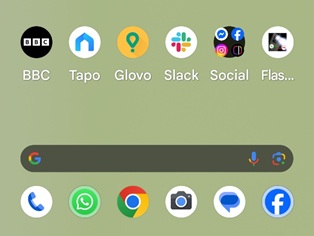
Rearrange the apps on your home screen for a better view.
Note: if the navigation bar is active, we suggest disabling it and switching to gesture controls, as it will show up in the taskbar. Going to Settings -> System -> Navigation mode.
The taskbar will show six recent and suggested apps. If you’d like to add a certain app, drag and drop it into the last slot on the taskbar. You can also add app folders to the taskbar by dropping an app on top of another.
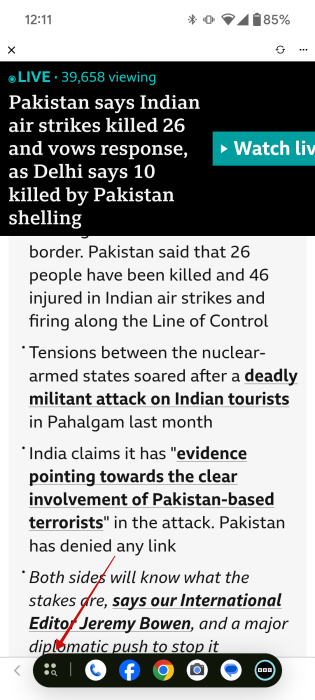
Once you’ve opened an app, swipe up from the bottom of the display to bring up the taskbar and switch to another app (or search for another app on your phone).
Tip: learn how to use Android’s palm timer to take selfies and photos hands-free.
Add a Taskbar to Android with Third-Party Apps
If the workaround above seems too troublesome, you can try a ready-made solution by installing one of the following apps.
1. Taskbar
Taskbar is a straightforward app that allows you to add an app menu at the bottom of your Android screen (or in any other position).
Install and launch the app on your device. On the main screen, tap to turn on the toggle at the top. You’ll need to grant a few permissions for the taskbar will appear at the bottom, featuring the most recent apps you’ve opened.
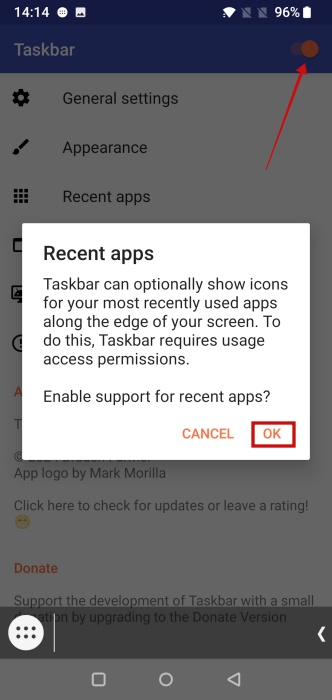
You can hide the taskbar by pressing the arrow at the end of the app row.
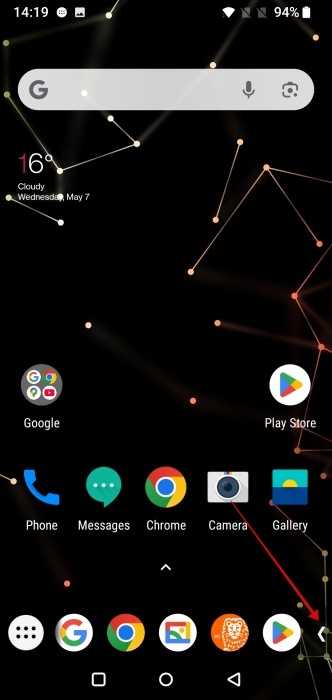
You can also position the taskbar anywhere you want. Go to General settings -> Position on the screen and select a suitable option.
If you frequently use a specific app and want it to always be present in the taskbar, pin it there by long-pressing it and selecting Pin to recents.
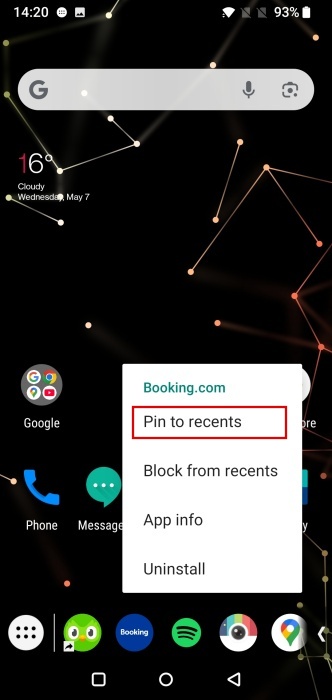
Quickly search for an app by pressing the white button in the left corner of the taskbar. The taskbar will stay visible, even if you have another app open and in full screen on your device.
2. Microsoft Launcher
Another option for adding a taskbar to your Android is to install a launcher app that supports it. For instance, the Microsoft Launcher calls this option a dock.
Download and install Microsoft Launcher on your phone. Launch it and set it as your default launcher app.
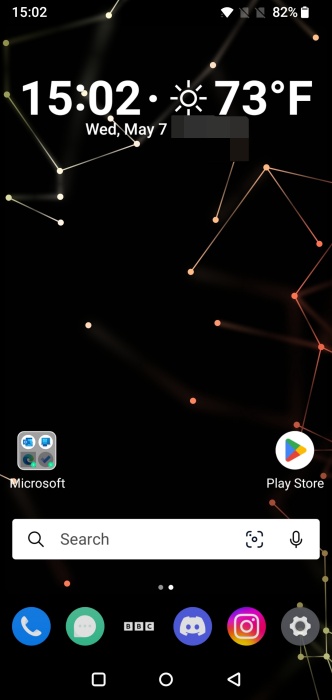
The dock will appear at the bottom and with a row of six apps. To customize the look of your dock, long-press on the home screen and press on Launcher Settings.
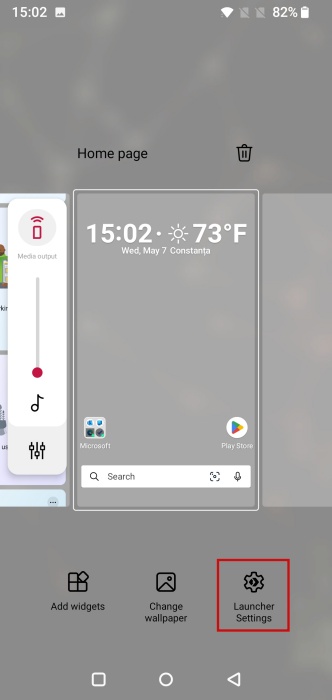
Select Dock in the menu.
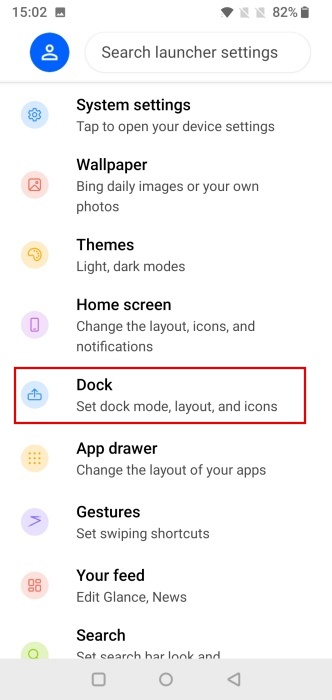
From here, you can customize the number of rows and columns in the dock, as well as a few other aspects, such as showing the background.
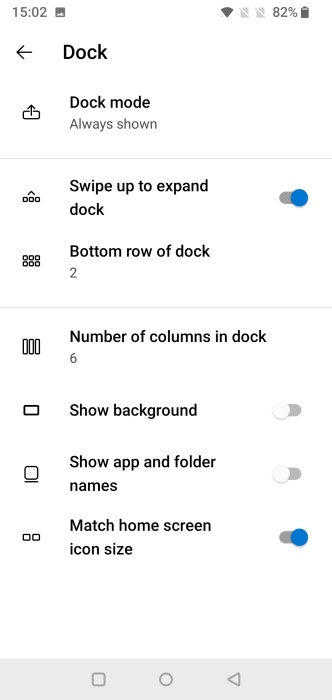
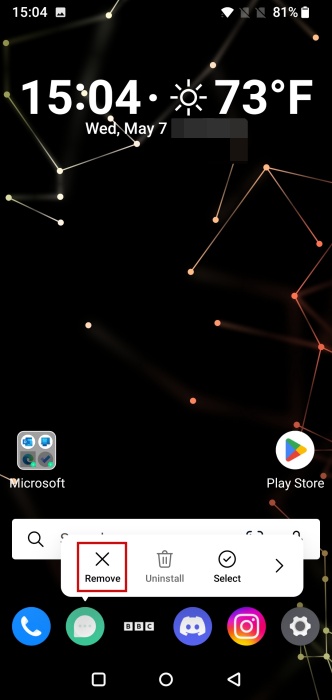
To add a new app to your dock, delete one of the existing icons by long-pressing on it and selecting Remove.
Find the app you want to add in the app drawer, and drag and drop it in the dock.
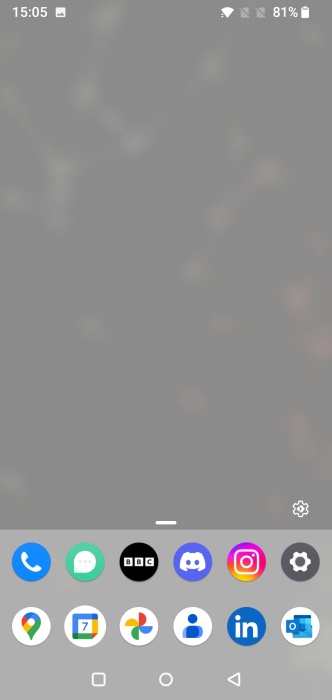
Swipe up to view additional rows of apps in the dock.
3. Floating Apps
While Floating Apps doesn’t add a traditional taskbar to your Android, it allows you to access apps and tools quickly from your home screen – all in separate windows.
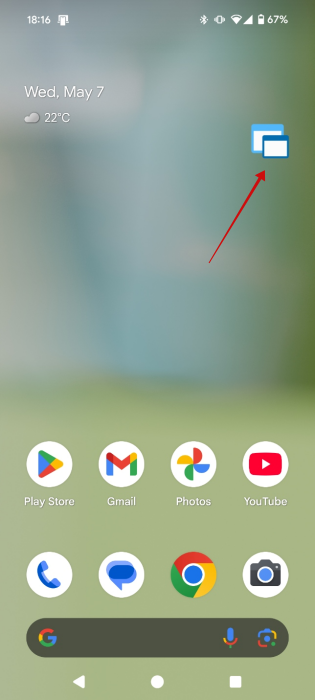
Download and install the app on your device. Launch the app and install the necessary permissions. A floating icon will appear on your screen. Place it anywhere, tap on it and select an action.
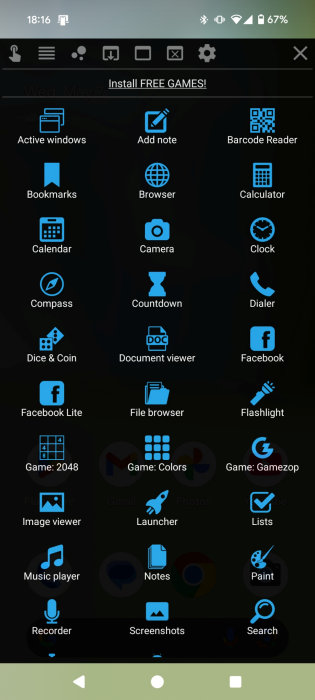
There are multiple options, such as launching a browser (the app’s proprietary option), adding a note, barcode scanner, or clock.
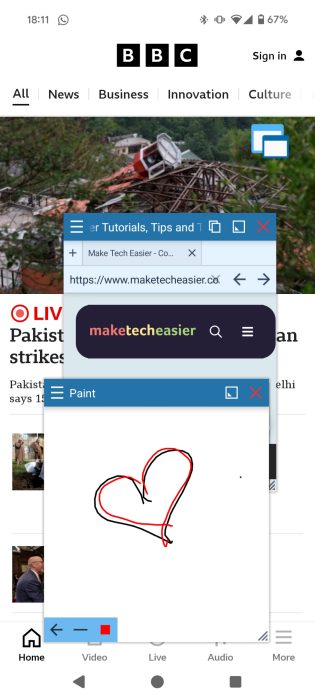
They will open in separate windows, so you can easily multitask. You can even launch installed apps. However, they will open in full screen.
Note: there is already a feature that allows you to float normal apps, but it’s experimental and requires a bit of technical know-how.
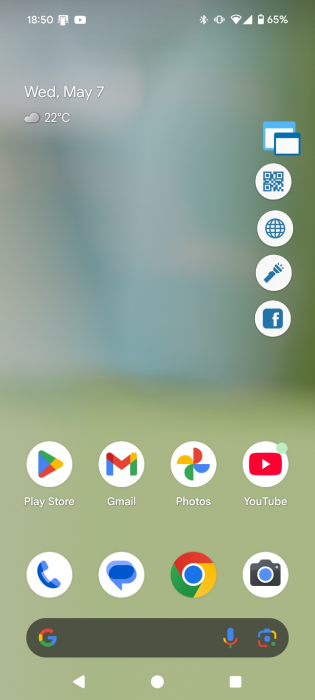
Minimizing the tiny windows causes them to turn into bubbles, which you can arrange anywhere on your screen in a taskbar-like fashion for later access. They will remain on the screen even as you continue to open other apps on your screen.
If you’d like to continue on this Android customization journey, these suggestions will improve your overall experience without rooting your phone.








